
Want to fill your room with awesome sound from multiple Bluetooth speakers? It’s easier than you think! This guide shows you how to connect two or more speakers at once for an immersive audio experience, making your music, movies, and games sound incredible.
Hey there, tech explorer! Max here from AffTechy.com, your go-to spot for making tech simple and fun. You know, sometimes you just want to blast your favorite tunes or get really into a movie. Having one speaker is good, but imagine that sound filling your whole space, coming from everywhere! That’s where pairing more than one Bluetooth speaker comes in, and trust me, it’s a game-changer.
I remember when I first thought about connecting multiple speakers. It sounded super complicated, like something only tech wizards could do. I worried about wires, confusing settings, and if my phone would even handle it. But guess what? It’s not scary at all! With a little know-how, you can easily create a surround-sound experience right in your living room.
We’ll walk through everything together, step by step. You don’t need to be a tech genius. We’ll keep it easy, friendly, and super practical. Ready to unlock the magic of multi-speaker sound? Let’s dive in!
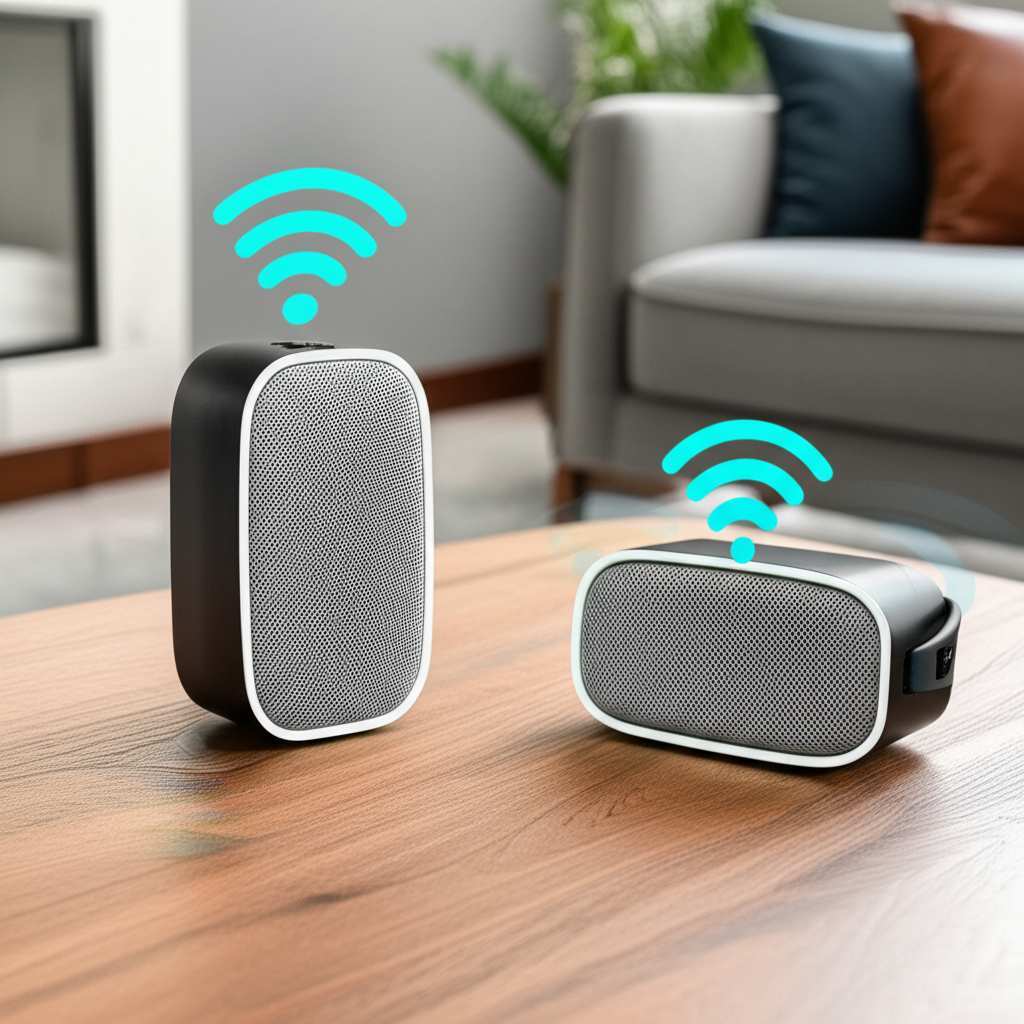
Why You’ll Love Having More Than One Bluetooth Speaker
Imagine this: You’re hosting a party, and the music needs to reach every corner of your backyard. Or maybe you’re watching an action movie, and you want the explosions to feel like they’re all around you. That’s the magic of multiple Bluetooth speakers. They spread sound out, creating a richer, more immersive atmosphere.
It’s not just about volume; it’s about quality too. When you use two or more speakers, you can create a stereo effect. This means sounds like music will feel more dynamic and detailed. You’ll hear instruments and vocals with more depth. It’s like upgrading from a simple radio to a full concert hall experience, right in your home!
Plus, it’s surprisingly easy to set up once you know the tricks. We’ll cover the different ways you can connect them, whether your speakers support it natively or you need a little help from your phone. Get ready to seriously boost your audio game!
Understanding How Bluetooth Speaker Pairing Works
Bluetooth is a wireless technology. It lets devices talk to each other over short distances. Think of it like a secret handshake between your phone and your speaker. They find each other, exchange a code, and then they’re connected!
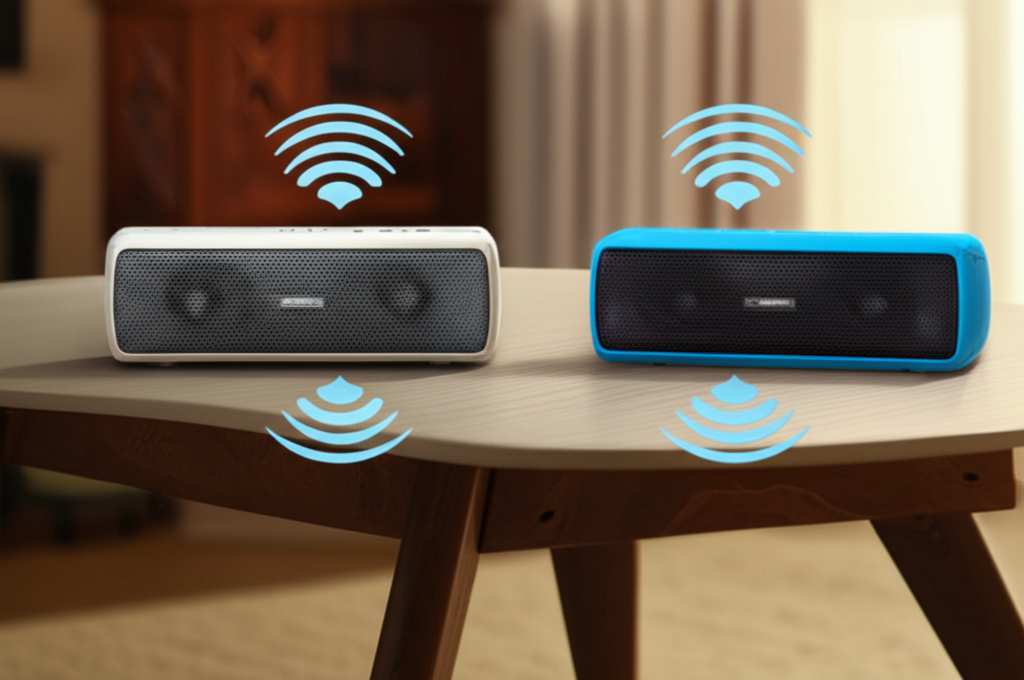
Normally, your phone or tablet connects to one Bluetooth speaker at a time. It’s designed that way for simplicity. But some speakers have special features that let them connect to each other, or your device can manage multiple connections. We’re going to explore both of these cool options.
It’s all about sending audio data wirelessly. Your phone sends the music signal, and the speakers play it. When you pair more than one, your device either sends the same signal to all of them, or it splits the signal for a true stereo experience. Pretty neat, right?
Method 1: Using Your Speakers’ Built-In Pairing Feature
Many modern Bluetooth speakers are designed to work together. This is often called “TWS” (True Wireless Stereo) or a similar brand-specific name like “Party Mode” or “Stereo Pair.” This is usually the easiest way to get a stereo sound.
Here’s how it generally works: You turn on your first speaker and pair it with your phone as usual. Then, you turn on your second speaker. You then press a specific button or combination of buttons on one of the speakers to make them find each other. Once they’re linked, they act as a stereo pair.
Your phone will then see this pair as a single audio device. This means you get a true left and right channel, giving you that amazing stereo sound. It’s like having a mini sound system without any extra apps or complicated settings.
Steps to Pair Speakers with Built-In TWS
Let’s break down the common steps. Keep in mind that exact button presses might vary slightly between brands, so it’s always a good idea to check your speaker’s manual if you’re unsure.
1. Power On Both Speakers: Make sure both of your Bluetooth speakers are charged and turned on.
2. Pair First Speaker to Your Device: Turn on Bluetooth on your phone or tablet. Put your first speaker into pairing mode (usually by holding down the Bluetooth button until a light blinks or you hear a sound). Select the speaker from your device’s Bluetooth list to connect.
3. Initiate TWS Pairing: On one of the speakers (this is important!), press and hold the TWS or pairing button. You might hear a confirmation sound or see a light change on both speakers. This tells them to connect to each other.
4. Confirm Connection: Wait a few moments. You should hear a confirmation sound from both speakers, or the indicator light on one speaker might change to show it’s now the “master” speaker connected to your phone, and the other is the “slave.”
5. Enjoy Stereo Sound: Your phone should now show only one speaker device name. Play some music, and you should hear it coming from both speakers, with distinct left and right channels!
Checking for TWS Compatibility
Not all speakers have this feature. How do you know if yours do?
Read the Box or Manual: This is the best place to start. Look for terms like “TWS,” “Stereo Pairing,” “Party Mode,” or “Link Multiple Speakers.”
Check the Manufacturer’s Website: You can usually find detailed specs and features for your speaker model online.
Look for a Dedicated Button: Many speakers with TWS have a button specifically for this function, often marked with a speaker icon or “TWS.”
Fun Fact: The “True Wireless Stereo” technology allows speakers to sync their audio streams without any physical connection, offering a truly wire-free stereo experience. It’s a clever use of Bluetooth!
Method 2: Using Your Phone or Tablet to Connect Multiple Speakers
Sometimes, your speakers might not have a built-in TWS feature. Or maybe you want to connect speakers from different brands. In these cases, your phone or tablet can sometimes help manage multiple Bluetooth connections. This method is more about having sound from multiple sources rather than true stereo separation.
This capability depends heavily on your device’s operating system (iOS or Android) and its Bluetooth version. Newer devices are more likely to support this. It’s often referred to as “dual audio” or “audio sharing.”
With this method, you connect each speaker to your device individually. Your device then sends the same audio stream to both. You won’t get the distinct left and right channels of TWS, but you’ll still have sound coming from two places, which is great for filling a larger area.
Connecting Multiple Speakers on Android
Android has made it easier to connect two Bluetooth audio devices simultaneously, especially on newer versions.
1. Turn on Bluetooth: Make sure Bluetooth is enabled on your Android device.
2. Pair First Speaker: Put your first speaker into pairing mode and connect it to your phone.
3. Pair Second Speaker: Put your second speaker into pairing mode and connect it to your phone.
4. Enable Dual Audio (if needed): On some Android phones, you might need to enable a specific setting. Go to `Settings` > `Bluetooth`. Look for an option like `Dual Audio`, `Media Output`, or `Advanced` settings. Toggle it on if available.
5. Select Both Devices: Once both speakers are connected, you might see an option to select which devices receive media audio. Make sure both your speakers are selected.
Note: The exact steps can vary quite a bit between different Android phone manufacturers (Samsung, Google Pixel, OnePlus, etc.) and Android versions. You might need to explore your Bluetooth settings menu to find the right option.
Connecting Multiple Speakers on iOS (iPhone/iPad)
Apple’s iOS also has a feature for sending audio to multiple devices, but it’s primarily designed for two audio output devices, often using their own ecosystem like AirPods. Connecting two Bluetooth speakers might be a bit trickier or not fully supported for all speaker types.
1. Turn on Bluetooth: Ensure Bluetooth is on for your iPhone or iPad.
2. Pair First Speaker: Put your first speaker in pairing mode and connect it to your iOS device.
3. Pair Second Speaker: Put your second speaker in pairing mode and connect it to your iOS device.
4. Check Audio Output: Open the `Control Center` on your iPhone/iPad. Tap the AirPlay icon (looks like concentric circles with a triangle). You should see a list of connected audio devices.
5. Select Both Speakers: If your iOS device allows it, you might be able to tap on both speaker names to select them. If you see a checkmark next to both, you’re golden!
Important Caveat for iOS: Apple’s “Audio Sharing” feature is primarily designed to work with two pairs of compatible Apple headphones (like AirPods or Beats). Connecting two different Bluetooth speakers might not always work reliably or offer the same experience. Some users report success with certain speaker brands, while others find it doesn’t work at all.
When Your Phone Can’t Handle It: Third-Party Apps
If your phone’s built-in settings don’t let you connect two Bluetooth speakers, there are third-party apps that claim to help. These apps try to force your phone to send audio to multiple devices. However, their effectiveness can vary greatly.
Be Cautious: Many of these apps are not officially supported by device manufacturers. They might have glitches, drain your battery, or not work with all speaker combinations.
Look for Reputable Apps: If you decide to try one, search for well-reviewed apps in your device’s app store. Read user feedback carefully.
Examples (for Android): Apps like “SoundAbout” or “Bluetooth Speaker Connect” have been mentioned by users, but always check for the latest versions and reviews.
Method 3: Using a Bluetooth Transmitter with Multiple Outputs
This is a fantastic option if your speakers don’t have TWS and your phone can’t connect to two devices. A Bluetooth transmitter acts like a bridge. You plug it into your audio source (like a TV, computer, or even a phone with an audio jack), and it broadcasts the audio.
The cool part is that many Bluetooth transmitters are designed to connect to two Bluetooth headphones or speakers at the same time. This is perfect for watching TV with a friend using separate headphones, or for connecting two speakers.
How a Dual-Output Bluetooth Transmitter Works
1. Connect the Transmitter: Plug the transmitter into your audio source using the appropriate cable (usually 3.5mm aux, RCA, or USB).
2. Power it On: Make sure the transmitter is powered on (some are rechargeable, others plug into a USB port).
3. Pair First Speaker: Put your first speaker into pairing mode. Then, put the transmitter into pairing mode. They should connect.
4. Pair Second Speaker: Put your second speaker into pairing mode. Press the pairing button on the transmitter again (or a second pairing button if it has one) to put it into its second pairing mode. It should connect to the second speaker.
5. Enjoy Sound: Now, audio from your source device will be sent wirelessly to both speakers simultaneously.
Key Benefit: This method is great for devices that only have one audio output. It bypasses your phone’s Bluetooth limitations and lets you stream to two speakers from almost any audio source.
What to Look for in Speakers for Multi-Pairing
If you’re in the market for new speakers and want to enjoy multi-speaker setups, here are some features to consider.
Speaker Features Comparison Table
| Feature | Basic Speaker | TWS-Enabled Speaker | Multi-Point Bluetooth | Dual-Output Transmitter |
| :—————— | :———— | :—————— | :——————– | :———————- |
| Single Device | Yes | Yes | Yes | N/A (This is the source) |
| True Stereo (L/R)| No | Yes | Sometimes (depends on phone) | Yes (with two speakers) |
| Sound in Multiple Rooms | No | Yes (if positioned) | Yes (if positioned) | Yes (with two speakers) |
| Requires Phone/App | Yes | Usually No (speaker-to-speaker) | Yes | No (transmitter is source) |
| Brand Compatibility | N/A | Usually same brand/model | Usually same phone OS | N/A (transmitter to any BT device) |
| Ease of Use | Very Easy | Easy | Moderate | Moderate |
Why This Table Matters: See how TWS-enabled speakers offer true stereo separation? That’s amazing for music. If you just want sound in two places, connecting two basic speakers to your phone (if it supports it) works. A dual-output transmitter is your best bet if neither speakers nor your phone can do it, and you want to connect two speakers to a TV or other non-Bluetooth device.
Things to Consider When Buying
TWS Support: If you want the best stereo sound, look for speakers that explicitly mention TWS or Stereo Pairing. It’s usually more reliable than phone-based multi-device connections.
Bluetooth Version: Newer Bluetooth versions (like 5.0 and above) offer better range, stability, and power efficiency. This can improve your multi-speaker experience.
Brand Consistency: While not always required, TWS often works best between two identical speakers from the same brand and model. Some brands offer “party modes” that can link more than two, but again, check compatibility.
Battery Life: If you’re using portable speakers, check their battery life. Running two speakers will drain the battery faster than one.
Tips for the Best Multi-Speaker Experience
Once you’ve got your speakers connected, here are some tips to make your audio even better.
Positioning is Key
For Stereo: Place your two speakers symmetrically relative to your listening position. Imagine them forming a triangle with you. This gives you the best stereo effect.
For Room Filling Sound: Place speakers in different corners of the room. This ensures the sound reaches everywhere evenly. Avoid placing them too close together, or it might sound muddy.
Manage Your Connections
Clear Old Connections: If you’re having trouble pairing, go into your phone’s Bluetooth settings and “forget” any old or unnecessary connections.
Restart Devices: Sometimes, a simple restart of your phone and speakers can fix connection glitches.
Check for Updates: Ensure your phone’s operating system and speaker firmware (if applicable) are up to date.
Battery Management
Keep Them Charged: If you’re using portable speakers, make sure they’re fully charged before you start.
Consider Power Banks: For longer listening sessions, a portable power bank can be a lifesaver.
Understanding Audio Latency
Latency is a slight delay between the sound source and when you hear it. When you connect multiple Bluetooth devices, especially without TWS, you might notice a tiny delay.
TWS Minimizes Latency: Speakers designed for TWS usually have very low latency between themselves.
Phone-Managed Connections: Latency can sometimes be an issue if your phone is sending the signal to two separate devices independently. It might be more noticeable if you’re watching videos.
Transmitters: Most good dual-output transmitters are designed to minimize latency for a better viewing experience.
Did You Know? Bluetooth 5.0 and later versions have improved capabilities for handling multiple audio streams with less delay. This is why newer devices often perform better in multi-speaker setups.
Troubleshooting Common Issues
Even with the best tech, things can sometimes go wrong. Don’t worry, we’ve got you covered!
Issue: Speakers Won’t Pair Together (TWS)
Solution: Make sure both speakers are the exact same model. Try resetting both speakers to factory settings and start the pairing process again. Ensure they are close to each other.
Issue: Phone Won’t Connect to Two Speakers
Solution: Check your phone’s Bluetooth settings. Ensure “Dual Audio” or a similar feature is enabled. Try forgetting one speaker and re-pairing it. Your phone might only support one audio output at a time for certain types of Bluetooth devices.
Issue: Sound is Choppy or Cutting Out
Solution: Move your speakers and device closer together. Reduce the number of other Bluetooth devices active nearby. Ensure your speakers and phone have sufficient battery charge.
Issue: Only One Speaker is Playing Sound
Solution: Double-check your phone’s audio output settings. If using TWS, ensure the “master” speaker is connected to your phone. Try re-establishing the link between the two speakers.
Issue: The Delay (Latency) is Annoying
* Solution: If you’re watching videos, a true TWS setup or a good Bluetooth transmitter is usually the best solution. For music, a slight delay might be acceptable.
FAQ: Your Burning Questions Answered
Q1: Can I connect any two Bluetooth speakers together?
A1: Not always directly. The easiest way is if your speakers have a built-in TWS (True Wireless Stereo) feature, or if your phone/tablet supports connecting to two audio devices. Otherwise, you might need a Bluetooth transmitter.
Q2: How do I know if my speakers support TWS?
A2: Check the speaker’s manual, the product packaging, or the manufacturer’s website. Look for terms like “TWS,” “Stereo Pairing,” or “Link Speakers.”
Q3: Will connecting two speakers drain my phone’s battery faster?
A3: Yes, actively maintaining two Bluetooth connections can use more power than one. However, the difference is usually not drastic for most modern phones.
Q4: Can I connect more than two Bluetooth speakers?
A4: Some specific speaker systems (like certain models from JBL or Bose) are designed to link three or more speakers for “party modes.” If your speakers don’t have this, connecting more than two speakers usually requires a dedicated Bluetooth transmitter or advanced audio software, which can be complex.
Q5: Is TWS the same as connecting two speakers through my phone?
A5: No. TWS creates a true stereo pair with separate left and right channels, designed for high-quality stereo sound. Connecting through your phone usually sends the same audio signal to both speakers, meaning they both play the same thing, which is great for filling a room but not true stereo.
Q6: What if my speakers are different brands?
A6: TWS usually only works between identical speakers of the same brand and model. If your speakers are different, your best bet is to try connecting them individually to your phone (if your phone supports it) or using a dual-output Bluetooth transmitter.
Q7: Do I need a special app to pair two speakers?
A7: For TWS, you typically don’t need an app; it’s a function of the speakers themselves. If your phone supports dual audio, you use its built-in settings. Some third-party apps claim to help, but use them with caution.
Conclusion: Unleash Your Sound!
There you have it! Pairing more than one Bluetooth speaker is totally achievable and incredibly rewarding. Whether you’re using your speakers’ built-in TWS magic, leveraging your phone’s dual audio capabilities, or using a handy Bluetooth transmitter, you’re on your way to a richer, more immersive sound experience.
Remember, tech is all about making our lives more enjoyable. And what’s more enjoyable than having your favorite music or movie sound spectacular, filling your space with vibrant audio? Don’t be afraid to experiment and find the method that works best for your gear.
Now go forth, connect those speakers, and let the amazing sound flow! Make every listening moment an epic one. Happy listening!


