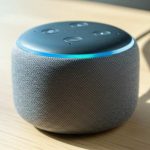
Connecting your Bluetooth speaker is super easy! Follow these simple steps to pair your device and enjoy your music in minutes.
Hey there, tech explorer! Ever feel like you just want to blast your favorite tunes, but hooking up that cool Bluetooth speaker feels like a puzzle? You’re not alone! We all love the freedom that wireless sound brings, whether it’s for a chill backyard BBQ, an epic gaming session, or just making your movie nights more immersive. But sometimes, getting that little speaker to talk to your phone or tablet can be a bit of a head-scratcher. Don’t worry, though! I’m here to make it super simple. Think of me as your friendly tech buddy, ready to guide you through every step. We’ll demystify Bluetooth pairing, and soon you’ll be a pro. Ready to dive in and get that awesome sound flowing? Let’s make this easy!
Why Bluetooth Speakers Are Awesome
Imagine this: You’re heading to the park with friends, and you want some background music. Instead of fiddling with wires, you just grab your portable Bluetooth speaker, tap your phone, and BAM! Music fills the air. That’s the magic of Bluetooth speakers! They cut the cords, giving you freedom to move your music around. Whether it’s a tiny speaker that fits in your pocket or a big one that can fill a room with sound, they all work on the same simple principle.
They’ve really changed how we enjoy audio. No more tangled cables or being tied to one spot. You can have music by the pool, in the kitchen while you cook, or even in the shower (if your speaker is waterproof, of course!). It’s all about convenience and great sound, anywhere you want it.
Let’s Talk About Pairing: The Bluetooth Basics
So, what exactly is Bluetooth? It’s like a secret handshake for your gadgets. It lets devices talk to each other wirelessly over short distances. Think of it as a tiny, invisible radio wave that carries sound from your phone to your speaker. This makes connecting super simple, and you don’t need Wi-Fi for it!
This technology is built into most smartphones, tablets, laptops, and of course, Bluetooth speakers. When you “pair” two devices, you’re essentially telling them, “Hey, you two, you’re friends now, talk to each other!” Once they’ve done this handshake, they usually remember each other, so you won’t have to pair them again every single time. Pretty neat, right?
Getting Your Speaker Ready: The First Step
Before we even think about connecting, we need to make sure our speaker is ready to go. This usually involves a couple of quick things. First, make sure it’s charged up! Most Bluetooth speakers have a battery, and running out of juice mid-song is a real bummer. Look for a charging port, usually a USB-C or micro-USB, and plug it in. You’ll often see a little light that tells you it’s charging.
Next, you need to turn the speaker on. This sounds obvious, but sometimes the power button can be a bit hidden. Look for a button labeled “Power” or with a power symbol (a circle with a line through it). Press and hold it for a few seconds. You’ll usually hear a little beep or a voice say it’s powered on.
Putting Your Speaker in Pairing Mode
This is the most important step for connecting for the first time. Most Bluetooth speakers have a special mode that makes them discoverable by other devices. This is called “pairing mode.” To activate it, you usually need to press and hold a specific button. This button is often labeled with the Bluetooth symbol (a stylized ‘B’) or says “Pair.”
Sometimes, the speaker automatically goes into pairing mode the very first time you turn it on. Other times, you’ll need to press that button for a few seconds. You’ll know it’s in pairing mode because it will likely start flashing a light (often blue or white) or make a specific sound. This flashing light is like the speaker waving its hand, saying, “I’m ready to connect!”
Finding Your Speaker on Your Phone or Tablet
Now that your speaker is ready to mingle, it’s time to get your phone or tablet involved. You’ll need to go into your device’s Bluetooth settings.
On iPhones and iPads: Go to “Settings,” then tap on “Bluetooth.” Make sure the switch next to Bluetooth is turned on (it will be green).
On Android phones and tablets: Swipe down from the top of your screen to open the quick settings menu. Look for the Bluetooth icon and tap it to turn it on. If you don’t see it, you might need to tap and hold it, or go to “Settings” > “Connections” (or similar) > “Bluetooth.”
Once Bluetooth is on, your device will start searching for nearby devices that are in pairing mode. You’ll see a list appear under a heading like “Available Devices” or “Other Devices.”
Connecting the Dots: The Pairing Process
In that list of available devices, you should see the name of your Bluetooth speaker. It might be something like “JBL Flip 5,” “Sony SRS-XB,” or a more generic name. Tap on the name of your speaker. Your phone or tablet will then try to connect.
Sometimes, a little pop-up might ask you to confirm a pairing code. This is usually just a “Pair” or “Connect” button. If it asks for a code, it’s usually “0000” or “1234,” but this is rare for speakers. Just tap “Pair” or “Connect.”
Once the connection is successful, you’ll usually hear a confirmation sound from your speaker, and the flashing light will turn solid. Your phone or tablet will also show that the speaker is “Connected” under the Bluetooth settings. Hooray! You’ve done it!
What If It Doesn’t Connect? Troubleshooting Time!
Don’t panic if it doesn’t work on the first try. Bluetooth can be a little finicky sometimes. Here are some easy fixes:
Check Pairing Mode: Is the speaker definitely in pairing mode? Make sure that light is still flashing. If not, try pressing and holding the pairing button again.
Distance Matters: Bluetooth works best when devices are close. Try moving your phone or tablet closer to the speaker, maybe within a few feet.
Turn It Off and On Again: This classic IT trick works wonders! Turn off Bluetooth on your phone/tablet, wait a few seconds, then turn it back on. Also, try turning the speaker off and then back on, and put it back into pairing mode.
Forget and Re-pair: If your device has connected before but isn’t now, it might be confused. Go to your Bluetooth settings, find your speaker in the list of connected or paired devices, and tap “Forget Device” or “Unpair.” Then, start the pairing process from the beginning.
Too Many Connections? Some speakers can only connect to one device at a time. Make sure your speaker isn’t already connected to another phone or tablet. Turn off Bluetooth on those other devices temporarily.
Check the Speaker’s Manual: Every speaker is a little different. If you’re really stuck, a quick look at the instruction manual that came with your speaker can save the day. You can usually find digital versions online by searching for your speaker’s model.
Making the Most of Your Bluetooth Speaker: Tips and Tricks
Once you’re connected, you’ll want to keep that great sound going! Here are some tips to make your experience even better.
Keeping Your Speaker Charged
Most Bluetooth speakers are rechargeable. They usually come with a USB cable. You can plug this into a wall adapter (like your phone charger), a computer’s USB port, or even a power bank.
Battery Indicators: Many speakers have lights or even voice prompts to tell you the battery level. Pay attention to these!
Charging Time: A full charge can take anywhere from 1 to 4 hours, depending on the speaker.
Use While Charging: Most speakers can be used while they are charging, which is super handy.
Understanding Speaker Features
Bluetooth speakers come with all sorts of cool features. Knowing what they mean can help you choose one or use yours better.
Water Resistance: Look for an IP rating (like IPX7). This tells you how well it can handle water and dust. IPX7 means it can be submerged in water for a short time – perfect for the beach!
Battery Life: This is how long the speaker can play music on a single charge. It’s usually listed in hours. A longer battery life is always a plus!
Sound Quality: This is subjective, but brands often highlight things like “deep bass” or “360-degree sound.” Reading reviews can help here.
Portability: How big and heavy is it? Does it have a strap? This matters if you plan to carry it around a lot.
Speakerphone Function: Some speakers have a built-in microphone, so you can use them to take calls.
Multi-Point Pairing: This lets the speaker connect to two devices at once. So, you could listen to music from your laptop and then easily switch to a call on your phone.
Quick Buying Guide: What to Look For
Thinking about getting a new Bluetooth speaker? Here’s a quick rundown to help you choose:
Your Budget: Prices can range from $20 to $300 or more. Decide how much you want to spend.
Where You’ll Use It: For outdoor parties, look for rugged, waterproof models with long battery life. For home use, sound quality might be your top priority.
Sound Needs: Do you want booming bass, clear vocals, or something balanced? Check reviews and specs.
Portability: Do you need something small and light, or is a larger, more powerful speaker okay?
Extra Features: Do you need a speakerphone, multi-point pairing, or app control?
A Look at Popular Bluetooth Speaker Features
Let’s compare some common features you might find in different Bluetooth speakers. This can help you see what might be important for you.
| Feature | Basic Speaker | Mid-Range Speaker | Premium Speaker | What It Means for You |
| :—————- | :——————– | :——————– | :——————– | :—————————————————- |
| Price Range | $20 – $50 | $50 – $150 | $150 – $300+ | How much you’ll likely spend. |
| Battery Life | 6-10 hours | 10-20 hours | 15-30+ hours | How long you can listen without charging. |
| Waterproof | Splash-proof (IPX4) | Water-resistant (IPX7)| Fully waterproof (IPX7+)| How well it handles spills or submersion. |
| Sound Quality | Decent, clear | Good bass, clear mids | Rich bass, crisp highs| How good the music sounds. |
| Connectivity | Bluetooth only | Bluetooth + Aux-in | Bluetooth + Aux-in + NFC | Other ways to connect or faster pairing options. |
| Portability | Small, light | Compact, some weight | Varies, can be larger | How easy it is to carry around. |
| Extra Features| Basic | Speakerphone, App | Speakerphone, App, Party Mode | Added perks like taking calls or controlling via app. |
This table gives you a general idea. For example, if you’re planning a lot of beach trips, a mid-range or premium speaker with an IPX7 rating would be a great choice. If you just want some music while you do chores around the house, a basic, affordable speaker might be all you need.
Fun Fact: The Evolution of Bluetooth
Did you know Bluetooth technology was named after a Viking king? Harald Bluetooth united Danish tribes in the 10th century. The technology’s creator, Jim Kardach, thought it was fitting because Bluetooth technology was meant to unite different devices. Pretty cool, huh? You can learn more about its history on sites like Wired.
Connecting to Different Devices
The steps are pretty similar for most devices, but here’s a quick look at how to connect to common ones:
Connecting to a Laptop (Windows)
1. Turn on your Bluetooth speaker and put it in pairing mode.
2. On your Windows laptop, click the Start button.
3. Go to “Settings” (the gear icon).
4. Click on “Devices” (or “Bluetooth & other devices”).
5. Make sure Bluetooth is turned on.
6. Click “Add Bluetooth or other device.”
7. Select “Bluetooth.”
8. Your laptop will scan for devices. Click on your speaker’s name when it appears.
9. Follow any on-screen prompts to complete the pairing.
Connecting to a Laptop (Mac)
1. Turn on your Bluetooth speaker and put it in pairing mode.
2. On your Mac, click the Apple menu () in the top-left corner.
3. Select “System Preferences.”
4. Click on “Bluetooth.”
5. Make sure Bluetooth is turned on.
6. Your Mac will scan for devices. Find your speaker in the list and click “Connect.”
7. Follow any on-screen prompts.
Connecting to a Smart TV
Many smart TVs have built-in Bluetooth. The exact steps vary by brand, but generally:
1. Turn on your Bluetooth speaker and put it in pairing mode.
2. On your TV, go to “Settings” or “Setup.”
3. Look for “Sound,” “Audio,” or “Bluetooth” options.
4. Select “Bluetooth Speaker List” or “Add Device.”
5. Your TV will search for devices. Choose your speaker from the list and connect.
Note: Not all TVs have Bluetooth. If yours doesn’t, you might need a separate Bluetooth transmitter that plugs into your TV’s audio output.
Maintaining Your Bluetooth Speaker
Keeping your speaker in good shape ensures it sounds great for a long time.
Cleaning: Use a soft, dry cloth to wipe down the speaker. For tougher grime, a slightly damp cloth can work, but avoid getting moisture into any ports.
Storage: If you’re not using it for a while, store it in a cool, dry place. Extreme temperatures can damage the battery.
* Software Updates: Some speakers have companion apps that allow for firmware updates. These can sometimes improve performance or fix bugs. Check the manufacturer’s website for your specific model.
Frequently Asked Questions (FAQ)
Q1: Why does my Bluetooth speaker keep disconnecting?
A1: This can happen if the speaker is too far from your device, if there are a lot of other wireless devices causing interference, or if your device’s battery is low. Try moving them closer and ensuring both are well-charged.
Q2: Can I connect my Bluetooth speaker to more than one device at the same time?
A2: Some speakers support “multi-point pairing,” which lets them connect to two devices simultaneously. However, most only connect to one device at a time. If you want to switch devices, you usually need to disconnect from the first one before connecting to the second.
Q3: Do I need an app to connect my Bluetooth speaker?
A3: No, you don’t need an app for the basic Bluetooth connection. You connect through your device’s Bluetooth settings. Some speakers have companion apps that offer extra features like EQ settings or firmware updates, but these are optional for basic use.
Q4: My speaker won’t charge. What should I do?
A4: First, try a different USB cable and power adapter. Make sure the charging port on the speaker is clean. If it still doesn’t charge, the battery might be faulty, and you may need to contact the manufacturer for support.
Q5: How do I reset my Bluetooth speaker?
A5: The reset method varies by speaker. Often, it involves holding down a combination of buttons (like power and volume down) for about 10-15 seconds. Check your speaker’s manual or the manufacturer’s website for specific instructions for your model.
Q6: Can I use my Bluetooth speaker with my TV?
A6: Yes, if your TV has Bluetooth built-in. If not, you can buy a small Bluetooth transmitter that plugs into your TV’s headphone jack or audio output. It’s a great way to get better sound for movies and shows!
Q7: Is Bluetooth safe to use?
A7: Yes, Bluetooth is generally very safe. It uses encrypted connections for pairing and data transfer, making it secure for personal use. It’s designed for short-range communication, which also adds to its security.
Wrapping Up: Enjoy Your Sound!
See? Connecting to a Bluetooth speaker is totally doable, and now you know how to troubleshoot if things get a little tricky. You’ve learned how to pair your devices, what to do if it doesn’t work, and even some cool tips for choosing and using your speaker. It’s all about making technology work for you, not the other way around.
So go ahead, try connecting your speaker to your phone, tablet, or laptop. Play your favorite playlist, dive into that podcast, or get lost in an audiobook. You’ve got the power to bring great sound wherever you go. Now go enjoy amazing sound and make every moment louder and better!