
Want to blast your tunes from two Bluetooth speakers at once? It’s totally doable! This guide shows you the easy ways to connect multiple speakers for richer sound, making your music, movies, or parties way more immersive. Let’s get your sound booming!
Hey there, tech adventurer! Max here from AffTechy.com, your go-to spot for making gadgets simple and fun. Ever feel like your music just needs a little… more? Maybe one speaker is good, but two? That’s where the magic happens, filling your space with sound from every corner. It’s like giving your favorite songs a surround-sound upgrade right in your living room or backyard.
I know, diving into tech specs and connection types can sometimes feel like deciphering a secret code. But don’t worry! We’re going to skip all the confusing jargon and get straight to the good stuff. Think of me as your friendly guide, walking you through exactly how to get those extra speakers singing together.
Whether you’re a total beginner or just looking for a clearer explanation, this guide is for you. We’ll cover everything from the basic concepts to the actual steps you need to take. Ready to double your sound power? Let’s break it down step by step!

Why Pair More Than One Bluetooth Speaker? Let’s Talk Sound!
Imagine this: you’re hosting a backyard BBQ, and the music is great, but it’s loudest near the grill. Or maybe you’re watching a movie, and the sound just isn’t hitting you from all sides. That’s where the power of multiple Bluetooth speakers comes in!
Pairing more than one speaker isn’t just for parties. It can create a wider, more immersive soundstage. This means music can feel richer, movies more cinematic, and even podcasts clearer. You get to enjoy your audio content without being stuck in one sweet spot for the best sound. It’s all about expanding your audio experience!
Think of it like adding more lights to a room. One light is good, but several lights can create a warmer, more balanced ambiance. Similarly, two or more speakers can fill a larger space more evenly. It’s a simple way to get a big sound upgrade without buying a whole new sound system.
Understanding the “How”: Different Ways to Connect
So, how do we actually make this happen? There are a few main ways your speakers can work together. It really depends on the speakers themselves and your phone or tablet.
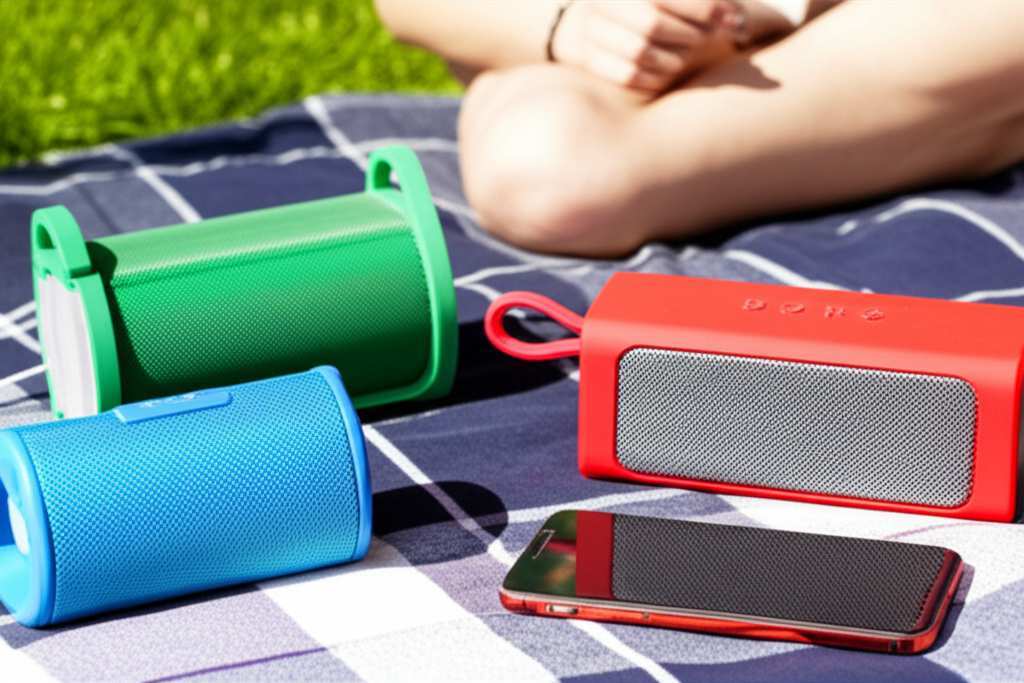
Some speakers are designed to work as a pair right out of the box. These often have a special feature called “TWS” (True Wireless Stereo). It’s like they’re made to be best friends and automatically connect to each other. Other times, your phone or a special app handles the job of sending music to multiple speakers.
Let’s dive into the common methods. You’ll find that most of these are pretty straightforward, especially with modern devices. We’ll cover the easiest ways first, so you can get your tunes playing in stereo in no time.
Method 1: The TWS (True Wireless Stereo) Magic
This is often the simplest and most popular method if your speakers support it. TWS allows two identical speakers to connect to each other wirelessly, forming a stereo pair. One speaker becomes the “master” and the other the “slave.”
The “master” speaker then connects to your phone or tablet via Bluetooth. Once paired, whatever audio you play on your phone will be sent to both speakers, with one handling the left channel and the other the right. This creates a true stereo sound experience.
It’s called “True Wireless” because there are no cables between the speakers themselves, just the wireless Bluetooth connection. This gives you a lot of flexibility in placing your speakers around the room for the best sound coverage. Pretty neat, right?
How to Use TWS: A Step-by-Step Guide
Getting TWS set up is usually a breeze. Here’s how you’ll typically do it:
- Turn On Both Speakers: Make sure both of your compatible Bluetooth speakers are powered on.
- Put One Speaker in Pairing Mode: On one of the speakers, you’ll need to activate its Bluetooth pairing mode. This is usually done by pressing and holding a Bluetooth button.
- Activate TWS Pairing: Now, on the same speaker, you’ll need to activate the TWS function. This might be a double-press of the Bluetooth button, a different button, or a combination. Check your speaker’s manual if you’re unsure.
- Wait for Connection: The speakers will search for each other. You’ll often hear a sound or see an LED light change to confirm they’ve successfully paired together. One will usually act as the “primary” or “master.”
- Pair with Your Device: On your phone or tablet, go to Bluetooth settings. You should see the name of one of the speakers appear. Select it to connect.
- Enjoy Stereo Sound: Once connected, your phone will send audio to the primary speaker, which then transmits it to the secondary speaker. You should now have stereo sound!
Quick Tip: If you have two identical speakers from the same brand and model, chances are they support TWS. It’s a common feature on portable Bluetooth speakers these days!
When TWS Might Not Work
While TWS is fantastic, it’s not a universal solution. Here are a few things to keep in mind:
- Identical Models Needed: TWS usually only works between two speakers of the exact same model. You generally can’t pair a speaker from Brand A with a speaker from Brand B using TWS.
- Manuals are Your Friend: The exact button presses and indicators for TWS can vary. Always refer to your speaker’s instruction manual for the precise steps.
- Some Speakers Require an App: A few brands use a dedicated app to manage TWS pairing instead of button presses.
Method 2: Using Your Phone’s “Dual Audio” or “SoundShare” Feature
Some smartphones, especially Samsung devices, have built-in features that allow you to connect to two Bluetooth speakers or headphones simultaneously. This is super handy if your speakers don’t support TWS or if you have different models.
This feature essentially tells your phone to send the same audio stream to two different Bluetooth devices. It’s not always true stereo sound, though. Often, both speakers will play the same audio track, giving you a louder, more distributed sound rather than distinct left and right channels.
The exact name and location of this feature can vary by phone manufacturer and Android version. On Samsung phones, it’s often called “Dual Audio.” Other brands might have something similar under their Bluetooth settings.
How to Use Dual Audio (Samsung Example)
This is generally for Samsung phones, but the concept is similar on others that might offer it. Here’s a common way to set it up:
- Enable Bluetooth: Make sure Bluetooth is turned on in your phone’s settings.
- Connect First Speaker: Pair and connect your first Bluetooth speaker to your phone as you normally would. Play some audio to confirm it’s working.
- Connect Second Speaker: Now, put your second Bluetooth speaker into pairing mode and connect it to your phone as well.
- Find Dual Audio: Go to your phone’s Bluetooth settings. You might see an option under the connected devices, or you might need to go to “Advanced settings” or “Media and devices.” Look for “Dual Audio” or a similar option.
- Activate Dual Audio: Toggle the “Dual Audio” switch to the ON position.
- Select Both Speakers: Your phone should now show both connected speakers. Make sure both are selected to receive audio playback.
- Enjoy Louder Sound: You should now hear audio coming from both speakers.
Fun Fact: This feature is a lifesaver when you want to share your music with a friend outdoors without needing them to huddle around one speaker. Everyone gets to hear the same great sound!
Limitations of Dual Audio
While convenient, this method has its own quirks:
- Not True Stereo: As mentioned, this usually plays the same audio on both speakers, not separate left and right channels. So, it’s more about loudness and coverage than a true stereo image.
- Device Dependent: This feature is not available on all smartphones. It’s most common on higher-end Android phones, particularly Samsung models. iPhones do not currently support connecting to two Bluetooth audio devices simultaneously in this way.
- Potential Latency: Sometimes, there can be a slight delay (latency) between the two speakers, which might be noticeable with music or video.
Method 3: Using a Bluetooth Audio Transmitter/Splitter
For those who want more control or have older devices, a Bluetooth audio transmitter can be a game-changer. These small gadgets plug into your audio source (like a TV, computer, or stereo system) and broadcast the audio via Bluetooth to your speakers.
Many of these transmitters can pair with two Bluetooth headphones or speakers at the same time. This is a great solution if your source device doesn’t have Bluetooth or doesn’t support sending audio to multiple devices.
This method is especially useful for things like watching movies on a TV and wanting to use two sets of Bluetooth headphones, or sending audio from a non-Bluetooth stereo to two wireless speakers. It bypasses the limitations of your phone or tablet.
How to Use a Bluetooth Transmitter
Setting up a transmitter is usually quite simple:
- Connect the Transmitter: Plug your Bluetooth transmitter into the audio output of your source device (e.g., the headphone jack of your TV, or RCA outputs of a stereo). Make sure it’s powered on.
- Put Transmitter in Pairing Mode: Press and hold the power/pairing button on the transmitter until its LED indicator starts flashing, signaling it’s ready to pair.
- Pair First Speaker: Put your first Bluetooth speaker into pairing mode. It should automatically detect and connect to the transmitter. Wait for confirmation (often a solid LED on the transmitter and a sound from the speaker).
- Pair Second Speaker: Put your second Bluetooth speaker into pairing mode. The transmitter should now detect and connect to it as well. Again, look for confirmation.
- Play Your Audio: Once both speakers are connected to the transmitter, play your audio source. The sound should now be sent to both speakers simultaneously.
Pro Tip: Look for transmitters that support the latest Bluetooth version (like Bluetooth 5.0 or higher) for better range, stability, and potentially lower latency. Some even support aptX Low Latency, which is great for watching videos.
Choosing a Good Bluetooth Transmitter
When shopping for a transmitter, consider these points:
- Number of Devices: Ensure it explicitly states it can connect to two devices simultaneously.
- Bluetooth Version: Newer versions offer better performance.
- Audio Codec Support: For watching videos, aptX Low Latency is ideal.
- Battery Life: If it’s portable, check how long the battery lasts.
- Input/Output Options: Make sure it has the right connections for your audio source (e.g., 3.5mm, RCA, optical).
Method 4: Using Specific Apps or Software
Some audio brands offer their own apps that allow you to manage and connect multiple speakers from their ecosystem. For example, Bose Connect app lets you “Connect” two compatible Bose speakers for stereo or party mode. JBL also has the “JBL Connect” or “JBL PartyBoost” app for linking their speakers.
These apps are designed to make the process super simple and often unlock additional features like EQ settings or firmware updates. They streamline the connection process, especially for TWS pairing, and ensure optimal performance between their own branded speakers.
If you have multiple speakers from the same manufacturer, checking if they have a dedicated app is always a good first step. It often provides the most seamless experience for linking them.
How App-Based Linking Works
The process typically involves these steps:
- Download the App: Find and download the official app for your speaker brand from your phone’s app store.
- Turn On Speakers: Power on both of your compatible speakers.
- Open the App: Launch the app and follow its on-screen instructions to find and connect to your speakers.
- Enable Linking: The app will usually have a clear option like “Party Mode,” “Stereo Mode,” or “Connect Speakers.” Tap this to initiate the linking process.
- Confirm Connection: The app will guide you through pairing the speakers together. Once linked, you can control playback and settings from the app.
Example: If you have two JBL Charge 5 speakers, you’d use the JBL Portable app (formerly JBL Connect). You open the app, it detects both speakers, and you tap the “Connect” button to link them into PartyBoost mode.
Brands with Linking Apps
Several popular brands offer this functionality. Here are a few examples:
- Bose: Bose Connect app (for speakers like SoundLink, Revolve)
- JBL: JBL Portable app (for speakers like Flip, Charge, Xtreme with PartyBoost/Connect+)
- Sony: Sony | Music Center app (for Party Connect feature on some SRS speakers)
- UE (Ultimate Ears): UE Boom/Megaboom app (for “Block Party” or stereo mode)
Remember: This method generally only works with speakers from the same brand and often specific models within that brand that are designed to work together.
Comparing Methods: Which is Best for You?
Each method has its pros and cons. Choosing the right one depends on your speakers, your phone, and what you want to achieve.
If you have two identical speakers that support TWS, that’s usually the easiest and best-sounding option for true stereo. If your phone has “Dual Audio,” it’s a quick way to get louder sound from different speakers without special hardware. For older devices or more flexibility, a Bluetooth transmitter is a solid choice.
Here’s a quick comparison table to help you decide:
| Method | Pros | Cons | Best For |
|---|---|---|---|
| TWS (True Wireless Stereo) | True stereo sound, easy setup (often automatic), no extra hardware. | Requires two identical speakers, limited to same brand/model. | Creating a stereo pair with identical speakers. |
| Phone’s Dual Audio | No extra hardware needed, convenient for supported phones. | Not true stereo (usually mono on both), phone-specific feature, potential latency. | Simply making sound louder or distributed from your phone. |
| Bluetooth Transmitter | Works with almost any audio source, connects two devices, good for non-Bluetooth sources. | Requires purchasing extra hardware, can have latency without aptX LL. | Connecting to older TVs, computers, or for advanced setups. |
| Brand Apps | Seamless integration, extra features, often best performance for that brand. | Requires speakers from the same brand, limited to app-supported models. | Maximizing features with multiple speakers from the same manufacturer. |
What this table means for you: If you just bought two identical speakers like the JBL Flip 5, TWS or the JBL app is your best bet for amazing stereo sound. If you have a Samsung phone and two different speakers, try Dual Audio first! If you want to connect your TV to two Bluetooth headphones, a transmitter is the way to go.
Tips for the Best Multi-Speaker Experience
Once you’ve got your speakers paired, here are some extra tips to make your listening experience even better:
- Placement is Key: Don’t just put speakers anywhere. For stereo sound, place them an equal distance from you and from each other, forming a triangle. For ambient sound, spread them out to cover the area evenly.
- Check Volume Levels: Ensure both speakers are at similar volume levels for balanced sound. Sometimes one might be louder than the other after pairing.
- Update Firmware: If using brand apps, make sure your speakers have the latest firmware installed. Updates often improve connectivity and performance.
- Battery Life Watch: Running two speakers will drain batteries faster than one. Keep an eye on charge levels, especially for longer listening sessions.
- Minimize Interference: Thick walls or other wireless devices can sometimes interfere with Bluetooth signals. Try to keep speakers and your source device relatively close and with a clear line of sight if possible.
Did You Know? Bluetooth 5.0, released in 2016, offers up to 4 times the range and 2 times the speed of Bluetooth 4.2, with 8 times the broadcasting capacity. This makes connecting multiple devices much more stable and reliable!
Troubleshooting Common Issues
Even with the best guides, sometimes tech throws a curveball. Here are a few common problems and how to fix them:
- Speakers Won’t Pair: Turn off Bluetooth on your phone, then turn both speakers off and on again. Try re-pairing. Ensure they are in pairing mode and close enough.
- One Speaker Disconnects: This can happen if the primary speaker loses connection to the secondary one, or if your phone’s Bluetooth signal is weak. Try moving your phone closer or resetting the speaker connections.
- Audio Lag or Choppy Sound: This often points to interference or an older Bluetooth version. Try moving closer to the speakers, turning off other Bluetooth devices, or using a transmitter with aptX Low Latency if you’re watching video.
- TWS Not Activating: Double-check that you have two identical speakers and that you’re following the TWS activation steps precisely for your model. Sometimes a firmware update is needed.
Helpful Resource: For more in-depth troubleshooting on Bluetooth technology, sites like CNET often have excellent guides.
Frequently Asked Questions (FAQs)
Here are some common questions beginners have about pairing multiple Bluetooth speakers:
Q1: Can I pair any two Bluetooth speakers together?
A1: Generally, no. True Wireless Stereo (TWS) usually requires two identical speakers of the same model. However, some phones or Bluetooth transmitters allow you to connect two different speakers, though it might not be true stereo.
Q2: Does pairing two speakers give me stereo sound?
A2: It depends! If you use TWS or a brand’s dedicated stereo mode, yes, you’ll get true left and right stereo channels. If you use your phone’s “Dual Audio” or a transmitter for two separate speakers, they often play the same sound (mono) on both, just louder.
Q3: What does TWS mean?
A3: TWS stands for True Wireless Stereo. It’s a technology that allows two speakers to connect to each other wirelessly, creating a stereo sound experience without any cables between them.
Q4: My speakers won’t connect. What should I do?
A4: First, ensure both speakers are compatible with the method you’re trying. Try turning them off and on, resetting Bluetooth on your phone, and making sure they are in pairing mode. Check your speaker manuals for specific instructions.
Q5: Can I connect Bluetooth speakers to my TV?
A5: Many modern TVs have built-in Bluetooth. If yours doesn’t, you can use a Bluetooth audio transmitter plugged into your TV’s headphone or optical audio out port.
Q6: How far apart can my paired speakers be?
A6: This varies by speaker and Bluetooth version. With good Bluetooth 5.0 speakers, you might get up to 30-50 feet (10-15 meters) between the primary speaker and your phone, and a similar range between the two speakers if using TWS. Obstacles can reduce this range.
Q7: Will playing music on two speakers drain my phone battery faster?
A7: Yes, slightly. Your phone’s Bluetooth radio has to work a bit harder to maintain connections with two devices, which can use a bit more battery power compared to connecting to just one.
Ready to Amplify Your Audio!
See? Connecting more than one Bluetooth speaker is totally achievable and can seriously level up your audio game. Whether you’re using TWS for perfect stereo sound, your phone’s handy dual-audio feature, a versatile Bluetooth transmitter, or a brand’s specific app, there’s a method out there for you.
You’ve learned how to get those extra speakers singing together, understand the different ways to connect, and even troubleshoot common hiccups. Now you’re equipped to fill any space with rich, expansive sound. Don’t let your music or movies be confined to just one spot!
So go ahead, experiment with your speakers, try out the steps we’ve covered, and discover the joy of immersive sound. Now go enjoy amazing sound and make every moment louder and better!


