
Connect your Ultimate Ears Bluetooth speaker in seconds! This guide makes pairing easy, so you can enjoy your music without any fuss. Get ready for great sound, instantly!
Hey there, tech explorer! Ever feel like getting your cool new gadgets to talk to each other is a bit like solving a puzzle? I get it. Sometimes, all you want is to blast your favorite tunes or dive into an epic podcast without wrestling with settings. That’s where our trusty Bluetooth speakers come in.
Ultimate Ears (UE) speakers are awesome for this. They bring the party, the chill vibes, or the focus you need, all wirelessly. But first, we gotta get them connected to your phone or tablet. It might sound a little techy, but trust me, it’s super simple.
Think of me as your friendly guide through the land of Bluetooth. We’re going to make connecting your Ultimate Ears speaker a breeze. No confusing jargon, just straightforward steps. Let’s get your music playing in no time!
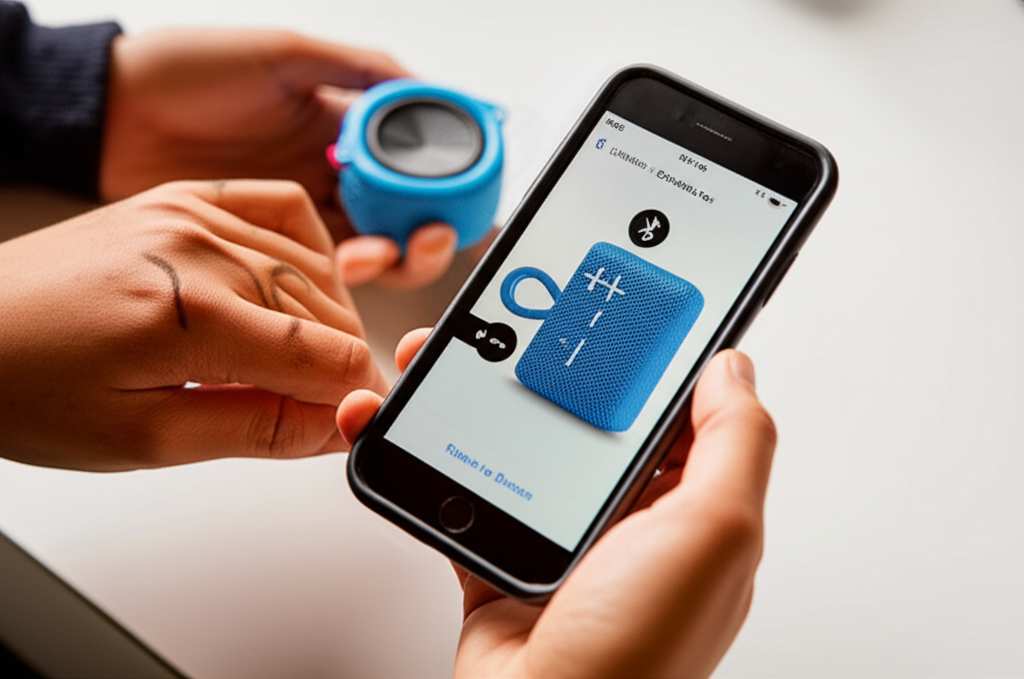
Let’s Get Your Ultimate Ears Speaker Ready
So, you’ve got your shiny new Ultimate Ears speaker. Awesome! Before we can fill your space with awesome sound, we need to pair it with your device. This is like introducing two friends so they can start chatting. It’s a one-time thing for each device, and then they’ll remember each other for future listening sessions.
The process is designed to be super quick. You’ll be jamming out before you know it. We’ll walk through the steps together, making sure you know exactly what to do. It’s all about making technology work for you, not the other way around.
What is Bluetooth, Anyway?
Before we dive into connecting, let’s quickly chat about Bluetooth. Think of it as an invisible wire that lets devices talk to each other wirelessly. It’s like a secret handshake between your phone and your speaker.
This technology is what makes wireless headphones, smartwatches, and of course, Bluetooth speakers possible. It’s pretty neat because it means you can move around without being tethered to your music source. Just keep in mind that Bluetooth has a certain range, usually around 30 feet (10 meters), though this can vary.
Getting Started: The Very First Step
First things first, let’s make sure your Ultimate Ears speaker has some juice. If it’s brand new, it might have a little charge, but it’s always best to plug it in for a bit. This way, your connection won’t get interrupted halfway through pairing.
Most UE speakers have a clear indicator light to show you when they’re charging and when they’re ready to go. You’ll usually find the charging port on the speaker itself, often hidden under a flap to keep it safe from water and dust. Once it’s charged, it’s time to power it on!
Powering Up Your UE Speaker
Locate the power button on your Ultimate Ears speaker. It’s usually pretty easy to find, often marked with a power symbol. Give it a press and hold it for a second or two. You’ll typically hear a little chime or see a light turn on, letting you know it’s awake and ready.
Once your speaker is powered on, it needs to be discoverable so your phone can find it. This is where the magic of pairing mode comes in. Your speaker will be actively looking for a device to connect to.
Putting Your UE Speaker in Pairing Mode
This is the most crucial step! To connect your speaker to a new device for the first time, you need to put it into “pairing mode.” How you do this can vary slightly depending on your specific UE model, but there’s a common method.
Look for a Bluetooth button on your speaker. It might be labeled with the Bluetooth symbol or simply say “BT.” On most Ultimate Ears speakers, you’ll need to press and hold this Bluetooth button for about 3-5 seconds. You should hear a distinct sound or see a flashing light (often blue) that indicates it’s now discoverable and ready to pair.
Fun Fact: That flashing light isn’t just for show! It’s a signal to your phone, “Hey, I’m here and ready to connect!” It’s a universal way to know your speaker is actively looking for a buddy.
Pairing with Your Smartphone or Tablet
Now, let’s switch gears to your phone or tablet. Whether you’re using an iPhone, Android, or even a tablet, the process is quite similar. We need to go into the Bluetooth settings.
For iPhones/iPads: Go to Settings > Bluetooth. Make sure Bluetooth is switched ON. Your iPhone will then start scanning for nearby devices.
For Android Devices: Go to Settings > Connections (or Connected devices) > Bluetooth. Ensure Bluetooth is toggled ON. Your Android device will then search for available devices.
Once your phone or tablet is scanning, you should see a list of available devices appear. This is where your Ultimate Ears speaker should show up. It will likely be listed as something like “Ultimate Ears WONDERBOOM” or “UE BOOM 3.”
Finding and Connecting Your Speaker
In the list of available Bluetooth devices on your phone or tablet, look for the name of your Ultimate Ears speaker. It’s usually pretty straightforward, often just starting with “UE” or “Ultimate Ears” followed by the model name.
Tap on the name of your speaker in the list. Your phone or tablet will then attempt to connect. You might see a “Connecting” status for a moment. If everything is successful, you’ll hear a confirmation sound from your speaker, and the flashing light will usually turn solid, indicating a successful connection.
Your device will also show the speaker as “Connected” in the Bluetooth settings. Hooray! You’re now connected and ready to stream your favorite audio.
Troubleshooting: A Quick Fix Guide
Sometimes, technology throws us a curveball. If your speaker isn’t showing up or connecting, don’t worry! Here are a few common things to check.
- Is the speaker in pairing mode? Double-check that you held the Bluetooth button long enough to activate pairing mode. The flashing light is your best clue.
- Is Bluetooth enabled on your device? Make sure your phone or tablet’s Bluetooth is switched on. It sounds obvious, but it’s an easy oversight!
- Are you too far away? Try moving your speaker and device closer together, ideally within a few feet, especially during the initial pairing.
- Restart both devices. Sometimes, a simple power cycle can fix a lot of minor glitches. Turn off your speaker and your phone/tablet, wait a few seconds, and turn them back on.
- Forget the device and re-pair. If you’ve connected before and it’s acting up, go into your device’s Bluetooth settings, find your UE speaker, and select “Forget Device” or “Unpair.” Then, try the pairing process again from the beginning.
Connecting Multiple Devices to Your UE Speaker
What if you want to switch from your phone to your laptop, or let a friend connect their device? Many Ultimate Ears speakers can remember a few devices and even connect to two at once.
To connect a second device, you usually don’t need to put the speaker back into pairing mode. Just go to the Bluetooth settings on your new device and connect to the speaker as you did before. The speaker will typically switch to the new device automatically.
If you want to switch back to the first device, you might need to turn off Bluetooth on the currently connected device, or manually select your UE speaker from the Bluetooth list on the device you want to use next.
Understanding Your UE Speaker Features
Ultimate Ears speakers are packed with cool features. While connecting is the first step, knowing a bit more can enhance your experience.
- Waterproof and Dustproof: Many UE speakers, like the WONDERBOOM series, are built to withstand splashes and dust. Perfect for the beach, pool, or just a messy kitchen! Look for an IPX7 rating, which means it can be submerged in water up to 1 meter for 30 minutes.
- Long Battery Life: UE speakers are known for lasting a long time on a single charge. This means your music can keep going for hours and hours.
- App Control: For some models, there’s a dedicated Ultimate Ears app. This app lets you control EQ settings, update your speaker’s firmware, and even connect multiple speakers together for a bigger sound.
- PartyUp Feature: This is a really fun one! The PartyUp feature lets you connect multiple compatible UE speakers together wirelessly. You can link up to 150 speakers to create an immersive sound experience. It’s great for parties or larger gatherings.
Popular Ultimate Ears Bluetooth Speaker Models
Ultimate Ears offers a range of speakers, each with its own strengths. Here’s a quick look at some popular ones and what makes them stand out:
| Model | Key Features | Best For | Approx. Battery Life |
|---|---|---|---|
| UE BOOM 3 | 360° sound, waterproof (IP67), dustproof, floatable, PartyUp, 15-hour battery | Everyday use, parties, outdoor adventures | 15 hours |
| UE MEGABOOM 3 | Larger, louder 360° sound, waterproof (IP67), dustproof, floatable, PartyUp, 20-hour battery | Larger gatherings, powerful bass, outdoor events | 20 hours |
| UE WONDERBOOM 2 | Compact, loud 360° sound, waterproof (IP67), dustproof, floats, 13-hour battery, Outdoor Boost button | Portability, pool parties, hiking, smaller spaces | 13 hours |
| UE HYPERBOOM | Biggest sound, deep bass, adaptive EQ, PartyUp, IPX4 splashproof, 24-hour battery, can charge other devices | Serious parties, home entertainment, powerful audio needs | 24 hours |
As you can see, battery life is a strong point across the board. The IP ratings (like IP67) are important for durability. An IP67 rating means it’s protected against dust and can be submerged in water up to 1 meter for 30 minutes. The HYPERBOOM is a beast, offering the longest battery and even a power bank function!
Tips for Maintaining Your Bluetooth Speaker
To keep your Ultimate Ears speaker sounding great and working perfectly for a long time, a little care goes a long way. Think of it like keeping your favorite shoes in good shape!
- Keep it Clean: Wipe down your speaker regularly with a soft, dry cloth. If it gets dirty from outdoor use, a slightly damp cloth can work, but make sure it’s not wet. Ensure any charging ports are dry before plugging it in.
- Charge Properly: Use the charger that came with your speaker or a compatible one. Avoid leaving it plugged in for days on end once it’s fully charged, as this can sometimes affect battery health over the very long term.
- Avoid Extreme Temperatures: While many UE speakers are built tough, extreme heat or cold can affect battery performance and the speaker’s internal components.
- Check for Updates: If you use the Ultimate Ears app, make sure to install any firmware updates. These updates can improve performance and add new features.
- Handle with Care: Even though they’re durable, try to avoid dropping your speaker from significant heights. Treat it like the awesome audio companion it is!
Fast Pairing vs. Standard Pairing
Most modern smartphones have a feature called “Fast Pair” or a similar technology. This is designed to make connecting Bluetooth devices even quicker. If your Ultimate Ears speaker supports this (check your speaker’s manual or UE’s website), the process can be even smoother.
Typically, with Fast Pair, you just need to turn on your speaker, bring it close to your phone, and a notification will pop up on your phone asking if you want to connect. It skips the step of manually searching through the Bluetooth settings.
While Fast Pair is super convenient, the standard manual pairing method (going through your device’s Bluetooth settings) will always work. It’s good to know both!
Understanding Bluetooth Versions
You might sometimes see numbers like Bluetooth 4.2 or Bluetooth 5.0. This refers to the version of the Bluetooth technology. Newer versions are generally more power-efficient and offer better range and faster data transfer.
Don’t worry too much about the specific version for basic speaker connection. As long as your phone and speaker both have Bluetooth, they’ll be able to connect. However, if you’re pairing two newer devices, you might benefit from the enhanced features of the latest Bluetooth versions.
Frequently Asked Questions (FAQs)
Q1: How do I know if my UE speaker is ready to pair?
A1: Look for a flashing light, usually blue, and listen for a confirmation sound. This usually means you’ve successfully put your speaker into pairing mode by holding the Bluetooth button.
Q2: Can I connect my UE speaker to my laptop or PC?
A2: Absolutely! The process is the same as connecting to a smartphone. Go to your computer’s Bluetooth settings, turn on Bluetooth, and look for your UE speaker in the list of available devices.
Q3: My speaker won’t connect. What else can I try?
A3: Make sure both devices are charged and close together. Try restarting both your speaker and your phone/computer. If you’ve connected before, try “forgetting” the device in your phone’s Bluetooth settings and then re-pairing.
Q4: How many devices can I connect to my UE speaker?
A4: Most UE speakers can remember the last 8 devices they were paired with. They can actively connect to two devices at a time, allowing you to easily switch between them.
Q5: Do I need the Ultimate Ears app to connect?
A5: No, you don’t need the app just to connect your speaker via Bluetooth. The app is optional but offers extra features like EQ control, firmware updates, and PartyUp management.
Q6: What does it mean if the light is solid blue?
A6: A solid blue light on your UE speaker usually indicates that it is successfully connected to a Bluetooth device and ready to play audio.
Q7: Can I use my UE speaker while it’s charging?
A7: Yes, you can! Most Ultimate Ears speakers can be used for playback even while they are plugged in and charging. So, your music doesn’t have to stop just because your speaker needs a power boost.
Your Ultimate Ears Speaker Is Ready to Rock!
See? Connecting your Ultimate Ears Bluetooth speaker is really that simple! We’ve covered powering it up, getting it into pairing mode, finding it on your device, and even a few tips for when things don’t go perfectly smooth. You’re now equipped to enjoy your music, podcasts, and audiobooks wirelessly.
Remember, technology is here to make our lives better and more fun. Ultimate Ears speakers are fantastic for bringing amazing sound wherever you go. Whether you’re chilling at home, heading to the beach, or having a get-together with friends, your speaker is ready to amplify the moment.
So go ahead, give it a try! You’ve got this. Now go enjoy amazing sound and make every moment louder and better!


