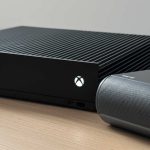
Yes, you can connect a Bluetooth speaker to your Xbox One, but not directly! It’s a clever workaround that involves a few simple steps. Get ready to boost your Xbox audio without all the wires!
Hey there, tech pals! Max here from AffTechy.com. Ever feel like your Xbox One’s sound is a bit… well, meh? Maybe you’ve got this awesome Bluetooth speaker just sitting there, begging to be part of your gaming or movie night. You might be wondering, “Can I hook this up to my Xbox?” It’s a question I get asked a lot, and honestly, the answer is a little more interesting than a simple yes or no.
Think about it: amazing sound can totally change how you experience your games. That epic explosion feels bigger, the subtle soundtrack pulls you in more, and every little victory sounds sweeter. But then you look at your Xbox One, then at your sleek Bluetooth speaker, and you think, “How do these two even talk to each other?” It can feel like trying to connect two puzzle pieces that just don’t fit.
Don’t worry, though! That’s where we come in. I’m going to walk you through exactly how to get your Xbox One and your Bluetooth speaker singing together. We’ll skip the confusing jargon and focus on what actually works. It’s easier than you think, and the result? Totally worth it. Let’s make your Xbox sound amazing, shall we?
Let’s Talk About Sound: Why a Bluetooth Speaker?
We all love our games, right? But sometimes, the built-in TV speakers or even standard gaming headsets just don’t cut it. They might be okay, but they don’t give you that immersive feeling. You want to feel the action, not just hear it. That’s where a good Bluetooth speaker can really shine.
These speakers are designed to deliver rich, powerful sound. They can fill a room, adding depth and clarity to everything you play. Plus, they’re super convenient! No messy wires trailing across your living room, just clean, crisp audio. But here’s the kicker: the Xbox One doesn’t have built-in Bluetooth audio support for speakers.
The Xbox One Bluetooth Puzzle: What’s the Deal?
So, why can’t we just pair our speakers like we do with our phones? It’s a bit of a mystery, I know! Microsoft designed the Xbox One primarily for wired audio accessories, like headsets that plug directly into the controller or the console. This ensures low latency – that means no delay between what happens on screen and what you hear. Bluetooth, while awesome, can sometimes have a tiny bit of lag, which isn’t ideal for fast-paced gaming.
However, this doesn’t mean you’re out of luck! There are some fantastic workarounds. We just need to get a little creative. Think of it like finding a secret passage when the main door is locked. It takes a little know-how, but once you find it, you’re in!
The Magic Wand: Bluetooth Transmitters!
The most popular and straightforward way to connect your Bluetooth speaker to an Xbox One is by using a Bluetooth transmitter. What is this magical device? It’s a small gadget that takes the audio signal from your Xbox and sends it wirelessly via Bluetooth to your speaker.
Most of these transmitters plug into your Xbox One using the optical audio port or the headphone jack on your controller. They act as a bridge, converting the Xbox’s sound into a Bluetooth signal that your speaker can understand. It’s like having a translator for your audio!
How to Connect Your Bluetooth Speaker: Step-by-Step
Ready to get this show on the road? It’s pretty simple. Grab your Bluetooth transmitter, your Xbox One, and your speaker. Let’s make some noise!
Step 1: Choose Your Transmitter
There are tons of Bluetooth transmitters out there. Some are super simple, while others have extra features like aptX Low Latency for reduced lag. For beginners, a basic, reliable transmitter is usually best. Look for one that supports optical audio input, as this generally provides the best sound quality from your Xbox.
A quick tip: Make sure the transmitter you choose is specifically designed to transmit audio. Some Bluetooth devices are receivers only, and those won’t work for this setup.
Step 2: Connect the Transmitter to Your Xbox One
This is where you have a couple of options, depending on your transmitter and Xbox One model.
-
Using the Optical Audio Port (Recommended for Best Quality):
Find the optical audio port on the back of your Xbox One. It’s a small, square-ish port with a little flap. Plug one end of the optical cable (usually included with the transmitter) into this port. Then, plug the other end into the optical input on your Bluetooth transmitter.
-
Using the Controller Headphone Jack (Simpler, but might have more lag):
If your transmitter has a 3.5mm audio input, you can plug one end of a 3.5mm audio cable into the headphone jack on your Xbox One controller. Plug the other end into the transmitter. This method is super easy, but the sound quality might not be as crisp, and there could be a slightly more noticeable delay.
You might also need to power your transmitter. Some USB-powered ones can plug directly into a USB port on your Xbox One, which is super convenient!
Step 3: Pair Your Bluetooth Speaker with the Transmitter
Now for the wireless magic! Most Bluetooth transmitters have a pairing button. You’ll need to put both the transmitter and your speaker into pairing mode.
-
Put the Transmitter in Pairing Mode:
Press and hold the pairing button on your transmitter. It might flash a light or make a sound to indicate it’s ready to pair.
-
Put Your Speaker in Pairing Mode:
Check your speaker’s manual for this, but usually, you press and hold a Bluetooth button until a light flashes or you hear a chime. Make sure your speaker is close to the transmitter.
-
Wait for the Connection:
They should find each other automatically. Once connected, the flashing lights on both devices usually turn solid or change color, indicating a successful connection. Hooray!
Step 4: Configure Your Xbox One Audio Settings
This is a crucial step! You need to tell your Xbox One to send audio out through the port you connected your transmitter to.
-
Go to Settings:
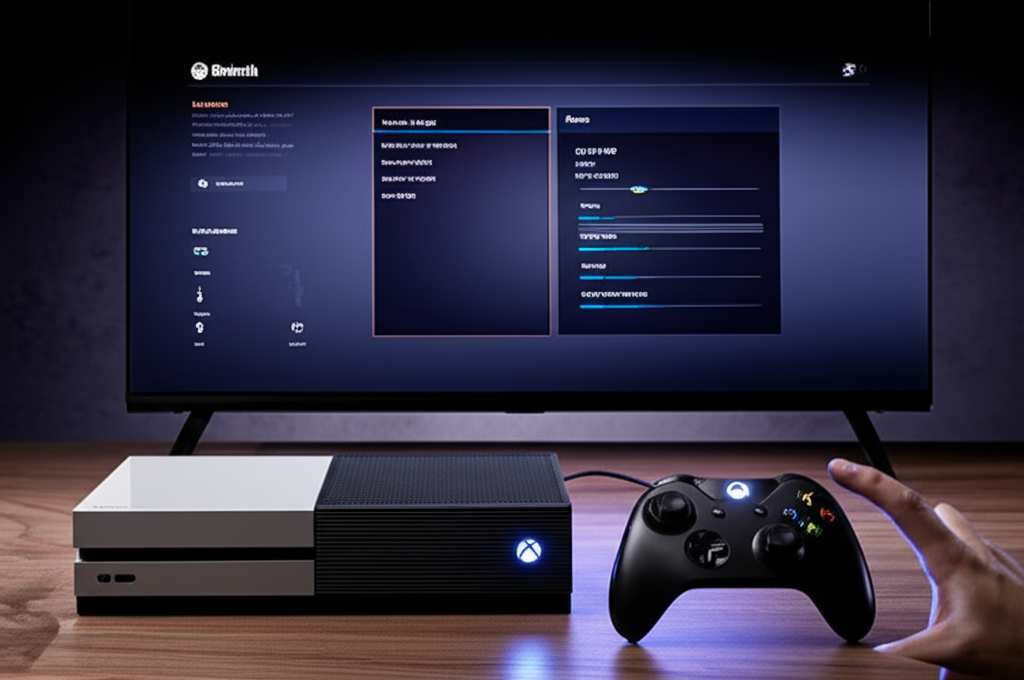
On your Xbox One dashboard, navigate to ‘System’ and then ‘Volume & audio output’.
-
Select Digital audio:
Under ‘Speaker audio’, find ‘Digital audio’.
-
Choose the Right Format:
If you used the optical cable, select ‘Optical audio’ and then choose ‘Stereo uncompressed’. If you used the controller’s headphone jack, you might not need to change this setting, but ensure your controller is connected and powered on.
Some transmitters might require you to turn off the HDMI audio from the Xbox if you’re using the optical port. You can usually find this setting under the same ‘Volume & audio output’ menu. Just select ‘HDMI audio’ and choose ‘Off’.
Step 5: Test the Sound!
Now for the moment of truth! Start up a game, play some music, or watch a video on your Xbox. You should now hear the audio coming through your Bluetooth speaker. If you don’t hear anything, double-check all your connections and your Xbox audio settings. Sometimes, a quick restart of the Xbox or the transmitter can do the trick!
Alternative Methods for Connecting
While a Bluetooth transmitter is the most common and reliable method, there are a couple of other ways you might get audio out of your Xbox One to a wireless speaker.
Using a Bluetooth-Enabled Soundbar or Receiver
If you have a soundbar or AV receiver that supports Bluetooth, you can connect it directly to your Xbox One using an HDMI cable. The soundbar/receiver will then output the audio wirelessly to its own speakers or other compatible Bluetooth devices it’s paired with.
This method is simpler if you’re already looking for a new sound system. It bypasses the need for a separate transmitter, as the soundbar/receiver handles the Bluetooth connection.
Xbox Wireless Headsets and Adapters
This isn’t directly connecting a Bluetooth speaker, but it’s worth mentioning if you’re after wireless audio. Xbox has its own proprietary wireless technology for headsets. You can get an Xbox Wireless Adapter for PC, which can sometimes be used to connect certain Xbox wireless accessories, including some speakers that might use a similar wireless protocol, though this is less common for speakers.
Some newer Xbox Wireless Headsets can also be paired to your phone via Bluetooth simultaneously, offering a blend of gaming audio and external sound. But again, this is for headsets, not standalone speakers.
What to Look For in a Bluetooth Transmitter
Not all transmitters are created equal! Here are a few things to keep in mind when you’re shopping:
-
Bluetooth Version: Look for Bluetooth 5.0 or higher. It’s more stable, has a longer range, and uses less power.
-
Audio Codecs: For the best experience, especially with gaming, look for transmitters that support aptX Low Latency (aptX LL). This codec significantly reduces audio delay, making it almost unnoticeable. If your speaker also supports aptX LL, you’re in for a treat!
-
Connection Ports: Ensure it has an optical audio input (TOSLINK) for the best quality from your Xbox One. A 3.5mm input is a good backup.
-
Power Source: USB powered is super convenient, especially if you can plug it into your Xbox.
-
Simultaneous Connections: Some transmitters can connect to two speakers or headphones at once. Handy if you want to share your game audio with a friend!
A Quick Comparison: Transmitter Features
Let’s look at some common features you’ll find. This table helps break down what matters.
| Feature | Description | Why It Matters |
|---|---|---|
| Bluetooth Version | e.g., 4.2, 5.0, 5.2 | Higher versions mean better stability, range, and power efficiency. Bluetooth 5.0+ is generally recommended. |
| Audio Codecs | SBC, AAC, aptX, aptX LL | SBC is basic. AAC is good for Apple devices. aptX offers better quality. aptX Low Latency (LL) is crucial for gaming to minimize delay. |
| Input Ports | Optical (TOSLINK), 3.5mm Aux | Optical provides the best audio quality from Xbox One. 3.5mm is universal but can have slightly lower quality. |
| Simultaneous Pairing | Connects to 1 or 2 devices | Useful if you want to use two speakers or share audio with a friend. |
| Power Source | USB, Built-in Battery | USB is convenient, especially if powered by the Xbox. Battery means portability but requires charging. |
See? It’s not too complicated. For a smooth gaming experience, always aim for a transmitter that supports aptX Low Latency. This is the real game-changer for avoiding that annoying audio lag. If your speaker also supports it, even better!
Pros and Cons of Using a Bluetooth Transmitter
Like anything in tech, there are upsides and downsides. Let’s break them down so you know what you’re getting into.
Pros:
-
Enhanced Audio Quality: Great speakers deliver richer, more immersive sound than many built-in TV speakers.
-
Wireless Freedom: No more messy cables cluttering your space.
-
Versatility: You can use your speaker for other devices too (phone, tablet, PC).
-
Relatively Affordable: A good Bluetooth transmitter is usually much cheaper than a new Xbox-compatible headset.
-
Easy Setup: Once you know the steps, it’s quite straightforward.
Cons:
-
Potential Audio Lag: Without aptX Low Latency, you might notice a slight delay between video and audio, which can be distracting in fast games.
-
Extra Device Needed: You have to buy and manage an additional piece of hardware (the transmitter).
-
Xbox Settings Adjustment: You’ll need to change your Xbox audio output settings.
-
Not Native Support: It’s a workaround, not a feature built into the Xbox itself.
Tips for the Best Bluetooth Experience
Want to make sure your wireless audio setup is as good as it can be? Here are a few pointers:
-
Use Optical Audio: Whenever possible, connect your transmitter via the optical audio port on your Xbox One. It provides a cleaner, more robust signal.
-
Prioritize Low Latency: If gaming is your main focus, invest in a transmitter and speaker that support aptX Low Latency. This is key to avoiding that annoying delay.
-
Keep Devices Close: While Bluetooth range has improved, keeping your transmitter and speaker relatively close to each other will ensure a stable connection with fewer dropouts.
-
Charge Everything: Make sure both your speaker and your transmitter (if battery-powered) are fully charged before a long gaming session.
-
Update Your Controller: If you’re using the controller for audio via the headphone jack, ensure your controller firmware is up-to-date. You can do this via the Xbox Accessories app on your console.
-
Consult Your Manuals: Every device is a little different. Don’t hesitate to check the manuals for your specific Bluetooth transmitter and speaker for detailed pairing and setup instructions.
Fun Fact About Bluetooth!
Did you know Bluetooth is named after a Viking king? Harald “Bluetooth” Gormsson was known for uniting Scandinavian tribes, much like Bluetooth technology aims to connect different devices! Pretty cool, right?
Troubleshooting Common Issues
Even with the best tech, things can sometimes go sideways. Here’s how to fix common problems:
-
No Sound:
Double-check all cable connections. Ensure your transmitter and speaker are successfully paired (solid lights). Verify your Xbox audio output settings are correct. Try restarting your Xbox and the transmitter.
-
Audio Lag/Delay:
This is most likely an issue with Bluetooth codecs. Make sure both your transmitter and speaker support aptX Low Latency. If not, try a different connection method or consider upgrading your transmitter/speaker.
-
Intermittent Audio/Dropouts:
This could be due to distance or interference. Move your speaker closer to the transmitter. Ensure there are no major obstructions or other wireless devices (like microwaves or other Bluetooth devices) causing interference.
-
Speaker Won’t Pair:
Make sure both devices are in pairing mode. Turn them off and on again and try pairing from scratch. Consult your device manuals for specific pairing steps.
-
Xbox Only Outputs to Controller:
You need to go into the Xbox audio settings (‘Volume & audio output’) and manually select the correct audio output (e.g., Optical audio) and ensure HDMI audio is turned off if necessary.
For more in-depth troubleshooting guides, sites like CNET often have great articles on Bluetooth connectivity issues.
FAQ: Your Quick Answers
Got more questions? I’ve got you covered with some common beginner queries.
- Can I connect any Bluetooth speaker to my Xbox One?
- Yes, you can connect most standard Bluetooth speakers using a Bluetooth transmitter. The Xbox One itself doesn’t have built-in Bluetooth audio support for speakers.
- Will there be a delay with a Bluetooth speaker?
- There might be a slight delay, especially with older Bluetooth versions or if your speaker doesn’t support low-latency codecs. Using a transmitter with aptX Low Latency and a compatible speaker minimizes this delay significantly.
- Do I need a special Xbox Bluetooth adapter?
- You don’t need a special Xbox Bluetooth adapter. A standard Bluetooth transmitter that connects via optical audio or a 3.5mm jack is what you’ll need. Some transmitters are powered by USB, which can plug into your Xbox.
- Can I connect two Bluetooth speakers at once?
- Some advanced Bluetooth transmitters allow you to connect to two speakers simultaneously. This is great for a stereo effect or sharing sound with a friend.
- What’s the best way to connect for gaming?
- The best way is to use a Bluetooth transmitter with aptX Low Latency connected via the optical audio port on your Xbox One, paired with a speaker that also supports aptX Low Latency.
- Can I use my Bluetooth headphones directly with the Xbox One?
- Not directly. The Xbox One’s controller has a headphone jack for wired headphones. For wireless headphones, you’ll typically need a transmitter or use a headset that uses Xbox’s proprietary wireless protocol.
- What if my speaker doesn’t support aptX Low Latency?
- If your speaker doesn’t support aptX LL, you might experience a noticeable delay. While it might be fine for cinematic games or movies, it can be distracting for fast-paced action games. Consider a speaker that does support it for the best gaming experience.
Conclusion: Level Up Your Sound!
So there you have it! Connecting a Bluetooth speaker to your Xbox One is totally achievable with the right tools and a little know-how. We’ve covered how to use a Bluetooth transmitter, what to look for, and how to get everything set up smoothly.
It’s amazing how a simple addition like a good Bluetooth speaker can transform your gaming sessions. The deeper bass, the clearer sound effects, the richer music – it all adds up to a much more engaging experience. You’ve got the power to make your games sound incredible, all without being tethered by wires.
Don’t let the lack of built-in Bluetooth hold you back. Grab yourself a capable Bluetooth transmitter, follow these steps, and get ready to hear your games like never before. Now go enjoy amazing sound and make every moment louder and better!