Connecting your Bose Bluetooth speaker is super simple! Just follow these easy steps to pair it with your phone or tablet and start enjoying your music in minutes.
Hey there, tech explorers! Max here from AffTechy.com, your go-to buddy for making gadgets easy and fun. You know, sometimes you just want to blast your favorite tunes, catch up on a podcast, or make movie night extra epic. That’s where a great speaker comes in, and Bose? They know sound. But then you look at the box, and it’s all blinking lights and mysterious buttons. Suddenly, connecting your shiny new Bose Bluetooth speaker feels like a puzzle.
I’ve been there, staring at instructions that sound like they’re written in another language. It can be a little overwhelming, right? But trust me, it doesn’t have to be. Connecting your Bose speaker is actually one of the easiest things you’ll do with it. We’re talking about getting your music flowing in no time.
So, let’s ditch the confusion and dive into how you can get your Bose Bluetooth speaker hooked up to your devices. It’s going to be a breeze, I promise! We’ll go step-by-step, and by the end, you’ll be a pro. Ready to make some noise?
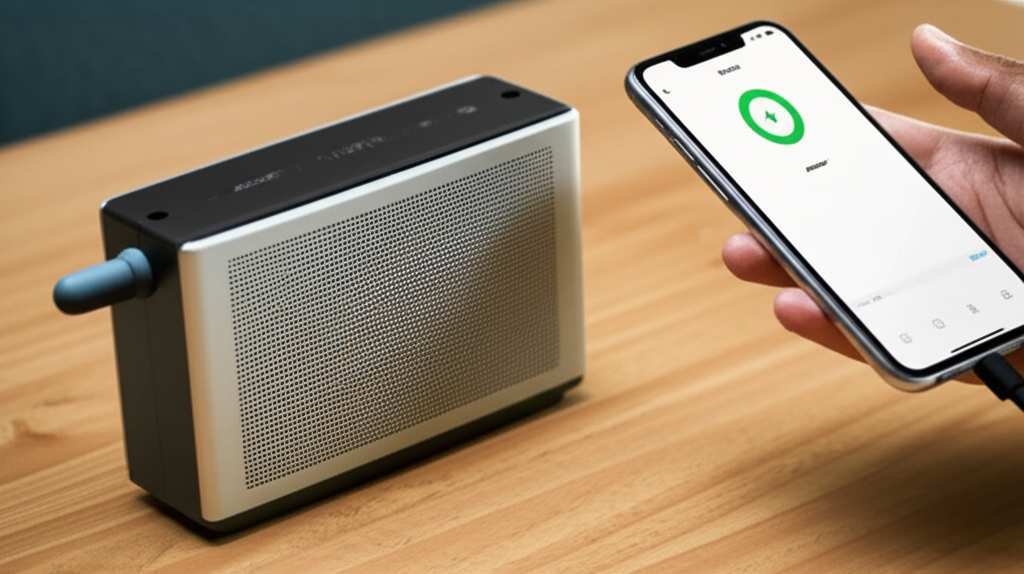
Let’s Get This Party Started: Pairing Your Bose Speaker
Okay, first things first. You’ve got your Bose speaker, and you’ve got your phone or tablet. The magic that connects them is called Bluetooth. Think of Bluetooth like a secret handshake between your devices. Once they know each other, they can send sound wirelessly.
Your Bose speaker is designed to be super user-friendly. Most models have a dedicated Bluetooth button. It’s usually marked with the Bluetooth symbol, which looks like a little ‘B’ made of lines. This button is your key to unlocking the speaker’s wireless potential.
When you press and hold this button, your speaker enters ‘pairing mode’. This means it’s saying, “Hey, I’m ready to meet a new friend!” Your phone or tablet then needs to look for this new friend. It’s a bit like searching for Wi-Fi networks, but for audio.
Step-by-Step: Pairing Your Bose Speaker to Your Device
Let’s break down the actual connection process. It’s pretty straightforward, and you’ll be jamming out before you know it.
-
Turn on your Bose Bluetooth Speaker.
Look for the power button, usually on the top or back of the speaker. Press it, and you should see a light come on, indicating it’s powered up. Some speakers will even make a little chime or voice prompt to let you know they’re ready. -
Put your Bose Speaker in Pairing Mode.
This is the crucial step! Find the Bluetooth button on your speaker. Press and hold it down for a few seconds. You’ll usually hear a sound or see a light blinking (often blue) on the speaker. This tells you it’s actively searching for devices to connect to. -
Open Bluetooth Settings on Your Device.
On your smartphone or tablet (whether it’s an iPhone, Android, or tablet), go to the ‘Settings’ app. Look for the ‘Bluetooth’ option. You might see it near Wi-Fi or network settings. Tap on it to open the Bluetooth menu. -
Scan for Devices.
Once you’re in the Bluetooth settings, make sure Bluetooth is turned ON. Your device will automatically start scanning for nearby Bluetooth devices. If it doesn’t, you might see a ‘Scan’ or ‘Refresh’ button you can tap. -
Select Your Bose Speaker from the List.
After a moment, your Bose speaker should appear in the list of available devices. It will usually be listed by its model name (like “Bose SoundLink Mini” or “Bose Portable Home Speaker”). Tap on the name of your speaker to initiate the connection. -
Confirm the Connection.
Your device and speaker will now try to pair. You might see a prompt on your phone asking you to confirm the pairing. If so, tap ‘Pair’ or ‘Connect’. Your Bose speaker will likely make a sound or a voice prompt to confirm that it’s successfully connected. The blinking light on the speaker usually turns solid when it’s paired. -
Play Some Music!
That’s it! Now you can open your favorite music app, start playing a song, and the sound should come out of your Bose speaker. Congratulations, you’ve connected your speaker!
See? Not so scary, right? It’s like a little digital dance, and now your devices are waltzing together.
Why Bluetooth is Your Best Friend for Sound
Bluetooth technology has really changed the game for how we listen to music and enjoy audio. Before Bluetooth, you were usually tethered to your device with a cable. That meant your phone had to stay close, and you couldn’t move around freely.
With Bluetooth, you get freedom! You can leave your phone on the kitchen counter while you dance in the living room, or have your speaker by the pool while your phone stays safe inside. It’s all about convenience and a clutter-free listening experience.
Plus, Bose speakers are known for their amazing sound quality. They pack a punch with clear highs and deep bass, making your music sound incredible. Connecting them via Bluetooth means you get that premium Bose sound without any wires getting in the way. It’s the best of both worlds!
A Quick Look at Bose Speaker Models
Bose has a fantastic range of Bluetooth speakers, each with its own cool features. While the pairing process is generally the same, knowing a bit about different models can be helpful.
Here’s a little peek at some popular Bose Bluetooth speakers and what makes them special:
| Speaker Model | Key Feature | Battery Life (Approx.) | Water Resistance |
|---|---|---|---|
| Bose SoundLink Flex | Rugged, floats, excellent portability | 12 hours | Yes (IP67) |
| Bose SoundLink Color II | Compact, vibrant colors, easy to use | 8 hours | Yes (IPX4) |
| Bose Portable Home Speaker | 360° sound, smart home features, Wi-Fi and Bluetooth | 12 hours | Yes (IPX4) |
| Bose SoundLink Revolve/Revolve+ | 360° sound, premium design, powerful bass | 12-16 hours | Yes (IPX4) |
This table just gives you a quick idea of what’s out there. For example, if you’re planning on taking your speaker to the beach or by the pool, the SoundLink Flex’s IP67 rating means it can handle a good splash or even a dip! If you want room-filling sound, the Revolve models are fantastic.
Troubleshooting Common Connection Hiccups
Sometimes, technology throws us a curveball. If your Bose speaker isn’t connecting right away, don’t panic! Here are a few common issues and how to fix them.
Speaker not showing up in the list:
Make sure your speaker is actually in pairing mode. You might need to press and hold the Bluetooth button again.
Check that Bluetooth is turned on on your phone or tablet.
Move your speaker and device closer together. Obstacles like walls or even thick clothing can sometimes interfere with the signal.
Try turning your speaker and your device off and then back on again. A simple restart can often solve many problems.
Speaker won’t pair after selecting it:
Ensure your speaker isn’t already connected to another device. Many speakers can only connect to one device at a time. Disconnect it from any other previously paired devices.
If you’ve paired your speaker to this device before, try ‘forgetting’ the speaker in your device’s Bluetooth settings and then re-pairing it.
Sometimes, a speaker might have too many devices stored in its memory. You can try clearing the speaker’s Bluetooth memory. This usually involves holding down the Bluetooth button for about 10-15 seconds until you hear a sound or the light changes. Consult your speaker’s manual for the exact method.
Sound is cutting out or choppy:
This often happens when the devices are too far apart. Try moving your phone or tablet closer to the speaker.
Minimize interference. Other wireless devices, like microwaves or some cordless phones, can sometimes disrupt Bluetooth signals.
Make sure your speaker’s battery isn’t too low. A low battery can sometimes affect performance.
For more detailed troubleshooting specific to your model, the Bose website or your speaker’s user manual is a great resource. You can often find these manuals online by searching for your speaker model and “user manual.”
Connecting Multiple Devices to Your Bose Speaker
Did you know many Bose speakers can remember multiple devices? This is super handy if you and your partner both want to connect your phones, or if you use both a phone and a tablet.
Once you’ve paired a device, your speaker will usually connect automatically when it’s turned on and Bluetooth is enabled on your device, as long as it’s nearby. If you want to connect a new device while another is already connected, you typically need to put the speaker back into pairing mode.
Here’s how it generally works for switching between devices:
Connect a second device:
1. With your first device connected, put your Bose speaker back into pairing mode (hold the Bluetooth button).
2. On your second device, go to Bluetooth settings and select your Bose speaker from the list.
3. Your speaker will now connect to the second device. It will likely remember both devices.
Switching between connected devices:
1. If Device A is playing music, and you want Device B to play, start playing music on Device B. The speaker should switch to the new audio source.
2. If that doesn’t work, you might need to disconnect Device A from the speaker (either through Device A’s Bluetooth settings or by pressing a button on the speaker if it supports it) before Device B can connect and play.
Some Bose speakers can even connect to two devices simultaneously, allowing you to easily switch between them. This is a fantastic feature for sharing music or taking calls without missing a beat.
Bose Connect App: Taking Control
For many Bose Bluetooth speakers, there’s a companion app called the Bose Connect app. This app is like a little control center for your speaker, and it can make managing connections even easier.
You can download it for free from your device’s app store (iOS and Android). Once you’ve paired your speaker via Bluetooth, open the Bose Connect app, and it should find your speaker.
Here’s what the Bose Connect app can do for you:
Manage device connections: See all the devices your speaker is paired with. You can easily switch between them or remove old devices from the memory.
Update speaker software: Bose often releases updates to improve performance, add features, or fix bugs. The app makes this super simple.
Stereo or Party Mode: For some speakers, you can use the app to connect two compatible Bose speakers together. This lets you play music in stereo (one speaker for left channel, one for right) or in Party Mode (both speakers play the same music).
Adjust settings: Depending on the speaker model, you might be able to adjust EQ settings, language, or other preferences through the app.
Using the Bose Connect app is highly recommended, especially if you plan on using your speaker with multiple devices or want to explore advanced features. It really streamlines the whole experience.
Fun Fact: The Evolution of Bluetooth
Did you know Bluetooth technology has been around since the late 1990s? It was named after a Viking king, Harald Bluetooth, who was known for uniting Scandinavian tribes. Just like Harald united tribes, Bluetooth technology was designed to unite different electronic devices wirelessly. Pretty cool, right? Since its early days, Bluetooth has gone through many versions, each getting faster, more reliable, and more power-efficient. The version of Bluetooth your phone and speaker use affects things like range and how quickly they connect.
Connecting Your Bose Speaker to Other Devices
While phones and tablets are the most common companions for Bluetooth speakers, you can connect them to other devices too!
Laptops and Computers: Most modern laptops and computers have built-in Bluetooth. The process is very similar to connecting a phone: go to your computer’s Bluetooth settings, turn it on, put your Bose speaker in pairing mode, and select it from the list. This is fantastic for watching movies or listening to music with better sound than your laptop’s built-in speakers.
Smart TVs: Some smart TVs have Bluetooth output capabilities. Check your TV’s settings menu for a Bluetooth option. If it’s there, you can pair your Bose speaker for a more immersive TV viewing experience, especially for dialogue or action scenes. This can be a great alternative to soundbars!
Gaming Consoles: Certain gaming consoles, like the Nintendo Switch, also support Bluetooth audio. This can be a game-changer for portable gaming or for enjoying your games with richer sound.
Always check your specific device’s manual or settings to see if it supports Bluetooth audio output.
Tips for the Best Bluetooth Connection
Want to ensure your music always sounds crystal clear? Here are a few pro tips:
Keep Devices Close: While Bluetooth has a decent range (often up to 30 feet or 9 meters), performance is best when your devices are within a few feet of each other.
Minimize Obstacles: Solid objects like walls, doors, and even large furniture can weaken the Bluetooth signal. Try to have a clear line of sight between your speaker and your device.
Manage Battery Power: A low battery on either your speaker or your device can sometimes lead to connection issues or choppy audio. Keep them charged!
Update Software: Regularly updating your Bose speaker’s firmware (via the Bose Connect app) and your device’s operating system can improve Bluetooth performance and compatibility.
* Clear Old Pairings: If you’re having trouble connecting to a device you’ve used before, clearing the speaker’s memory of old pairings can often resolve the issue.
Following these simple tips will help you enjoy a seamless and high-quality audio experience every time you use your Bose Bluetooth speaker.
Frequently Asked Questions (FAQ)
Let’s quickly answer some common questions beginners might have.
Q1: Do I need Wi-Fi to connect my Bose Bluetooth speaker?
Nope! Bluetooth speakers use Bluetooth technology, not Wi-Fi, to connect to your devices. This means you can use them anywhere, even when there’s no Wi-Fi available, like on a hike or at the beach.
Q2: Can I connect my Bose speaker to more than one device at the same time?
Some Bose speakers can connect to two devices simultaneously, allowing you to easily switch between them. Others might only connect to one device at a time. Check your speaker’s manual or the Bose Connect app for details on your specific model.
Q3: My speaker won’t connect. What’s the first thing I should try?
The simplest fix is often to turn both your speaker and your device off, then turn them back on again. Also, make sure your speaker is in pairing mode and your device’s Bluetooth is on.
Q4: How do I know if my Bose speaker is in pairing mode?
You’ll usually see a light on the speaker blinking, often blue. You might also hear a sound or a voice prompt indicating it’s ready to connect. This happens when you press and hold the Bluetooth button.
Q5: How far can my Bose speaker be from my phone?
The standard Bluetooth range is typically around 30 feet (or 9 meters) in an open area with no obstructions. However, this can vary depending on the speaker model and environmental factors.
Q6: What is the Bose Connect app and do I need it?
The Bose Connect app is a free app that helps you manage your speaker, update its software, and use features like Party Mode or Stereo Mode. While not strictly required for basic pairing, it’s highly recommended for the best experience and to access all features.
Q7: My Bose speaker is not charging. What should I do?
First, ensure you are using the correct charging cable and power adapter that came with your speaker. Try plugging it into a different power outlet or USB port. If it still doesn’t charge, check the charging port for any debris and contact Bose support.
Conclusion: Go Forth and Amplify Your Life!
So there you have it! Connecting your Bose Bluetooth speaker is a breeze once you know the simple steps. From putting it in pairing mode to selecting it on your device, you’re now equipped to enjoy incredible Bose sound wherever you go.
Remember, the goal is always to make your tech work for you, not the other way around. Whether you’re setting up for a backyard BBQ, a cozy movie night, or just want to add some soundtrack to your workday, your Bose speaker is ready to deliver.
Don’t hesitate to explore the Bose Connect app to unlock even more potential from your speaker. And if you ever run into a small glitch, remember those troubleshooting tips – a simple restart or forgetting and re-pairing can often solve the trickiest issues.
Now go forth, connect with confidence, and let the amazing sound from your Bose Bluetooth speaker fill your world. Make every moment louder and better! Happy listening!