
Connecting your Bose speaker to your iPhone is simple. Just follow a few steps to enjoy your music.
Bose speakers are known for their high-quality sound. Pairing them with your iPhone can enhance your audio experience. Whether you are at home, outside, or hosting a gathering, having your iPhone connected to a Bose speaker can make a big difference.
This guide will help you connect your Bose speaker to your iPhone easily. With clear instructions and helpful tips, you will be enjoying your music in no time. Let’s get started on making that connection!
:max_bytes(150000):strip_icc()/cq5dam.web.1280.1280-3-5c2a5dc746e0fb0001d115f0.jpeg)
Credit: www.lifewire.com
Preparing Your Devices
Connecting a Bose speaker to an iPhone starts with ensuring both devices are charged. Turn on Bluetooth on your iPhone and Bose speaker. Pair them by selecting the Bose speaker from the Bluetooth menu on your iPhone.
Charge The Speaker
First, ensure your Bose speaker is fully charged. Connect the speaker to its charger. Wait until the battery is full. This ensures uninterrupted connection.
Update Iphone Software
Make sure your iPhone has the latest software. Open the Settings app. Go to General and then Software Update. If an update is available, tap Download and Install. Keeping your iPhone updated helps with better device connections.

Credit: www.youtube.com
Turning On Bluetooth
Open the Settings app on your iPhone. Find the Bluetooth option and tap on it. Make sure the switch is turned on. The switch should turn green. Your iPhone is now ready to connect.
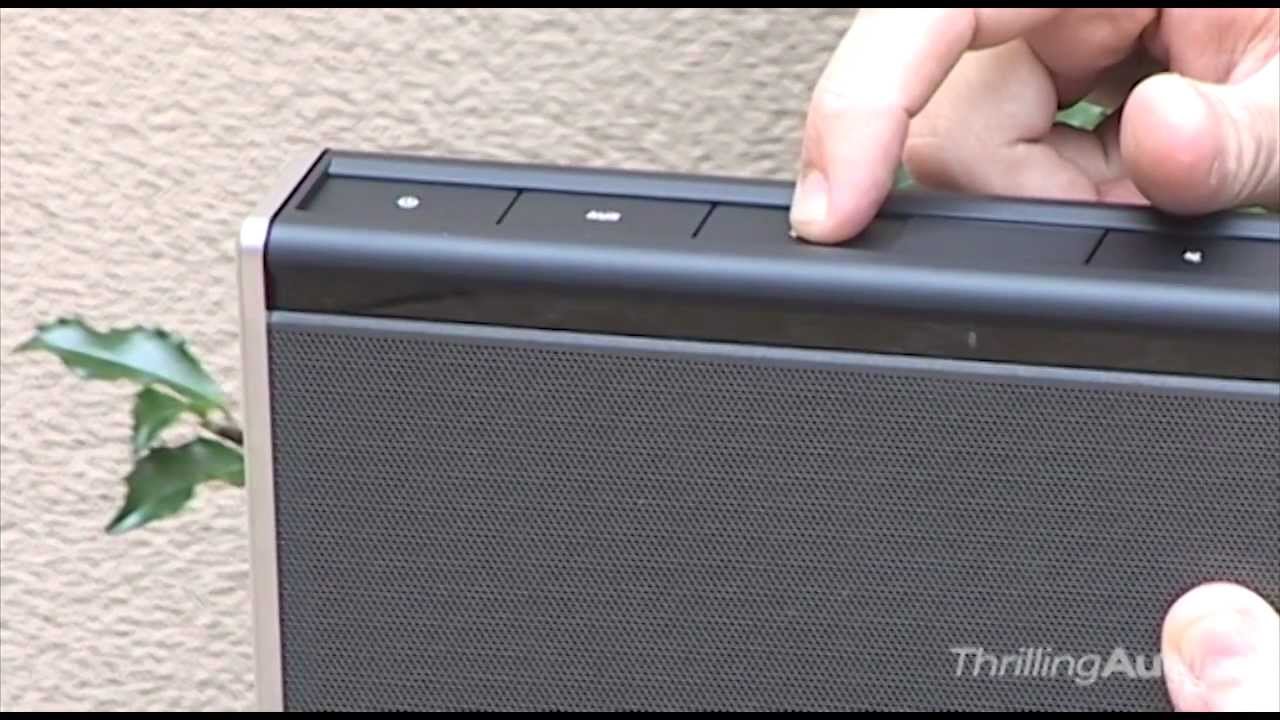
Press the Power button to turn on your Bose speaker. Locate the Bluetooth button on the speaker. Press and hold the Bluetooth button. Wait for the Bluetooth light to start blinking. This means the speaker is in pairing mode.
Pairing The Devices
Go to the Settings app on your iPhone. Tap Bluetooth. Turn on Bluetooth if it is off. Wait for your iPhone to find your Bose speaker. You may need to press the Bluetooth button on your speaker. This makes it visible. Look for the name of your Bose speaker on the list.
Tap the name of your Bose speaker on the list. Your iPhone will ask you to confirm pairing. Tap Pair to connect. You might hear a sound from the speaker. This means the connection is successful. You can now play music from your iPhone. The sound will come from the Bose speaker.
Troubleshooting Connection Issues
Having trouble connecting your Bose speaker to your iPhone? Follow simple steps to pair them through Bluetooth settings. Ensure both devices are discoverable.
Reset Bluetooth Settings
Sometimes Bluetooth settings need a reset. First, go to your iPhone settings. Tap on Bluetooth. Find your Bose speaker in the list. Tap the “i” icon next to it. Choose “Forget This Device”. Confirm your choice. Now, turn off Bluetooth on your iPhone. Wait for a few seconds. Turn Bluetooth back on. Try connecting to your Bose speaker again. This might help solve the issue.
Restart Devices
Restarting devices can fix many problems. First, turn off your Bose speaker. Wait for about 10 seconds. Turn it back on. Now, restart your iPhone. Press and hold the power button. Slide to power off. Wait for it to shut down completely. Turn your iPhone back on. Try connecting to your Bose speaker again. This simple step often works.
Maximizing Sound Quality
Changing the audio settings on your iPhone can make a big difference. Go to Settings, then Music. Here, you can adjust the equalizer (EQ) settings. Select a preset that matches your music style. For example, “Rock” or “Jazz.” This will enhance the sound quality.
Position the Bose speaker in a good spot. Keep it away from walls and corners. This helps to avoid sound reflections. Place it at ear level for the best experience. Clear the area around the speaker. This ensures nothing blocks the sound. Small changes can greatly improve your listening experience.
Credit: www.youtube.com
Using Bose App
First, go to the App Store on your iPhone. Type “Bose Connect” in the search bar. Click “Get” to download the app. Wait for the app to install. Open the app once installed. Follow on-screen instructions to set up.
After setup, you can explore features. The app allows you to control your Bose speaker. You can adjust volume and sound settings. Connect multiple speakers for a better experience. Check for updates to keep your speaker in top shape.
Maintaining Your Speaker
Connecting your Bose speaker to an iPhone is simple. Turn on Bluetooth on both devices. Select your Bose speaker from the list of available devices. Enjoy your music seamlessly.
Regular Cleaning
Keep your speaker clean. Use a soft, dry cloth. Dust can harm the speaker. Avoid using water or cleaning sprays. Dusting weekly helps a lot. You can use a brush for small areas. Clean all parts, especially the buttons. Dirty buttons can stop working.
Software Updates
Check for software updates often. Updates fix bugs and improve the speaker. Use the Bose app to check. The app will tell you if there is an update. Follow the steps in the app. Keep your speaker near the phone while updating. This makes the process smooth.
Additional Tips
Turn off your Bose speaker when not in use. This helps to save battery. Lower the volume to extend battery life. Use only Bose-approved chargers for best results. Avoid exposing your speaker to extreme temperatures. This can damage the battery. Charge the speaker before it gets too low. This keeps the battery healthy. Turn off extra features like voice assistants. They use more battery power.
Disconnect the current device before connecting a new one. This makes the process smoother. Pair your Bose speaker with up to eight devices. Hold the Bluetooth button to switch between devices. Make sure other devices are not too far from the speaker. This ensures a stable connection. Delete old devices from the speaker memory if not in use. This avoids confusion. Keep your devices updated with the latest software. This can help with connectivity.
Frequently Asked Questions
How Do I Pair My Iphone With My Bose Speaker?
Turn on Bluetooth on your iPhone. Power on the Bose speaker. Put the speaker in pairing mode. Select the Bose speaker from the Bluetooth menu on your iPhone. Confirm the pairing.
How Do I Put My Bose Speaker In Pairing Mode?
Turn on your Bose speaker. Press and hold the Bluetooth button until the light blinks blue. The speaker is now in pairing mode.
Why Won’t My Bose Bluetooth Connect To My Iphone?
Your Bose Bluetooth may not connect to your iPhone due to outdated software, device interference, or incorrect settings. Ensure both devices have the latest updates and Bluetooth is enabled. Check for interference and reset both devices if necessary.
Why Won’t My Bose Speaker Connect To My Phone?
Your Bose speaker may not connect due to Bluetooth issues, low battery, or outdated firmware. Restart both devices.
Conclusion
Connecting your Bose speaker to an iPhone is simple and quick. Follow the steps mentioned above. Ensure both devices have Bluetooth turned on. Once connected, enjoy your music or podcasts effortlessly. Troubleshooting tips can help if issues arise. Always check for software updates.
With these easy steps, enhance your audio experience. Now you can take your music anywhere, anytime. Enjoy seamless connectivity and superior sound quality. Happy listening!


