Connect your Vizio TV to a Bluetooth speaker easily! This guide shows you simple steps to enjoy better sound for movies and music without complicated setups. Get ready for an awesome audio upgrade!
Hey there, tech adventurer! Ever wished your Vizio TV could blast sound like a concert hall or a cozy cinema? We all love big screens, but sometimes the TV’s built-in speakers just don’t cut it. That’s where a good Bluetooth speaker swoops in to save the day, turning your living room into an immersive sound paradise.
I know, I know. Sometimes tech talk can feel like a foreign language. You see terms like “pairing,” “latency,” and “profiles,” and your eyes glaze over. But don’t worry! I’m here to break it all down. Think of me as your friendly guide, showing you exactly how to get that awesome sound from your Vizio TV to your favorite speaker.
Getting your Vizio TV and Bluetooth speaker to play nicely together is simpler than you might think. We’ll walk through every step, making sure you don’t miss a beat. Ready to upgrade your audio experience? Let’s dive in and make that magic happen!
Why Connect Your Vizio TV to a Bluetooth Speaker?
Let’s talk sound. You’ve got a great Vizio TV with a picture that pops. But when the action movie explosions or the soaring scores in your favorite shows hit, do they sound a little… flat? This is super common! Most flat-screen TVs are thin, and that means they have limited space for powerful speakers.
This is where a Bluetooth speaker comes in handy. It’s like giving your TV a voice transplant, but a really good one! You get richer bass, clearer dialogue, and a more immersive experience for movies, sports, and games. Plus, you can often place the speaker where it sounds best, not just where the TV is.
Does My Vizio TV Have Bluetooth?
This is the first big question, right? Not all Vizio TVs come with built-in Bluetooth. It’s a feature that’s become more common on newer models, especially the higher-end ones. But older or more basic models might not have it. So, how do you find out?
There are a few easy ways to check. First, you can dive into your Vizio TV’s settings menu. Look for options related to “Audio,” “Sound,” or “Bluetooth.” If you see a Bluetooth option there, chances are good your TV has it!

How to Check Your Vizio TV Settings for Bluetooth
Let’s get into the TV menu. It’s usually pretty straightforward.
- Grab your Vizio remote.
- Press the “Menu” or “Home” button.
- Navigate to “System” or “Settings.”
- Look for “Audio,” “Sound,” or “Bluetooth.”
- If you see a “Bluetooth” option, click on it. You might see a list of devices or an option to “Add Device” or “Pair Device.”
If you don’t see any Bluetooth options in your TV’s menu, don’t despair! There are still ways to get your Bluetooth speaker connected. We’ll cover those later.
Connecting Your Vizio TV If It Has Bluetooth
Okay, you found the Bluetooth setting on your Vizio TV! Awesome. Now, let’s get that speaker connected. This process is called “pairing,” and it’s like introducing two devices so they can talk to each other.
First, make sure your Bluetooth speaker is turned on and in “pairing mode.” Most speakers have a dedicated button for this, often marked with a Bluetooth symbol or the word “Pair.” Check your speaker’s manual if you’re not sure. You’ll usually see a blinking light on the speaker when it’s ready to pair.
Now, back to your Vizio TV.
- Go back to the Bluetooth settings menu on your TV.
- Select “Add Device” or “Scan for Devices.”
- Your TV will search for nearby Bluetooth devices that are in pairing mode.
- You should see your speaker’s name pop up on the TV screen.
- Select your speaker from the list.
- The TV might ask you to confirm a pairing code or just connect automatically. Follow the on-screen prompts.
Once it’s connected, you should see a confirmation on your TV, and the blinking light on your speaker should turn solid. Now, try playing something on your TV. The sound should come from your Bluetooth speaker! It’s that simple.
Troubleshooting Bluetooth Connection Issues
Sometimes, things don’t go perfectly the first time. Don’t worry, these are common hiccups.
- Is the speaker in pairing mode? This is the most common reason. Make sure that blinking light is on!
- Are the devices close enough? Bluetooth has a range. Keep your speaker and TV within about 30 feet of each other.
- Is the speaker already connected to something else? Most Bluetooth speakers can only connect to one device at a time. Disconnect it from your phone or tablet first.
- Restart everything. Turn off your TV and speaker, wait a few seconds, and turn them back on. Then try pairing again.
- Forget and re-pair. On your TV’s Bluetooth menu, find your speaker and select “Forget Device” or “Unpair.” Then, try pairing it again from scratch.
If you’re still having trouble, check your Vizio TV’s manual or the speaker’s manual for specific troubleshooting steps. Sometimes, a quick firmware update for your TV or speaker can also solve persistent issues.
What If My Vizio TV Doesn’t Have Bluetooth?
No built-in Bluetooth on your Vizio TV? No problem at all! There’s a super handy gadget that can add Bluetooth to almost any TV: a Bluetooth transmitter. These little devices plug into your TV’s audio output and broadcast the sound wirelessly to your Bluetooth speaker.
Using a Bluetooth Transmitter for Your Vizio TV
Bluetooth transmitters are affordable and easy to use. They’re a game-changer if your TV is a bit older or doesn’t have Bluetooth.
Here’s how it generally works:
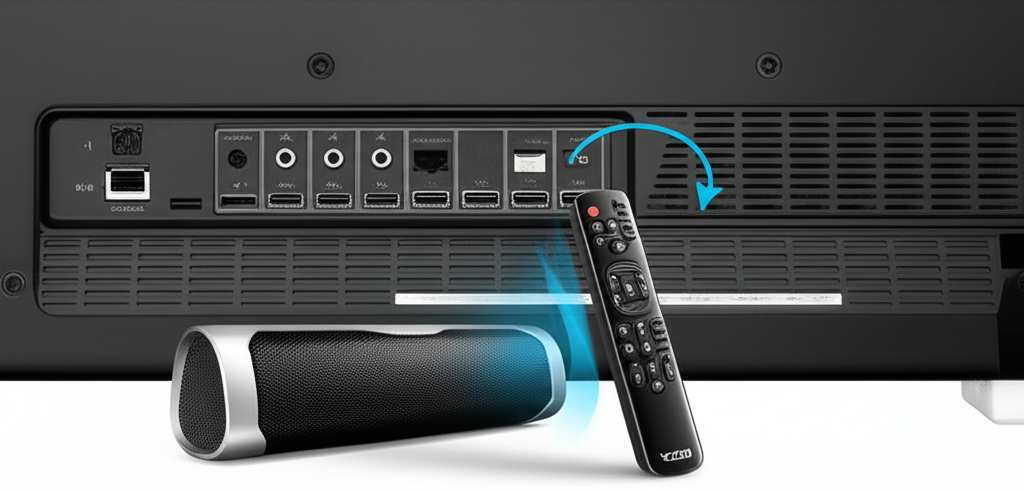
- Find the audio output on your Vizio TV. This is usually a 3.5mm headphone jack, or sometimes red and white RCA audio out ports.
- Plug the Bluetooth transmitter into the audio output. Make sure you use the correct cable (usually included with the transmitter).
- Power up the transmitter. Most transmitters have a USB cable for power, which you can plug into a USB port on your TV or a wall adapter.
- Put the transmitter into pairing mode. Just like your speaker, the transmitter will have a button to press to start pairing.
- Put your Bluetooth speaker into pairing mode.
- Wait for them to connect. The transmitter and speaker will find each other and pair up.
Once paired, the audio from your TV will be sent wirelessly to your Bluetooth speaker. It’s like giving your TV superpowers!
Types of Audio Outputs on Your Vizio TV
Knowing your TV’s audio ports helps a lot. Here are the common ones:
- 3.5mm Headphone Jack: Looks like a small circular port, often found on the side or back of the TV. Most transmitters use this.
- RCA Audio Out (Red & White): These are two distinct ports, usually red for the right channel and white for the left. You might need an adapter cable for these.
- Optical Audio Out (Toslink): This is a square-ish port with a small flap. It’s a digital audio output and is often the best quality. Some transmitters support optical input.
Always check your Vizio TV’s manual to confirm which audio outputs it has. This ensures you get the right transmitter and cables.
Bluetooth Transmitter vs. Built-in Bluetooth: Pros and Cons
Let’s break down the advantages and disadvantages of each method. It helps to see it laid out!
Built-in Bluetooth: Pros and Cons
Pros:
- Convenience: No extra devices to buy or set up. It’s all integrated into your TV.
- Clean Look: No extra cables or boxes cluttering your entertainment center.
- Often More Stable: Manufacturers design these systems to work together, so they can sometimes be more reliable.
Cons:
- Availability: Not all Vizio TVs have it, especially older or entry-level models.
- Limited Features: Sometimes built-in Bluetooth might have fewer codec options or range limitations.
Bluetooth Transmitter: Pros and Cons
Pros:
- Universal Compatibility: Adds Bluetooth to almost any TV, regardless of its age or model.
- Affordability: Transmitters are generally quite inexpensive.
- More Control: Some transmitters offer advanced features like aptX HD for better sound quality.
Cons:
- Extra Device: You need to buy and set up another piece of hardware.
- Cables and Power: Requires an additional cable and power source.
- Potential Latency: Sometimes, there can be a slight delay between the video and audio. This is called latency.
Understanding Bluetooth Latency and Audio Sync
Ah, latency. It’s a fancy word for the tiny delay between the video on your screen and the sound from your speaker. When you watch a movie and the actor’s lips move a second before you hear their voice, that’s latency. It can be a real buzzkill!
This is more common with Bluetooth transmitters, but it can sometimes happen with built-in Bluetooth too. Here’s the cool part: many modern Bluetooth devices and transmitters support codecs like aptX Low Latency. This means they are designed to minimize that delay.
What is a Bluetooth Codec?
Think of a codec as a translator for audio data. It compresses the audio to send it wirelessly and then decompresses it. Different codecs offer different levels of quality and speed.
Here’s a quick look at some common codecs and why they matter:
| Codec | Description | Latency Level |
|---|---|---|
| SBC (Subband Coding) | The basic, universal Bluetooth audio codec. It’s compatible with almost everything but not the fastest. | Moderate |
| AAC (Advanced Audio Coding) | Commonly used by Apple devices. Offers better quality than SBC for the same bit rate. | Moderate |
| aptX | A Qualcomm codec known for good sound quality. | Low to Moderate |
| aptX HD | An improved version of aptX, offering higher resolution audio. | Low |
| aptX Low Latency | Specifically designed to reduce audio delay. Ideal for watching videos. | Very Low |
When choosing a Bluetooth transmitter or looking at your TV’s specs, see if it mentions support for aptX Low Latency. If both your transmitter and your speaker support it, you’re much more likely to get smooth, in-sync audio for your shows and movies.
Making the Most of Your Vizio TV Bluetooth Setup
Once you’re connected, you’ll want to ensure the best possible experience. Here are a few tips to make your sound setup shine:
Speaker Placement Matters
Don’t just plop your speaker down anywhere! Sound travels. Try placing your speaker at ear level if possible. If you have a single speaker, facing it towards your main viewing area is best. For stereo setups, placing speakers equidistant from the TV and the listener creates a balanced soundstage.
Adjusting Volume Levels
You’ll likely control the volume from your Bluetooth speaker directly, or sometimes through your Vizio TV remote if they’re compatible. You might need to experiment a bit to find the perfect balance. Start with your TV’s volume at a moderate level, then adjust your speaker’s volume to your liking.
Checking Audio Output Settings on Vizio TV
Sometimes, even after connecting, your TV might still be trying to send sound through its internal speakers. Go back into your Vizio TV’s audio settings. Look for an option like “Audio Output” or “Digital Audio Out.” Make sure it’s set to “Bluetooth,” “External Speakers,” or a similar option that indicates the sound is going through your connected device.
Considering a Soundbar as an Alternative
While Bluetooth speakers are great for portability and versatility, a soundbar is another excellent option for TV audio. Soundbars are specifically designed to improve TV sound and often offer more power and features like virtual surround sound. Many modern soundbars also offer Bluetooth connectivity for streaming music from your phone. If your main goal is just better TV sound and you don’t need portability, a soundbar might be worth considering. You can read more about how to choose a soundbar on sites like CNET.
Popular Bluetooth Speakers for TVs
Looking for a speaker to pair with your Vizio TV? Here are a few types of speakers that work wonderfully.
Portable Bluetooth Speakers: These are great if you want to move your sound around the house or take it outside. Brands like JBL, Bose, and Sony make excellent portable speakers. They’re easy to pair and offer a big sound in a small package.
Home Audio Bluetooth Speakers: Some speakers are designed more for stationary home use. They might be larger and offer even more powerful sound, sometimes even as a pair for true stereo. Brands like Audioengine or Klipsch offer high-fidelity options.
Smart Speakers: Many smart speakers, like those from Amazon Echo or Google Nest, also have Bluetooth capabilities. You can use them to stream audio from your TV. Just make sure to check their specific pairing instructions.
Here’s a quick comparison of popular speaker types:
| Speaker Type | Primary Use | Portability | Typical Sound Quality | Ease of Pairing |
|---|---|---|---|---|
| Portable Bluetooth Speaker | Music streaming, casual TV sound enhancement | High | Good to Very Good | Easy |
| Home Audio Bluetooth Speaker | Dedicated TV sound upgrade, home audio | Low | Very Good to Excellent | Easy |
| Smart Speaker (with Bluetooth) | Voice control, music, basic TV sound enhancement | Medium | Good | Easy |
| Soundbar (often with Bluetooth) | Primary TV sound system upgrade | Low | Very Good to Excellent | Easy (for TV audio) |
When picking a speaker, consider what you’ll use it for most. If it’s mainly for movies, look for speakers known for clear dialogue and good bass. If you also want it for music, check reviews on overall sound richness. TechRadar often has great reviews on the latest audio gear.
Frequently Asked Questions About Vizio TV Bluetooth
Let’s answer some common questions to make sure you’re feeling totally confident.
Q1: Can I connect multiple Bluetooth speakers to my Vizio TV?
Most Vizio TVs, even those with built-in Bluetooth, can only connect to one Bluetooth audio device at a time. If your TV supports Bluetooth transmitter functionality, or if you use a special transmitter that supports multi-point connection, you might be able to connect two speakers. However, for standard built-in Bluetooth, it’s usually one speaker.
Q2: How do I update my Vizio TV’s firmware?
Firmware updates can improve performance and fix bugs. You can usually find this option in your Vizio TV’s settings menu, under “System” or “Support.” Make sure your TV is connected to the internet for automatic updates, or you might be able to download updates from Vizio’s website onto a USB drive.
Q3: Will my Vizio TV remote control the Bluetooth speaker volume?
Sometimes, yes! If your Vizio TV and Bluetooth speaker support HDMI-CEC (Consumer Electronics Control) or other specific protocols, your TV remote might be able to control the speaker’s volume. It’s not guaranteed, though. You may need to control the volume directly from the speaker or its app.
Q4: What is the range of Bluetooth on my Vizio TV?
The standard Bluetooth range is typically around 30 feet (about 10 meters). However, this can be affected by physical obstructions like walls, furniture, and even other electronic devices. For the best connection, keep your speaker and TV relatively close and with a clear line of sight.
Q5: My speaker won’t connect, what else can I try?
Besides the troubleshooting steps mentioned earlier, ensure your Vizio TV’s Bluetooth isn’t disabled by other connected devices. Sometimes, if you have many Bluetooth devices active, it can cause conflicts. Try turning off Bluetooth on any other nearby devices (phones, tablets, computers) to see if that helps your TV find and connect to your speaker.
Q6: Can I use any Bluetooth speaker with my Vizio TV?
Yes, generally, any standard Bluetooth speaker should be compatible with a Vizio TV that has Bluetooth. The key is that both devices use the standard Bluetooth profiles for audio transmission. If you’re using a Bluetooth transmitter, ensure it’s compatible with your TV’s audio output and your chosen speaker.
Q7: Is it worth buying a Bluetooth transmitter if my TV doesn’t have Bluetooth?
Absolutely! If you have a great Bluetooth speaker you want to use with your Vizio TV, a transmitter is a very cost-effective way to achieve that. They are relatively inexpensive, easy to set up, and can significantly improve your TV’s audio experience. It’s a small investment for a big sound upgrade!
Conclusion: Enjoy Your New Audio Experience!
And there you have it! You’ve learned how to connect your Vizio TV to a Bluetooth speaker, whether your TV has built-in Bluetooth or you need a little help from a transmitter. We’ve covered the steps, troubleshooting, and even a bit about what makes Bluetooth work so well (or sometimes, not so well!).
Remember, the goal is to make your entertainment more enjoyable. Better sound means more immersive movies, clearer dialogue in your favorite shows, and more impactful gaming experiences. Don’t let complicated tech terms hold you back. You’ve got this!
Now go forth and enjoy that amazing sound. Turn up the volume on your favorite movie, blast that awesome playlist, or get lost in the game. Make every moment louder and better with your newly connected Vizio TV and Bluetooth speaker! Happy listening!