Connect your Bluetooth speaker to your Samsung TV easily! This guide shows you how to get awesome sound for movies and music in just a few simple steps. No tech headaches, just great audio.
Hey there, tech adventurer! Ever wished your Samsung TV could blast sound like a concert hall? Maybe you’ve got a fantastic Bluetooth speaker just sitting there, waiting to be part of your movie nights or gaming sessions. It’s such a bummer when the TV’s built-in speakers just don’t cut it, right?
I totally get it. Sometimes, figuring out how to connect new gadgets can feel like cracking a secret code. You see all those buttons and menus, and your brain just goes, “Whoa, hold up!” But guess what? Connecting your Bluetooth speaker to your Samsung TV is actually super straightforward.
We’re going to break it down, step by step, making sure you’re not left scratching your head. Think of me as your friendly tech buddy, here to guide you through this. We’ll go from a silent screen to a sound-filled room in no time. Let’s dive in and make your home entertainment sing!
Why Bother Connecting a Bluetooth Speaker?
So, why would you even want to connect a Bluetooth speaker to your Samsung TV? It’s a fair question! Well, imagine watching that epic action movie, and the explosions sound like a distant firecracker. Or maybe you’re trying to catch every whisper in a dramatic scene, but the TV’s speakers are too muddled.
That’s where your trusty Bluetooth speaker comes in! These speakers are often designed for rich, immersive sound. They can add depth, clarity, and volume that your TV’s built-in speakers just can’t match. It’s like upgrading from a quiet whisper to a booming surround sound experience.
Plus, think about how much better your music sounds when played through a dedicated speaker. If you’re streaming tunes through your TV or using a music app, a Bluetooth speaker will make a huge difference. It’s all about making your favorite content sound its absolute best, without all the fuss of wires.
Let’s Talk Sound: Bluetooth Basics
Before we jump into connecting, let’s chat briefly about Bluetooth. It’s that invisible magic that lets devices talk to each other wirelessly. Your phone talks to your headphones, your tablet talks to your speaker – and your TV can talk to your speaker too! It uses radio waves, which is pretty neat.
The cool part about Bluetooth is that it’s pretty standard now. Most modern Samsung TVs have Bluetooth built-in, and so do almost all Bluetooth speakers. This means they’re designed to be compatible right out of the box. It’s like they speak the same language, making the connection process much smoother.
Now, sometimes you might hear about different Bluetooth versions. Newer versions are faster and more stable, but don’t worry too much about that for this. Your TV and speaker will just use the best connection they both support. The main thing is that they can connect wirelessly.
Getting Your Samsung TV Ready
First things first, we need to make sure your Samsung TV is ready to play nice with other devices. Most modern Samsung Smart TVs have Bluetooth capabilities. You’ll usually find this setting buried in the TV’s menu system. It’s like the TV’s secret handshake spot for wireless gadgets.
To find this, you’ll typically need to navigate through your TV’s settings. Look for options like “Sound,” “Audio Output,” or “External Speaker List.” Sometimes it’s tucked away under a broader “Connectivity” or “Network” menu. Don’t get discouraged if it’s not immediately obvious; these menus can be a bit like a treasure hunt!
A quick tip: if your TV is a bit older, it might not have built-in Bluetooth. In that case, you can often buy a small Bluetooth transmitter that plugs into your TV’s audio output. But for most newer TVs, you’re good to go with the built-in stuff. We’ll focus on that today!
Step-by-Step: Connecting Your Bluetooth Speaker
Alright, ready to make some noise? Here’s how you actually connect your Bluetooth speaker to your Samsung TV. It’s a simple process, and we’ll go through it together.
Step 1: Put Your Speaker in Pairing Mode
This is super important! Your Bluetooth speaker needs to know it’s looking for a new device to connect to. Think of it like putting on a “come find me!” sign.
How to do it: Most speakers have a dedicated Bluetooth button. It might be a symbol of the Bluetooth logo or say “Pairing” or “BT.” Press and hold this button for a few seconds. You’ll usually hear a beep, see a flashing light, or get a voice prompt telling you it’s in pairing mode.
Check your speaker’s manual: If you’re not sure how to put your specific speaker into pairing mode, a quick peek at its instruction manual is always a good idea. It’s usually just a quick press or hold of a button.
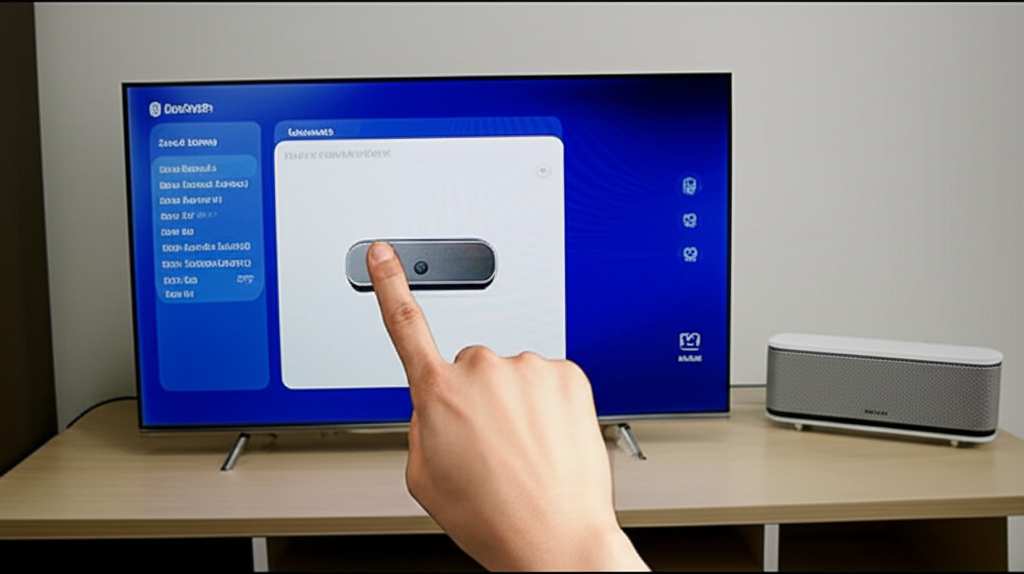
Step 2: Access Your TV’s Bluetooth Settings
Now, let’s tell your TV to look for that speaker.
On your Samsung TV remote: Press the Home button.
Navigate to Settings: Look for the gear icon or the word “Settings” and select it.
Find the Sound menu: Go to “Sound,” then “Sound Output.”
Select Bluetooth Speaker List: You should see an option that says something like “Bluetooth Speaker List,” “Bluetooth Audio,” or “Add Bluetooth Device.” Select this.
Step 3: Scan for Devices
Your TV will now start searching for any nearby Bluetooth devices that are in pairing mode.
Wait patiently: It might take a moment for your TV to find your speaker.
Look for your speaker’s name: Your speaker’s name (often the brand or model, like “JBL Flip 5” or “Sony SRS-XB23”) should appear in the list on your TV screen.
Step 4: Select and Connect
Once you see your speaker’s name, it’s time to connect.
Highlight your speaker: Use your remote to select your speaker’s name from the list.
Press Connect: Choose the “Connect” or “Pair” option.
Confirmation: Your TV will try to establish a connection. You might hear a confirmation sound from your speaker, or the TV screen will say “Connected.”
And voilà! Your Bluetooth speaker should now be connected to your Samsung TV. Any sound coming from the TV should now play through your speaker. How easy was that?
Troubleshooting: When Things Go a Little Sideways
Sometimes, even with the best intentions, tech can be a bit stubborn. If your speaker isn’t connecting right away, don’t panic! Here are a few common hiccups and how to fix them.
Speaker Not Showing Up in the List?
Double-check Pairing Mode: Make absolutely sure your speaker is still in pairing mode. Sometimes the mode times out after a few minutes. Try putting it back into pairing mode.
Check Speaker Battery: A low battery can sometimes cause connection issues. Make sure your speaker is charged or plugged in.
Too Many Devices? If your speaker is already connected to your phone or tablet, it might not be available for the TV. Try disconnecting it from your other devices first.
Restart Everything: A simple restart can work wonders. Turn off your TV and your speaker, wait a minute, then turn them back on and try the pairing process again.
Connected, But No Sound?
Check TV Audio Output: Go back into your TV’s Sound settings and confirm that the Bluetooth speaker is still selected as the audio output. Sometimes it can default back to the TV speakers.
Check Speaker Volume: Make sure the volume on your Bluetooth speaker is turned up. It’s easy to forget this one!
Check TV Volume: While the TV remote might not control the Bluetooth speaker’s volume directly, ensure the TV’s internal volume isn’t muted or set too low.
Restart the Connection: Try disconnecting the speaker from the TV and then reconnecting it.
Sound is Choppy or Lagging?
Distance Matters: Bluetooth has a limited range. Try moving your speaker closer to the TV. Walls and other electronics can also interfere with the signal.
Interference: Other wireless devices, like Wi-Fi routers or microwaves, can sometimes cause interference. Try turning off other nearby wireless devices temporarily to see if it helps.
Check Bluetooth Version: While less common, if your TV and speaker have very different Bluetooth versions, it could cause minor issues. However, most modern devices are designed to be backward compatible.
Understanding Your TV’s Audio Output Options
Your Samsung TV offers a few ways to get sound out. Knowing these helps you understand why Bluetooth is a great choice.
Here’s a quick look at common audio output types:
| Output Type | Description | Pros | Cons |
|---|---|---|---|
| Built-in TV Speakers | The speakers integrated directly into your television. | Convenient, no extra setup. | Often lack depth, volume, and clarity. |
| Wired (e.g., Optical, HDMI ARC) | Connecting external soundbars or home theater systems with cables. | High-quality sound, reliable connection. | Requires cables, can be more complex setup. |
| Bluetooth | Wireless connection to speakers or headphones. | No wires, easy to set up, versatile. | Potential for slight lag, sound quality can vary. |
As you can see, Bluetooth offers a fantastic balance of convenience and improved sound quality. While a wired connection might offer the absolute best audio fidelity, Bluetooth is incredibly user-friendly and perfect for most people wanting better sound without the cable mess.
Fun Fact Alert!
Did you know that Bluetooth is named after a Viking king? Harald Bluetooth was a king of Denmark and Norway in the 10th century, famous for uniting Danish tribes. The technology was named after him because it aimed to unite different communication devices. Pretty cool, right?
Exploring Advanced Settings (If You’re Feeling Adventurous!)
Some Samsung TVs offer a few extra tweaks for Bluetooth audio. You might find settings related to:
Lip Sync Adjustment: This is super handy if you notice the sound is slightly out of time with the video. You can adjust the delay to make everything sync up perfectly. Look for this in the Sound settings, often under “Expert Settings” or “Additional Settings.”
Multiple Bluetooth Connections: Some newer Samsung TVs allow you to connect two Bluetooth devices simultaneously. This is great if you and a friend both want to listen with wireless headphones. Check your TV’s manual to see if yours supports this!
These settings can really fine-tune your audio experience. Don’t be afraid to explore your TV’s menus – you might discover some hidden gems!
Choosing the Right Bluetooth Speaker for Your TV
While this guide is about connecting, a quick word on choosing a speaker can be helpful. Not all Bluetooth speakers are created equal!
Here are a few things to consider:
Sound Quality: Do you want booming bass for action movies, or crystal-clear dialogue for dramas? Reading reviews can help you pick a speaker that matches your listening preferences.
Battery Life: If you plan to move your speaker around the house or use it outdoors, look for a speaker with good battery life.
Size and Portability: Do you need a small speaker that fits on a shelf, or something larger for a more immersive experience?
Durability: If you have kids or pets, or plan to use the speaker outside, a more rugged, water-resistant speaker might be a wise choice.
For example, a portable speaker like the JBL Charge 5 is great for moving around, while a larger speaker like the Sonos Move might offer richer sound for a dedicated home theater setup.
When Bluetooth Isn’t an Option: Alternatives
What if your Samsung TV is older and doesn’t have Bluetooth? Or maybe you experience that occasional lip-sync issue that Bluetooth can sometimes cause? Don’t worry, there are still ways to get awesome sound!
Bluetooth Transmitters
These are small devices that plug into your TV’s audio output (usually a headphone jack or optical port). They then broadcast the TV’s sound over Bluetooth, allowing you to connect your existing Bluetooth speaker. It’s a great workaround for older TVs. Many transmitters also support aptX Low Latency, which helps reduce that annoying audio delay.
Soundbars
A soundbar is a dedicated audio device designed to sit in front of your TV. They offer a significant upgrade over TV speakers and often come with a subwoofer for extra bass. Many soundbars connect easily via HDMI or optical cable and provide a truly immersive sound experience without the complexities of Bluetooth pairing. Check out guides like TechRadar’s best soundbar guide for recommendations.
Wired Speaker Systems
For the ultimate audio experience, a traditional wired home theater system or bookshelf speakers connected to an AV receiver offer unparalleled sound quality and depth. While this involves more cables and setup, the payoff in audio fidelity is substantial.
Quick Comparison: Popular Bluetooth Speaker Features
Choosing a speaker can be overwhelming with all the different features. Here’s a quick look at what some popular features mean:
| Feature | What It Does | Why It Matters for TV |
|---|---|---|
| aptX Low Latency | A Bluetooth codec that significantly reduces audio delay. | Crucial for watching movies or playing games, as it keeps audio and video in sync. |
| Multi-point Connection | Allows the speaker to connect to two devices at once. | Handy if you switch between TV audio and phone calls frequently. |
| Water Resistance (IPX Rating) | Protects the speaker from water splashes or submersion. | Great if you use your speaker in the kitchen or outdoors near the pool. |
| Stereo Pairing | Connect two identical speakers to create a true stereo sound experience. | For a more immersive soundstage, especially for movies. |
When picking a speaker for your TV, look for those with “aptX Low Latency” if you’re concerned about lip-sync issues. It’s a real game-changer for a smooth viewing experience.
Frequently Asked Questions (FAQ)
Got more questions? I’ve got answers!
Q1: My Samsung TV doesn’t seem to have a Bluetooth option. What should I do?
A1: No worries! If your TV is an older model, it might not have built-in Bluetooth. The easiest solution is to get a Bluetooth transmitter. These small devices plug into your TV’s audio port and send the sound wirelessly to your speaker. Just make sure the transmitter supports low latency if you’re watching videos!
Q2: Can I control the Bluetooth speaker’s volume with my Samsung TV remote?
A2: Usually, no. Your TV remote typically controls the TV’s own volume. You’ll need to use the volume buttons on the Bluetooth speaker itself or the app that controls the speaker to adjust its loudness. Some advanced setups or universal remotes might allow this, but it’s not standard.
Q3: How far away can my Bluetooth speaker be from my Samsung TV?
A3: Bluetooth generally has a range of about 30 feet (around 10 meters) in an open space. However, walls, furniture, and other electronic devices can interfere with the signal. For the best, most stable connection, try to keep your speaker within 15-20 feet of the TV, with a clear line of sight if possible.
Q4: Can I connect my Bluetooth headphones to my Samsung TV?
A4: Absolutely! The process is exactly the same as connecting a Bluetooth speaker. Just put your headphones in pairing mode and search for them in your TV’s Bluetooth settings. It’s a great way to enjoy your shows without disturbing anyone else.
Q5: What does “pairing” mean?
A5: Pairing is the process where two Bluetooth devices establish a secure, trusted connection with each other. Once paired, they will usually remember each other and connect automatically whenever they are both on and within range. It’s like introducing two friends who then know each other for future meetings.
Q6: Will connecting a Bluetooth speaker affect my TV’s picture quality?
A6: No, connecting a Bluetooth speaker will not affect your TV’s picture quality at all. Bluetooth is only used for transmitting audio signals, so your video will remain just as crisp and clear as before.
Q7: My speaker keeps disconnecting. What’s wrong?
A7: This can happen due to a few things. Ensure your speaker’s battery is charged. Also, check for interference from other wireless devices or try moving the speaker closer to the TV. Some speakers might also disconnect if they haven’t received an audio signal for a while to save power, so make sure audio is actively playing.
Wrapping It Up: Enjoy Your Awesome New Sound!
See? Connecting your Bluetooth speaker to your Samsung TV is totally doable! You’ve learned how to put your speaker in pairing mode, find the Bluetooth settings on your TV, and make that sweet connection. We even covered some common troubleshooting tips and alternatives.
You’re now all set to transform your TV watching experience. Imagine the richer sound for your favorite movies, the clearer dialogue for that gripping drama, and the extra kick for your gaming adventures. It’s all within your reach, without a tangle of wires.
So go ahead, connect that speaker, and crank it up (responsibly, of course!). Enjoy the amazing sound and make every moment of your home entertainment louder, clearer, and way more fun. Happy watching, and even happier listening!