Connect your Bluetooth speaker to your TCL Roku TV in minutes! This guide makes pairing simple, so you can enjoy richer sound for movies, music, and games without any fuss. Let’s get your audio booming!
Hey there, tech adventurer! Ever feel like your TV’s sound is just… okay? You know, good enough for the news, but not quite there for that epic movie scene or your favorite pump-up playlist. I totally get it! We love our big screens, but sometimes the audio needs a little extra oomph. That’s where a trusty Bluetooth speaker swoops in to save the day!
But then comes the tricky part, right? Connecting it to your TCL Roku TV can feel like deciphering a secret code. You stare at the menus, poke around a bit, and maybe even start to sweat. Don’t worry, I’ve been there too! It’s like trying to find a specific button on a remote you’ve never used before.
The good news is, it’s usually way simpler than it looks. We’re going to walk through this together, step-by-step. Think of me as your friendly guide, holding your hand through the tech maze. We’ll make sure your TCL Roku TV and your Bluetooth speaker are best buds in no time. So, ready to upgrade your listening experience and make every sound pop? Let’s dive in!
Why Connect a Bluetooth Speaker to Your TCL Roku TV?
Imagine this: You’re settling in for a movie night. The picture is stunning, but the sound feels a bit… flat. Now, picture the same scene with booming surround sound coming from your favorite speaker. Suddenly, you’re in the movie, right? That’s the magic a Bluetooth speaker brings.
It’s not just for movies, either! If you love listening to music through your TV or playing video games, a good speaker can totally transform the experience. The deep bass, clear dialogue, and immersive sound effects make everything so much more engaging. Plus, you can often stream music from your phone to your speaker and then output that audio to your TV for a unified sound system.
And let’s be honest, sometimes those built-in TV speakers can be a little… tinny. They’re designed to be efficient and compact, not necessarily for audiophile-grade sound. A dedicated Bluetooth speaker, even a portable one, usually packs a much bigger punch and offers a richer, more balanced audio profile. It’s a simple upgrade that makes a huge difference!
Understanding Your TCL Roku TV’s Bluetooth Capabilities
Before we start pairing, it’s good to know what we’re working with. Not all TCL Roku TVs come with Bluetooth built-in for audio output. Some models have it for remote control connectivity, but not for speakers. So, the very first step is to check if your TV actually supports Bluetooth audio streaming.

How do you do that? It’s pretty easy! You’ll usually find this information in your TV’s settings menu. If your TV has Bluetooth for audio, you’ll typically find a section for “Remotes & Devices” or “Bluetooth” where you can add new devices. If you don’t see any options related to connecting audio devices, your TV might not have this feature built-in.
Don’t despair if your TV doesn’t have native Bluetooth audio support! There are still ways to get that amazing speaker sound. We’ll cover those options later. But for now, let’s assume your TCL Roku TV is ready to party with Bluetooth.
Let’s Talk About Bluetooth Speakers
There are tons of Bluetooth speakers out there. From tiny portable ones that fit in your pocket to larger ones that fill a room with sound. When choosing one for your TV, consider what you’ll use it for most. Do you want it for casual movie watching, or are you a serious gamer looking for immersive sound?
Portability is a big factor for some. If you plan to move your speaker around the house, a smaller, lighter one might be perfect. If it’s going to stay in one spot, you might opt for a bigger speaker that offers better bass and volume. Sound quality is also key. Read reviews and see what others say about the clarity and depth of the sound.
And importantly, make sure the speaker is easy to pair. Most modern Bluetooth speakers are designed to be super user-friendly. They usually have a dedicated pairing button that you just press and hold. It’s a simple process that connects your speaker to your TV wirelessly. Pretty neat, huh?
How to Connect Bluetooth Speaker to TCL Roku TV: Step-by-Step
Alright, let’s get down to business! This is the part where we make the magic happen. Follow these steps, and you’ll be enjoying your external speaker in no time. Remember to have your Bluetooth speaker handy and turned on, and make sure it’s in pairing mode.
Step 1: Put Your Bluetooth Speaker in Pairing Mode
This is the most crucial first step. Every Bluetooth speaker has a way to enter “pairing mode.” Usually, there’s a button with a Bluetooth symbol on it. You’ll need to press and hold this button for a few seconds until a light starts blinking or you hear an audible cue. This tells the speaker it’s ready to connect to a new device, like your TCL Roku TV.
Different speakers have different ways of indicating pairing mode. Some have a flashing blue light, others might make a soft beeping sound. Check your speaker’s manual if you’re unsure. The key is that the speaker is actively looking for a device to connect to.
Step 2: Navigate to Your TCL Roku TV’s Bluetooth Settings
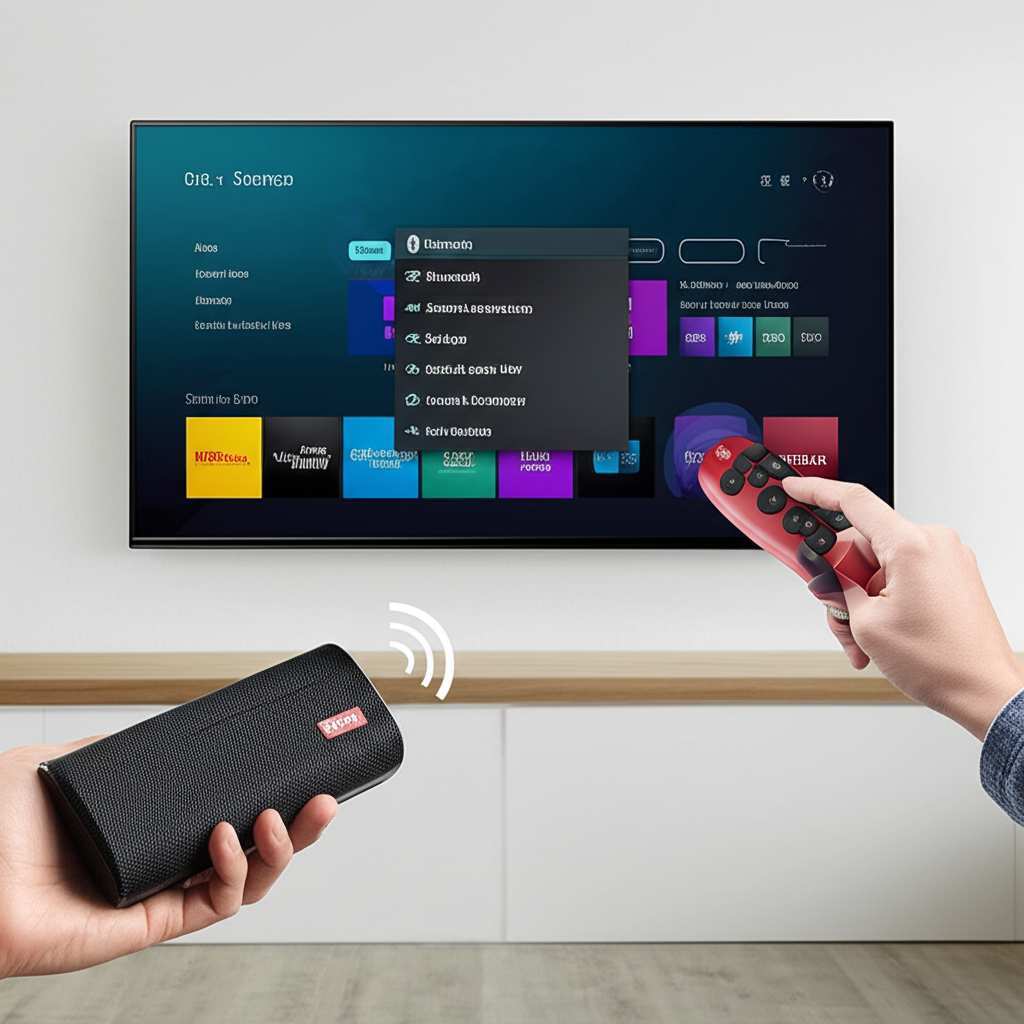
Now, let’s head over to your TV. Grab your Roku remote and press the Home button. You’ll want to navigate through the menu to find the Bluetooth settings. This is usually under a section called Settings.
Once you’re in Settings, look for an option like Remotes & Devices. This is where your TV manages all its wireless connections. Inside Remotes & Devices, you should find an option related to Bluetooth. If you see “Add Bluetooth device” or something similar, you’re in the right place!
Step 3: Scan for Devices on Your TCL Roku TV
With your speaker in pairing mode and your TV ready to scan, select the option to add a new Bluetooth device. Your TCL Roku TV will then start searching for any nearby devices that are in pairing mode. This process usually takes a few seconds to a minute.
You might see a list of available devices pop up on your TV screen. Look for the name of your Bluetooth speaker in this list. It’s usually the brand name or a model number. Sometimes, the name might be a bit generic, so if you have multiple speakers nearby, make sure you select the correct one!
Step 4: Select Your Speaker and Pair
Once you spot your speaker’s name on the list, use your Roku remote to select it. Your TV will then attempt to connect to the speaker. You might see a confirmation message on the screen asking you to confirm the pairing. Just select Pair or Connect.
If the pairing is successful, you’ll usually get a confirmation message on your TV, and your Bluetooth speaker might make a sound or show a solid light to indicate it’s connected. Congratulations, you’ve officially paired your speaker!
Step 5: Select Your Bluetooth Speaker as the Audio Output
Sometimes, even after pairing, your TV might not automatically switch the audio output to your new speaker. You might need to tell it to do so. Go back to the Settings menu on your TCL Roku TV.
Look for an option related to Audio or Sound. Within the audio settings, you should find an option for Audio Output or Speakers. Select this and choose your newly connected Bluetooth speaker from the list of available output devices. Voila! All sound should now be coming from your Bluetooth speaker.
Troubleshooting Common Connection Issues
Even with the best intentions, technology can sometimes be a little stubborn. If you’re having trouble connecting your Bluetooth speaker to your TCL Roku TV, don’t worry! Here are some common issues and how to fix them.
- Speaker not appearing in the list:
- Make sure your speaker is definitely in pairing mode. Try turning it off and on again and re-entering pairing mode.
- Ensure your speaker is close enough to the TV. Bluetooth has a limited range, usually around 30 feet (10 meters).
- Check if your speaker is already connected to another device, like your phone. Disconnect it from other devices before trying to pair with the TV.
- Pairing fails or connection is unstable:
- Restart both your TV and your Bluetooth speaker. Sometimes a simple reboot clears temporary glitches.
- Forget the device on your TV and re-pair it. Go back to your TV’s Bluetooth settings, find your speaker, and select “Forget Device” or “Remove Device.” Then, try the pairing process again from scratch.
- Check for TV software updates. Ensure your TCL Roku TV is running the latest firmware. Go to Settings > System > System Update.
- No sound from the speaker:
- Double-check that your Bluetooth speaker is selected as the audio output in your TV’s sound settings.
- Make sure the volume on both your TV and your speaker is turned up. Sometimes one might be muted or very low.
- Try playing different content. Some apps might have specific audio settings or issues.
If you’ve tried all these steps and are still stuck, consult your TCL Roku TV’s user manual or the support website for your specific TV model. You can also check the manufacturer’s website for your Bluetooth speaker for specific troubleshooting tips.
When Your TCL Roku TV Doesn’t Have Bluetooth Audio
So, what if your TCL Roku TV model doesn’t have built-in Bluetooth for audio? Bummer, right? But it’s not the end of the road for better sound! You have a couple of excellent workarounds.
Option 1: Bluetooth Audio Transmitter
This is a fantastic little gadget. A Bluetooth transmitter is a small device that plugs into your TV’s audio output port (usually an optical or 3.5mm headphone jack) and broadcasts the audio via Bluetooth. You then pair your Bluetooth speaker to this transmitter, not directly to the TV.
How it works:
- Connect the Bluetooth transmitter to your TV’s audio output (e.g., optical port).
- Power up the transmitter.
- Put the transmitter into pairing mode.
- Put your Bluetooth speaker into pairing mode.
- The transmitter and speaker should find each other and pair.
- Make sure to set your TV’s audio output to the correct port you used (optical or headphone).
This is a great solution because it essentially adds Bluetooth audio capabilities to almost any TV, regardless of its built-in features. Many transmitters also allow you to connect two pairs of headphones or speakers simultaneously, which is a nice bonus!
Option 2: Roku Wireless Speakers or Soundbar
Roku offers its own line of wireless speakers and soundbars designed to work seamlessly with Roku TVs. These devices often connect using a proprietary wireless technology rather than standard Bluetooth, offering a very stable and high-quality audio experience.
Pros of Roku Wireless Speakers:
- Easy setup and integration with your Roku TV.
- Often provide a more robust and lag-free audio experience than standard Bluetooth.
- Can enhance TV sound significantly with dedicated bass and clarity.
- Some models offer voice control integration.
While these are not standard Bluetooth speakers, they are a great option if you want a dedicated sound solution for your TCL Roku TV and want to ensure maximum compatibility and ease of use. You can usually find these directly from Roku or major electronics retailers.
Comparing Audio Output Options
Let’s look at how these different ways of connecting audio compare. It helps to see the pros and cons laid out clearly so you can pick what’s best for you.
| Connection Method | Ease of Setup | Sound Quality | Compatibility | Cost (Approx.) |
|---|---|---|---|---|
| Built-in TV Bluetooth | Very Easy (if available) | Good to Very Good | Only TVs with Bluetooth Audio | Free (if TV has it) |
| Bluetooth Transmitter | Easy | Good to Very Good | Most TVs with Audio Out | $30 – $100 |
| Roku Wireless Speakers | Very Easy | Very Good to Excellent | Roku TVs | $100 – $300+ |
As you can see, if your TCL Roku TV has built-in Bluetooth, that’s the simplest and most cost-effective way to go! If not, a Bluetooth transmitter is a fantastic and affordable way to add this capability. Roku’s own wireless speakers offer a premium experience but come at a higher price point. Think about your budget and what you want most from your audio experience when making your choice.
Tips for the Best Bluetooth Audio Experience
Once you’re all set up, here are a few extra tips to make sure your audio experience is top-notch:
- Placement is Key: Don’t hide your speaker behind furniture! Place it in an open area where sound can travel freely. For TVs, positioning the speaker at roughly ear level often provides the best clarity.
- Minimize Interference: Other wireless devices, like microwaves or some Wi-Fi routers, can sometimes interfere with Bluetooth signals. Try to keep your speaker and TV away from these if you notice dropouts.
- Check Latency: Sometimes, there can be a slight delay (latency) between the video on screen and the audio from your Bluetooth speaker. This is more common with standard Bluetooth. If it’s really noticeable, especially during dialogue, try a Bluetooth transmitter that supports low-latency codecs (like aptX Low Latency) or consider Roku’s wireless speakers, which are designed to minimize this.
- Update Everything: Keep your TV’s firmware and your speaker’s firmware (if applicable) updated. Manufacturers often release updates that improve performance and fix bugs, including Bluetooth connectivity.
- Use the Right Cables: If you’re using a Bluetooth transmitter with an optical audio cable, ensure it’s a good quality cable. A bad cable can sometimes affect sound quality.
Following these tips can help you get the most out of your Bluetooth speaker setup. It’s all about fine-tuning the little things to make a big difference in your enjoyment.
Fun Fact: How Bluetooth Works (Simply!)
Ever wonder how those invisible signals connect your speaker to your TV? Bluetooth uses radio waves, specifically in the 2.4 GHz frequency band. It creates a small, personal network between devices. This is why you can have multiple Bluetooth devices around without them all clashing – they have their own little communication channels!
The “pairing” process is basically the devices introducing themselves and agreeing on how to talk to each other securely. Once paired, they remember each other, making future connections much faster. It’s a clever piece of technology that makes our wireless lives so much easier!
Frequently Asked Questions (FAQs)
Q1: Can I connect any Bluetooth speaker to my TCL Roku TV?
A1: Yes, if your TCL Roku TV has Bluetooth audio support, you can generally connect any standard Bluetooth speaker. Just make sure it’s compatible with the Bluetooth version your TV supports (though most modern devices are very flexible).
Q2: Why is there a delay between the picture and sound?
A2: This is called audio latency. It can happen with Bluetooth connections due to the time it takes for the audio signal to be processed and transmitted wirelessly. Some TVs and speakers have settings to help adjust this, or a low-latency Bluetooth transmitter might be needed.
Q3: My speaker is paired but I still don’t hear any sound. What’s wrong?
A3: First, check your TV’s audio output settings to ensure your Bluetooth speaker is selected. Also, make sure the volume is turned up on both the TV and the speaker. Sometimes, simply unpairing and re-pairing the device can fix this.
Q4: Can I connect multiple Bluetooth speakers to my TCL Roku TV?
A4: Most TCL Roku TVs only support connecting one Bluetooth audio device at a time. If you want to connect multiple speakers, you might need a special Bluetooth transmitter that supports multi-point connection, or consider a dedicated multi-speaker audio system.
Q5: How far away can my Bluetooth speaker be from my TV?
A5: The standard Bluetooth range is about 30 feet (10 meters) in an open area. Walls and other electronic devices can reduce this range and cause signal interference. For the most stable connection, keep the speaker reasonably close to the TV.
Q6: Do I need a special app to connect my Bluetooth speaker?
A6: No, you don’t need a special app for basic Bluetooth connection on most TCL Roku TVs. You connect directly through the TV’s settings menu. Some advanced features or custom EQ settings might require a speaker manufacturer’s app, but that’s separate from the TV connection.
Q7: Will using a Bluetooth speaker drain my TV’s battery faster?
A7: TCL Roku TVs are plugged into a power outlet, so they don’t have batteries to drain. Connecting a Bluetooth speaker will not affect your TV’s power consumption in any significant way. The speaker itself will need to be charged or powered.
Conclusion: Enjoy Your Enhanced Sound!
See? Connecting a Bluetooth speaker to your TCL Roku TV doesn’t have to be a headache. Whether your TV has built-in Bluetooth, or you need a little help from a transmitter, you now have the knowledge to get your audio sounding fantastic.
You’ve learned how to put your speaker in pairing mode, navigate your TV’s settings, and even troubleshoot common issues. Plus, you know your options if your TV isn’t Bluetooth-ready from the start. It’s all about making your home entertainment more immersive and enjoyable.
So go ahead, try it out! Pair up that speaker and experience your favorite shows, movies, and music like never before. Get ready for richer bass, clearer dialogue, and a whole new level of awesome. Now go enjoy amazing sound and make every moment louder and better!