Connecting your Bose Bluetooth speaker is super simple! Just follow these easy steps to pair your device and enjoy great sound in minutes. Get ready for awesome audio anywhere.
Hey there, tech explorer! Ever feel like your favorite tunes are just a bit… small? Or maybe that movie scene would be so much cooler with bigger sound? That’s where a good Bluetooth speaker comes in. And if you’ve got a Bose speaker, you’re in for a treat. Bose is known for its amazing sound quality.
But sometimes, getting that awesome sound to your speaker can feel like cracking a secret code. You might look at buttons, menus, and flashing lights, and think, “What do I do now?” Don’t worry, I’ve been there! It’s totally normal to feel a little lost at first.
That’s why I’m here. My goal is to make technology feel as easy and fun as listening to your favorite playlist. We’ll take the mystery out of connecting your Bose Bluetooth speaker. You’ll be jamming out in no time, I promise!
So, grab your speaker and your phone or tablet. Let’s make this super simple, together. We’re going to go through it step-by-step, and you’ll see how easy it really is. Ready? Let’s dive in!
Why Bose Bluetooth Speakers Are So Cool
Bose speakers are like little magic boxes. They pack incredible sound into a portable package. Imagine taking your music from the living room to the backyard, or even on a picnic. That’s the freedom a Bluetooth speaker gives you!
And Bose? They’ve been crafting audio experiences for ages. They know how to make sound rich, clear, and powerful. Whether you’re listening to a podcast, a rock concert, or a quiet classical piece, a Bose speaker brings it to life. It’s not just sound; it’s an experience.
Plus, they’re built to last and designed to look good. You’re not just buying a speaker; you’re investing in a piece of tech that enhances your daily life. And connecting it is the first step to unlocking all that sonic goodness!
Getting Started: What You’ll Need
Before we start pairing, let’s make sure you have everything ready. It’s like prepping for a baking session – you need all your ingredients in place!
Your Bose Bluetooth Speaker: Make sure it’s charged! A dead battery won’t get us anywhere. Most speakers have a charging light that shows you the status.
Your Device: This is usually your smartphone, tablet, or laptop. It’s the source of all your amazing music and audio.
Bluetooth Enabled: Double-check that Bluetooth is turned ON on your device. You’ll find this in your device’s settings menu.
That’s it! See? We’re already halfway there. It’s all about simple steps.
First Things First: Powering On and Pairing Mode
This is where the magic begins! Every Bose Bluetooth speaker has a few buttons on it. We need to find the power button and the Bluetooth button.
Powering Up Your Bose Speaker
Look for a power button. It might have a little power symbol (a circle with a line). Press and hold it for a second or two. You’ll usually hear a little chime or a voice prompt that says the speaker is on.
Some Bose speakers have a light that turns on or changes color when they’re powered up. This is your signal that it’s ready for the next step. It’s like the speaker saying, “I’m awake and ready to party!”
Putting Your Speaker in Pairing Mode
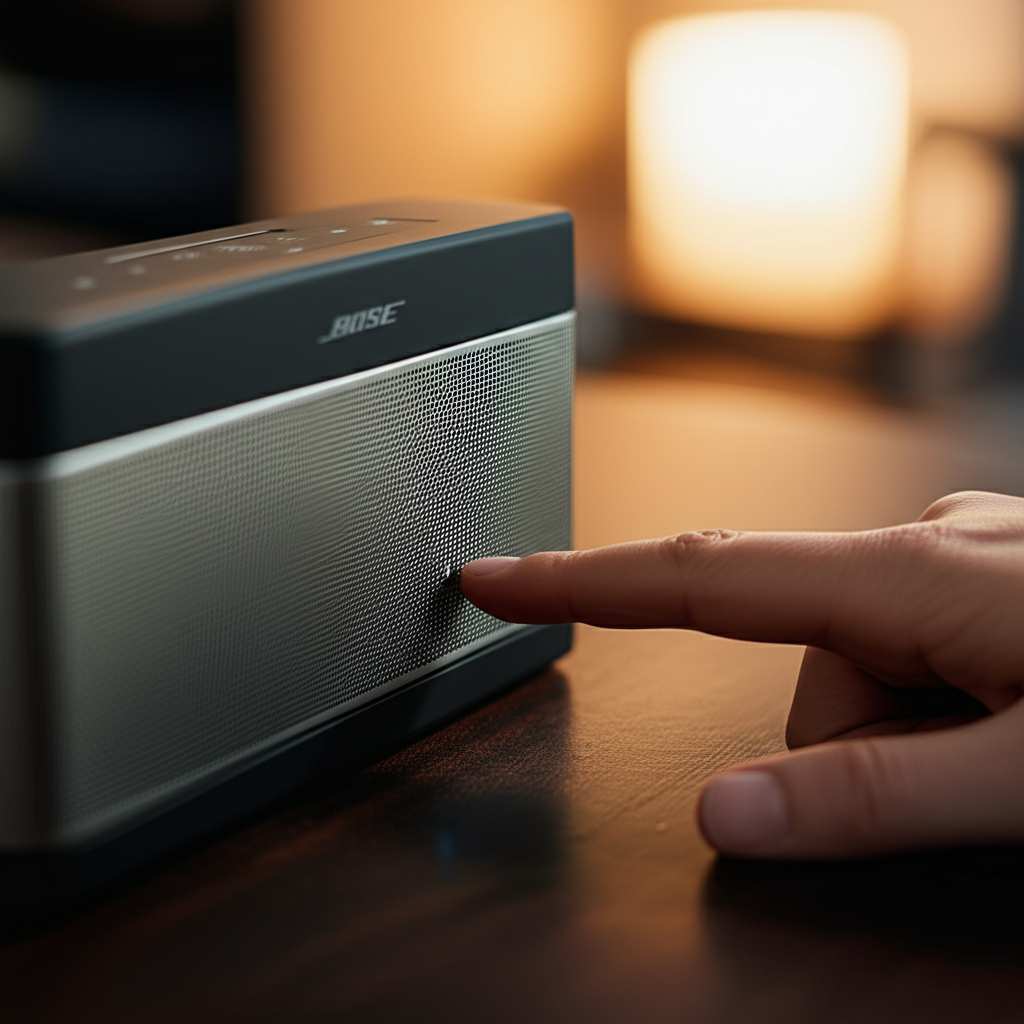
Now, we need to tell your speaker to look for a new device to connect to. This is called “pairing mode.” On most Bose speakers, there’s a dedicated Bluetooth button. It often has the Bluetooth symbol (a little stylized ‘B’ shape).
Press and hold this Bluetooth button. You might hear a sound, or a voice prompt will say, “Ready to connect.” You’ll also often see a light near the Bluetooth symbol start to flash. This flashing light is key – it means your speaker is actively searching for devices!
Tip: If you’re not sure which button is which, take a peek at your speaker’s manual. Or, you can usually find a quick guide online by searching for your specific Bose speaker model.
Connecting From Your Phone or Tablet (The Easy Way!)
Okay, speaker is on and flashing its Bluetooth light. Now, let’s grab your phone or tablet. This is where we tell your device to find the speaker.
Step 1: Open Bluetooth Settings
On your phone or tablet, you need to go to the Bluetooth settings.
On an iPhone or iPad, go to `Settings` > `Bluetooth`.
On an Android device, go to `Settings` > `Connected devices` > `Connection preferences` > `Bluetooth`. (This might vary slightly depending on your Android version).
Make sure the Bluetooth toggle switch is turned ON. You should see a list of available devices appear.
Step 2: Find Your Bose Speaker
Your device will start scanning for nearby Bluetooth devices. Give it a moment. You should see your Bose speaker’s name pop up in the list. It might say something like “Bose SoundLink,” “Bose Home Speaker,” or have a specific model number.
It’s like your phone is saying, “Hey, I see a potential friend!”
Step 3: Tap to Connect
Once you see your Bose speaker’s name, tap on it. Your phone or tablet will try to connect. You might hear a confirmation sound from your speaker, or a voice prompt saying, “Connected to [Your Device Name].” The flashing light on your speaker should turn solid.
And voilà! You’re connected. Your speaker is now linked to your device. This is the main way you’ll connect your speaker every time.
Troubleshooting: When Things Don’t Connect
Sometimes, technology likes to be a little tricky. If your speaker isn’t connecting right away, don’t panic! Here are some common hiccups and how to fix them.
Speaker Not Appearing:
Make sure your speaker is actually in pairing mode (flashing light!).
Turn Bluetooth off and on again on your device.
Try turning your speaker off and then back on, and put it into pairing mode again.
Connection Failed:
Is your speaker already connected to another device? Bose speakers can often only connect to one device at a time. Disconnect from the other device and try again.
Move your device and speaker closer together. Walls and distance can sometimes interfere.
No Sound:
Check the volume on both your device and your speaker. Sometimes one is turned down low!
Make sure the correct audio output is selected on your device (if it gives you an option).
A quick restart can fix a lot of minor issues. Turn off your speaker and your device, wait a few seconds, and then turn them back on.
Connecting Multiple Devices: The Smart Way
What if you want to switch between your phone and your tablet? Or let a friend connect their phone to your speaker? Many Bose speakers can remember multiple devices.
How Bose Remembers Devices
Your Bose speaker keeps a list of devices it has been paired with. When you turn the speaker on, it will try to reconnect to the most recently used device. If that device isn’t nearby, it will try to connect to the next one on its list.
Switching Between Devices
If your speaker is connected to one device (say, your phone) and you want to connect another (like your tablet):
1. Turn off Bluetooth on the device that’s currently connected.
2. Put your Bose speaker back into pairing mode (hold the Bluetooth button).
3. On your new device (your tablet), go to Bluetooth settings and select your Bose speaker from the list.
It’s like a gentle handoff. The speaker won’t forget your phone; it just needs a little nudge to connect to something new.
Advanced Features: Bose Connect App
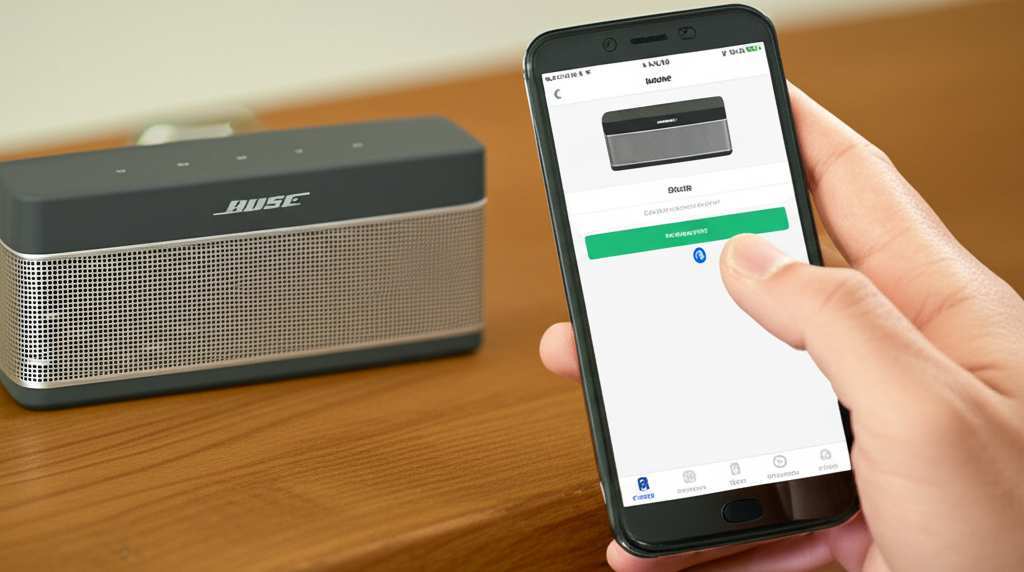
For some Bose speakers, there’s an extra helper: the Bose Connect app. This app can make managing your speaker even easier.
What the Bose Connect App Does
The app lets you:
Easily connect and disconnect devices.
Manage multiple Bluetooth connections at once (some models!).
Update your speaker’s software.
Customize settings.
You can download the Bose Connect app from your device’s app store (Google Play Store for Android or App Store for iOS). Just search for “Bose Connect.”
Once downloaded, open the app and follow the on-screen instructions to connect your speaker. It’s usually pretty straightforward. The app can be especially handy if you want to connect two Bose speakers together for stereo sound!
Understanding Your Bose Speaker’s Lights and Sounds
Those little lights and sounds on your speaker aren’t just for show. They’re actually telling you important things!
Common Indicators
Solid Blue Light: Usually means your speaker is connected via Bluetooth.
Flashing Blue Light: Means the speaker is in pairing mode, searching for a device.
Pulsing White Light: On some models, this means the speaker is powering on or booting up.
Solid White Light: Often indicates the speaker is on and ready, but not connected.
Red or Orange Light: Typically means the battery is low or the speaker is charging.
Voice Prompts: Many Bose speakers have voice prompts that tell you the battery level, which device it’s connecting to, or if it’s in pairing mode.
Paying attention to these can help you understand what your speaker is doing at any given moment.
Quick Tips for Better Bluetooth Sound
Want to get the most out of your Bose speaker? Here are a few extra tips.
Keep It Updated: If you use the Bose Connect app, make sure your speaker’s software is up to date. Updates can improve performance and add new features.
Placement Matters: For the best sound, place your speaker on a flat, stable surface. Avoid corners if you want a more balanced sound, or use corners to boost bass if that’s your preference.
Don’t Block the Speakers: Make sure nothing is covering the speaker grilles. This can muffle the sound.
Battery Care: Try not to let the battery completely drain too often. Most modern batteries do best with regular charging.
These little things can make a big difference in your listening experience.
Comparing Popular Bose Bluetooth Speaker Models
Bose offers a range of fantastic Bluetooth speakers. While the connection process is similar, some models have unique features. Here’s a quick look at a couple of popular ones.
| Model | Key Features | Battery Life (Approx.) | Water Resistance | Connectivity |
|---|---|---|---|---|
| Bose SoundLink Flex | Rugged, portable, floating, powerful bass | 12 hours | IP67 (waterproof and dustproof) | Bluetooth 4.2 |
| Bose SoundLink Revolve+ II | 360-degree sound, elegant design, portable handle | 17 hours | IP55 (dust and splash resistant) | Bluetooth 4.2 |
| Bose Home Speaker 500 | Smart speaker, Wi-Fi & Bluetooth, voice control, premium sound | N/A (plug-in) | N/A | Wi-Fi, Bluetooth 4.2 |
As you can see, even within Bose, there are options for different needs. The SoundLink Flex is perfect for adventures, while the Revolve+ II offers room-filling sound for parties. The Home Speaker 500 is more of a stationary, smart home device. No matter which you choose, connecting them follows the same basic Bluetooth steps we’ve covered!
Frequently Asked Questions (FAQ)
Got more questions? That’s awesome! Here are some common ones beginner users ask.
How do I reset my Bose Bluetooth speaker?
Most Bose speakers have a reset function. For many models, you’ll need to turn the speaker off, then press and hold the power button for about 10-15 seconds until you hear a chime or a voice prompt. This will clear its memory of paired devices. Check your specific model’s manual for exact instructions.
My Bose speaker won’t charge. What should I do?
First, try a different power outlet and a different USB cable if possible. Ensure the charging port on the speaker is clean and free of debris. If it still doesn’t charge, the battery might be the issue, and you may need to contact Bose support.
Can I connect my Bose speaker to my TV?
Yes, most Bose Bluetooth speakers can connect to TVs that have Bluetooth capabilities. You’ll need to put your speaker in pairing mode and then go into your TV’s Bluetooth settings to find and connect to it. Some older TVs might require a separate Bluetooth transmitter.
What does it mean when my Bose speaker says “Connection to device lost”?
This usually means the speaker has lost its Bluetooth connection to your phone or tablet. It could be because you moved too far away, or your device’s Bluetooth turned off. Try moving closer to your device and ensure Bluetooth is still on. The speaker will often try to reconnect automatically.
How do I disconnect my Bose speaker from my phone?
The easiest way is to simply turn off Bluetooth on your phone or tablet. Alternatively, you can go into your device’s Bluetooth settings and select your Bose speaker, then choose to “Disconnect” or “Forget This Device.” If you choose “Forget,” you’ll have to re-pair it later.
Can I connect my Bose speaker to more than one device at the same time?
Some Bose speakers, especially those that work with the Bose Connect app, can connect to two devices simultaneously. For most basic models, they connect to one device at a time. You’ll need to disconnect from the first device before connecting to a new one.
My Bose speaker is making weird noises. What’s wrong?
Weird noises can be a sign of a few things. It might be interference from other wireless devices, a low battery, or a glitch. Try moving the speaker away from other electronics, ensure it’s charged, and try restarting both the speaker and your connected device. If it persists, a factory reset might help.
The Final Chord: Enjoying Your Connected Bose Speaker
See? Connecting your Bose Bluetooth speaker is really straightforward. You’ve learned how to power it on, get it into pairing mode, link it with your phone or tablet, and even troubleshoot common issues. Plus, you know about the Bose Connect app and how to manage multiple devices.
You’re now equipped to enjoy amazing Bose sound wherever you go. Whether it’s background music for dinner, powering up your workout, or making movie nights epic, your speaker is ready. Don’t be afraid to experiment with different playlists and sounds.
Remember, technology is here to make our lives better and more enjoyable. And with your Bose speaker, that means a whole lot more fun and fantastic audio experiences. Now go enjoy amazing sound and make every moment louder and better!