Connect your Bluetooth speaker to your Samsung TV in minutes! This easy guide shows you exactly how to get better sound for movies, music, and games, making your viewing experience awesome.
Hey there, tech explorer! Ever feel like your TV’s sound just isn’t cutting it? You know, that tinny, distant audio that makes explosions sound like popcorn popping? Yeah, I’ve been there! We all love our Samsung TVs for their gorgeous pictures, but sometimes, the sound needs a little… oomph. And that’s where a great Bluetooth speaker comes in!
Picking out the right speaker can feel like navigating a maze. So many buttons, so many specs that sound like a foreign language! It’s enough to make anyone want to just stick with the TV’s built-in speakers. But don’t worry, my friend! I’m here to make it super simple. We’ll get your favorite speaker hooked up to your Samsung TV without any headaches.
Think about it: imagine immersing yourself in your favorite movie with booming sound, or enjoying your music playlist with rich, room-filling audio, all wirelessly. It’s totally doable, and honestly, it’s a game-changer. We’re going to walk through this together, step by step. Let’s make your Samsung TV sound as amazing as it looks!
Let’s Talk About Sound: Why Bluetooth Speakers Rock
You know how a really good movie soundtrack pulls you into the story? Or how your favorite song just feels better when you can feel the bass? That’s the magic of good sound! Your Samsung TV has speakers, sure, but they’re often designed to be sleek and hidden, not for booming audio. That’s where external speakers, especially Bluetooth ones, shine.
Bluetooth speakers are awesome because they cut the cord! No messy wires to trip over or hide. You can place your speaker anywhere in the room for the best sound. It’s like giving your TV a superpower, upgrading your movie nights, gaming sessions, or even just your casual TV watching into something way more engaging. It truly transforms the whole experience.
First Things First: Is Your Samsung TV Bluetooth-Ready?
This is super important! Not all Samsung TVs come with built-in Bluetooth. It’s like trying to connect a wireless mouse to a computer that doesn’t have Bluetooth – it just won’t work. Most newer Samsung Smart TVs (generally from 2017 and later) do have Bluetooth, but older models might not.
How do you check? It’s easy peasy! You can usually find this information in your TV’s settings menu.
Here’s how to check:
- Press the Home button on your Samsung remote.
- Navigate to Settings (it usually looks like a gear icon).
- Look for Sound or Audio.
- Within the Sound menu, search for Sound Output or Speaker List.
- If you see an option for Bluetooth Device List or something similar, your TV has Bluetooth!
If you can’t find it, don’t panic! There’s still a way. You might need a small, inexpensive Bluetooth transmitter. We’ll cover that later!
Pairing Your Speaker: The Magic Step-by-Step
Okay, let’s get down to business! If your Samsung TV has Bluetooth, the pairing process is usually straightforward. Think of it like introducing two friends so they can chat – your TV and your speaker.
Here are the steps:
- Turn on your Bluetooth speaker. Make sure it’s charged and powered up.
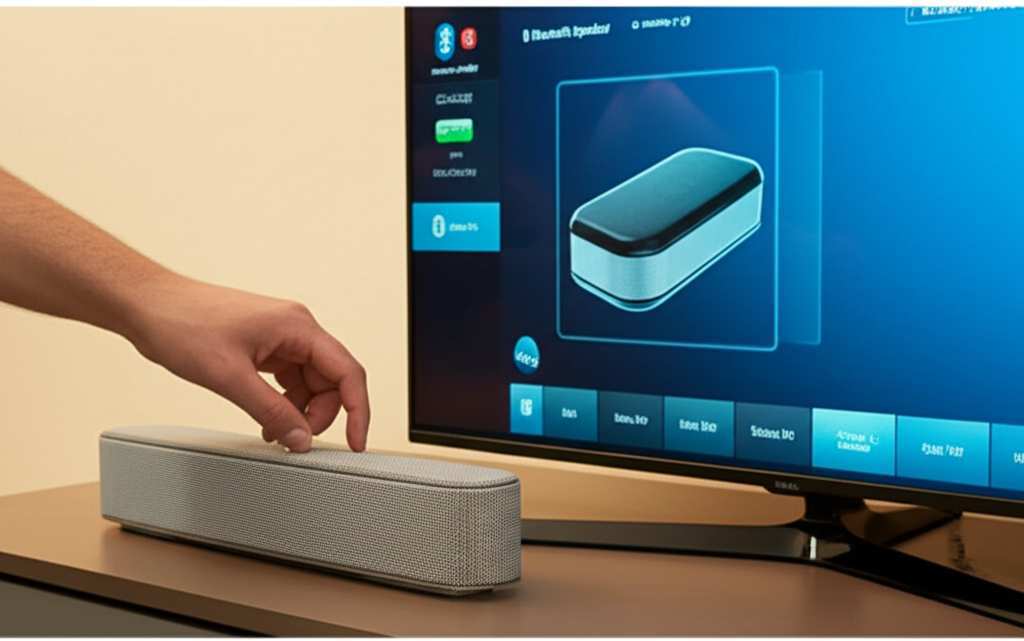
- Put your speaker in pairing mode. This is the most crucial step! Every speaker is a little different. Usually, there’s a dedicated Bluetooth button you need to press and hold until a light flashes or you hear a sound. Check your speaker’s manual if you’re unsure. It’s often a small button with the Bluetooth symbol.
- Go to your Samsung TV’s settings. Remember those steps from before? Head back to Settings > Sound > Sound Output.
- Select your Bluetooth speaker. Your TV will start searching for nearby Bluetooth devices. You should see your speaker’s name pop up in the list. It might take a moment, so be patient!
- Select your speaker and connect. Once you see your speaker’s name, highlight it and press the Enter or Select button on your remote. Your TV will then try to pair with it.
- Confirm the connection. You might hear a confirmation sound from your speaker, or your TV screen might show a “Connected” message. If it asks for a PIN and you don’t know it, try 0000 or 1234, as these are common defaults.
And voilà! You should now hear your TV’s audio coming through your Bluetooth speaker. Give it a test with your favorite show or some music!
What If My TV Doesn’t Have Bluetooth? No Problem!
Don’t let a lack of built-in Bluetooth get you down. There’s a super handy gadget that can fix this: a Bluetooth transmitter. These little devices plug into your TV and broadcast the audio via Bluetooth to your speaker. It’s like giving your older TV a modern upgrade!
Here’s how to use a Bluetooth transmitter:
- Get a Bluetooth Transmitter/Receiver. You can find these online or at electronics stores. Look for one that supports your TV’s audio output. Most TVs have an optical audio port (looks like a small square with a little red light) or a 3.5mm headphone jack. Make sure the transmitter you buy has the right input!
- Connect the transmitter to your TV. Plug it into the appropriate audio port (optical or headphone jack). Many transmitters also need to be plugged into a power source, usually via USB.
- Turn on your speaker and put it in pairing mode. Just like before, get your speaker ready to connect.
- Pair the transmitter and speaker. Most transmitters have a pairing button. Press and hold it until the light flashes. Your speaker should then automatically connect to the transmitter. Some transmitters might have their own specific pairing instructions, so check the manual that comes with it.
- Set your TV’s audio output. You might need to go into your TV’s sound settings and select the correct audio output (e.g., “Optical Out” or “Headphone Out”) for the transmitter to work.
It sounds like a few extra steps, but it’s really quite simple. And the result is the same: awesome wireless sound!
Understanding Bluetooth Speaker Features: What Matters?
When you’re looking at Bluetooth speakers, you’ll see a bunch of terms. What do they actually mean for your Samsung TV experience? Let’s break down a few important ones.
Bluetooth Version: This is like the speed of the wireless connection. Newer versions (like Bluetooth 5.0 and above) offer a more stable connection, better range, and lower power consumption. It means less chance of audio cutting out!
Latency: This is the delay between the video on your screen and the audio from your speaker. High latency can be super annoying, especially during fast-paced movies or games, where the sound is slightly off from the action. Look for speakers and TVs that support low-latency codecs (like aptX Low Latency if your TV or transmitter supports it) for the best experience.
Battery Life: If you plan to move your speaker around or use it for long movie marathons, battery life is key. Most speakers offer anywhere from 8 to 20+ hours on a single charge.
Sound Quality: This is subjective, but generally, look for speakers with good reviews mentioning clear highs, rich mids, and decent bass. Brands often talk about wattage (higher wattage can mean louder sound) or specific driver technologies.
Water Resistance: If you ever plan to use your speaker near a kitchen or even outdoors, water resistance (rated by IPX numbers) can be a handy feature.
Here’s a quick look at how some popular speaker types stack up:
| Speaker Type | Pros | Cons | Best For |
|---|---|---|---|
| Portable Bluetooth Speaker | Lightweight, easy to move, often affordable, good battery life. | Sound might not fill a large room as well, bass can be limited. | Smaller rooms, casual listening, adding sound to a bedroom TV. |
| Soundbar (Bluetooth-enabled) | Significantly better sound than TV speakers, clear dialogue, often sleek design. | Less portable than small speakers, can be more expensive. | Living rooms, home theater enthusiasts wanting better dialogue and impact. |
| Bookshelf Speakers (with Bluetooth) | Excellent sound quality, powerful bass, immersive audio. | Larger, less portable, usually require more space and potentially a separate power source. | Dedicated home theater setups, audiophiles wanting premium sound. |
See? Choosing the right speaker depends on what you want to do with it. For just boosting your TV sound in the living room, a soundbar or a good quality portable speaker is often perfect. If you’re a movie buff, you might lean towards something with more power!
Troubleshooting Common Connection Issues
Sometimes, technology likes to play a little hide-and-seek. If your speaker isn’t connecting, don’t get flustered. Most problems are easy to fix!
Here are some common hiccups and how to solve them:
- Speaker not showing up in TV list:
- Make sure the speaker is definitely in pairing mode. Sometimes the light stops flashing after a minute, and you need to restart the pairing process.
- Turn off Bluetooth on any other devices nearby (like your phone) that might be trying to connect to the speaker.
- Restart both your TV and your speaker. A simple reboot can fix many glitches.
- Audio cutting out or stuttering:
- Check the distance between your TV and speaker. Bluetooth has a range, usually around 30 feet (10 meters), but walls and other electronics can interfere. Try moving them closer.
- Minimize interference. Other wireless devices, microwaves, and even some Wi-Fi routers can mess with Bluetooth signals.
- Ensure your speaker and TV are using a recent Bluetooth version. Older versions can be less stable.
- No sound from the speaker even when connected:
- Double-check the TV’s sound output settings. Make sure it’s still set to your Bluetooth speaker and not back to the TV speakers or another output.
- Turn the volume up on both your TV and your speaker. Sometimes one or both are just turned down too low!
- Try disconnecting and reconnecting the speaker. Sometimes the handshake between devices needs to be redone.
If you’re still having trouble, it’s always a good idea to check the support pages for both your Samsung TV model and your specific Bluetooth speaker. Companies like Samsung Support often have detailed FAQs and troubleshooting guides.
Fun Facts: The Science Behind Bluetooth
Did you know Bluetooth is named after a Viking king? Harald Bluetooth united Danish tribes, and the technology aimed to unite different devices. Pretty cool, right? It uses radio waves in the 2.4 GHz frequency band, which is also used by Wi-Fi and microwaves. That’s why interference can sometimes be an issue, but Bluetooth has clever ways of hopping between frequencies to find a clear channel. It’s a little bit of wireless magic happening right in your living room!
Choosing the Right Speaker: A Quick Checklist
Thinking about getting a new Bluetooth speaker just for your TV? Here’s a quick list to help you decide:
What’s your budget? Prices range from $20 to $300+!
What size room? Small speaker for a bedroom, bigger one for a living room?
What will you watch/listen to? Action movies need more punch than documentaries.
Do you need portability? Or will it stay in one spot?
Any extra features? Like voice assistant compatibility or multi-room audio?
For most people just wanting to improve their Samsung TV’s sound, a good mid-range portable speaker or a compact soundbar is usually the sweet spot. It offers a noticeable upgrade without breaking the bank.
Frequently Asked Questions (FAQ)
Q1: Can I connect multiple Bluetooth speakers to my Samsung TV at once?
A1: Most Samsung TVs can only connect to one Bluetooth audio device at a time. Some newer models might support connecting two speakers for a stereo effect, but it’s not a standard feature. You’d need to check your TV’s specific settings!
Q2: How far can my Bluetooth speaker be from my Samsung TV?
A2: The standard Bluetooth range is about 30 feet (10 meters). However, this can be reduced by walls, furniture, or other electronic devices causing interference. For the best, most stable connection, try to keep them within 15-20 feet without major obstructions.
Q3: Does connecting a Bluetooth speaker add lag to my TV?
A3: It can, yes. This is called latency. Some Bluetooth connections have more delay than others. If you notice the sound is off from the picture, look for speakers that support low-latency codecs or consider a Bluetooth transmitter specifically designed for low latency.
Q4: Will my Bluetooth speaker work with all Samsung TVs?
A4: It will work if your Samsung TV has built-in Bluetooth. If it doesn’t, you’ll need a Bluetooth transmitter, which can work with almost any TV that has an audio output.
Q5: What’s the best way to improve my Samsung TV’s sound?
A5: Connecting a Bluetooth speaker is one of the easiest and most effective ways! Other options include a soundbar or a full home theater system, but a Bluetooth speaker offers great quality and convenience.
Q6: My Bluetooth speaker was connected but now won’t reconnect. What should I do?
A6: Try removing the speaker from your TV’s Bluetooth device list and then re-pairing it from scratch. Also, try forgetting the TV on your speaker’s device list if possible. Restarting both devices often helps too!
Q7: Can I use my gaming headset with my Samsung TV via Bluetooth?
A7: Yes, if your Samsung TV has Bluetooth and your gaming headset is a Bluetooth headset, you can usually pair them following the same steps. Just make sure your headset supports the necessary audio profiles for TV use.
Go Forth and Enjoy the Sound!
See? Connecting your Bluetooth speaker to your Samsung TV is totally achievable, even if you’re new to all this tech stuff. You’ve learned how to check if your TV is ready, how to pair your speaker, what to do if your TV isn’t Bluetooth-enabled, and even how to troubleshoot common problems. It’s all about making your entertainment experience better and more immersive.
Don’t be afraid to experiment and find the perfect speaker setup for your needs. Whether it’s for thrilling movie nights, epic gaming sessions, or just enjoying your favorite tunes with richer sound, you’ve got the knowledge to make it happen. Now go enjoy amazing sound and make every moment louder and better!