Connect your Bluetooth speaker to your TV using an aux cable easily! This simple trick works even if your TV doesn’t have Bluetooth. Get ready for better sound for movies and shows without any fuss.
Hey there, tech adventurers! Max here from AffTechy.com. You know how awesome it is when your favorite movie has that booming sound, or your music fills the room? Sometimes, your TV’s built-in speakers just don’t cut it. And that’s where a cool Bluetooth speaker comes in handy! But what if your TV isn’t exactly the latest model and doesn’t have Bluetooth? Don’t worry, we’ve got a super simple trick up our sleeve.
I remember the first time I wanted to hook up my fancy new Bluetooth speaker to my older TV. I thought I was out of luck because there was no Bluetooth button anywhere! It felt like a puzzle. But then I realized there’s a really clever way to make it work, using something called an aux cable. It’s like a secret handshake for your devices.
This guide is all about making that happen for you. We’re going to walk through it step-by-step, no complicated tech jargon, just plain old friendly advice. Think of me as your guide, holding your hand through this tech adventure. We’ll make sure you’re not left scratching your head.
Ready to give your TV sound a serious upgrade? Let’s dive in and make some noise!
Why Bother Connecting Your Speaker to the TV?
Let’s be honest, TV speakers can be a bit… underwhelming. They’re often small and not designed for big sound. This means you miss out on the full experience of your favorite shows, movies, and games. That epic explosion in an action flick might sound more like a pop, and the subtle background music in a drama could get lost.
A good Bluetooth speaker, on the other hand, is built for rich, immersive sound. It can bring out those deep bass notes and crisp highs that make watching anything a lot more enjoyable. Plus, many Bluetooth speakers are portable, so you can move them around for the best listening experience in any room.
The Aux Cable: Your Secret Weapon
So, you have a great Bluetooth speaker but a TV that’s not so Bluetooth-friendly. What’s the solution? It’s an aux cable, and it’s simpler than you think! An aux cable, short for auxiliary, is basically a cable with a headphone-style plug on both ends. It’s been around for ages and is super common.
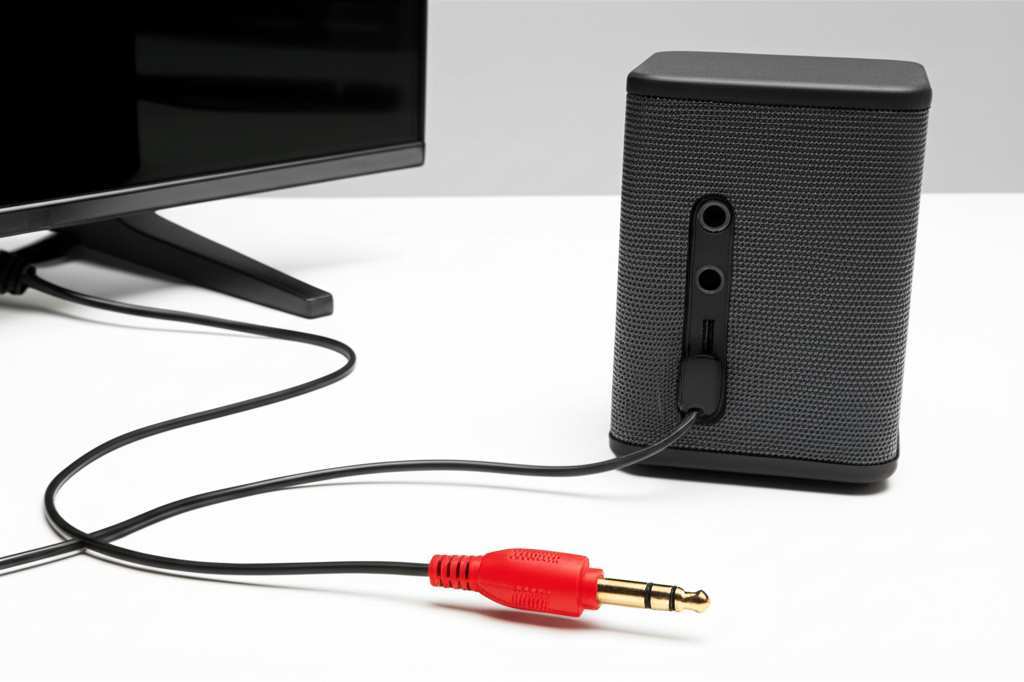
Most TVs, even older ones, have a headphone jack or an audio-out port. This is where your aux cable comes in. It acts as a bridge, taking the audio signal from your TV and sending it directly to your Bluetooth speaker. It’s a direct connection, bypassing the need for any wireless pairing.
What You’ll Need for This Awesome Upgrade
Before we get our hands dirty, let’s make sure you have everything ready. It’s a pretty short list, so don’t stress!
Your TV: The star of the show! Make sure it has an audio-out port or a headphone jack.
Your Bluetooth Speaker: The sound hero of our story.
An Aux Cable: This is the crucial link. You’ll need one with 3.5mm male connectors on both ends. They’re super common and can be found at almost any electronics store or online.
A Bluetooth Transmitter (Optional, but often necessary): This is the key if your TV truly has no audio output except for maybe HDMI or digital optical. We’ll cover this in more detail.
Think of it like this: the TV is the source, the speaker is the destination, and the aux cable is the direct road between them. If the road is blocked (no headphone jack), the transmitter becomes the detour and the bridge.
Finding the Right Ports on Your TV
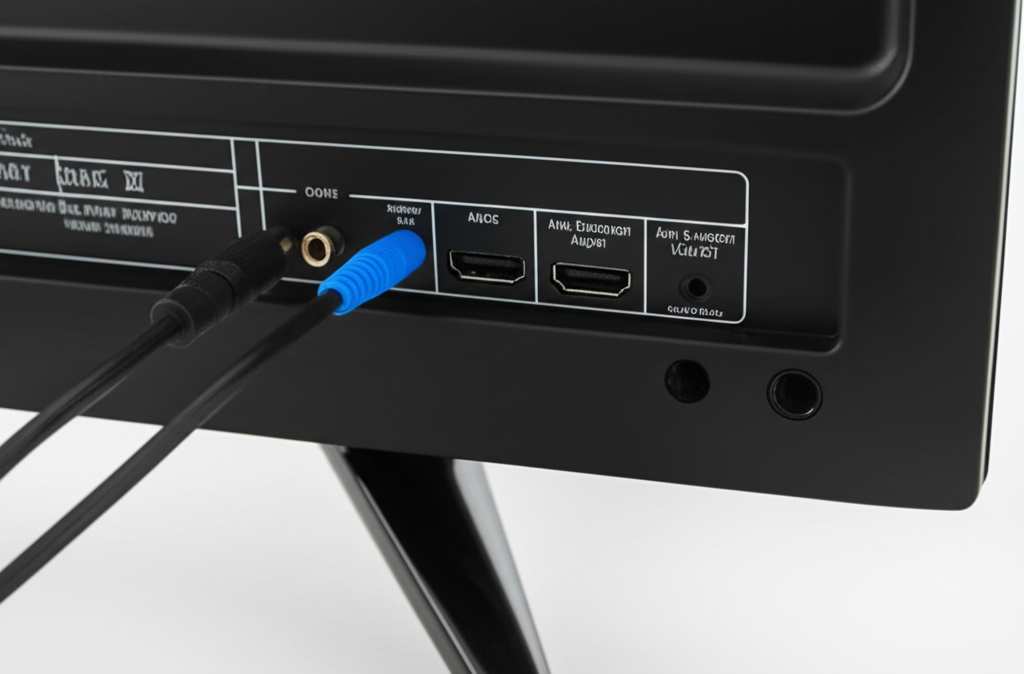
First things first, let’s become port detectives! You need to locate the audio output on your TV. Look at the back, sides, or bottom of your television. You’re searching for one of these:
Headphone Jack: This is the most common and easiest to find. It looks exactly like the port on your phone or computer for headphones – usually a small, round hole. It might be labeled with a headphone icon or “AUDIO OUT.”
Audio Out (RCA Ports): Sometimes, instead of a headphone jack, your TV might have a pair of RCA ports, usually red and white. If you see these, you might need an aux to RCA adapter cable, but the principle is the same.
Digital Optical Audio Out: This is a small, usually square port with a little red light inside. While this is an audio output, it’s digital and won’t work directly with a standard aux cable. You’d need a separate digital-to-analog converter for this, which is a bit more complex. We’ll focus on the headphone jack or standard audio out for simplicity.
If you can’t find any of these, don’t panic! We have a solution for that too, which involves a little extra gadget.
The Straightforward Aux Cable Connection Method
This is the easiest way, assuming your TV has that handy headphone jack or audio-out port. It’s like plugging in your headphones, but instead, you’re plugging into your speaker.
Step 1: Locate the Audio Output Port
As we discussed, find that headphone jack or AUDIO OUT port on your TV. It’s usually 3.5mm, meaning it’s about the size of the end of your headphone plug.
Step 2: Plug One End of the Aux Cable into Your TV
Take one end of your 3.5mm aux cable and firmly plug it into the audio output port on your TV. Make sure it’s snug!
Step 3: Plug the Other End into Your Bluetooth Speaker
Now, find the aux-in port on your Bluetooth speaker. It will look identical to the port on your TV. Plug the other end of the aux cable into your speaker.
Step 4: Set Your TV’s Audio Output
This is a crucial step. You need to tell your TV to send sound through the headphone jack.
Go into your TV’s settings menu.
Look for “Sound,” “Audio,” or “Speaker” settings.
You’ll likely see an option for “TV Speakers” or “Audio Output.”
Select “Headphone,” “External Speaker,” or “Audio Out” instead of the built-in TV speakers.
You might also need to adjust the volume on your TV. Start with it at a moderate level.
Step 5: Power On and Adjust Your Speaker
Turn on your Bluetooth speaker. Make sure it’s set to “Aux” or “Line-in” mode. Many speakers automatically detect an aux connection, but some have a button to switch modes.
Turn up the volume on your speaker.
You should now hear the TV’s audio coming through your Bluetooth speaker!
It’s that simple! You’ve just given your TV a sound boost without needing any fancy Bluetooth on the TV itself.
What If My TV Doesn’t Have a Headphone Jack? The Bluetooth Transmitter Solution
Okay, so you’ve scoured your TV and found no headphone jack. Maybe it’s a super slim modern TV, or perhaps it only has HDMI and digital optical outputs. Don’t despair! This is where a Bluetooth transmitter comes to the rescue.
A Bluetooth transmitter is a small device that takes an audio signal from your TV (usually via an optical or headphone port, if available) and broadcasts it wirelessly as Bluetooth. Your Bluetooth speaker then connects to this transmitter, not directly to the TV.
How to Use a Bluetooth Transmitter:
1. Choose Your Transmitter: Look for a transmitter that has the input ports matching your TV’s audio outputs. The most common are optical (Toslink) or 3.5mm headphone jack. Some transmitters can receive audio from multiple sources.
2. Connect the Transmitter to Your TV:
If your TV has an optical audio out: Use an optical cable to connect the TV’s optical out port to the transmitter’s optical in port. This usually provides the best sound quality.
If your TV has a headphone jack (lucky you!): Use a standard 3.5mm aux cable to connect the TV’s headphone jack to the transmitter’s aux-in port.
If your TV only has RCA audio out (red/white): You’ll need an aux-to-RCA cable for the TV and then plug that into the transmitter’s aux-in.
3. Power Up the Transmitter: Most Bluetooth transmitters need to be powered, usually via a USB cable plugged into a USB port on your TV or a separate USB power adapter.
4. Pair Your Speaker with the Transmitter:
Put your Bluetooth speaker into pairing mode (check your speaker’s manual for how to do this).
Put your Bluetooth transmitter into pairing mode. This usually involves pressing and holding a button until an indicator light flashes.
The transmitter and speaker will find each other and pair. This might take a minute.
5. Set Your TV’s Audio Output: This is crucial!
If you used an optical cable, go to your TV’s sound settings and select “Optical Out” or “Digital Audio Out” as your audio output. You might also need to set the digital audio format to PCM.
If you used an aux cable from the TV’s headphone jack, follow Step 4 from the previous section and select “Headphone” or “Audio Out.”
6. Enjoy the Sound: Once paired and configured, the audio from your TV will be sent to the transmitter, then wirelessly to your Bluetooth speaker!
This method is fantastic because it works with almost any TV, regardless of its built-in Bluetooth capabilities.
Understanding Aux Cable Specifications: What Matters?
When you’re looking for an aux cable, it might seem straightforward, but a few things can make a difference.
Cable Length
How far apart are your TV and speaker going to be? You don’t want a cable that’s too short and pulls out, or one so long it’s a tripping hazard. Standard lengths are 3 feet, 6 feet, and 10 feet. For most setups, a 6-foot cable is a good balance.
Connector Type
We’re focusing on 3.5mm (or 1/8 inch) male-to-male connectors for this guide. These are the most common for audio devices. Ensure both ends are the “male” type that plug into ports.
Build Quality
A well-built cable can last longer and might offer slightly better sound clarity by reducing interference. Look for cables with sturdy connectors and durable shielding. Brands like Anker or AmazonBasics often offer good quality for the price.
Shielding
Good shielding helps prevent radio frequency interference (RFI) and electromagnetic interference (EMI). This means you’re less likely to hear static or buzzing sounds, especially if the cable runs near power cords.
Here’s a quick comparison of common aux cable features:
| Feature | Importance for TV to Speaker | What to Look For |
|---|---|---|
| Length | High | Choose based on your room layout (3-10 feet is common). |
| Connector Type | Essential | 3.5mm male-to-male is standard. |
| Shielding | Medium | Helps reduce static and buzzing. Look for “shielded” or “braided.” |
| Material | Medium | Durable materials like braided nylon or rubber coating can increase lifespan. |
Basically, for this setup, focus on getting the right length and ensuring it’s a standard 3.5mm male-to-male cable. The rest is less critical for basic functionality.
Comparing Bluetooth Transmitters: What to Consider
If you need a Bluetooth transmitter, there are a few options to choose from. They can vary in features and price.
| Feature | Basic Transmitter | Advanced Transmitter |
|---|---|---|
| Input Ports | 3.5mm Aux | 3.5mm Aux, Optical (Toslink), RCA |
| Bluetooth Version | 4.0 or 5.0 | 5.0 or higher (better range and stability) |
| Latency (Delay) | Noticeable | Low Latency (aptX LL) for better sync with video |
| Power Source | USB | USB or AC adapter |
| Pairing | One device at a time | Can often pair with two devices (e.g., two speakers or speaker + headphones) |
| Price | $15 – $30 | $30 – $70+ |
If your main goal is just to get sound from your TV to your speaker, a basic transmitter with a 3.5mm or optical input will work fine. However, if you notice a delay between what’s happening on screen and the sound from your speaker (this is called latency), you might want to invest in a transmitter that supports Low Latency codecs like aptX LL. This is especially important for movies and gaming. For more on Bluetooth audio codecs, you can check out resources from tech sites like CNET.
Troubleshooting Common Issues
Even with the simplest setups, things can sometimes go a little sideways. Here are a few common hiccups and how to fix them:
No Sound at All
Check Connections: Are both ends of the aux cable firmly plugged in?
Check TV Settings: Did you select “Headphone” or “Audio Out” in your TV’s sound settings? Sometimes TVs default back to internal speakers after a restart.
Check Speaker Mode: Is your Bluetooth speaker set to “Aux” or “Line-in” mode?
Check Speaker Volume: Is the speaker volume turned up? Is the TV volume turned up (but not maxed out, which can cause distortion)?
Test the Cable: Try the aux cable with another device, like your phone and headphones, to ensure the cable itself isn’t faulty.
Test the Ports: Try plugging headphones into your TV’s headphone jack. If you get sound, the TV’s port is working. Try plugging another device into your speaker’s aux-in. If it works, the speaker’s port is fine.
Sound is Distorted or Crackling
Lower TV Volume: Sometimes, a very high TV volume can cause distortion before it even reaches the speaker. Try turning the TV volume down a bit and increasing the speaker volume.
Check Cable Quality: A cheap or damaged aux cable can cause interference. Try a different, better-quality cable.
Reduce Interference: Make sure the aux cable isn’t running right next to power cords or other sources of electronic interference.
Speaker Settings: Some speakers have EQ settings. Ensure they aren’t set to extreme levels.
Bluetooth Transmitter Not Pairing
Ensure Both Devices are in Pairing Mode: Double-check the manuals for both your transmitter and speaker to confirm you’ve activated pairing mode correctly.
Proximity: Make sure the devices are close to each other when pairing.
Reset Devices: Turn off both the transmitter and speaker, wait a few seconds, and turn them back on to try pairing again.
Check Transmitter Input: If using optical, ensure the TV’s digital audio output is set correctly and not muted.
* Firmware Updates: Some advanced transmitters might have firmware updates available. Check the manufacturer’s website.
Fun Facts About Sound and Connectivity
Did you know that the term “Bluetooth” comes from a 10th-century Danish king, Harald Bluetooth? He was known for uniting Scandinavian tribes, much like Bluetooth technology aims to unite devices!
Also, the 3.5mm audio jack has been around since the 1960s, initially for use with transistor radios. It’s a testament to its enduring utility that we’re still using it today for connecting speakers and headphones!
Conclusion: Enjoy Your Enhanced Audio Experience!
There you have it! Connecting your Bluetooth speaker to your TV using an aux cable (or a handy Bluetooth transmitter) is a fantastic way to boost your home entertainment system. You don’t need to be a tech wizard or buy a brand-new TV to enjoy richer, more immersive sound for your movies, shows, and games.
We’ve covered how to find the right ports, the simple steps for connecting, and even what to do if your TV is a bit older and lacks a headphone jack. Remember, the goal is to make technology work for you, not the other way around.
So, go ahead, give it a try! Plug in that aux cable, power up your speaker, and get ready to experience your favorite content like never before. Now go enjoy amazing sound and make every moment louder and better!