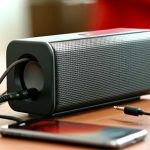
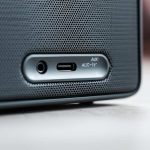
Connecting your sound box with an aux cable is a straightforward way to enjoy wired audio. Simply locate the aux-in port on your sound box and the headphone or audio-out port on your device, then plug in your aux cable. This guide will walk you through the process, ensuring you get the best sound experience.
Do you have a fantastic sound box just sitting there, waiting to be unleashed? Or perhaps you’ve got a device with an audio output that you want to connect to something other than its built-in speaker? Well, you’re in luck! Connecting an aux cable to your sound box is one of the simplest and most reliable ways to get your music, podcasts, or movie audio blasting out. Forget about complicated pairing processes or Wi-Fi issues; sometimes, the old-school wired connection is exactly what you need.
This guide is all about demystifying the process of connecting an aux cable to your sound box. We’ll break it down into easy steps, cover what you need, and even touch upon some common hiccups you might encounter. So, grab your aux cable and let’s get your sound box singing!
## Understanding the Aux Cable Connection
Before we dive into the practical steps, let’s quickly talk about what an aux cable is and why it’s so useful. The term “aux” is short for auxiliary, meaning “additional” or “supplementary.” An aux cable is essentially a type of audio cable that carries an audio signal. The most common type you’ll encounter for sound boxes is the 3.5mm jack, which looks exactly like a standard headphone plug.
This little cable is incredibly versatile. It’s the same plug found on most smartphones, laptops, MP3 players, and even some older TVs for headphone output. On the other end of the spectrum, many sound boxes, whether they’re portable Bluetooth speakers with aux capabilities or larger home stereo systems, feature an “aux-in” or “line-in” port that accepts this 3.5mm plug. This direct wired connection means you’re sending a clean audio signal straight from your device to your sound box, bypassing potential wireless interference.
### What You’ll Need
To connect your sound box using an aux cable, you’ll need two main things:
* A Sound Box: This can be any speaker that has an auxiliary input port. Many portable Bluetooth speakers offer this as a fallback option, and traditional home audio systems almost always have it.
* A 3.5mm Male-to-Male Aux Cable: This is the standard cable with a 3.5mm plug on both ends. They are readily available at electronics stores, online retailers, and even many general stores. Make sure it’s long enough to comfortably connect your audio source to your sound box.
## Step-by-Step Guide to Connecting Your Aux Cable
Now that you know what you need, let’s get to the fun part – making the connection. It’s really as simple as plugging things in, but a little attention to detail ensures a smooth experience.
### Step 1: Locate the Aux-In Port on Your Sound Box
This is crucial. Your sound box needs to have a port that accepts an audio signal. Look for a small circular socket, usually labeled “AUX,” “AUX IN,” “LINE IN,” or sometimes with a small audio jack symbol (which looks like a circle with a triangle inside). This port is typically found on the back, side, or bottom of your sound box.
* Tip: If you’re unsure, check your sound box’s manual or look up its model number online. Many portable speakers have a rubber flap covering their ports; lift this to reveal the aux-in.
### Step 2: Identify the Audio-Out Port on Your Source Device
Next, you need to find where the audio is coming from on your source device. This is usually the headphone jack, which is also a 3.5mm socket. Most smartphones, tablets, laptops, and MP3 players have this.
* Examples:
* Smartphones and Tablets: Look for a small hole that looks like it could fit your earphone plug.
* Laptops: Often located on the side or front edge, usually marked with a headphone symbol.
* MP3 Players: Almost always has a prominent headphone jack.
### Step 3: Connect the Aux Cable
Take your 3.5mm male-to-male aux cable.
1. Plug one end of the cable firmly into the audio-out port (usually the headphone jack) of your source device (your phone, laptop, etc.). You should feel a slight click when it’s properly seated.
2. Plug the other end of the cable firmly into the “AUX IN” or “LINE IN” port on your sound box. Again, ensure it’s snug.
### Step 4: Select the Correct Input Source on Your Sound Box
This is a common step that people sometimes overlook. Your sound box might have multiple input options (like Bluetooth, USB, or different audio inputs). You need to tell it to listen to the aux cable.
* How to do it:
* Buttons: Look for a button on your sound box labeled “Mode,” “Input,” “Source,” or sometimes with an “I/O” symbol. Press this button repeatedly until the display or an indicator light shows that “AUX” or “Line-In” is selected.
* Remote Control: If your sound box came with a remote, there’s usually a dedicated “Input” button.
* App Control: Some advanced sound systems or smart speakers allow you to select the input source via a companion app on your smartphone.
### Step 5: Adjust Volume Levels
It’s always best practice to start with the volume turned down low on *both* your source device and your sound box. This prevents any sudden loud noises that could be startling or even damage your speakers.
1. On your source device (phone, laptop, etc.), set the volume to a low to moderate level.
2. On your sound box, also set the volume to a low level.
3. Now, start playing your audio.
4. Gradually increase the volume on your sound box first, then adjust the volume on your source device to achieve your desired listening level.
Congratulations! You should now be hearing audio from your source device through your sound box.
## Troubleshooting Common Aux Cable Issues
Even with such a simple connection, sometimes things don’t work perfectly on the first try. Don’t panic! Most aux cable connection problems are easily fixed.
### No Sound at All
This is the most common issue. If you’ve followed all the steps and still get no sound, here’s what to check:
* Cable Connection: Are both ends of the aux cable plugged in securely? Sometimes a slight nudge can fix a loose connection. Try unplugging and replugging them.
* Input Source: Double-check that you’ve selected the correct input source on your sound box (AUX or Line-In). If you have other inputs enabled, your sound box might be trying to listen elsewhere.
* Volume Levels: Make sure the volume isn’t muted or turned all the way down on *both* your source device and your sound box.
* Device Output: On your source device (especially smartphones), check if it’s still trying to output audio through its internal speaker or Bluetooth. Sometimes, plugging in headphones/aux cables doesn’t automatically switch the audio output.
* Faulty Cable: Aux cables can get damaged internally, even if they look fine on the outside. If you have another aux cable, try swapping it out.
* Faulty Ports: While less common, either the aux-out port on your device or the aux-in port on your sound box could be damaged. Try connecting your device to a different speaker or a different device to your sound box to isolate the problem.
### Distorted or Fuzzy Sound
If you’re getting sound, but it’s crackling, buzzing, or sounds generally bad, try these tips:
* Cable Quality: Cheaper, poorly shielded aux cables can pick up interference. A higher-quality cable can sometimes resolve this.
* Proximity to Interference: Keep your aux cable away from other electrical devices, power cords, or Wi-Fi routers, as they can sometimes cause interference.
* Volume Settings: Turning the volume too high on either the source device or the sound box can lead to distortion. Try lowering them slightly.
* Damaged Components: If the distortion persists at all volume levels, there might be an issue with the audio components within your sound box or source device.
### Only One Side of the Sound Box is Working (for Stereo)
If your sound box is designed for stereo sound and you’re only hearing audio from one speaker, it’s usually an issue with the source.
* Stereo vs. Mono: Ensure the audio content you’re playing is in stereo. Some older audio files or specific types of content might be mono.
* Device Settings: On your source device (especially phones and computers), check the audio settings. Sometimes, accessibility features like “mono audio” can be accidentally enabled, sending the same signal to both channels.
## Advanced Uses and Tips
While connecting a single device is straightforward, the aux cable can be part of more complex setups.
### Connecting Multiple Devices (Indirectly)
You can’t directly plug multiple devices into a single aux-in port. However, you can use a small audio mixer or a simple stereo splitter if you need to combine or split signals. This is more common in professional audio setups but can be useful for specific home scenarios.
### Using Aux for Specific Devices
* TVs: Many modern TVs have headphone jacks. You can use an aux cable to send your TV’s audio to a sound box, especially if your TV’s built-in speakers are weak. This is a great way to upgrade your home theater experience without a full surround sound system. For example, you might want to connect a Bluetooth speaker to your TV using an aux cable if the TV doesn’t have Bluetooth built-in but does have an audio-out port.
* Computers/Laptops: This is a classic use case for external speakers. If your computer’s speakers are subpar, an aux connection to a dedicated sound box is a no-brainer.
* Gaming Consoles: Some older consoles or specific controllers might have aux-out ports, allowing you to plug them directly into a sound box.
* Smart Home Devices: While most smart speakers rely on Wi-Fi or Bluetooth, some may have aux inputs for playing music from other sources.
### Cable Length and Quality
Don’t underestimate the impact of cable quality. While a cheap aux cable might work, investing in a slightly better one can lead to cleaner sound, better durability, and less susceptibility to interference. The length of the cable is also important – too short and it’s inconvenient; too long and it can be more prone to tangling or damage, and in extreme cases, signal degradation (though this is rare for typical home use distances).
## Conclusion
Connecting an aux cable to your sound box is a fundamental skill for anyone who enjoys their audio. It’s reliable, simple, and offers a direct line to your music. By following these steps – identifying your ports, making the physical connection, selecting the right input, and managing your volume – you can quickly get your sound box up and running.
Don’t let a little technical detail hold you back from enjoying better sound. Whether you’re reviving an older speaker or just need a quick and easy way to get audio from your phone to your sound box, the humble aux cable is your trusty companion. So go ahead, plug in, turn it up, and immerse yourself in clear, crisp audio!
Key Takeaways
- Identify Ports: The first step is to locate the 3.5mm aux-in port on your sound box and the audio-out port on your audio source device.
- Choose the Right Cable: Ensure you have a standard 3.5mm male-to-male aux cable.
- Connect Device to Sound Box: Plug one end of the aux cable into your audio source device and the other into the sound box’s aux-in port.
- Select the Correct Input: On your sound box, you might need to select “Aux” or “Line-In” as the audio input source.
- Adjust Volume Levels: Start with low volume on both devices and gradually increase to prevent sudden loud noises or distortion.
- Troubleshoot Common Issues: If you don’t hear sound, check cable connections, input selection, and volume levels on both devices.
Frequently Asked Questions
What is the difference between aux and Bluetooth connection?
A Bluetooth connection is wireless, using radio waves to transmit audio, while an aux connection is wired, using a physical cable to send the audio signal. Bluetooth offers convenience and freedom of movement, whereas aux connections are generally more stable, less prone to interference, and don’t require pairing.
Can any speaker be connected with an aux cable?
No, only speakers that have an “AUX IN” or “LINE IN” port can be connected using an aux cable. Most portable Bluetooth speakers, home stereo systems, and computer speakers will have this port, but it’s always best to check the specifications of your particular sound box.
How do I know if my device has an audio-out port for an aux cable?
Most devices designed to play audio will have a standard 3.5mm headphone jack, which also serves as the audio-out port for an aux cable. Look for a small circular socket, often marked with a headphone symbol, on your phone, laptop, tablet, or MP3 player.
What happens if I plug an aux cable into the wrong port?
Plugging an aux cable into the wrong port on either your device or the sound box will likely result in no sound being produced, or potentially no connection at all. It’s generally safe and won’t damage your equipment, but it simply won’t work as intended.
Is it possible to charge a Bluetooth speaker with an aux cable?
No, an aux cable is designed to transmit audio signals, not power. To charge a Bluetooth speaker, you’ll need to use its dedicated charging cable, usually a USB cable or a specific power adapter.
What is the maximum length for an aux cable without signal loss?
For typical consumer audio applications, you can usually get away with aux cables up to 15-25 feet (about 4.5-7.5 meters) without significant signal degradation. Beyond that, you might start to notice a slight drop in audio quality or increased susceptibility to interference, though this depends heavily on the cable’s quality.