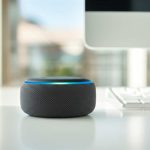
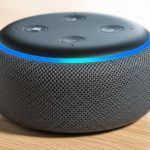
Turn your Alexa device into a super-powered Bluetooth speaker in minutes! This guide makes connecting your phone or tablet a breeze, so you can stream your favorite music, podcasts, and more with amazing sound quality. Get ready to fill your room with audio bliss, easily!
Hey there, tech adventurer! Ever find yourself wanting to blast your favorite tunes or catch up on that podcast, but your phone’s speaker just doesn’t cut it? We’ve all been there. You’ve got this awesome Alexa device, probably sitting on your counter or bedside table, and you think, “Could this thing actually be my speaker?” The answer is a resounding YES!
It can feel a bit techy trying to figure out how to connect different gadgets. You might worry about complicated settings or confusing jargon. But honestly, making your Alexa a Bluetooth speaker is way simpler than you think. It’s like unlocking a secret superpower for your smart speaker!
We’re going to walk through this together, step by step. No confusing tech talk, just friendly guidance to get you streaming in no time. You’ll be amazed at how easy it is to make your Alexa sing with your own audio.
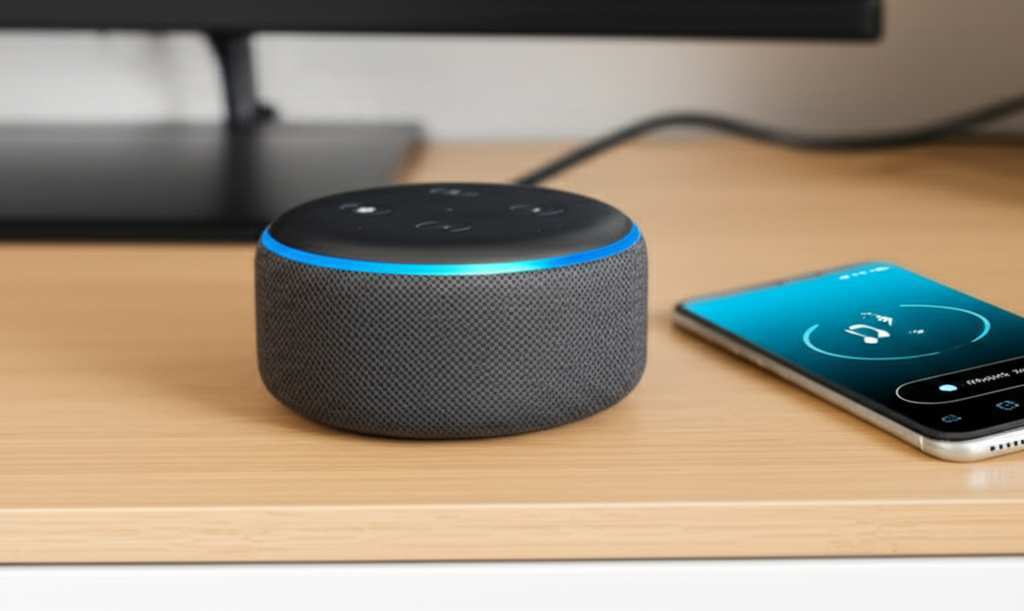
Ready to make some noise? Let’s dive in and discover how to transform your Alexa into the ultimate Bluetooth speaker!
Why Use Alexa as a Bluetooth Speaker?
Think about it. You’ve got this smart little gadget that can do so much already. Now, imagine it also playing your personal music library, that audiobook you’re hooked on, or even the sound from a movie you’re watching on your tablet. It’s like getting an upgrade without buying a new device!
This is super handy for parties, quiet evenings, or just when you want better sound than your phone offers. Plus, it declutters your space. You don’t need a separate Bluetooth speaker when your Alexa can do the job perfectly. It’s a win-win for convenience and great audio!
Getting Started: What You’ll Need
Before we start connecting things, let’s make sure you’re all set. It’s pretty straightforward, really.
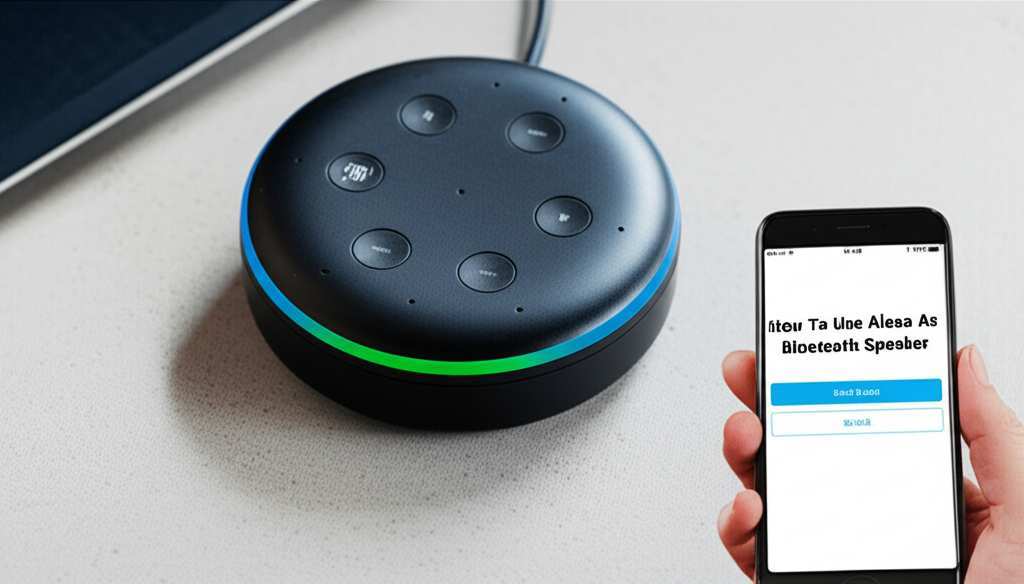
Your Alexa Device: This could be an Echo Dot, Echo Show, Echo Studio, or any other Alexa-enabled speaker. Just make sure it’s powered on and connected to your Wi-Fi.
Your Phone, Tablet, or Computer: This is the device you’ll be playing audio from. It needs to have Bluetooth capabilities, which most modern devices do.
*
The Alexa App: You’ll need the Amazon Alexa app installed on your smartphone or tablet. It’s free and available on both iOS and Android.
That’s pretty much it! No special cables or confusing hardware required. Just your devices and the magic of Bluetooth.
Step-by-Step: Connecting Alexa via Bluetooth
Alright, let’s get down to business! This is where the magic happens. We’ll go through this together, and you’ll see how easy it is.
Step 1: Put Your Alexa in Pairing Mode
This is the first crucial step. You need to tell your Alexa that you want to connect a new device.
-
Say the wake word: Start by saying, “Alexa.”
-
Give the command: Once Alexa responds, say, “Alexa, pair Bluetooth.”
-
Listen for confirmation: Alexa will usually say something like, “You are now in pairing mode. Go to your Bluetooth settings to connect.” You might also see a blue light ring on your Echo device, indicating it’s ready.
This puts your Alexa into a mode where it’s discoverable by other Bluetooth devices. It’s like putting out a welcome mat for your phone!
Step 2: Open Bluetooth Settings on Your Phone or Tablet
Now, let’s switch over to the device you want to play audio from.
-
For iOS (iPhone/iPad): Go to Settings > Bluetooth. Make sure Bluetooth is turned on.
-
For Android: Go to Settings > Connections > Bluetooth. Or, pull down your quick settings menu and tap the Bluetooth icon to turn it on.
-
For Computers (Windows/Mac): The process varies slightly, but generally, you’ll find Bluetooth settings in your System Settings or Control Panel.
Your device will start searching for nearby Bluetooth devices.
Step 3: Find and Select Your Alexa Device
In your phone or tablet’s Bluetooth settings, you’ll see a list of available devices.
-
Look for your Alexa: You should see your Alexa device listed. It will usually be named something like “Echo Dot,” “Echo Show,” or just “Echo,” followed by a few letters or numbers.
-
Tap to connect: Once you see it, tap on the name of your Alexa device to initiate the connection.
-
Confirm pairing: You might get a prompt on your phone or Alexa asking you to confirm the pairing. If so, confirm it.
Alexa will announce, “Now connected to [Your Device Name],” letting you know the connection is successful! You’ve officially paired your devices.
Playing Your Audio Through Alexa
With the pairing complete, you’re ready to enjoy your music, podcasts, or any other audio.
-
Open your app: Go to your favorite music app (Spotify, Apple Music, Audible, etc.) or any app that plays audio.
-
Start playing: Select what you want to listen to and hit play.
-
Enjoy the sound: The audio should now stream through your Alexa speaker. You can control the volume using your phone’s volume buttons or by asking Alexa to adjust the volume.
It’s that simple! Your Alexa is now acting as a high-quality Bluetooth speaker for your device.
Managing Your Bluetooth Connections with Alexa
Once you’ve paired your devices, Alexa remembers them. This makes reconnecting super easy.
Connecting to a Paired Device
If your phone or tablet is already paired with your Alexa, you can reconnect without going through the full pairing process every time.
-
Say: “Alexa, connect to [Your Device Name].” For example, “Alexa, connect to my iPhone.”
-
Or simply: “Alexa, connect Bluetooth.” If it’s the only device paired, it will likely connect to it.
Alexa will confirm that it’s connected. Your phone or tablet also needs to have Bluetooth turned on and be within range.
Disconnecting from Alexa
When you’re done listening or want to switch to another audio source, you can disconnect.
-
Say: “Alexa, disconnect Bluetooth.”
-
Or on your phone/tablet: Go back to your Bluetooth settings and tap “Disconnect” next to your Alexa device.
Alexa will confirm the disconnection.
Forgetting a Device
If you want to remove a device from Alexa’s memory entirely, you can “forget” it.
-
Say: “Alexa, forget Bluetooth.” This will usually disconnect all paired devices.
-
Or use the Alexa App: Open the Alexa app, go to Devices > select your Echo device > Bluetooth Devices > select the device you want to forget > Tap “Forget Device.”
This is useful if you’re having connection issues or want to clear out old devices.
Using the Alexa App for Bluetooth
The Alexa app is your command center for all things Alexa, including Bluetooth management.
-
Open the Alexa App: Make sure you’re logged into your Amazon account.
-
Tap Devices: You’ll see a list of your Alexa devices. Select the one you want to manage.
-
Go to Bluetooth: Scroll down until you see the “Bluetooth” section. Here you can see currently connected devices, previously paired devices, and initiate pairing.
-
Pair New Device: Tap “Pair New Device” to put your Alexa into pairing mode through the app.
This app interface is really helpful if you prefer tapping around on your screen instead of using voice commands. It gives you a visual overview of your connections.
Troubleshooting Common Bluetooth Issues
Sometimes, things don’t connect perfectly on the first try. Don’t worry, these are usually easy fixes!
-
Check Volume: Make sure the volume is up on both your phone/tablet and your Alexa device. It sounds simple, but it’s often overlooked!
-
Restart Devices: Try turning Bluetooth off and on again on your phone. If that doesn’t work, restart both your phone and your Alexa device. Unplugging Alexa for about 30 seconds usually does the trick.
-
Distance Matters: Ensure your phone or tablet is close to your Alexa device. Bluetooth has a limited range, typically around 30 feet (10 meters).
-
Forget and Re-pair: If you’ve tried everything, it might be best to “forget” the device from both your phone’s Bluetooth settings and the Alexa app, then go through the pairing process again from scratch.
-
Check for Updates: Make sure your Alexa device’s software is up to date. Amazon usually handles this automatically, but it’s good to keep in mind.
-
Interference: Other wireless devices can sometimes interfere with Bluetooth signals. Try moving away from microwaves, Wi-Fi routers, or other active Bluetooth devices.
Most of the time, a quick restart or re-pairing solves the problem. It’s like giving your gadgets a little refresh!
Alexa vs. Dedicated Bluetooth Speakers: A Quick Look
So, how does using Alexa as a Bluetooth speaker stack up against buying a dedicated Bluetooth speaker? Here’s a little comparison to help you decide when each might be best.
| Feature | Using Alexa as Bluetooth Speaker | Dedicated Bluetooth Speaker |
|---|---|---|
| Sound Quality | Good to Very Good (especially on larger Echo models) | Varies widely, can be Excellent for the price |
| Portability | Limited (requires Wi-Fi and power outlet) | Excellent (battery-powered, no Wi-Fi needed) |
| Setup Ease | Simple Bluetooth pairing | Simple Bluetooth pairing |
| Extra Features | Voice control, smart home integration, music streaming via Wi-Fi | Water resistance, rugged design, multi-device pairing |
| Cost | Included with your Alexa device | Ranges from $20 to $300+ |
As you can see, Alexa is fantastic for convenience and when you’re already at home. If you need something for the beach, camping, or just want the absolute best sound for your money in a portable package, a dedicated speaker might be a better fit. But for everyday use and taking advantage of what you already own, Alexa is a superb choice!
Tips for the Best Audio Experience
Want to squeeze even more awesome sound out of your Alexa Bluetooth setup? Here are a few tricks.
-
Placement is Key: Don’t hide your Alexa in a corner! Placing it in an open area, perhaps on a shelf or table, can significantly improve sound quality. Avoid putting it too close to walls, which can muffle bass.
-
Adjust Volume on Both Devices: For the clearest sound, set your phone’s volume to about 75-80% and then use Alexa’s volume controls or voice commands to fine-tune the final loudness.
-
Use High-Quality Audio Files: Just like any speaker, Alexa sounds best when playing high-quality audio. Streaming services with higher bitrates will sound noticeably better.
-
Explore Alexa’s EQ Settings: Some Alexa devices allow you to adjust equalizer (EQ) settings via the Alexa app. You might find options for Bass, Treble, or preset sound profiles. Experiment to find what sounds best to you!
-
Consider the Echo Studio: If sound quality is your top priority and you’re looking to upgrade your Alexa device, the Echo Studio offers premium audio with features like Dolby Atmos support, making it a truly impressive speaker.
These little tweaks can make a surprising difference in how your music sounds. It’s all about optimizing the experience!
Fun Fact: The Power of Bluetooth!
Did you know that Bluetooth technology is named after a Viking king? Harald Bluetooth united Danish tribes in the 10th century, and the technology was named after him to symbolize the unification of different communication protocols. Pretty cool, right? It’s a technology that brings devices together, much like King Harald brought his people together. For more on Bluetooth, check out this article from Wired.
Frequently Asked Questions (FAQ)
Got more questions? We’ve got answers!
Can I use Alexa as a Bluetooth speaker without Wi-Fi?
No, your Alexa device needs to be connected to Wi-Fi to function as a smart speaker and to initiate Bluetooth pairing. However, once paired, the audio streams from your phone via Bluetooth, not Wi-Fi.
Can I connect multiple devices to Alexa via Bluetooth at the same time?
An Alexa device can remember multiple paired devices, but it can typically only be actively connected and playing audio from one device at a time.
Will my phone’s battery drain faster when connected to Alexa via Bluetooth?
Yes, using Bluetooth will consume some battery power on your phone or tablet. However, modern devices are quite efficient, so the drain is usually minimal for typical listening sessions.
Can I use Alexa voice commands while it’s connected as a Bluetooth speaker?
Yes, you can! You can still ask Alexa to play music directly via Wi-Fi, set timers, check the weather, control smart home devices, and more, even when connected to your phone via Bluetooth.
What’s the difference between playing music via Wi-Fi and Bluetooth on Alexa?
When playing music via Wi-Fi (e.g., asking Alexa to play Spotify), Alexa fetches the music directly from the internet. When using Bluetooth, Alexa acts as a speaker for audio originating from your connected phone or tablet.
How do I know if my Alexa device supports Bluetooth?
Almost all Amazon Echo devices released in the last several years support Bluetooth. This includes all Echo, Echo Dot, Echo Show, Echo Plus, and Echo Studio models. If you have a very early or obscure Alexa-enabled product, it might be worth checking its specifications.
Can I use Alexa as a speaker for my TV?
While some higher-end Echo devices like the Echo Studio or Echo Show 10 can connect to some TVs via Bluetooth, it’s generally not a primary function. For dedicated TV audio, you’d typically look at soundbars or home theater systems. However, if your TV has Bluetooth output, you might be able to pair it with a compatible Echo device.
The Takeaway: Your Alexa, Your Speaker!
See? Using your Alexa as a Bluetooth speaker is incredibly straightforward and opens up a whole new world of audio possibilities. You’ve learned how to pair your devices, manage your connections, and even troubleshoot common hiccups. It’s like giving your Alexa a new job, and it’s really good at it!
You now have the power to transform any room into a concert hall or a podcast studio with just a few simple steps. So go ahead, connect your phone, pick your favorite playlist, and experience your audio like never before.
Now go enjoy amazing sound and make every moment louder and better!