Yes, you absolutely can use your Echo Dot as a Bluetooth speaker! It’s super easy and a fantastic way to stream music, podcasts, or audio from your phone or tablet to your Alexa device for better sound. Let’s get you hooked up!
Hey there, tech adventurers! Max Donovan here from AffTechy.com, your go-to spot for making tech feel like a breeze. Have you ever found yourself humming along to a song on your phone, wishing it sounded a little… bigger? Or maybe you’re trying to enjoy a podcast but the tiny speaker on your tablet just isn’t cutting it. I totally get it. Picking the right speaker can feel like a puzzle sometimes, with all those confusing specs.
But what if I told you that the handy little smart speaker sitting on your counter might already be the solution? Yep, your Amazon Echo Dot is more than just a voice assistant; it’s a pretty awesome Bluetooth speaker too! It’s like finding a secret superpower in a device you already love.
We’re going to dive into how you can easily turn your Echo Dot into a fantastic Bluetooth speaker. No complicated jargon, no confusing steps – just plain, simple instructions. Ready to make your music sound amazing? Let’s break it down step by step!
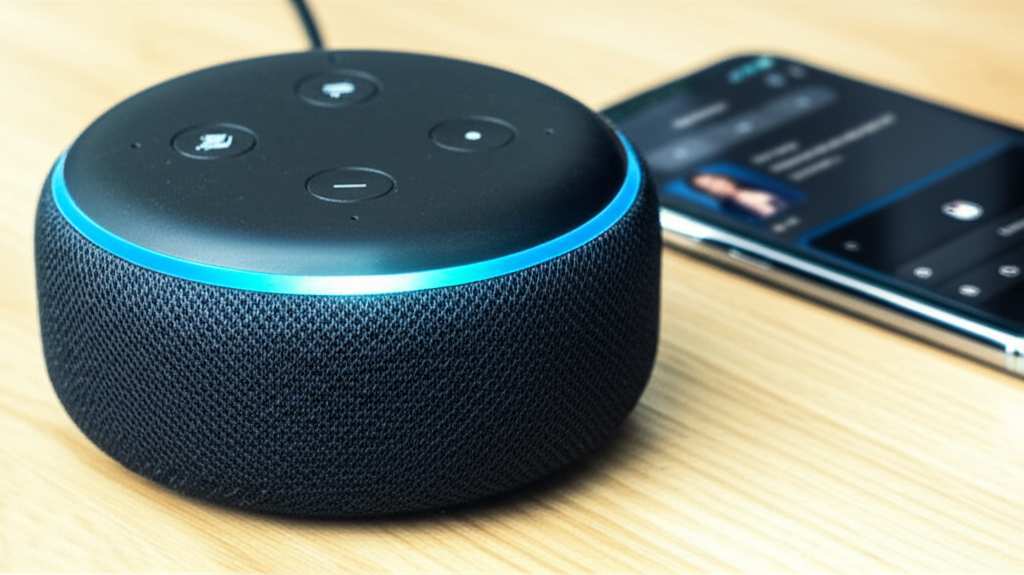
Echo Dot: More Than Just “Alexa!”
You probably know your Echo Dot for its amazing ability to answer questions, play music on command, and control your smart home. It’s like having a little helper ready to go at any moment. But here’s a fun fact: many of these smart speakers are also built with Bluetooth technology. This means they can connect wirelessly to other devices, just like your wireless headphones or a Bluetooth car stereo.
Think of it this way: your phone or tablet has all your favorite music and podcasts. Your Echo Dot has a speaker that can often sound much better than the tiny ones built into your gadgets. By using Bluetooth, you’re essentially sending the audio from your device to the Echo Dot. It’s a simple connection that unlocks a whole new level of sound quality for your personal audio.
So, next time you want to blast your workout playlist or enjoy a movie with clearer sound, don’t reach for a separate speaker just yet. Your Echo Dot might be waiting to do the job!
Can I Use My Echo Dot as a Bluetooth Speaker? The Short Answer is YES!
This is the big question, and the answer is a resounding yes! Amazon designed the Echo Dot with Bluetooth connectivity for exactly this reason. It’s a fantastic way to get more use out of your device. You can stream audio from virtually any device that has Bluetooth. This includes your smartphone (iPhone or Android), tablet, laptop, or even some smart TVs.
It’s a game-changer for anyone who loves music or podcasts but doesn’t want to invest in a separate, high-end Bluetooth speaker. Plus, it’s incredibly convenient. You don’t need any extra cables or complicated setups. Just a few quick steps, and you’re ready to go.
Why Bother Using Your Echo Dot as a Bluetooth Speaker?
You might be thinking, “Why not just use my phone’s speaker?” Well, let’s talk about why this is such a cool option.
Better Sound Quality: Echo Dots, especially newer models, generally have better speakers than most smartphones or tablets. They are designed to fill a room with sound, not just provide personal listening. This means your music will sound richer, podcasts will be clearer, and movies will be more immersive.
Convenience: If you already have an Echo Dot set up, you don’t need to buy another device. It’s already there, ready to connect. This saves you money and clutter.
Hands-Free Control (Sort Of): While you’re streaming audio from your phone, you can still use Alexa for other things. You can ask her the weather, set a timer, or even control smart home devices, all while your music plays.
Portability (Within Your Home): If you have multiple Echo Dots around your house, you can stream audio to whichever one is closest or in the room you’re in. It’s like having portable sound without needing a battery-powered speaker.
Let’s Get Connected: How to Pair Your Device with Your Echo Dot
Okay, ready to make some noise? Pairing your phone or tablet with your Echo Dot is super straightforward. We’ll go through it step-by-step.
Step 1: Wake Up Your Echo Dot and Get it Ready
First things first, make sure your Echo Dot is plugged in and powered on. You’ll know it’s ready when you see the light ring turn blue or pulse. If it’s your first time using it as a Bluetooth speaker, it might be in pairing mode automatically. If not, no worries, we’ll get it there.
Step 2: Put Your Echo Dot in Pairing Mode
This is the most important step! You need to tell your Echo Dot to look for new devices to connect to. The easiest way to do this is by using your voice. Just say:
“Alexa, pair Bluetooth.”
Or you can try:
“Alexa, connect my phone.”
Alexa will respond, usually by saying something like, “Your Echo Dot is now in pairing mode. Go to the Bluetooth settings on your device to connect.” You might also see the light ring on your Echo Dot turn blue and pulse, indicating it’s actively looking for a connection.
Step 3: Enable Bluetooth on Your Phone or Tablet
Now, grab your smartphone or tablet. You need to turn on its Bluetooth feature. The exact steps can vary slightly depending on whether you have an iPhone or an Android device, but it’s usually in the main settings menu.
For iPhones/iPads: Go to `Settings` > `Bluetooth`. Make sure the toggle switch is turned ON (it will turn green).
For Android Phones/Tablets: Go to `Settings` > `Connected devices` (or `Connections`) > `Bluetooth`. Make sure the toggle switch is turned ON.
Step 4: Find and Select Your Echo Dot in Your Device’s Bluetooth Settings
Once Bluetooth is on, your phone or tablet will start scanning for nearby Bluetooth devices. Look for a list of available devices. You should see your Echo Dot appear in this list. It will likely be named something like “Echo Dot” followed by a few letters or numbers, or perhaps the name you gave your Echo Dot during setup (e.g., “Living Room Echo Dot”).
Tap on the name of your Echo Dot in the list. Your phone or tablet will then try to establish a connection. You might hear a chime or a confirmation sound from your Echo Dot, and Alexa might say, “Connected to [your device name].” The light ring on the Echo Dot will likely turn solid blue or stop pulsing.
Step 5: Play Your Audio!
Congratulations, you’re connected! Now you can open any app on your phone or tablet that plays audio – like Spotify, Apple Music, YouTube, Audible, or any podcast app. Play your music, podcast, or audiobook, and the sound should now come out of your Echo Dot!
Managing Your Bluetooth Connections with Alexa
Once you’ve paired a device, your Echo Dot remembers it. This makes reconnecting super easy in the future.
Reconnecting Automatically
Most of the time, when you turn on Bluetooth on your phone or tablet and your Echo Dot is nearby and turned on, they will reconnect automatically. You might hear Alexa announce, “Connected to [your device name].” If this doesn’t happen, you can usually just ask Alexa to connect.
Forcing a Reconnect
If it doesn’t reconnect automatically, try these voice commands:
“Alexa, connect my phone.”
“Alexa, connect to [your device name].”
Disconnecting Your Device
When you’re done listening or want to switch to another device, you can disconnect.
From your phone/tablet: Go back to your Bluetooth settings and tap on your Echo Dot. You should see an option to “Disconnect” or “Forget Device.”
Using your voice: You can say, “Alexa, disconnect Bluetooth.” Alexa will confirm that your device is disconnected.
Forgetting a Device (If You Need to Start Over)
If you’re having trouble connecting or want to remove a device from your Echo Dot’s memory, you can tell Alexa to forget it.
“Alexa, forget my phone.”
“Alexa, forget [your device name].”
This will remove the pairing information. You’ll then need to go through the pairing process again from Step 2 if you want to connect that device later.
Different Echo Dot Models, Same Great Bluetooth Functionality
The great news is that this Bluetooth feature is pretty standard across most Echo Dot models, including:
Echo Dot (1st, 2nd, 3rd, 4th, and 5th Gen)
Echo Dot with Clock
Echo Dot Kids Edition
While the sound quality might vary slightly between generations (newer ones often sound a bit richer), the process of using them as a Bluetooth speaker remains the same. So, whether you have an older Dot or the latest model, you can enjoy this feature.
When to Use the Alexa App for Bluetooth
While voice commands are usually the quickest way, you can also manage Bluetooth connections through the Amazon Alexa app on your smartphone or tablet. This can be helpful if you’re having trouble with voice commands or if you want to see a list of paired devices.
1. Open the Alexa app.
2. Tap on Devices in the bottom menu.
3. Select your Echo Dot from the list.
4. Tap the gear icon (Settings) in the top right corner.
5. Scroll down and tap on Bluetooth.
6. Here, you’ll see options to `Pair a New Device`, `Manage Devices` (which shows currently connected and previously paired devices), and `Disconnect`.
This interface gives you a visual way to control the Bluetooth settings for your Echo Dot.
Comparing Echo Dot Bluetooth vs. Dedicated Bluetooth Speakers
It’s helpful to know where the Echo Dot shines and where a dedicated Bluetooth speaker might be better.
| Feature | Echo Dot (as Bluetooth Speaker) | Dedicated Bluetooth Speaker |
| :————— | :————————————————————– | :—————————————————————– |
| Sound Quality| Good for its size, fills a room. Varies by Echo Dot generation. | Varies widely. High-end models offer superior bass and clarity. |
| Portability | Requires Wi-Fi and power outlet. Not truly portable. | Battery-powered, designed for on-the-go use. |
| Connectivity | Bluetooth and Wi-Fi. | Primarily Bluetooth, some have Wi-Fi or aux input. |
| Extra Features| Smart assistant capabilities, smart home control. | Often rugged, waterproof, longer battery life. |
| Price | Often already owned, or relatively inexpensive. | Can range from budget-friendly to very expensive. |
| Setup Ease | Very easy via voice or app. | Usually straightforward Bluetooth pairing. |
| Battery Life | N/A (requires power outlet). | Varies, typically 5-20+ hours. |
What This Means for You: If you want a speaker for parties, picnics, or outdoor gatherings, a dedicated Bluetooth speaker is the way to go. They’re built for portability and often have much longer battery life. However, for improving the sound in your home office, kitchen, or living room, your Echo Dot is a fantastic, cost-effective, and convenient choice.
Fun Facts About Bluetooth and Your Echo Dot
Did you know Bluetooth technology is named after a Viking king? King Harald “Bluetooth” Gormsson united Danish tribes in the 900s, and the technology’s creators thought it was a fitting name for a technology that united different communication protocols. Pretty cool, right?
Also, the range for Bluetooth is typically around 30 feet (10 meters) in open space. Walls and other obstructions can reduce this range. So, while your Echo Dot is great for in-home listening, don’t expect it to broadcast music across your entire backyard if the Dot is inside.
For more details on Bluetooth technology and its capabilities, you can check out resources from sites like CNET.
Troubleshooting Common Bluetooth Issues
Sometimes, technology doesn’t cooperate perfectly. If you’re having trouble connecting your Echo Dot as a Bluetooth speaker, don’t panic! Here are a few common issues and how to fix them.
Issue 1: Echo Dot Not Appearing in Bluetooth List
Solution: Make sure you’ve put your Echo Dot into pairing mode by saying, “Alexa, pair Bluetooth.” Also, ensure your phone/tablet’s Bluetooth is turned ON and that it’s close enough to the Echo Dot. Try restarting both your Echo Dot (unplug it for 10 seconds, then plug it back in) and your phone/tablet.
Issue 2: Device Says it’s Connected, but No Sound
Solution: Check the volume on both your phone/tablet and your Echo Dot. Sometimes, one or both might be set to mute or a very low volume. Try disconnecting and reconnecting. Also, ensure that your phone/tablet is actually sending audio to the Echo Dot. In your Bluetooth settings, it should say “Connected for audio” or similar.
Issue 3: Connection Drops Frequently
Solution: This can be due to interference from other wireless devices (like microwaves or other Bluetooth devices) or simply being too far away. Try moving your Echo Dot and your device closer together and away from potential sources of interference. If you’ve paired many devices to your Echo Dot, it might be worth telling it to “forget” older devices you no longer use to clear up memory.
Issue 4: Alexa Keeps Interrupting with “Connected to…” or “Disconnected”
Solution: This is normal behavior when a device connects or disconnects. If it becomes annoying, you can sometimes adjust notification settings in the Alexa app, or simply ignore the announcements.
Tips for the Best Bluetooth Experience
Here are a few quick tips to make sure your audio experience is top-notch:
Keep Software Updated: Ensure your Alexa app and your Echo Dot’s software are up to date. Amazon often releases updates that improve performance and fix bugs. Your phone/tablet’s operating system should also be updated.
Optimal Placement: For the best sound, place your Echo Dot on a stable surface. Avoid corners or enclosed spaces that can muffle the sound.
Volume Control: Remember you can control the volume using your voice (“Alexa, set volume to 7”) or by pressing the volume buttons on the Echo Dot itself. You can also adjust the volume on your connected device.
* Use the Right App: While any audio app should work, some apps might offer better streaming quality than others. Experiment to see what sounds best to you.
Frequently Asked Questions (FAQ)
Let’s tackle some common questions beginners might have.
Q1: Do I need an Amazon Prime subscription to use my Echo Dot as a Bluetooth speaker?
A1: Nope! You don’t need Amazon Prime at all. The Bluetooth functionality is a standard feature built into the Echo Dot. You can stream audio from any compatible device, regardless of your Amazon subscription status.
Q2: Can I use my Echo Dot as a Bluetooth speaker for my TV?
A2: This depends on your TV. If your TV has Bluetooth output capabilities, then yes, you can pair it with your Echo Dot. However, many TVs don’t have built-in Bluetooth. In that case, you might need a separate Bluetooth transmitter that plugs into your TV’s audio output.
Q3: How do I know which Echo Dot model I have?
A3: You can usually find the model name on the bottom of the device. It will be printed in small text. Alternatively, you can check in the Alexa app under `Devices` > `Echo & Alexa` > select your device > `About`.
Q4: Can I use multiple Echo Dots as a Bluetooth speaker system?
A4: You can connect multiple Echo Dots to your phone via Bluetooth, but you can only play audio through one at a time from a single phone connection. If you want synchronized multi-room audio, you’d typically use Alexa’s built-in multi-room music feature with compatible music services, not Bluetooth streaming from a single device.
Q5: What happens if my phone’s Bluetooth is off?
A5: If your phone’s Bluetooth is off, it cannot connect to your Echo Dot. You’ll need to turn on Bluetooth in your phone’s settings for the connection to work. Alexa won’t be able to find or connect to your phone without it.
Q6: Can I use my Echo Dot as a Bluetooth speaker and still ask Alexa questions?
A6: Yes, absolutely! This is one of the coolest parts. You can stream audio from your phone, and still use your voice to ask Alexa for the weather, to set a timer, or to control your smart lights. Alexa listens for her wake word even when your Echo Dot is acting as a Bluetooth speaker.
Q7: How do I disconnect my phone from the Echo Dot permanently?
A7: To disconnect permanently, you need to “forget” the device. You can do this either through your phone’s Bluetooth settings (find the Echo Dot and select “Forget This Device”) or by telling Alexa, “Alexa, forget my phone” (or the name of your device). This removes the pairing from the Echo Dot’s memory.
Conclusion: Your Echo Dot, Your Awesome Speaker!
See? Using your Echo Dot as a Bluetooth speaker is super simple and a fantastic way to boost your audio experience at home. You’ve learned how to pair your devices, manage connections, and even troubleshoot common issues. It’s all about making your tech work smarter and sound better, without any fuss.
So, go ahead and try it out! Connect your phone, pick your favorite playlist, and enjoy richer, room-filling sound. You already have this amazing speaker in your home; now you know how to unlock its full potential.
Now go enjoy amazing sound and make every moment louder and better! Happy listening!