Experiencing Bluetooth connection issues with your sound box? Resetting the Bluetooth pairing is often the simplest and most effective solution. This guide walks you through the common methods to refresh your sound box’s Bluetooth connection, ensuring you can get back to enjoying your favorite tunes without interruption.
Tired of your sound box acting up? That frustrating moment when your music cuts out, or your device just refuses to connect to your beloved sound box can really put a damper on your day. You’ve tried turning it off and on again, you’ve checked the volume, but the Bluetooth connection remains elusive. Don’t worry, this is a super common problem, and more often than not, the fix is surprisingly simple.
The magic word here is “resetting the Bluetooth pairing.” Think of it like clearing a jam in a printer or restarting your computer when it’s being slow. Your sound box, like any electronic device, can sometimes get its wires crossed, metaphorically speaking. Old connection data, software glitches, or even just a temporary hiccup can prevent a smooth connection. Resetting the Bluetooth pairing on your sound box essentially wipes the slate clean, allowing for a fresh, stable connection with your chosen audio device. It’s a fundamental troubleshooting step that can save you a lot of time and frustration.
This guide is designed to be your go-to resource for understanding why and how to reset Bluetooth pairing on your sound box. We’ll cover the common reasons why you might need to do this, walk you through the general steps involved, and offer tips to make the process as smooth as possible. So, let’s dive in and get your sound box singing again!
- Understanding the Need to Reset: Resetting Bluetooth pairing clears old, corrupted, or conflicting connection data, resolving common issues like connection drops or inability to pair.
- General Reset Procedures: Most sound boxes involve holding down a specific button or a combination of buttons for a set duration to initiate a factory reset of Bluetooth settings.
- Device-Specific Differences: While general steps exist, the exact reset method can vary significantly between different sound box brands and models.
- Troubleshooting Before Reset: Simple steps like restarting devices, checking for software updates, and ensuring proximity can sometimes resolve connection problems without a full reset.
- Post-Reset Steps: After resetting, you’ll need to re-pair your sound box with your device as if it were new, ensuring a fresh and stable connection.
- When to Seek Further Help: If resetting doesn’t solve the problem, it might indicate a hardware issue or a more complex software glitch requiring professional assistance.
📑 Table of Contents
Why Reset Bluetooth Pairing on Your Sound Box?
Before we jump into the how-to, let’s quickly chat about why you might even need to reset your sound box’s Bluetooth connection. It’s not just about when things completely break; sometimes, it’s about optimizing performance.
Common Connection Glitches
The most obvious reason is when your sound box simply refuses to connect. You might see it in your device’s Bluetooth list, but it won’t pair. Or, it might pair but then immediately disconnect. These are classic signs that the existing Bluetooth profile is corrupted or has become unstable. Resetting the pairing clears out this faulty data, allowing for a clean handshake between your sound box and your device.
Intermittent Connectivity Issues
Sometimes, the connection works, but not reliably. You might experience dropouts, stuttering audio, or moments where the sound just disappears for a second. This can happen if the sound box is trying to manage multiple Bluetooth connections, or if there was an interrupted pairing process in the past. A reset helps the sound box start fresh and focus on maintaining a single, strong connection.
Switching Devices
If you frequently switch between different devices (like your phone, tablet, or laptop) to play music through your sound box, you might encounter issues. The sound box might try to reconnect to an old device it remembers, or it might get confused about which device to prioritize. Resetting the pairing forces it to forget all previous connections, making it easier to connect to a new device.
When Your Sound Box Behaves Strangely
Occasionally, your sound box might just seem “off.” It might not be as loud as it used to be, or the sound quality might have degraded. While this can sometimes be an issue with the audio source (like your phone’s settings) or the speaker itself, a Bluetooth pairing reset can sometimes resolve these phantom issues by ensuring the connection is operating at its optimal level. For tips on improving audio quality in general, you might find resources on improving sound quality on a bike Bluetooth speaker or general advice on improving the sound quality of a portable Bluetooth speaker helpful.
How to Reset Bluetooth Pairing: The General Approach
While the exact steps can vary from one sound box to another, there’s a common underlying principle when you need to reset Bluetooth pairing. It usually involves putting the sound box into a specific mode that clears its memory of paired devices.
Locating the Reset Button or Combination
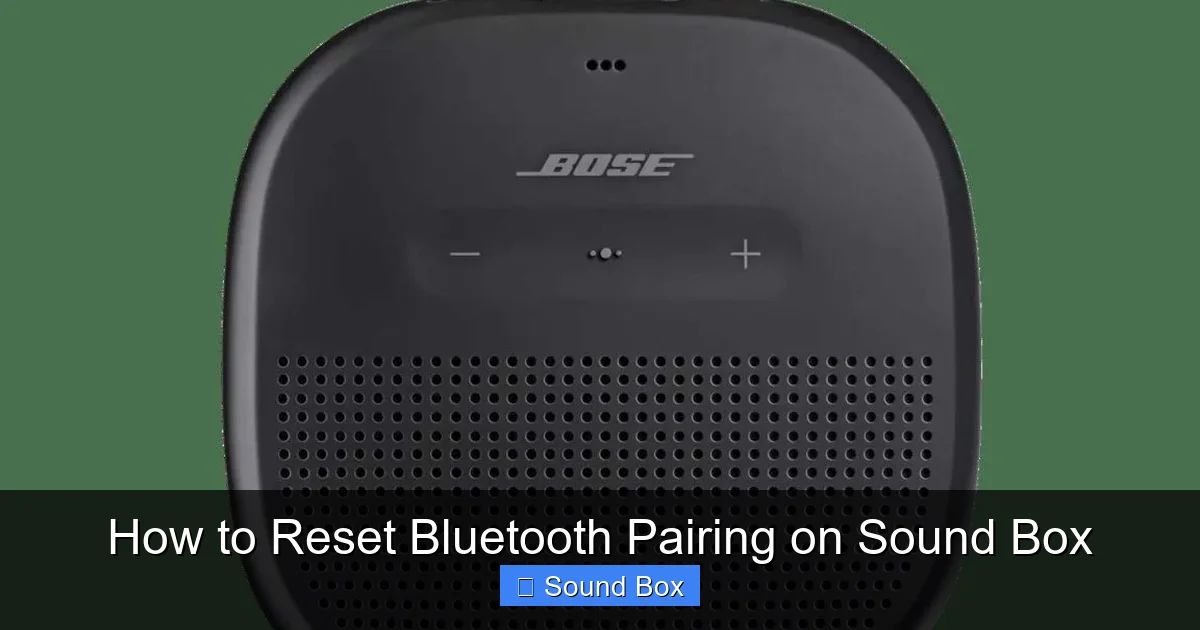
Most sound boxes have a dedicated button or a combination of buttons that initiates a reset. This is often labeled with a Bluetooth symbol, a power symbol with a circle around it, or sometimes it’s a small, recessed button that requires a pin or paperclip to press.
Visual guide about How to Reset Bluetooth Pairing on Sound Box
Image source: techsynchron.com
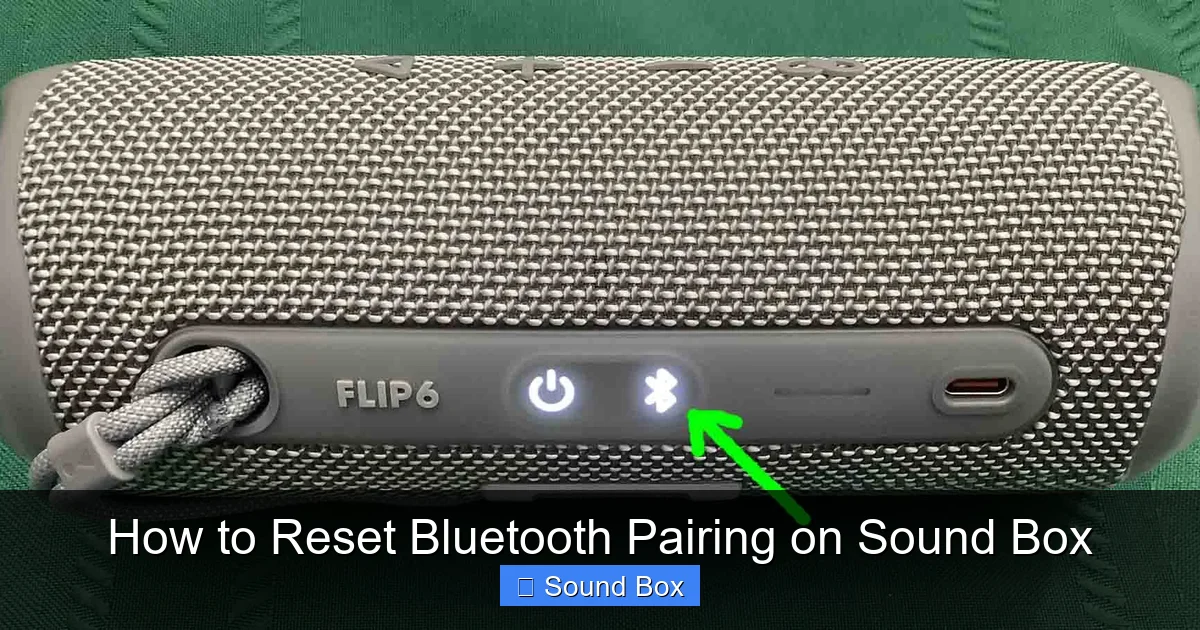
- Dedicated Bluetooth Button: Some speakers have a button specifically for Bluetooth pairing. Holding this down for an extended period (usually 5-10 seconds) can trigger a reset.
- Power Button Combination: On many models, you might need to press and hold the power button, and sometimes another button (like volume up or down) simultaneously for a few seconds.
- Recessed Reset Button: Smaller or more compact sound boxes might have a tiny, recessed button. You’ll need a pointed object to press and hold this for a reset.
The Process of Resetting
Once you’ve identified the correct button or button combination, the process typically involves these steps:
- Turn Off the Sound Box: Ensure your sound box is powered on but not currently connected to any device. Sometimes, the reset process works best when the device is on.
- Press and Hold the Reset Mechanism: Follow the instructions for your specific model. This usually means pressing and holding the designated button(s) for a specific duration. You might hear a beep, see a light flash, or notice the LED indicators change color to confirm the reset.
- Wait for Confirmation: Don’t release the button(s) until you’ve received some form of confirmation that the reset has occurred. This could be an audible cue or a visual indicator.
- Power Cycle (Optional but Recommended): After the reset, it’s often a good idea to turn the sound box off completely and then turn it back on again. This ensures all settings are fully refreshed.
What Happens After the Reset?
After a successful reset, your sound box will forget all previously paired devices. It will return to its factory default Bluetooth settings, meaning it will be discoverable by new devices as if it were brand new. You’ll then need to go through the pairing process again with your smartphone, tablet, or computer.
Brand and Model Specific Reset Instructions
As mentioned, the exact procedure for how to reset Bluetooth pairing on a sound box can differ significantly between brands and even models within the same brand. Here’s a look at some common scenarios and what to expect.
Popular Brands and Their Methods
While we can’t cover every single model, here are general ideas for some popular brands. Always refer to your sound box’s user manual for the most accurate instructions.
Visual guide about How to Reset Bluetooth Pairing on Sound Box
Image source: images.nexusapp.co
- JBL: Many JBL speakers have a Bluetooth button. Holding it down for around 5-10 seconds often resets the pairing.
- Sony: Sony models might involve holding the power button and the Bluetooth button simultaneously. Some models might have a dedicated reset button accessible with a pin.
- Bose: Bose sound boxes often require pressing and holding the Bluetooth button for a specific duration. Some older models might have a button combination. For instance, you might find instructions on how to reset a Bose Bluetooth speaker to be quite specific.
- Anker: Anker speakers frequently use a combination of the power button and the Bluetooth button for resetting.
- Amazon Echo (Echo Dot, etc.): For smart speakers like Amazon Echo devices, you usually reset Bluetooth through the Alexa app or by pressing a specific button sequence on the device itself (often related to the action button).
Checking Your User Manual
Your sound box’s user manual is your best friend here. It will contain the precise instructions for your specific model. If you’ve lost the physical manual, a quick search online for “[Your Sound Box Brand and Model] user manual PDF” should help you find it. You can also often find reset instructions on the manufacturer’s support website.
Common Pitfalls to Avoid
- Don’t Force It: If a button doesn’t seem to work, don’t force it. You could damage the speaker.
- Be Patient: Holding the buttons for the correct duration is crucial. Don’t release too early.
- Check Power Source: Ensure your sound box has sufficient battery power. Some reset functions might not work if the battery is critically low.
Troubleshooting Connection Issues Before Resetting
Sometimes, you might be in such a rush to reset that you overlook simpler solutions. Before you go straight for the reset button, try these troubleshooting steps. They might save you the trouble.
Restart Your Devices
This is the golden rule of tech troubleshooting. Turn off your sound box, and turn off the device you’re trying to connect with (your phone, tablet, etc.). Wait about 30 seconds, then turn them both back on. This simple step can clear temporary glitches in both devices.
Visual guide about How to Reset Bluetooth Pairing on Sound Box
Image source: tomstek.us
“Forget” the Device on Your Source
On your phone or tablet, go to your Bluetooth settings. Find your sound box in the list of paired devices and select the option to “Forget” or “Unpair” it. Then, try to scan for devices again and re-pair. This is a lighter form of reset that only affects the connection from your device’s perspective.
Check for Software Updates
Ensure both your sound box (if it has a companion app) and your connected device have the latest software updates installed. Sometimes, bugs in older software can cause Bluetooth connectivity problems. Keeping things updated can resolve these issues.
Proximity and Interference
Make sure your sound box and your device are close to each other. Walls, other electronic devices, and even microwaves can cause interference with Bluetooth signals. Try to minimize these factors when attempting to pair.
Device Compatibility
While rare with modern devices, ensure your sound box and your connecting device are compatible in terms of Bluetooth versions. Most modern devices use Bluetooth 4.0 or higher, which are generally very compatible.
The Re-Pairing Process After Reset
Once you’ve successfully reset your sound box’s Bluetooth pairing, you’re essentially starting from scratch. This means going through the initial setup process again.
Putting the Sound Box in Pairing Mode
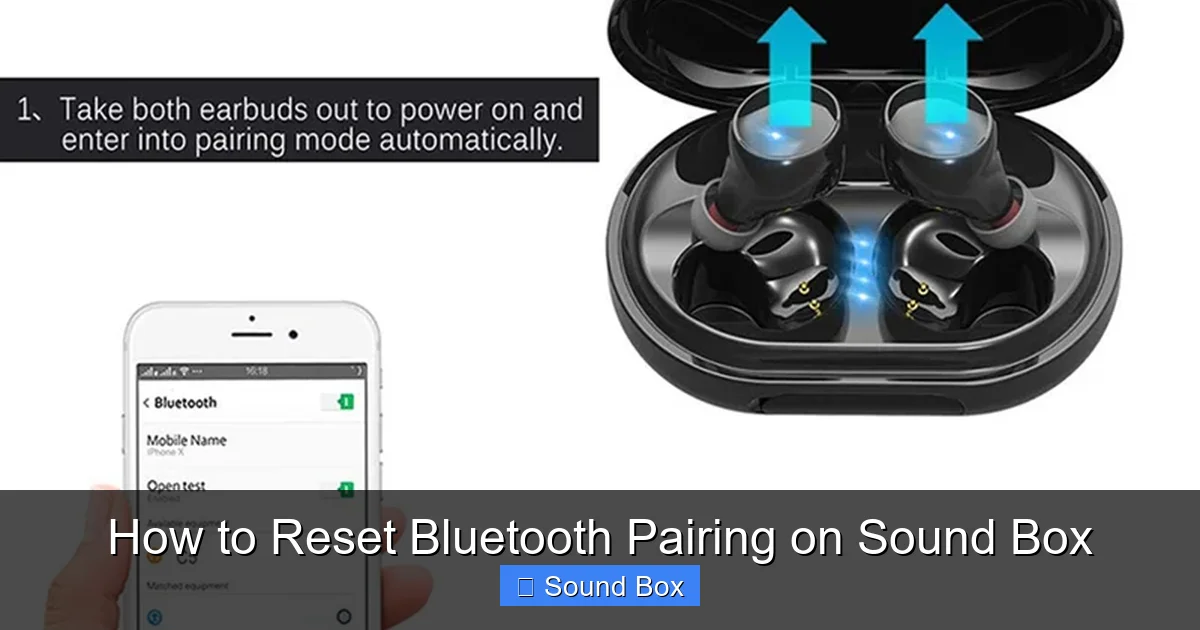
After the reset, your sound box should automatically enter pairing mode. You’ll usually see a flashing light (often blue) or hear an audible cue indicating it’s ready to connect. If it doesn’t, you might need to press and hold the Bluetooth button briefly to activate pairing mode.
Scanning for Devices on Your Source
On your smartphone, tablet, or computer, go to your Bluetooth settings. Turn Bluetooth on if it’s not already. Then, initiate a scan for new devices. Your sound box should appear in the list of available devices, usually by its model name.
Selecting and Connecting
Once your sound box appears in the list, tap on it to connect. You might be prompted to enter a PIN code. For most sound boxes, this is typically “0000” or “1234,” but it’s rare to need one these days. If prompted, check your manual.
Confirming the Connection
When the connection is successful, the flashing light on your sound box should turn solid, or you might hear a confirmation sound. Your connected device will also indicate that it’s connected to the sound box. Now you can play your music!
Troubleshooting Re-Pairing
If you have trouble re-pairing:
- Try Again: Sometimes, a second attempt works.
- Restart Everything: Repeat the restart process for both devices.
- Check the Manual: Ensure you’re following the correct pairing procedure for your specific model.
- Test with Another Device: If possible, try pairing your sound box with a different phone or tablet to see if the issue lies with the original source device.
If you’re struggling to get audio to play even after a successful connection, you might need to look into how to repair a Bluetooth speaker with no sound. Similarly, if you’re aiming for immersive audio, learning how to get surround sound using Bluetooth speakers can enhance your listening experience.
When to Consider Other Solutions
While resetting Bluetooth pairing is a powerful fix, it’s not always the magic bullet. If you’ve gone through the reset process and tried re-pairing without success, it might be time to consider other possibilities.
Hardware Malfunctions
If your sound box refuses to power on at all, you might need to check out guides on how to fix a Bluetooth speaker not turning on. If the Bluetooth antenna is physically damaged, or another internal component has failed, a reset won’t help. In these cases, you might be looking at a repair or replacement. Check if your sound box is still under warranty.
Firmware Issues
Some advanced sound boxes have firmware that can be updated. While a reset clears Bluetooth settings, it doesn’t typically update the firmware. If there’s a known bug in the speaker’s firmware that affects Bluetooth, you might need to perform a firmware update. Consult your manufacturer’s website for instructions on how to do this.
Interference Problems (Persistent)
If you’re in an environment with a lot of competing wireless signals (like a crowded office or a home with many smart devices), persistent interference could be an issue. While rare, it’s worth testing your sound box in a different, less congested location to rule this out.
Contacting Customer Support
If all else fails, the best course of action is to contact the manufacturer’s customer support. They can provide model-specific troubleshooting advice, guide you through advanced reset procedures, or arrange for repairs if necessary. Be ready to provide your sound box’s model number and a description of the problem.
Conclusion
Dealing with Bluetooth connection issues can be a real buzzkill, but knowing how to reset the Bluetooth pairing on your sound box is an invaluable skill for any audio enthusiast. It’s a simple yet effective way to clear out corrupted data and re-establish a stable, reliable connection. Remember to always consult your user manual for the most accurate steps for your specific model, and don’t forget to try basic troubleshooting before diving into a reset. By following these steps, you’ll be well on your way to enjoying uninterrupted, high-quality sound from your sound box once again. Happy listening!
Frequently Asked Questions
What does it mean to reset Bluetooth pairing?
Resetting Bluetooth pairing on your sound box means clearing its memory of all previously connected devices. It’s like making your sound box forget all its past connections so it can start fresh and connect to a new device without any old data causing interference.
How often should I reset my sound box’s Bluetooth pairing?
You generally only need to reset your sound box’s Bluetooth pairing when you encounter connection problems, such as difficulty pairing, frequent disconnections, or audio glitches. It’s not a regular maintenance task, but rather a troubleshooting step.
Will resetting my sound box delete my music?
No, resetting the Bluetooth pairing on your sound box will not delete any music or audio files. It only affects the Bluetooth connection settings and the list of paired devices stored on the sound box itself.
Can I reset the Bluetooth on my sound box without a button?
Some modern sound boxes allow you to reset Bluetooth pairing through a companion mobile app or a web interface. Always check your sound box’s user manual or the manufacturer’s website for specific instructions, as button-less reset options are becoming more common.
What if my sound box still won’t connect after resetting Bluetooth pairing?
If resetting the Bluetooth pairing doesn’t solve the problem, there might be other issues at play, such as a firmware bug, interference from other devices, or a hardware problem with the sound box or your connecting device. You may need to try updating firmware or contacting customer support.
Is there a difference between a factory reset and a Bluetooth reset?
Yes, there’s a difference. A Bluetooth reset specifically clears only the Bluetooth pairing history. A factory reset is more comprehensive; it usually restores the entire device to its original out-of-the-box settings, which can include sound profiles, network settings, and Bluetooth pairings.