Quick Summary: Pairing your Altec Lansing Bluetooth speaker is super easy! Just turn it on, put it in pairing mode, and select it on your phone or device. If it doesn’t connect, a quick reset usually does the trick. Let’s get your music playing!
Hey there, tech adventurer! Max here from AffTechy.com, your go-to spot for making gadgets simple and fun. You know, a good Bluetooth speaker can totally transform your day. Imagine chilling in the park with your favorite tunes, or making movie nights at home feel epic. That’s the magic of sound, and Altec Lansing makes some seriously cool speakers.
But sometimes, getting that perfect sound connection can feel a little tricky. You might be staring at your speaker, then your phone, wondering, “How do I get these two to talk to each other?” It’s a common puzzle, and honestly, tech can sometimes feel like a secret code. Don’t sweat it, though!
I’m here to be your friendly guide. We’ll break down how to pair your Altec Lansing Bluetooth speaker, step by step. No confusing jargon, just clear instructions that make sense. We’ll cover the easy fixes too, so you can get back to enjoying your music without any hassle. Ready to dive in and make some noise? Let’s make this easy!
Why You Want Your Altec Lansing Speaker Connected
Altec Lansing has been around for ages, making sound equipment. They know their stuff when it comes to audio. Their Bluetooth speakers are designed to be portable and deliver great sound wherever you go. Whether it’s a small, personal speaker or a larger one for a party, the goal is always the same: easy, wireless audio.
Connecting your Altec Lansing speaker to your phone, tablet, or laptop opens up a world of possibilities. Suddenly, your device’s tiny speakers are replaced by something that can really fill a room (or a backyard!). It’s perfect for parties, relaxing at home, or even just making your work-from-home setup more enjoyable. The freedom of Bluetooth means no messy wires to trip over, just pure, uninterrupted sound.
But what happens when the magic doesn’t happen right away? You press buttons, you search on your phone, and nothing. It can be frustrating, right? That’s why we’re here. We’ll walk through the simple process and tackle any little hiccups that might pop up. Think of me as your personal tech buddy, ready to help.
Getting to Know Your Altec Lansing Speaker
Before we start pairing, let’s get a feel for your speaker. Most Altec Lansing speakers have a similar layout, but there can be slight differences. You’ll usually find a power button, volume controls, and crucially, a Bluetooth button. Sometimes, this button also doubles as a play/pause button.
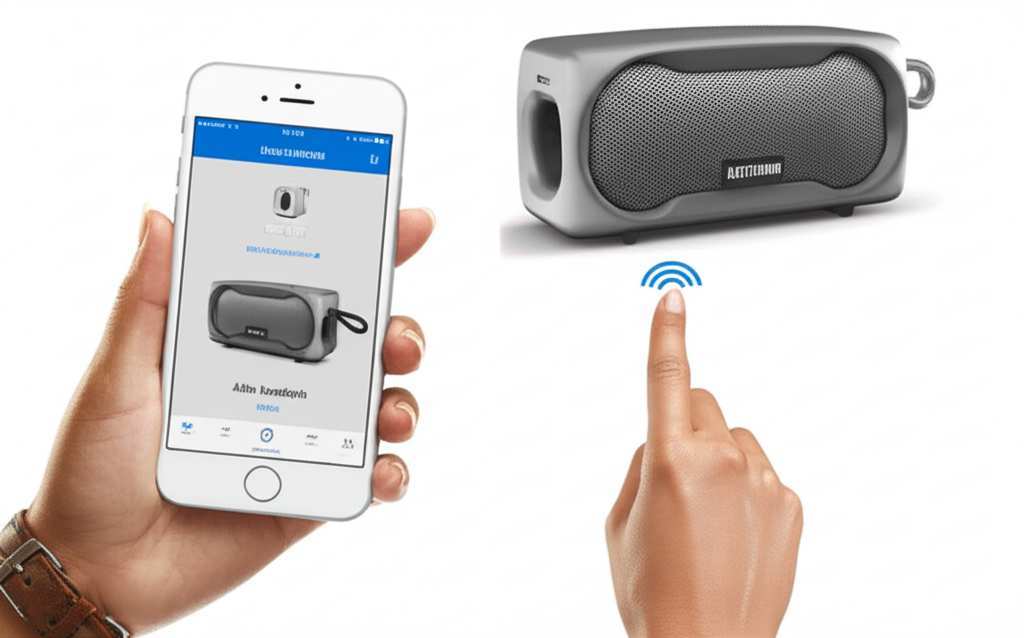
The Bluetooth button is your magic key for connecting. When you press it, it tells the speaker, “Hey, I’m ready to find a new friend to connect to!” Your phone or device then looks for this signal. It’s like the speaker is saying, “Here I am, ready to be discovered!”
Many Altec Lansing speakers also have indicator lights. These lights are super helpful! They usually show you if the speaker is on, charging, or in pairing mode. A blinking blue light is often the sign that your speaker is ready to be paired. Keep an eye on these lights; they’re like little signals from your speaker telling you what’s going on.
How to Pair Your Altec Lansing Bluetooth Speaker: The Step-by-Step Guide
Alright, let’s get down to business! Pairing your Altec Lansing speaker is usually a straightforward process. We’ll break it down into simple steps so you can get your music flowing in no time. Grab your speaker and your phone, and let’s do this together!
Step 1: Power Up Your Speaker
First things first, you need to turn on your Altec Lansing speaker. Find the power button, usually located on the top or side of the speaker. Press and hold it for a few seconds until you see a light turn on or hear a startup sound. This tells you the speaker is awake and ready.
Make sure your speaker has enough battery life. If it’s been sitting around for a while, it might be dead! Plug it in to charge if needed. A speaker that’s not charged won’t be able to broadcast its Bluetooth signal, so a good charge is essential for a smooth connection.
Step 2: Activate Pairing Mode
This is the most important step for connecting wirelessly. You need to put your speaker into “pairing mode.” How you do this can vary slightly between Altec Lansing models. Often, there’s a dedicated Bluetooth button.
Press and hold the Bluetooth button on your speaker. You’ll usually hear a distinct sound or see a light (often blue) start blinking rapidly. This blinking light is the universal signal that your speaker is discoverable and looking for a device to connect to. If you don’t see a blinking light or hear a sound, try holding the button a bit longer, or check your speaker’s manual.
Step 3: Enable Bluetooth on Your Device
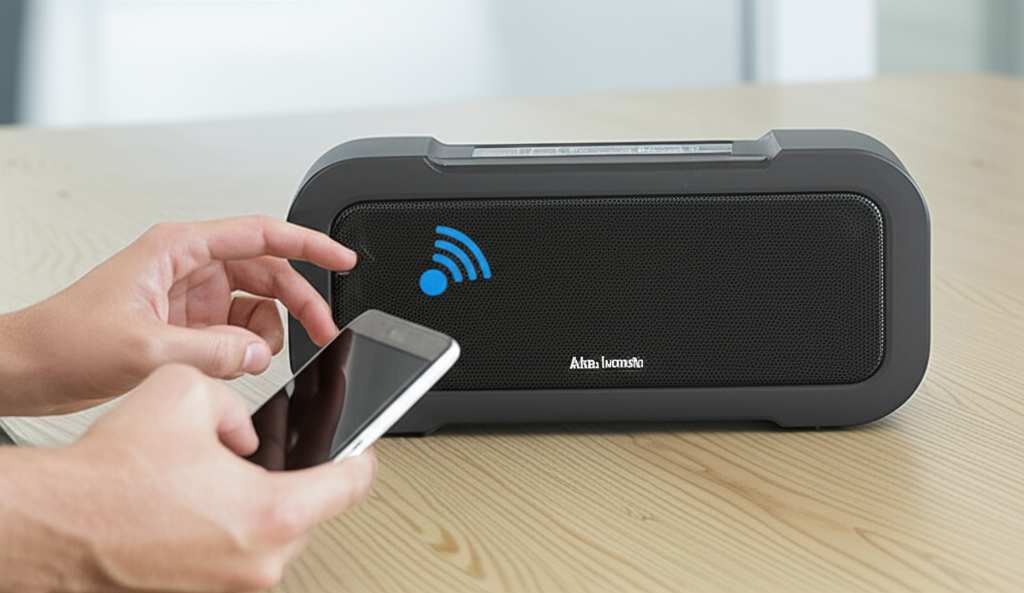
Now, let’s get your phone or device ready. Go into your device’s settings menu. You’ll need to find the Bluetooth settings. On most smartphones (both iPhone and Android), you can usually find this near the top of the settings list.
Turn Bluetooth ON. You’ll see a switch or a toggle. Make sure it’s in the ON position. Your device will then start scanning for nearby Bluetooth devices. You might see a list of devices appear, showing things like headphones, other speakers, or car systems that are also in pairing mode.
Step 4: Select Your Altec Lansing Speaker
Look at the list of available Bluetooth devices on your phone or tablet. You should see your Altec Lansing speaker appear. It will likely be listed by its model name, such as “Altec Lansing SoundBlade” or simply “Altec Lansing Speaker.”
Tap on the name of your Altec Lansing speaker in the list. Your device will then try to connect to it. You might hear a confirmation sound from the speaker, and the blinking light should turn solid, indicating a successful connection. Congratulations, you’re connected!
Step 5: Play Your Music!
Once connected, your device will show that the speaker is paired and ready. Open your favorite music app, podcast player, or video, and hit play. The sound should now be coming from your Altec Lansing speaker!
If you don’t hear anything, double-check that the volume on both your device and your speaker is turned up. Sometimes, the volume levels are controlled independently, so make sure both are set to a comfortable listening level. Enjoy the booming sound!
Troubleshooting: When Pairing Doesn’t Go as Planned
So, what if your Altec Lansing speaker isn’t connecting? Don’t worry, this happens more often than you think. There are a few common reasons why pairing might fail, and thankfully, they usually have simple fixes. Let’s troubleshoot like pros!
Problem 1: Speaker Not Appearing in Device List
If your Altec Lansing speaker isn’t showing up on your phone’s Bluetooth list, the most common reason is that it’s not in pairing mode. Go back to Step 2 and make sure you’re holding the Bluetooth button long enough for the indicator light to blink rapidly. Also, ensure Bluetooth is actually turned on on your device.
Another thing to check is distance. Bluetooth has a range, usually around 30 feet (10 meters). Make sure your speaker and device are close to each other, ideally within a few feet, especially during the initial pairing process. Sometimes, walls or other electronics can interfere with the signal.
Problem 2: Connection Fails or Drops
If your device shows it’s connected, but the sound is choppy, cuts out, or it disconnects shortly after pairing, there could be interference. Other wireless devices, like microwaves or Wi-Fi routers, can sometimes mess with Bluetooth signals. Try moving to a different location, away from potential interference sources.
Also, check if your speaker is connected to another device already. Most Bluetooth speakers can only connect to one device at a time. If it’s connected to your tablet, it won’t connect to your phone until you disconnect it from the tablet. You might need to “forget” the speaker on the previously connected device.
Problem 3: The “Password” Prompt (Rare!)
Occasionally, a Bluetooth device might ask for a PIN or password. For most Altec Lansing speakers, this is very rare, and if it does ask, the default code is often “0000” or “1234.” If you’re prompted for a password and these don’t work, consult your speaker’s manual or Altec Lansing’s support website. This is uncommon for modern speakers, though.
Problem 4: Resetting the Speaker
If all else fails, a factory reset can often clear up connection issues. How to do a factory reset varies by model. Some might require holding a combination of buttons (like power and Bluetooth) for an extended period. Others might have a small reset button that you need to press with a pin. Always refer to your specific Altec Lansing speaker’s manual for the exact reset procedure. A reset is like giving your speaker a fresh start, often solving stubborn glitches.
Quick Tips for a Better Bluetooth Experience
Beyond just pairing, a few little tricks can make your Altec Lansing speaker experience even better. These are simple habits that can save you headaches down the line and keep your sound crystal clear.
- Keep Firmware Updated (if applicable): Some advanced speakers might have firmware that can be updated. Check the Altec Lansing app or website to see if your model supports updates. Updates can improve performance and fix bugs.
- Charge Responsibly: Always use the charger that came with your speaker or a reputable equivalent. Overcharging or using the wrong charger can damage the battery.
- Clean Your Speaker: Dust and grime can affect buttons and connections. Gently clean the exterior of your speaker with a soft, dry cloth. Avoid using liquids or abrasive cleaners.
- Know Your Range: Bluetooth is great, but it’s not magic. Keep your device within the speaker’s recommended range for the best signal strength and to avoid dropouts.
- Manage Multiple Devices: If you frequently connect your speaker to different devices, remember to disconnect it from the old device before connecting to a new one. This prevents confusion and connection errors.
Altec Lansing Speaker Models: A Quick Look
Altec Lansing offers a variety of speakers, and while the pairing process is similar, some features might differ. Here’s a quick comparison of a few popular models and what makes them stand out:
| Model Name | Key Features | Typical Pairing Indicator | Water Resistance |
|---|---|---|---|
| Altec Lansing SoundFly | Compact, portable, good battery life | Flashing blue LED | Yes (IPX7) |
| Altec Lansing Jacket Jolt | Rugged design, carabiner clip, powerful sound | Flashing blue LED | Yes (IP67) |
| Altec Lansing Orbit | Spherical design, 360-degree sound | Flashing blue LED | Yes (IPX7) |
| Altec Lansing Mula | Simple controls, decent battery | Flashing blue LED | No |
As you can see, most Altec Lansing speakers use a flashing blue LED to indicate pairing mode. The water resistance rating (like IPX7 or IP67) is also a handy feature to note, meaning many are great for poolside or beach use. Always check the specific model’s details to know exactly what you’re getting!
Understanding Bluetooth Pairing Modes
Bluetooth devices have different “modes.” The one we’re most interested in for initial connection is Pairing Mode. This is when the device is actively broadcasting its presence and looking for a new device to connect to. It’s usually indicated by a flashing light.
Once paired, devices often go into Connected Mode. In this mode, the indicator light usually becomes solid, and the device is actively communicating with the paired device. Your phone will remember this connection, so the next time you turn on the speaker and have Bluetooth enabled on your phone, they should reconnect automatically without you needing to go through the full pairing process again. This is called auto-reconnect, and it’s super convenient!
Some devices might also have a Discovery Mode, which is similar to pairing mode. The key is to look for that blinking light or audible cue that signifies it’s ready to be found by a new device. For Altec Lansing speakers, it’s almost always activated by a specific button press.
A Bit More on Bluetooth Technology
Bluetooth technology has evolved quite a bit. The latest versions, like Bluetooth 5.0 and newer, offer faster speeds, longer range, and better power efficiency compared to older versions. This means a more stable connection and longer battery life for both your speaker and your device.
Did you know that Bluetooth uses radio waves to communicate? It operates in a specific frequency band (2.4 GHz) that’s also used by Wi-Fi and other devices. This is why sometimes interference can be an issue, especially in crowded wireless environments. When your Altec Lansing speaker pairs successfully, it creates a secure, short-range wireless connection.
For more in-depth info on how Bluetooth works, you can check out resources from organizations like the Bluetooth SIG (Special Interest Group) or tech review sites like CNET. They have great explanations for those who love to dive deeper into the tech!
Frequently Asked Questions (FAQ)
Got more questions? We’ve got answers! Here are some common queries beginners have about pairing their Altec Lansing Bluetooth speakers.
Q1: How do I know if my Altec Lansing speaker is on and ready to pair?
You’ll usually hear a startup sound when you turn it on, and the Bluetooth indicator light will start blinking rapidly. This blinking light is your cue that it’s in pairing mode and ready to be discovered by your device.
Q2: My speaker connected, but I hear no sound. What should I do?
First, check the volume levels on both your Altec Lansing speaker and your connected device. Make sure neither is muted or turned all the way down. Then, ensure that your device is actually outputting audio to the speaker. Sometimes, it might still be trying to play through the device’s internal speakers.
Q3: Can I connect my Altec Lansing speaker to more than one device at a time?
Most Altec Lansing speakers are designed to connect to only one device at a time. If you want to connect it to a new device, you’ll need to disconnect it from the current device first. You might need to “forget” the speaker in the Bluetooth settings of the old device.
Q4: How far away can my phone be from the speaker?
The standard Bluetooth range is about 30 feet (10 meters). However, this can be affected by obstacles like walls, furniture, or even other electronic devices. For the best connection, keep your phone and speaker relatively close, especially during pairing.
Q5: What does the blinking light on my speaker mean?
A fast blinking blue light typically means the speaker is in pairing mode and ready to connect to a new device. A solid blue light usually indicates that the speaker is successfully connected to a device. A slow blink might mean it’s connected but idle.
Q6: Do I need an app to pair my Altec Lansing speaker?
For most basic pairing functions, you do not need a specific app. You pair directly through your device’s Bluetooth settings. Some Altec Lansing models might have companion apps for advanced features like EQ settings or firmware updates, but these are usually not required for initial pairing.
Q7: My speaker won’t turn on. What’s wrong?
If your speaker won’t turn on, the most likely reason is a dead battery. Try plugging it into its charger and let it charge for at least 30 minutes to an hour. If it still doesn’t power on, you might have a faulty charger or speaker, and it could be time to contact Altec Lansing support or the retailer.
Conclusion: Go Make Some Noise!
There you have it! Pairing your Altec Lansing Bluetooth speaker should now feel like a breeze. We’ve covered the simple steps, what those blinking lights mean, and even how to fix common connection hiccups. It’s all about making technology work for you, not the other way around.
Remember, the key is usually putting the speaker in pairing mode and then finding it on your device. If you run into trouble, don’t get discouraged. A quick reset or checking your device’s settings can often solve the problem. You’ve got this!
Now that you’re a pro at pairing, it’s time to enjoy the freedom of wireless sound. Crank up your favorite playlists, share podcasts with friends, or add some awesome audio to your next movie night. Go out there and make every moment louder and better with your Altec Lansing speaker!