If you’re trying to connect to your Wi-Fi but can’t remember the username and password, don’t panic. Just a few simple steps can help you retrieve or reset these details quickly. You can often find your router’s login info on a sticker, access your router’s settings, or reset your device if needed.
In short, the easiest way is to check your router for a label with default login info, access the admin panel through a web browser, or look up your network credentials in your device settings. If all else fails, a router reset will restore factory settings, including the default username and password.
When it comes to accessing your Wi-Fi router’s username and password, many people find themselves locked out, especially after changing network settings or forgetting login details. Knowing how to retrieve or reset these credentials can save you time and frustration. The process might seem technical at first, but it’s actually straightforward. Whether you prefer checking the physical device, digging through your device’s network settings, or performing a simple reset, there are multiple ways to regain access. Understanding these options means you’ll be back online in no time, configuring your network or troubleshooting issues without hassle.

How to Find WiFi Router Username and Password
Many people forget their WiFi username and password, especially if they haven’t changed them in a while. Knowing how to find this information is useful for connecting new devices or troubleshooting. Luckily, there are several simple methods to locate your WiFi login details without much hassle.
Understanding Why You Need Your WiFi Username and Password
Your WiFi username is usually the network name, while the password keeps your internet connection secure. Accessing this information allows you to share your WiFi with friends or troubleshoot connection issues. Keeping your credentials safe is important, but knowing where to find them can save time in emergencies.
Common Default WiFi Router Credentials
Many routers come with preset usernames and passwords. These defaults are often printed on a label on the device itself. Common default username options include admin or user. Default passwords may be password or blank spaces.
| Router Brand | Default Username | Default Password |
|---|---|---|
| TP-Link | admin | admin |
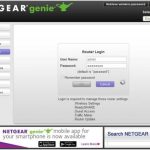
| Netgear | admin | password |
| Linksys | admin | admin |
| D-Link | admin | admin |
If your router still uses default settings, you can use this info to access its admin panel. It’s essential to change default credentials to protect your network.
Locating Router Credentials on the Device
Most routers have a label attached on the back or bottom displaying essential login info. Look for sections labeled SSID or Wireless Network Name for the username. The WiFi Password or Wireless Key is often printed nearby.
If the label is missing or unreadable, don’t worry. You can still access the router’s admin page using other methods.
Accessing Your Router’s Admin Panel
The router admin panel allows you to view or change WiFi credentials. To access it, open a web browser and type the default gateway IP address, usually 192.168.1.1 or 192.168.0.1.
- Enter the IP address into the address bar
- Input your admin username and password (default is often admin/admin)
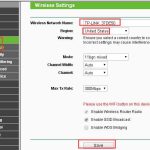
- Navigate to the wireless settings or WiFi section
- View or modify your SSID and password here
If you have changed these credentials before, you’ll need to use the current login details or perform a reset.
Using Your Computer to Find Saved WiFi Passwords
On Windows Devices
If your computer has previously connected to the WiFi network, Windows may have saved the password. To retrieve it:
- Open the Control Panel and select Network and Sharing Center
- Click on your WiFi network name
- Choose Wireless Properties
- Navigate to the Security tab
- Check the box next to Show Characters
- The saved password appears in the field below
On Mac Devices
The Keychain Access app stores saved WiFi passwords. To view your password:
- Open Keychain Access from Applications or Spotlight
- Select Passwords in the sidebar
- Find your WiFi network name
- Double-click it and check Show Password
- Enter your Mac user password when prompted
Resetting Your Router to Factory Settings
If you’re unable to find your WiFi login details, resetting the router can help. This process restores default credentials and clears personalized settings.
Locate the small reset button on your device, usually near the ports or bottom. Use a paperclip to press and hold the button for about 10 seconds.
Once reset, your router will reboot and return to factory defaults, including default username and password. Remember, resetting will also disconnect all devices and erase custom configurations.
Changing Your WiFi Credentials for Better Security
After finding or resetting your login info, consider changing your WiFi password to a strong one. Use a mix of uppercase, lowercase, numbers, and symbols for better security.
Access the admin panel and go to wireless settings to update the SSID and password. Save changes and reconnect your devices with the new credentials.
Additional Tips for Managing WiFi Credentials
- Write your new WiFi username and password in a safe place.
- Avoid using common or easy-to-guess passwords.
- Update your credentials periodically for added security.
- Keep your router firmware updated to prevent vulnerabilities.
Related Topics You Might Find Useful
- How to Change Your WiFi Router Password
- Best Practices for WiFi Security
- How to Set Up Guest WiFi Networks
- How to Extend WiFi Range in Your Home
Learning how to find your WiFi router username and password can save you time and keep your network secure. Whether using the router label, admin panel, or computer tools, these methods are straightforward and effective. Always remember to update your credentials regularly and protect your network from unauthorized access.
How to find your router's ip address, username and password (2022)
Frequently Asked Questions
Where can I find my router’s default login details?
You can locate your router’s default username and password on a label usually attached to the back or bottom of the device. If the label is missing or unclear, check the router’s manual or visit the manufacturer’s website for the default credentials based on your router model.
How do I access my router’s admin settings to view the Wi-Fi password?
Connect your device to the router via Ethernet or Wi-Fi, then open a web browser and enter the router’s IP address, commonly 192.168.0.1 or 192.168.1.1. Log in using the administrator username and password. Once logged in, navigate to the wireless settings or security section where the network password is displayed or can be reset.
What steps should I take if I’ve changed the Wi-Fi password and forgot it?
If you changed the Wi-Fi password and cannot recall it, access your router’s admin panel through a connected device. Use the default credentials if you haven’t changed them. Navigate to the wireless security settings to view or set a new password. Alternatively, you can reset the router to factory settings, which restores default credentials and password.
Can I retrieve my Wi-Fi password from a device already connected to the network?
Yes, on Windows, you can view saved Wi-Fi passwords through network settings or command prompt. On macOS, use the Keychain Access tool to find stored network passwords. These methods allow you to see the password for networks your device is already connected to without logging into the router directly.
Is it possible to change my router’s Wi-Fi username and password?
Absolutely. Access your router’s admin interface using a web browser and login credentials. Navigate to the wireless or security settings section where you can modify the network name (SSID) and password. After making changes, save the settings, and reconnect your devices using the new Wi-Fi credentials.
Final Thoughts
To find your wifi router username and password, start by checking the label on the device. Most routers display default login details directly on a sticker. You can also access the admin panel by typing the router’s IP address into your browser. If you have changed the credentials before, try retrieving them from saved passwords or resetting the router. Knowing how to find wifi router username and password simplifies connecting to your network quickly and securely.