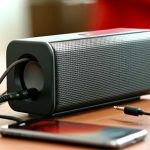
Connecting your waterproof sound box to your phone is simple and unlocks a world of audio enjoyment, rain or shine. This guide walks you through the most common connection methods, primarily focusing on Bluetooth pairing, ensuring you can enjoy your music, podcasts, or calls with crystal-clear sound, even in wet environments. Get ready for hassle-free audio!
## How to Connect Waterproof Sound Box to Phone
Imagine this: you’re lounging by the pool, at the beach, or even just enjoying a relaxing bath, and you want to set the mood with your favorite tunes. But wait, your phone and your sound system are two separate entities, and the last thing you want is water damage. This is where a waterproof sound box comes in, and connecting it to your phone is your ticket to worry-free, high-quality audio in any environment. Fortunately, connecting your waterproof sound box to your phone is usually a straightforward process, mostly relying on the magic of Bluetooth.
This guide will walk you through everything you need to know, from the initial pairing to troubleshooting those occasional hiccups. Whether you’re a tech whiz or just looking for a quick and easy solution, we’ve got you covered. So, let’s dive in and get your sound box singing!
## The Magic of Bluetooth: Wireless Wonders
The vast majority of modern waterproof sound boxes are designed to connect to your phone wirelessly using Bluetooth technology. This is fantastic because it means no tangled wires, giving you the freedom to place your speaker wherever you like, even if it’s a bit out of reach. It’s the most common and convenient way to get your audio flowing.
### Preparing for Pairing
Before you even start the connection process, a few simple steps will ensure everything goes smoothly.
* **Charge Up:** Make sure both your waterproof sound box and your phone have sufficient battery life. Trying to pair devices with low battery can sometimes lead to connection issues or unexpected shutdowns. A dead speaker or phone won’t be much fun.
* **Location, Location, Location:** For Bluetooth to work best, your phone and the sound box should be relatively close to each other, ideally within 30 feet (about 10 meters). While Bluetooth can sometimes reach further, optimal performance is usually within this range. Keep them in the same room or area to start.
* **Turn On Bluetooth on Your Phone:** This might seem obvious, but it’s the first step! Go into your phone’s settings and ensure the Bluetooth toggle is switched on. You’ll usually see a Bluetooth icon in your phone’s status bar once it’s active.
### Putting Your Sound Box in Pairing Mode
This is the crucial step that tells your sound box it’s ready to find and connect to a new device. The exact method varies slightly between brands and models, but here’s the general idea:
* **Find the Bluetooth Button:** Most waterproof sound boxes have a dedicated Bluetooth button, often marked with the familiar Bluetooth symbol (a stylized ‘B’).
* **Press and Hold:** You’ll typically need to press and hold this button for a few seconds. You might hear a specific sound, see a flashing LED light, or even get a voice prompt indicating that the speaker is now in pairing mode.
* **Check Your Manual:** If you’re unsure, always refer to your sound box’s user manual. It will clearly explain how to initiate pairing mode for your specific model. Some might require pressing a combination of buttons or a long press on the power button.
### Connecting from Your Phone
Once your sound box is in pairing mode, it’s time to tell your phone to find it.
* **Scan for Devices:** On your phone, go back to your Bluetooth settings. You should see an option to “Scan for Devices,” “Refresh,” or “Search for Devices.” Tap this.
* **Select Your Sound Box:** Your phone will start looking for nearby Bluetooth devices that are discoverable. In the list of available devices, you should see the name of your waterproof sound box. It might be something like “JBL Flip 5,” “UE Boom,” or a more generic name like “Bluetooth Speaker.”
* **Tap to Connect:** Tap the name of your sound box in the list. Your phone will attempt to pair with it. You might be asked to confirm a pairing code (usually “0000” or “1234,” though often it connects automatically).
Once successfully paired, you’ll usually hear a confirmation sound from your speaker, and its LED light might change from flashing to solid. Your phone’s Bluetooth settings should also indicate that the device is “Connected.” Now you’re ready to play some music!
## Beyond Bluetooth: Wired Connections
While Bluetooth is the standard, some waterproof sound boxes, especially older models or those with specific features, might also offer a wired connection option. This is typically done via a 3.5mm AUX (auxiliary) cable.
### When to Use an AUX Cable
* **No Bluetooth on Phone:** If your phone doesn’t have Bluetooth capabilities, or if it’s malfunctioning, an AUX cable is your best bet.
* **Battery Saving:** Using a wired connection can sometimes conserve battery power on both your phone and speaker, as it doesn’t require the Bluetooth radio to be active.
* **Reliability:** For some, a wired connection feels more stable and less prone to interference or signal drops.
* **Specific Features:** Some speakers might offer enhanced audio quality or specific features when connected via AUX.
### How to Connect via AUX
1. **Locate the AUX Port:** Check your waterproof sound box for a small, circular port, usually labeled “AUX IN” or with a headphone symbol.
2. **Find Your AUX Cable:** You’ll need a standard 3.5mm male-to-male AUX cable. These are widely available.
3. **Connect One End:** Plug one end of the AUX cable into the AUX IN port on your sound box.
4. **Connect the Other End:** Plug the other end of the cable into the headphone jack on your phone. If your phone doesn’t have a headphone jack, you might need a USB-C or Lightning to 3.5mm adapter.
5. **Select the Correct Input:** On your sound box, you might need to switch the input source to AUX. This is often done by pressing a dedicated “Mode” or “Source” button. Consult your manual if you’re unsure.
6. **Play Your Audio:** Your phone should now send audio directly through the AUX cable to your sound box. You may need to adjust the volume on both your phone and the speaker.
## Troubleshooting Common Connection Issues
Even with the best technology, sometimes things don’t connect perfectly on the first try. Don’t get frustrated; most issues are easily resolved.
### Bluetooth Connection Drops or Fails
* **Re-Pairing is Key:** The most common fix is to “forget” the device on your phone’s Bluetooth settings and then re-pair it. On your phone, go to Bluetooth settings, find your speaker in the list of paired devices, tap the “i” icon or gear symbol next to it, and select “Forget Device” or “Unpair.” Then, repeat the pairing process from the beginning.
* **Check for Interference:** Other wireless devices like Wi-Fi routers, microwaves, or even other Bluetooth devices can sometimes interfere with the signal. Try moving your phone and speaker away from potential sources of interference.
* **Update Your Phone’s Software:** Ensure your phone’s operating system and firmware are up to date. Sometimes, software glitches can affect Bluetooth performance.
* **Update Speaker Firmware (if applicable):** Some higher-end sound boxes can have their firmware updated. Check the manufacturer’s website or app for instructions.
* **Reset the Speaker:** Many speakers have a reset function. This might involve pressing and holding a specific button combination or using a small pin to press a reset button. Consult your manual for details.
### No Sound from the Speaker
* **Check Volume Levels:** It sounds simple, but make sure the volume is turned up on both your phone and the sound box. Sometimes, one might be muted or set very low.
* **Correct Input Source (for AUX):** If you’re using an AUX cable, double-check that you’ve selected the correct input source on your speaker.
* **Audio Output on Phone:** On some phones, you might need to explicitly select the Bluetooth speaker as the audio output device. This is usually automatic, but it’s worth checking your media playback settings.
* **Is it Connected?** Go back to your phone’s Bluetooth settings and confirm that the speaker is indeed listed as “Connected.” If not, try reconnecting.
### Speaker Not Discoverable
* **Is it in Pairing Mode?** Ensure your sound box is actually in pairing mode. The flashing lights and sound cues are your indicators.
* **Other Devices Connected?** Some speakers can only be paired with one device at a time. If your speaker is already connected to another phone or tablet, you’ll need to disconnect it from that device first.
* **Restart Both Devices:** A simple restart of both your phone and your sound box can often resolve discoverability issues.
## Advanced Features and Tips for Your Waterproof Sound Box
Many waterproof sound boxes come with extra features that can enhance your audio experience.
### NFC (Near Field Communication) Pairing
Some speakers have NFC capabilities. This allows for even quicker pairing.
1. **Enable NFC on Your Phone:** Go to your phone’s settings and find the NFC option. Make sure it’s turned on.
2. **Find the NFC Zone on Speaker:** Your speaker will have a specific NFC logo or area.
3. **Tap Your Phone to the Speaker:** Simply tap the back of your phone (where the NFC antenna usually is) to the NFC zone on the speaker.
4. **Confirm Pairing:** Your phone should prompt you to confirm the Bluetooth pairing. This bypasses the manual search and selection process.
### Multi-Point Connectivity
This feature allows your sound box to be connected to two devices simultaneously. This is great if you want to switch between music on your tablet and take a call on your phone without re-pairing.
* **How it Works:** Connect your sound box to the first device. Then, put the speaker back into pairing mode and connect your second device. The speaker should now be paired with both.
* **Switching Audio:** When you play audio from one device, the speaker will automatically switch to it. If a call comes in on the other device, it will typically pause the music and switch to the call.
### Daisy-Chaining or Stereo Pairing
Many waterproof speakers allow you to pair two identical speakers together for a more immersive stereo sound or to distribute audio across a larger area. This is often done through the speaker’s app or by pressing specific button combinations on both speakers. You can find articles like how to connect multiple Bluetooth speakers around pool area for more detailed guides on this.
### Using Speakerphone Functionality
Most Bluetooth speakers with a built-in microphone can act as a speakerphone for your calls.
* **Answering Calls:** When a call comes in, your music will usually pause, and you might hear a ringtone through the speaker. Press the play/pause button or a dedicated call button on the speaker to answer.
* **Ending Calls:** Press the same button again to end the call.
* **Voice Commands:** Some speakers support voice assistants like Siri or Google Assistant, allowing you to make calls or send messages hands-free.
## Keeping Your Waterproof Sound Box in Top Condition
Connecting is one thing, but keeping your waterproof sound box working optimally requires a little care.
* **Rinse After Use:** If you’ve used your speaker near salt water or chlorine, rinse it thoroughly with fresh water afterwards. This helps prevent corrosion.
* **Dry Properly:** Ensure all ports and speaker grilles are dry before charging or connecting cables. Some speakers have a drying indicator or recommend leaving them to air dry.
* **Check Water Resistance Ratings:** Understand your speaker’s IP rating (e.g., IPX7 means it can be submerged in up to 1 meter of water for 30 minutes). Don’t push its limits.
* **Avoid Extreme Temperatures:** While designed for outdoor use, extreme heat or cold can still damage the battery or electronics.
Connecting your waterproof sound box to your phone is a gateway to enjoying your audio content wherever life takes you, from poolside parties to adventurous camping trips. By understanding the simple steps of Bluetooth pairing and knowing how to troubleshoot common issues, you can ensure a seamless and enjoyable listening experience every time. So go ahead, embrace the freedom, and let the music play, rain or shine! For more specific guidance on connecting to different devices, you might find articles like how to connect iPhone to speaker Bluetooth helpful.
- Most waterproof sound boxes connect wirelessly via Bluetooth, offering a convenient, cable-free experience.
- Ensure both your phone and sound box are charged and within range before attempting to connect.
- Pairing typically involves putting the sound box into “pairing mode” and then selecting it from your phone’s Bluetooth menu.
- If Bluetooth fails, a wired connection using an AUX cable is a reliable alternative for older or specific models.
- Troubleshooting common issues like connection drops or no sound often involves re-pairing, checking volume levels, or updating software.
- Understanding your sound box’s specific features, like NFC or multi-point connectivity, can enhance your experience.
[FEATURED_IMAGE_PLACEHOLDER]
Frequently Asked Questions
How do I know if my waterproof sound box is actually waterproof?
Look for an IP (Ingress Protection) rating on the product packaging or in the user manual. Ratings like IPX7 or IP67 indicate a good level of water resistance and dust protection, meaning they can withstand splashes, rain, and even brief submersion.
What is the range of a typical Bluetooth connection for a sound box?
Standard Bluetooth has an effective range of about 30 feet (10 meters). However, this can be reduced by obstacles like walls or interference from other electronic devices. For the best experience, keep your phone and speaker within this range.
Can I connect my waterproof sound box to multiple phones at once?
Most sound boxes can only actively play audio from one device at a time, but some support multi-point connectivity, allowing them to be paired with two devices simultaneously. You’ll need to disconnect from one device before pairing with another if multi-point isn’t supported.
My sound box won’t connect. What should I do first?
The first step is to ensure both your phone and the sound box are charged and that Bluetooth is enabled on your phone. Then, try putting the sound box back into pairing mode and rescanning for devices on your phone.
Is there a way to connect without Bluetooth?
Yes, many waterproof sound boxes have an AUX input port. You can use a standard 3.5mm AUX cable to connect your phone directly to the speaker, which is a reliable alternative if Bluetooth isn’t an option or is giving you trouble.
How do I ensure my sound box remains waterproof after connecting?
Always ensure that any ports or charging covers are securely closed after connecting cables. If the speaker has been exposed to water, especially salt or chlorinated water, rinse it with fresh water and allow it to dry completely before attempting to charge or connect it again.