
Connect your Philips TV to a Bluetooth speaker in minutes! This easy guide shows you how to get better sound for movies and music without any fuss.
Hey there, tech explorers! Ever feel like your TV’s sound is just… okay? You know, like it’s missing that deep bass for action movies or that crisp clarity for your favorite songs? I totally get it. Sometimes, the built-in TV speakers just don’t cut it. That’s where a good Bluetooth speaker comes in handy, turning your living room into a mini-cinema or a concert hall.
But then comes the tricky part: getting your TV to talk to your speaker. It can feel like a puzzle, right? You’ve got this awesome speaker, and your Philips TV, and you just want them to be best friends. Don’t worry, I’m here to help make that happen. We’ll go through it together, step by step.
This guide is all about making that connection simple and smooth. No confusing tech jargon, just clear instructions so you can enjoy awesome sound in no time. Ready to boost your TV’s audio game? Let’s dive in!
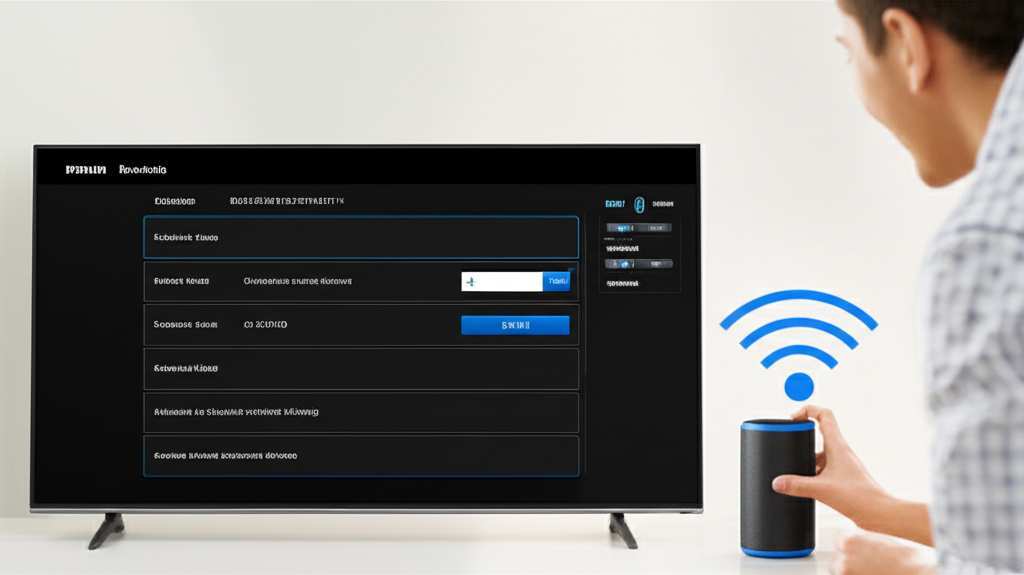
Let’s Talk About Sound!
Imagine watching your favorite movie. The explosions sound like little pops, and the dialogue is hard to catch. Not exactly thrilling, right? A good Bluetooth speaker can change all that. It adds depth, power, and detail to whatever you’re watching or listening to. Think booming soundtracks and clear conversations.
Or maybe you love listening to music while you’re cooking or cleaning. Connecting a Bluetooth speaker to your TV can be a fantastic way to fill your home with sound. It’s like upgrading from a whisper to a full-on performance. Plus, it’s super convenient because you can place the speaker wherever you want for the best sound experience.
Why Connect Your Philips TV to a Bluetooth Speaker?
So, why go through the trouble? The biggest reason is, of course, sound quality. Built-in TV speakers are often small and can’t produce rich, full sound. A dedicated Bluetooth speaker, even a portable one, usually offers a much better audio experience. You get deeper bass, clearer highs, and a more immersive soundstage.
Another great perk is convenience. Bluetooth is wireless! This means no messy cables running across your floor. You can place your speaker anywhere in the room – on a shelf, a side table, or even a few feet away. This flexibility lets you optimize your listening experience without being tied down. It’s a simple upgrade that makes a big difference.
Getting Your Philips TV Ready
Before we connect, we need to make sure your Philips TV is ready for the party. Not all Philips TVs have built-in Bluetooth, so the first step is a quick check. You can usually find this information in your TV’s manual or by looking through its settings menu.
If your TV does have Bluetooth, great! You’re halfway there. If it doesn’t, don’t worry, there’s still a solution. You can often use a Bluetooth transmitter. We’ll cover that later, but for now, let’s assume your TV is Bluetooth-enabled. It’s like having a built-in superpower for sound!
Checking Your Philips TV for Bluetooth
Here’s how to peek into your TV’s settings to see if it has Bluetooth:
Grab your Philips TV remote.
Press the Home or Menu button. This usually brings up the main TV interface.
Navigate to Settings. It might look like a gear icon or be labeled clearly.
Look for Sound or Audio settings. Sometimes Bluetooth options are hidden here.
Search for Bluetooth or Device Connection. If you see an option to pair devices or a list of Bluetooth settings, your TV has it!
If you can’t find it, no worries. Many modern Philips TVs come with Bluetooth, but older models might not. This is a common tech hurdle, but we’ve got ways around it.
How to Pair Your Bluetooth Speaker with Your Philips TV
Okay, deep breaths! This is the fun part. Pairing is just a fancy word for getting two devices to recognize each other. It’s like introducing two new friends. Here’s how we do it:
Step 1: Put Your Bluetooth Speaker in Pairing Mode
This is super important. Your speaker needs to be discoverable so your TV can find it.
Turn on your Bluetooth speaker.
Look for a Bluetooth button. It might have a Bluetooth symbol (a little stylized ‘B’).
Press and hold the Bluetooth button. You’ll usually hear a sound or see a light flashing. This means it’s ready to pair.
Check your speaker’s manual. If you’re unsure, the manual is your best friend here. It’ll tell you exactly how to activate pairing mode.
Step 2: Access Bluetooth Settings on Your Philips TV
Now, let’s go back to the TV.
Go to your TV’s Settings menu again. Remember the Home or Menu button?
Find the Bluetooth or Device Connection settings. This might be under “Network,” “Sound,” or a general “Connections” menu.
Select “Add Device” or “Pair Device.” Your TV will start searching for nearby Bluetooth devices.
Step 3: Select Your Speaker from the TV List
Your TV is now scanning the airwaves for your speaker.
Wait for your speaker’s name to appear on the TV screen. It might show up as the brand name or model number.
Use your remote to select your speaker from the list.
Press OK or Enter. Your TV will attempt to connect.
Step 4: Confirm the Connection
Sometimes, a confirmation step is needed.
If prompted, select “Pair” or “Connect” on your TV.
You might hear a confirmation sound from your speaker, or the flashing light might turn solid. This is a good sign!
Your TV should now show that the speaker is connected.
Step 5: Test the Sound!
Time for the moment of truth!
Play something on your TV. A movie, a TV show, or even just the TV menu sounds.
Check if the sound is coming from your Bluetooth speaker. If it is, congratulations! You’ve done it!
If the sound is still coming from the TV speakers, don’t panic. Go back to your TV’s audio settings and make sure the Bluetooth speaker is selected as the audio output. Sometimes you have to manually choose it.
Troubleshooting Common Connection Issues
What if it doesn’t work right away? It happens! Tech can be a bit stubborn sometimes. Here are some quick fixes for common problems:
Speaker Not Appearing: Make sure your speaker is still in pairing mode and close enough to the TV. Try turning both devices off and on again.
Connection Failed: Sometimes, just restarting both the TV and the speaker can solve this. It’s like a mini reboot for your gadgets.
No Sound: Double-check your TV’s audio output settings. Ensure the Bluetooth speaker is selected. Also, check the volume on both the TV and the speaker.
Intermittent Audio/Choppy Sound: This could be due to distance or interference. Try moving the speaker closer to the TV or removing any objects that might be blocking the signal. Other wireless devices can sometimes cause interference, too.
When Your Philips TV Doesn’t Have Built-in Bluetooth
Don’t have a TV with built-in Bluetooth? No problem! You can still enjoy wireless audio with a simple accessory: a Bluetooth transmitter.
What is a Bluetooth Transmitter?
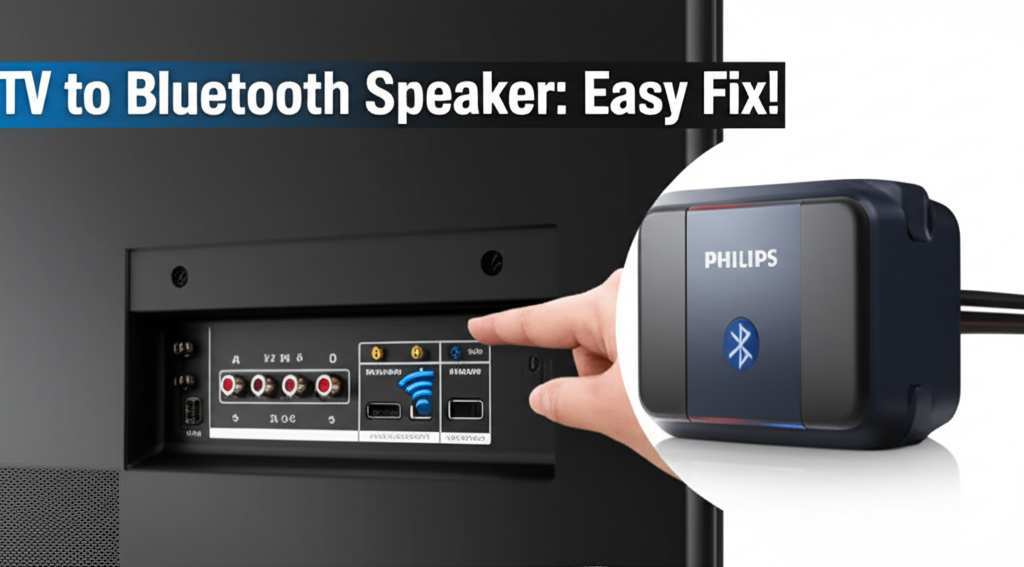
A Bluetooth transmitter is a small device that plugs into your TV’s audio output port (usually a headphone jack or an optical audio port). It then beams the audio wirelessly to your Bluetooth speaker or headphones. It’s like giving your TV Bluetooth superpowers!
How to Use a Bluetooth Transmitter:
1.
Connect the Transmitter: Plug the transmitter into your TV’s audio output. Use the correct cable (e.g., 3.5mm audio cable or optical cable).
2. Power the Transmitter: Most transmitters have a USB cable for power. Plug this into a USB port on your TV or a USB power adapter.
3. Put the Transmitter in Pairing Mode: Just like with the speaker, you’ll need to activate pairing mode on the transmitter. Check its manual for instructions.
4. Put Your Speaker in Pairing Mode: Follow Step 1 from the main guide.
5. Pair Them Up: Bring the transmitter and speaker close together. They should automatically find each other and pair. Some transmitters might have a button to press to initiate pairing.
6. Set TV Audio Output: You’ll likely need to go into your TV’s sound settings and select the correct audio output (e.g., “Headphone Out” or “Optical Out”) to send the sound to the transmitter.
Choosing the Right Bluetooth Speaker
With so many options out there, picking a Bluetooth speaker can feel overwhelming. Here are a few things to consider:
Sound Quality: This is key! Listen to a speaker if you can, or read reviews focusing on sound. Do you want deep bass, clear vocals, or a balanced sound?
Portability: Do you want to move it around the house or take it outdoors? Look for battery life and durability if portability is important.
Connectivity: Most use Bluetooth, but some might have other options like Wi-Fi or aux-in ports.
Price: Bluetooth speakers range from budget-friendly to high-end. Decide what you want to spend.
Features: Some speakers have built-in microphones for calls, voice assistant integration, or can be paired with other speakers for stereo sound.
Philips TV Bluetooth Speaker Pairing: A Quick Look at Features
Here’s a handy table comparing some popular types of Bluetooth speakers and what they offer for your Philips TV experience.
Speaker Type
Pros
Cons
Best For
Portable Bluetooth Speaker
Lightweight, easy to move, often affordable, good battery life.
Sound quality can vary, might lack deep bass.
Casual listening, moving around the house, enhancing everyday TV sound.
Home Audio Bluetooth Speaker
Better sound quality, deeper bass, more powerful.
Less portable, usually requires AC power, can be more expensive.
Creating a home theater-like experience, dedicated music listening.
Soundbar with Bluetooth
Designed for TV audio, improved dialogue clarity, often simple setup.
Can be pricier, less flexible placement than separate speakers.
Significant TV audio upgrade without complex systems.
This table gives you a quick idea of what to expect. For example, if you just want to make movie dialogue clearer, a soundbar might be perfect. If you want to blast music in the backyard, a portable speaker is your go-to.
Fun Fact!
Did you know that Bluetooth technology was named after a Viking king? Harald Bluetooth was known for uniting warring Danish tribes, just like Bluetooth technology aims to unite different devices wirelessly! Pretty cool, right?
Connecting Multiple Devices
Your Philips TV can usually only connect to one Bluetooth audio device at a time. This means if you’re connected to your speaker, you won’t be able to connect your Bluetooth headphones simultaneously. If you want to switch from your speaker to headphones, you’ll need to disconnect the speaker first and then pair your headphones.
Some advanced Bluetooth transmitters or speakers might support multi-point connection, allowing them to connect to two devices at once. However, for most basic setups, it’s one device at a time.
Maintaining Your Bluetooth Connection
Once connected, your Philips TV should remember your Bluetooth speaker. The next time you turn on both devices, they might connect automatically. If not, you might need to go into the TV’s Bluetooth settings and select your speaker to reconnect.
To keep your connection strong:
Keep devices charged: Low battery can sometimes affect Bluetooth performance.
Update firmware: Check for updates for your TV and speaker. These can sometimes improve connectivity.
Avoid interference:** Keep other wireless devices (like microwaves or cordless phones) away from your TV and speaker.
Understanding Bluetooth Audio Codecs
This might sound a bit technical, but it’s interesting! Bluetooth speakers and TVs use something called codecs to send audio data wirelessly. Different codecs offer different levels of quality and efficiency. Common ones include SBC (Standard Bluetooth Codec), AAC (used by Apple devices), and aptX (known for lower latency and higher quality).
Your Philips TV and Bluetooth speaker will use the best codec they both support. If you’re experiencing audio delay (lip-sync issues), it might be related to the codec. Higher-end speakers and transmitters often support aptX Low Latency, which is great for movies and gaming. You can often see which codec is being used in your TV’s advanced Bluetooth settings, if available.
Here’s a simple breakdown of common codecs:
| Codec | Description | Best For |
|---|---|---|
| SBC | Standard, widely compatible. Good for general use. | Basic audio streaming, music. |
| AAC | Higher quality than SBC, common on Apple devices. | Music streaming, general listening. |
| aptX | Better sound quality and lower latency than SBC. | Music, casual video watching. |
| aptX HD | High-definition audio, even better quality. | Audiophiles, critical listening. |
| aptX Low Latency | Significantly reduces delay, ideal for video. | Movies, gaming, watching videos. |
Most modern devices will automatically negotiate the best codec. If you’re experiencing a noticeable delay between the video and audio, checking if your devices support aptX Low Latency could be a game-changer. For more on Bluetooth audio, check out this great explanation from CNET.
Frequently Asked Questions (FAQ)
Got more questions? We’ve got answers!
Q1: Can I connect more than one Bluetooth speaker to my Philips TV?
Typically, a Philips TV can only connect to one Bluetooth audio device at a time. If you want to use multiple speakers, you might need a separate Bluetooth transmitter that supports multi-speaker output, or consider a soundbar system with a wireless subwoofer.
Q2: Why is there a delay between the video and the sound from my Bluetooth speaker?
This is called audio latency. Bluetooth signals take a tiny bit of time to travel. If your TV and speaker don’t support low-latency codecs (like aptX Low Latency), you might notice a delay, especially during fast-paced action or dialogue. Try moving the speaker closer or checking your device settings for codec options.
Q3: How do I disconnect my Bluetooth speaker from my Philips TV?
Go to your TV’s Bluetooth settings menu. You should see a list of paired devices. Select your speaker and choose the “Disconnect” or “Unpair” option. Unpairing removes it completely, while disconnecting just turns off the current connection.
Q4: My Philips TV isn’t finding my Bluetooth speaker. What should I do?
First, ensure your speaker is in pairing mode and close to the TV. Try turning both devices off and then back on. Also, check if the speaker is already connected to another device, like your phone. If so, disconnect it from that device first.
Q5: Does my Philips TV need to be a smart TV to use Bluetooth speakers?
Most Philips TVs with built-in Bluetooth are smart TVs. If your TV has Bluetooth functionality, it doesn’t strictly need to be a “smart” TV in the traditional sense, but Bluetooth is a feature more commonly found on modern, internet-connected models.
Q6: Can I connect my Philips TV to my Bluetooth headphones?
Yes, absolutely! The process is exactly the same as connecting a Bluetooth speaker. Just put your headphones in pairing mode and select them from your Philips TV’s Bluetooth device list.
Q7: What if my Philips TV is too old and doesn’t have Bluetooth?
No worries! You can easily add Bluetooth capability to your older TV using a Bluetooth transmitter. These devices plug into your TV’s audio output (like a headphone jack) and broadcast the sound wirelessly to your Bluetooth speaker or headphones. It’s a simple and affordable solution.
Conclusion: Your Sound Upgrade Awaits!
See? Connecting your Philips TV to a Bluetooth speaker is totally doable and can seriously level up your home entertainment. You’ve learned how to check for Bluetooth, pair your devices, troubleshoot common hiccups, and even how to add Bluetooth to older TVs. It’s all about making your favorite shows and music sound their absolute best.
Don’t let mediocre TV audio hold you back any longer. Grab that Bluetooth speaker, follow these simple steps, and get ready to experience sound like never before. It’s amazing how much difference a little wireless audio magic can make.
Now go enjoy amazing sound and make every moment louder and better! Happy viewing and listening!


