
Transform your movie nights! This guide explains how to connect your home theater sound box to a projector, unlocking an incredible audio experience. We’ll cover wired and wireless methods, helping you achieve cinema-quality sound at home.
Imagine watching your favorite movie on a big screen, the visuals captivating your attention. But then, the audio comes out tinny and weak from the projector’s built-in speakers. It’s a common scenario that can really pull you out of the experience. What if you could have booming, immersive sound to match those stunning visuals? That’s where connecting your home theater sound box to your projector comes in.
This isn’t just about making things louder. It’s about bringing the cinematic experience right into your living room. A dedicated sound box, whether it’s a powerful soundbar or a full surround sound system, can deliver rich, detailed audio that makes explosions rumble, dialogue clear, and music sweep over you. Connecting your sound box to your projector is the key to unlocking this amazing audio potential.
Don’t worry if you’re not a tech wizard. Connecting your sound box to your projector is usually straightforward, and this guide will walk you through all the possibilities. We’ll explore both wired and wireless methods, helping you choose the best approach for your setup. Get ready to elevate your home entertainment from good to absolutely spectacular!
Key Takeaways
- Identify Your Ports: Understanding the audio output ports on your projector and the audio input ports on your sound box is the first crucial step. Common ports include HDMI ARC, optical (TOSLINK), 3.5mm aux, and RCA.
- Wired Connections are Reliable: For the most stable and lag-free audio, wired connections like HDMI ARC, optical, or aux cables are often the best choice.
- Bluetooth Offers Wireless Freedom: If both your projector and sound box support Bluetooth, this offers a convenient, cable-free solution, though latency can sometimes be a minor issue.
- Consider a Soundbar or AV Receiver: These devices often simplify the connection process and offer advanced audio features, acting as a central hub for your home theater audio.
- Check Compatibility: Always ensure your projector and sound box are compatible with the connection method you choose. Not all projectors have audio outputs, and not all sound boxes have the necessary inputs.
- Troubleshooting is Key: If you encounter issues, check cable connections, ensure correct input/output selection on both devices, and consult your manuals for specific instructions.
📑 Table of Contents
Understanding Your Audio Connections
Before you even think about plugging anything in, it’s super important to know what you’re working with. Your projector and your sound box are like two puzzle pieces, and they need to have the right connectors to fit together. This is where you’ll spend a little time looking at the back of your devices.
Projector Audio Outputs
Your projector’s job is to display an image, so its primary audio output might be basic or even non-existent. Many projectors rely on external audio sources. Look for ports labeled “Audio Out,” “Line Out,” or sometimes dedicated ports like HDMI ARC (Audio Return Channel) or optical audio. If your projector only has HDMI inputs for video sources (like a Blu-ray player), it might not send audio *out* directly. In such cases, you’ll need to connect your audio source directly to the sound box.
Sound Box Audio Inputs
Your sound box, on the other hand, is built for audio. It will have various input ports designed to receive sound signals. Common inputs include HDMI (often with ARC), optical (TOSLINK), 3.5mm auxiliary (AUX), and RCA (red and white analog audio jacks). The type of inputs your sound box has will dictate the types of outputs your projector or audio source needs.
Common Port Types Explained
* HDMI (with ARC): This is often the best option if both your projector and sound box support it. HDMI ARC allows audio to travel back from your TV or projector to your sound bar or receiver using just one HDMI cable. This simplifies your setup significantly.
* Optical (TOSLINK): This uses a fiber optic cable to transmit digital audio. It’s a very common and reliable way to get high-quality sound, especially if your devices don’t support HDMI ARC. You’ll usually see a small, often square-ish port with a protective flap.
* 3.5mm Auxiliary (AUX): This is the standard headphone jack size. It’s a simple analog connection. You’ll find this on many projectors and sound boxes, but it’s generally for stereo sound and might not be as robust as digital connections.
* RCA: These are the classic red and white cables for stereo analog audio. You might see these on older projectors or sound systems.
Connecting via Wired Methods
Wired connections are the backbone of reliable home theater audio. They generally offer the best sound quality, minimal delay (latency), and a straightforward setup once you identify the right ports.
Using HDMI ARC (Audio Return Channel)
If your projector and sound box both have HDMI ports that support ARC, this is your golden ticket.
How it works: The ARC feature allows audio to be sent from your projector back down the same HDMI cable that’s sending video *to* the projector (or from your audio source). This means you only need one cable for both audio and video, provided your source device is connected to the sound box/receiver.
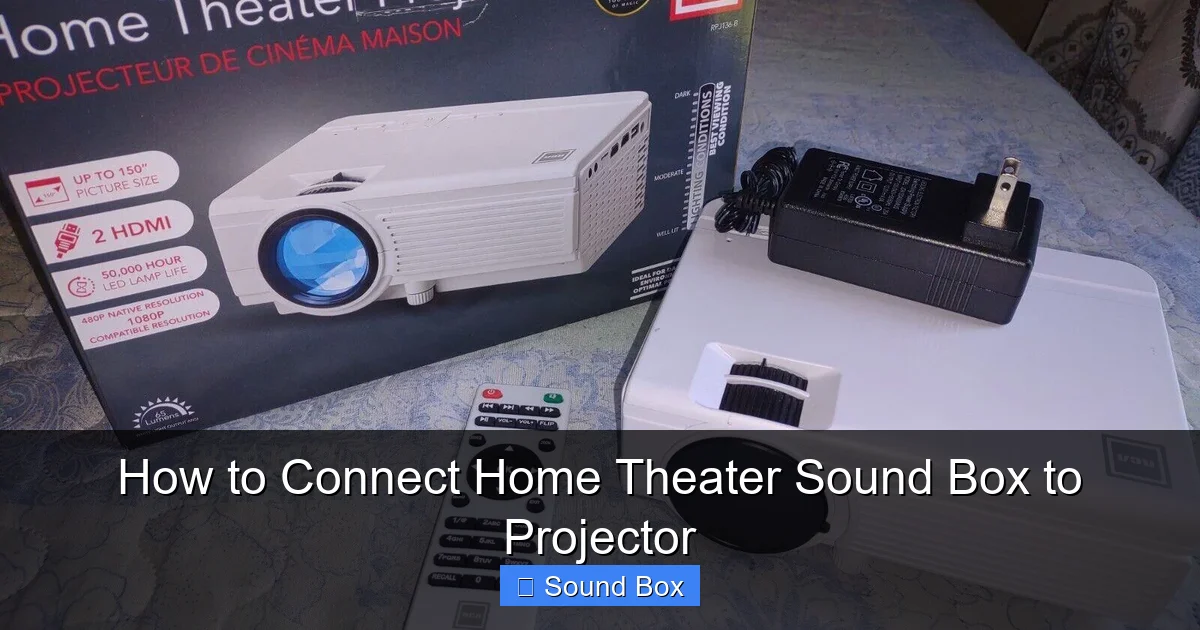
Visual guide about How to Connect Home Theater Sound Box to Projector
Image source: robots.net
Steps:
- Locate the HDMI ports labeled “ARC” on both your projector and your sound box or AV receiver.
- Connect a high-speed HDMI cable between these two ports.
- On your projector, navigate to its audio settings and ensure that “ARC” or “HDMI ARC” is enabled and set as the audio output.
- On your sound box, make sure the input is set to the HDMI port receiving the ARC signal.
Pro Tip: Not all HDMI ports are ARC enabled. Make sure you’re using the specific ports designated for ARC.
Connecting with an Optical (TOSLINK) Cable
This is another excellent digital audio connection method, perfect for when HDMI ARC isn’t an option.
How it works: An optical cable transmits digital audio signals using light pulses, providing clear, high-fidelity sound without interference.
Steps:
- Find the “Optical Out” or “Digital Audio Out” port on your projector.
- Find the “Optical In” port on your sound box.
- Remove the protective plastic caps from both ends of the optical cable.
- Plug one end into the projector and the other into the sound box. Be gentle; these ports can be a bit delicate.
- On your projector, go to audio settings and select “Optical” or “Digital Audio Out” as the output.
- On your sound box, select the corresponding optical input.
Important Note: Optical cables are directional (though less critical than some cables). Ensure the correct end goes into the correct port.
Using a 3.5mm Auxiliary (AUX) Cable
This is the simplest wired connection, using a cable similar to what you’d use for headphones.
How it works: The 3.5mm cable carries analog stereo audio signals. It’s easy to use but generally offers lower audio fidelity compared to digital connections.
Steps:
- Look for a “Headphone Out” or “Audio Out” port on your projector (often a 3.5mm jack).
- Find a “3.5mm Aux In” or “Line In” port on your sound box.
- Connect one end of the 3.5mm cable to the projector and the other to the sound box.
- On your projector, set the audio output to “Headphone” or “Audio Out.”
- On your sound box, select the “Aux” or “Line In” input.
When to Use: This is a good fallback if your devices lack digital ports or for simpler sound setups. If you’re connecting a laptop to a projector and want better sound, you might do something similar, as detailed in how to connect a laptop to a projector.
Exploring Wireless Connections (Bluetooth)
Wireless connections offer ultimate convenience, freeing you from cables. Bluetooth is the most common method for connecting sound devices wirelessly.
Connecting Your Sound Box via Bluetooth
Many modern projectors and sound boxes come equipped with Bluetooth. This allows for a completely cable-free audio experience.
How it works: Bluetooth creates a direct wireless link between your projector and sound box. You’ll typically need to put both devices into pairing mode.
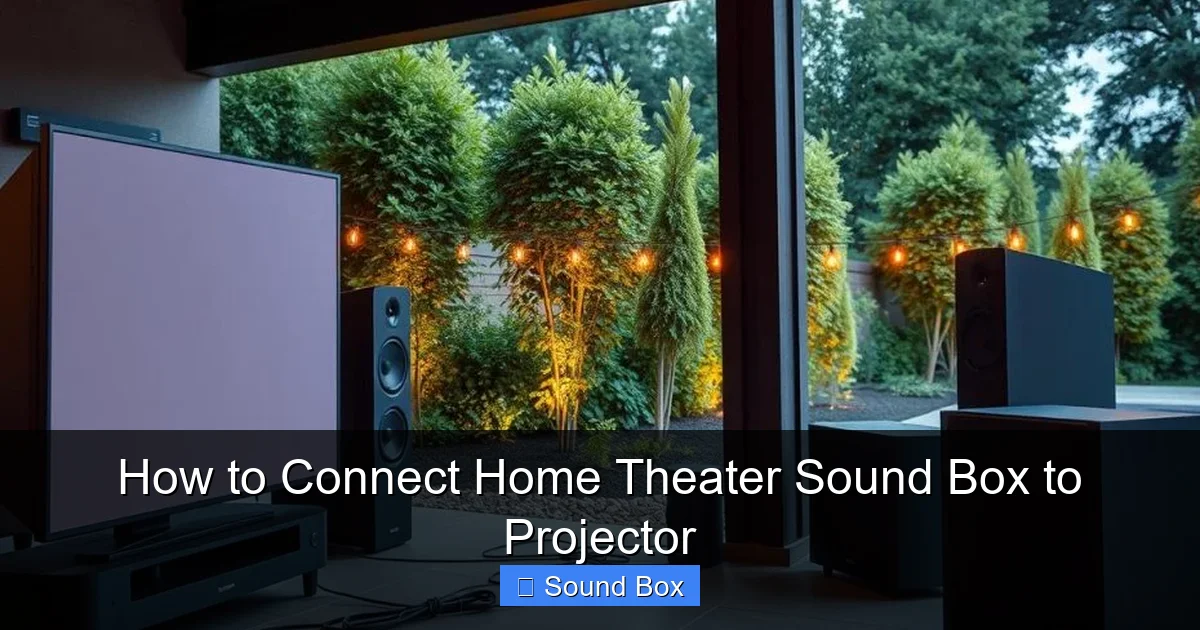
Visual guide about How to Connect Home Theater Sound Box to Projector
Image source: hometheaterreviewpro.com
Steps:
- Ensure both your projector and sound box have Bluetooth capabilities and that Bluetooth is enabled on both.
- Put your sound box into Bluetooth pairing mode. This usually involves pressing and holding a Bluetooth button until an indicator light flashes.
- On your projector, navigate to its Bluetooth settings.
- Scan for available devices. Your sound box should appear in the list.
- Select your sound box from the list and initiate pairing.
- Once paired, the projector should automatically send audio to the sound box.
Considerations: While convenient, Bluetooth can sometimes introduce a slight delay between the video and audio (latency). This is usually noticeable during fast-paced action scenes or gaming. For a smoother experience with Epson projectors, check out how to connect a Bluetooth speaker to an Epson projector or how to connect an Epson projector to a Bluetooth speaker for specific tips.
When Your Projector Lacks Audio Output
What if your projector is purely a video device and has no audio output ports at all? Don’t despair! You can still get great sound by connecting your audio source directly to your sound box.
Connecting Your Source Directly to the Sound Box
This is a very common scenario, especially with budget projectors that only have HDMI inputs.
How it works: Instead of the projector handling audio, your video source (like a streaming device, game console, or Blu-ray player) sends both video and audio signals. You then connect the audio output of your source directly to your sound box.
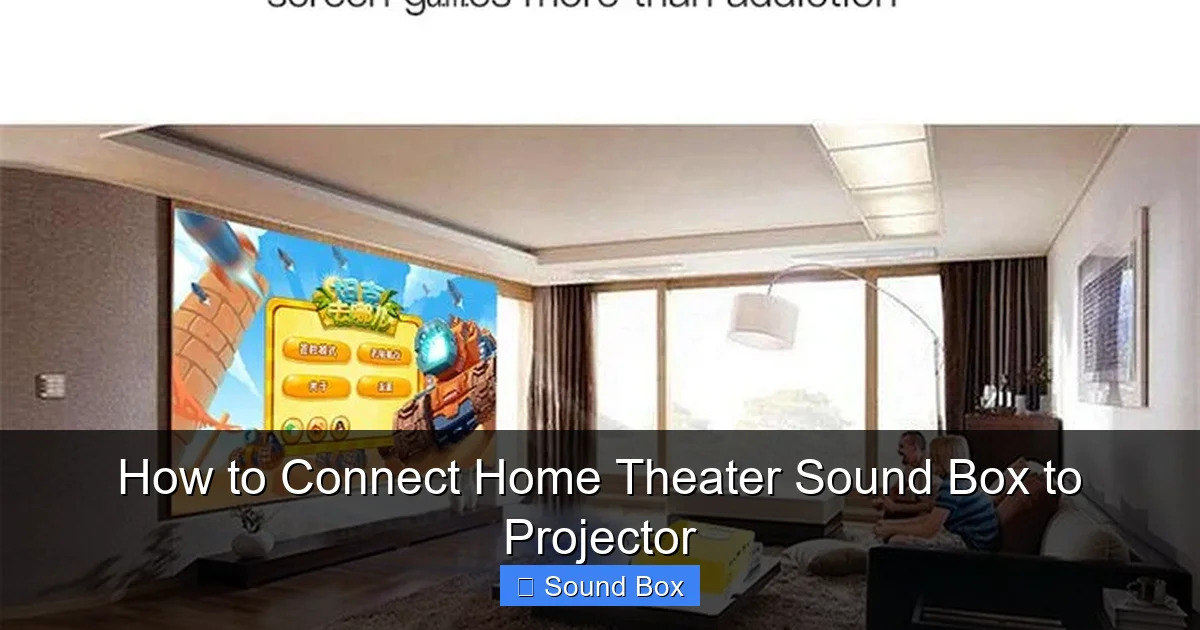
Visual guide about How to Connect Home Theater Sound Box to Projector
Image source: images.nexusapp.co
Steps:
- Identify the audio output ports on your video source device (e.g., HDMI ARC, optical, 3.5mm).
- Identify the corresponding audio input ports on your sound box.
- Connect your video source to your sound box using the appropriate cable (HDMI is preferred if available for both).
- Connect your video source to the projector using a separate HDMI cable for the video signal.
- Ensure your projector is set to the correct HDMI input for video.
- On your sound box, select the input that your video source is connected to.
Example: If you’re using an Apple TV, it has an HDMI output. You can connect an HDMI cable from the Apple TV to your sound bar’s HDMI input. Then, use another HDMI cable from the Apple TV to your projector’s HDMI input. The sound bar gets the audio, and the projector gets the video. This method bypasses the projector’s audio capabilities entirely. If you are trying to connect your phone to a speaker, you might look at how to connect an iPhone to a Bluetooth speaker for guidance on getting audio to a standalone device.
Using a Soundbar or AV Receiver as an Audio Hub
For a truly integrated home theater experience, a soundbar or an AV receiver can act as the central hub for all your audio.
Simplifying Connections with a Soundbar
Soundbars are designed to be a simple, effective upgrade over TV speakers. Many have multiple inputs and HDMI ARC support, making them ideal for projectors.
How it works: A soundbar typically has one HDMI ARC output and one or more HDMI inputs. You can connect your sources (like a streaming stick) directly to the soundbar, and then use the ARC connection to send audio back to the soundbar from the projector, or connect the soundbar to the projector’s ARC output. The most common setup is connecting your source device to the soundbar’s input, and then using HDMI ARC to send audio from the projector back to the soundbar.
Benefits: They offer improved sound quality in a compact package and can simplify wiring.
The Power of an AV Receiver
An AV receiver is the heart of a high-end home theater system. It has numerous inputs for all your devices and outputs for multiple speakers.
How it works: You connect all your video sources (Blu-ray player, game console, streaming device) to the AV receiver. The receiver then sends the video signal to the projector and the audio signal to your surround sound speakers or a soundbar. It manages all audio decoding and processing.
Benefits: Offers the most comprehensive audio and video switching, supports advanced surround sound formats, and provides the highest level of audio fidelity. If you’re looking to build a comprehensive sound system, understanding how to choose speaker cable for your home cinema system is essential.
Troubleshooting Common Issues
Even with the best planning, you might run into a snag. Here are some common problems and how to fix them when connecting your home theater sound box to your projector.
No Sound at All
Check:
- Cable Connections: Are all cables securely plugged into the correct ports on both devices?
- Input Selection: Have you selected the correct input source on your sound box? (e.g., HDMI 1, Optical, Aux).
- Projector Audio Settings: Is the audio output on your projector set to the correct mode (e.g., HDMI ARC, Optical, Headphone Out)?
- Volume Levels: Is the volume turned up on both the projector (if applicable) and the sound box?
Audio Delay (Latency)
Check:
- Connection Type: Wired connections (HDMI ARC, Optical) generally have less latency than Bluetooth. If latency is a major issue, consider switching to a wired connection.
- Bluetooth Settings: Some devices have a “lip-sync” or “audio delay” setting that you can adjust to compensate.
- Distance: For Bluetooth, ensure the devices are within range and there are no major obstructions.
Sound Only from One Speaker
Check:
- Stereo vs. Mono: Ensure your audio source is outputting a stereo signal and that your sound box is set to a stereo mode.
- Cable Issues: A damaged AUX or RCA cable can sometimes cause one channel to drop. Try a different cable.
- Device Settings: Check the audio output settings on your projector or source device to ensure it’s not set to mono or a specific channel.
When all else fails: Consult the user manuals for both your projector and your sound box. They often contain specific troubleshooting steps for your particular models.
Conclusion: Immerse Yourself in Sound
Connecting your home theater sound box to your projector is a game-changer for any home cinema enthusiast. It transforms passive viewing into an immersive experience, where you can truly feel the impact of the audio. Whether you opt for the robust reliability of a wired connection like HDMI ARC or optical, or the convenience of Bluetooth, the key is understanding your devices and choosing the method that best suits your needs.
Don’t be intimidated by the options. By identifying your ports, selecting the right cables, and following these straightforward steps, you can achieve spectacular sound quality that will make your movies, shows, and games come alive. So, grab your cables, check your settings, and get ready to enjoy your home entertainment like never before – with sound that truly fills the room!
Frequently Asked Questions
What is the best way to connect a sound box to a projector?
The best way typically involves an HDMI ARC connection if both your projector and sound box support it. This offers high-quality, single-cable audio. If ARC isn’t available, an optical (TOSLINK) cable is the next best digital option for excellent sound quality and minimal latency.
Can I connect a Bluetooth speaker directly to my projector?
Yes, many modern projectors have built-in Bluetooth capabilities that allow you to pair them directly with Bluetooth speakers or sound boxes. However, always check your projector’s specifications to confirm it supports Bluetooth audio output.
What if my projector doesn’t have audio output ports?
If your projector lacks audio outputs, you can connect your audio source (like a streaming device, Blu-ray player, or game console) directly to your sound box. Then, use a separate cable to connect your source to the projector for video. This makes the sound box the primary audio device.
Will there be a delay between video and audio if I use Bluetooth?
Bluetooth connections can sometimes introduce a slight audio delay (latency), which might be noticeable during fast-paced content like action movies or gaming. Wired connections like HDMI ARC or optical cables are generally free from this issue.
Do I need special cables to connect my sound box to my projector?
You’ll need standard audio cables appropriate for the ports you’re using. For HDMI ARC, use a High-Speed HDMI cable. For optical, you’ll need an optical (TOSLINK) cable. For analog connections, standard 3.5mm AUX or RCA cables are used.
How can I improve the sound quality from my projector?
Connecting an external sound box is the most effective way to improve projector sound quality. Using digital connections like HDMI ARC or optical will deliver the best audio fidelity, far surpassing the projector’s built-in speakers.


