Elevate your home entertainment with a powerful sound box. This guide provides clear steps on how to connect your home theater sound box to your TV, ensuring you get the most immersive audio experience possible. We cover various connection methods, from wired to wireless, to suit any setup.
How to Connect Home Theater Sound Box to Tv
So, you’ve got that amazing home theater sound box, ready to blast your movies, games, and music with incredible clarity and depth. But wait, how do you actually get the sound from your TV to that glorious speaker system? Don’t worry, it’s not as complicated as it might seem. Connecting your home theater sound box to your TV is the key to transforming your living room into a true cinematic experience. Forget those tinny TV speakers; we’re talking about sound that shakes the room and pulls you right into the action. This guide will walk you through everything you need to know, whether you’re a tech whiz or just getting started.
We’ll break down the different ways you can make this connection happen, from the classic wired methods that offer a super stable signal, to the slick wireless options that cut down on cable clutter. By the end of this, you’ll be all set to enjoy that rich, immersive sound you’ve been dreaming of. Let’s dive in and get your audio booming!
Key Takeaways
- Wired Connections: HDMI ARC, Optical (TOSLINK), and RCA cables offer reliable, high-quality audio transmission.
- Wireless Connections: Bluetooth and Wi-Fi provide convenience and flexibility, though can sometimes introduce latency.
- Identify Ports: Know your TV and sound box ports (HDMI ARC, Optical Out, Audio Out, Bluetooth) to choose the right connection.
- Check Compatibility: Ensure your TV and sound box support the connection method you plan to use.
- Follow On-Screen Prompts: Most modern devices require simple on-screen menu selections to complete the pairing.
- Troubleshooting: Common issues include incorrect input selection, loose cables, or Bluetooth pairing problems.
[FEATURED_IMAGE_PLACEHOLDER]
📑 Table of Contents
Understanding Your Connection Options
Before we get our hands dirty with cables and menus, let’s talk about the different ways you can get sound from your TV to your home theater sound box. Think of these as your audio superhighways. Each has its own pros and cons, and the best one for you will depend on the ports available on your TV and sound box, and what kind of convenience you’re looking for.
Wired Connections: The Reliable Choices
Wired connections are like the tried-and-true methods. They’re generally the most reliable, offering a clean and stable signal without the worry of interference or delays.
HDMI ARC (Audio Return Channel)
This is often the gold standard for connecting sound systems. HDMI ARC is brilliant because it uses a single HDMI cable for both sending audio from your TV to your sound box and, in some cases, receiving commands back (like controlling the volume with your TV remote).
- How it works: You’ll need an HDMI cable. Look for an HDMI port labeled “ARC” or “TV-ARC” on both your TV and your sound box. Connect one end of the HDMI cable to the ARC port on your TV and the other end to the ARC port on your sound box.
- What to look for: Ensure your TV and sound box both have HDMI ARC support. Not all HDMI ports are ARC-enabled, so check the labels carefully.
- Benefits: High-quality audio, simple setup with one cable, and potential for remote control integration.
- Tip: After connecting, you’ll likely need to go into your TV’s audio settings and enable ARC or CEC (Consumer Electronics Control).
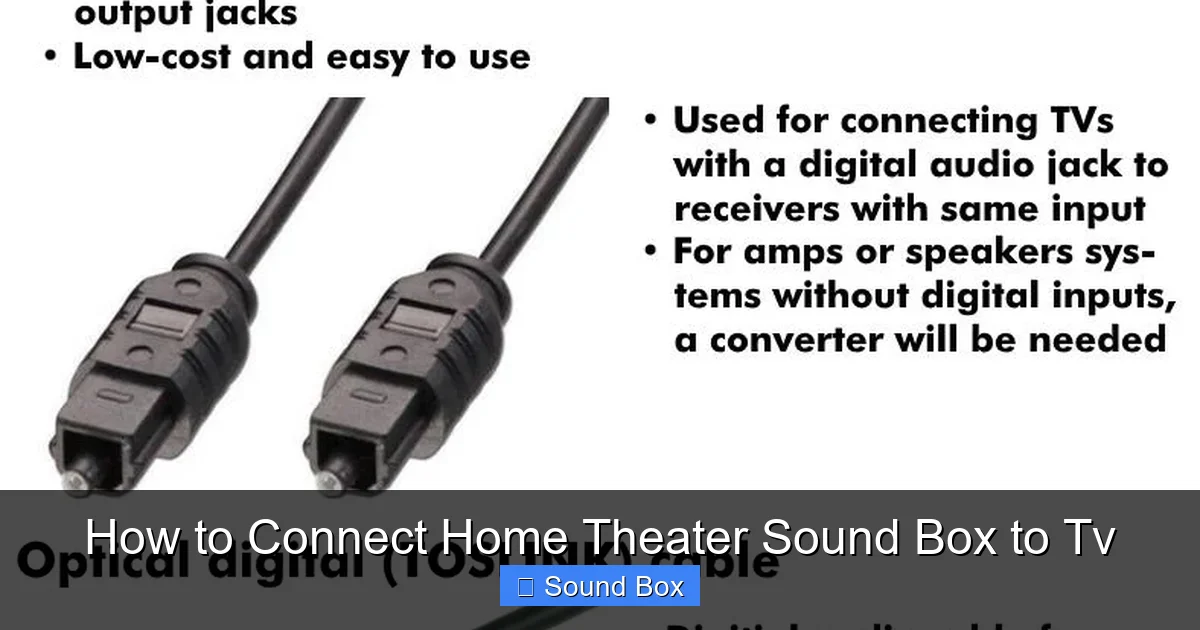
Optical Audio (TOSLINK)
This is another fantastic, high-quality option that’s been around for a while. An optical cable transmits audio as pulses of light, making it immune to electrical interference. It’s a great choice if your devices don’t support HDMI ARC, or if you want a dedicated audio connection.
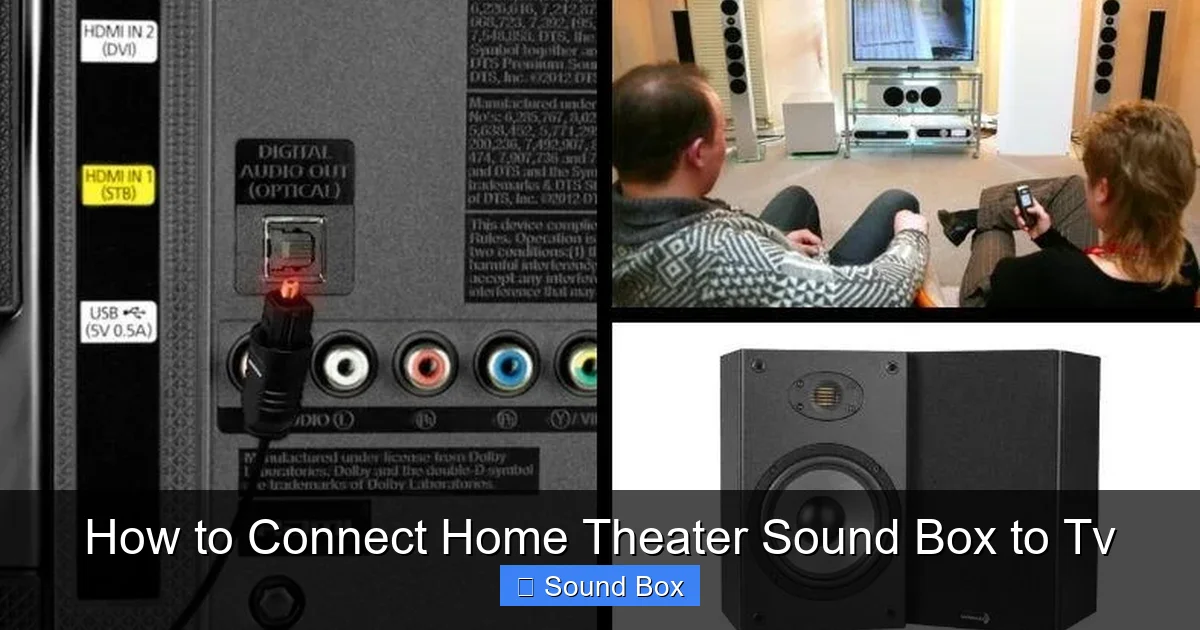
- How it works: You’ll need an optical audio cable (often called a TOSLINK cable). These cables have small, square-ish connectors that often come with protective caps. Locate the “Optical Out” or “Digital Audio Out (Optical)” port on your TV and the “Optical In” or “Digital Audio In (Optical)” port on your sound box. Remove the protective caps, and plug the cable in firmly.
- What to look for: Make sure both your TV and sound box have optical ports.
- Benefits: Excellent digital audio quality, immune to electrical noise, and a reliable connection.
- Tip: Sometimes, you might need to go into your TV’s audio settings and select “Optical” or “External Speaker” as the audio output.
RCA Audio Cables (Analog)
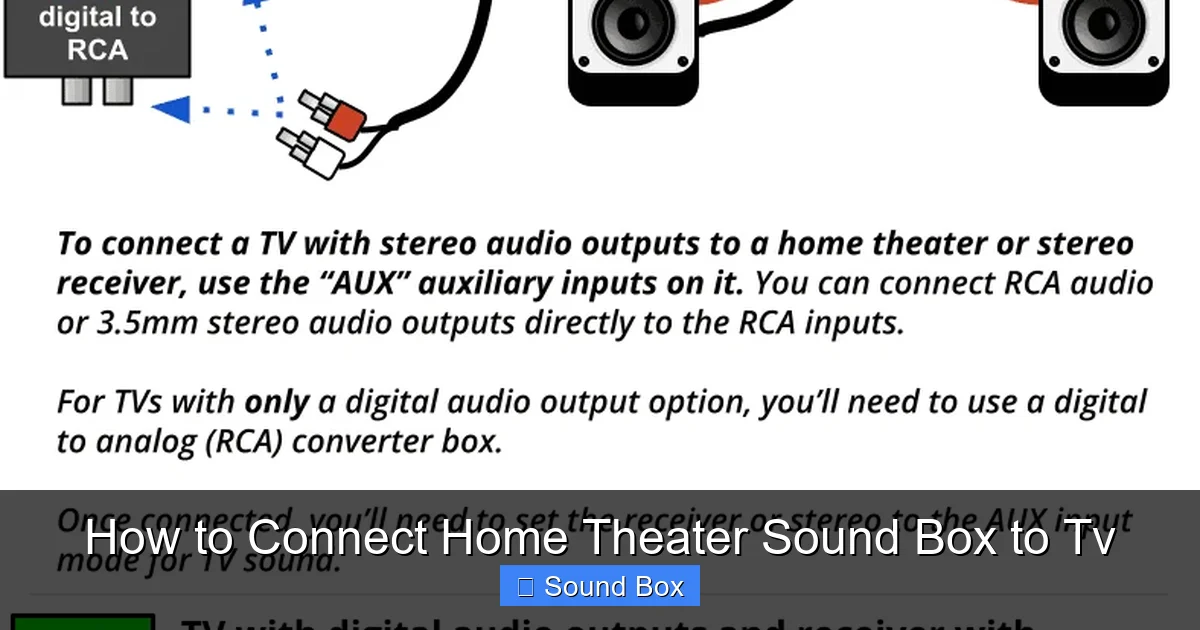
These are the classic red and white cables you might see on older equipment. While they offer stereo sound (left and right channels), they’re analog and can be more susceptible to interference than digital connections like HDMI or optical. However, they’re still a viable option if they’re the only ports available.
- How it works: You’ll need an RCA stereo audio cable (two cables, usually red for right channel and white or black for left channel). Find the “Audio Out” or “Line Out” ports on your TV (usually red and white) and connect the corresponding colored plugs on the cable. Then, connect the other ends to the “Audio In” or “Line In” ports on your sound box.
- What to look for: These are typically found on older TVs and sound systems.
- Benefits: Widely compatible with older devices.
- Tip: Ensure you match the red to red and white to white for the correct stereo separation.
Wireless Connections: The Convenience Factor
Wireless connections offer the ultimate in convenience and reduce cable clutter. They’re perfect for a clean, minimalist setup.
Bluetooth
Many modern sound boxes and TVs come equipped with Bluetooth. This is a popular choice for its ease of use and the fact that it doesn’t require any physical cables between your TV and the sound box.
- How it works: First, put your sound box into Bluetooth pairing mode. This is usually done by pressing and holding a Bluetooth button. Then, on your TV, navigate to the Bluetooth settings menu. Your TV will search for nearby devices, and you should see your sound box appear in the list. Select it to pair. For specific instructions on connecting to brands like LG or Samsung, you can check out guides on how to connect Bluetooth speaker to LG TV or how to connect Bluetooth speaker to Samsung TV.
- What to look for: Ensure both your TV and sound box have Bluetooth capabilities. Check your TV’s manual or settings for Bluetooth options. Some older TVs might not have built-in Bluetooth.
- Benefits: No wires, easy setup, and widely compatible with many devices.
- Potential Drawback: Bluetooth can sometimes have a slight audio delay (latency), which can be noticeable during fast-paced games or action movies.
- Tip: Make sure there aren’t too many other Bluetooth devices active nearby, as this can sometimes cause interference.
Wi-Fi (Smart TVs and Sound Systems)
Some high-end sound systems and smart TVs use Wi-Fi for audio transmission. This often involves proprietary apps or streaming protocols (like AirPlay for Apple devices or Chromecast built-in).
- How it works: This method is usually app-driven. You’ll typically need to download an app for your sound system or use your TV’s built-in smart features. Both your TV and sound box need to be connected to the same Wi-Fi network. The specific steps will vary greatly depending on the brands and models involved. For instance, connecting to a smart TV often involves ensuring your Wi-Fi connection is stable, which you can learn more about by reading how to connect smart TV to Wi-Fi router.
- What to look for: Check if your sound system and TV support Wi-Fi audio streaming.
- Benefits: Can offer high-fidelity audio streaming and often integrates well with smart home ecosystems.
- Tip: A strong and stable Wi-Fi signal is crucial for uninterrupted audio.
Step-by-Step Connection Guide
Visual guide about How to Connect Home Theater Sound Box to Tv
Image source: soundcertified.com
Now that you know your options, let’s get down to connecting. We’ll cover the most common methods.
Method 1: Connecting via HDMI ARC
This is usually the preferred method if both your devices support it.
- Check Ports: Locate the HDMI port labeled “ARC” on your TV and the HDMI port labeled “ARC” on your sound box.
- Connect Cable: Use a high-speed HDMI cable (preferably HDMI 2.0 or newer for best results) to connect the ARC port on your TV to the ARC port on your sound box.
- Enable ARC on TV: Go to your TV’s settings menu. Look for options like “HDMI-CEC,” “Anynet+” (Samsung), “Bravia Sync” (Sony), “Simplink” (LG), or “Viera Link” (Panasonic). Enable this feature. Then, find an option specifically for “ARC” or “Audio Return Channel” and enable it.
- Select Input on Sound Box: On your sound box, select the HDMI ARC input. It might be labeled “ARC,” “TV,” or “HDMI In (ARC).”
- Test Audio: Play something on your TV. You should now hear the sound coming from your home theater sound box. Try adjusting the volume with your TV remote to see if CEC is working.
Method 2: Connecting via Optical Audio
If HDMI ARC isn’t an option, optical is the next best digital choice.
- Check Ports: Find the “Optical Out” (or “Digital Audio Out – Optical”) port on your TV and the “Optical In” port on your sound box.
- Connect Cable: Remove the protective plastic caps from both ends of your optical cable. Connect one end to the TV’s optical out and the other to the sound box’s optical in. They only fit one way, so don’t force them.
- Select TV Audio Output: Go to your TV’s audio settings. You’ll need to select “Optical” or “External Speakers” as your audio output device.
- Select Input on Sound Box: On your sound box, select the Optical input. This might be labeled “Optical,” “Digital In,” or “TV.”
- Test Audio: Play content on your TV and check if the sound is coming from your sound box.
Method 3: Connecting via Bluetooth
For a wireless setup, Bluetooth is usually the easiest.
- Put Sound Box in Pairing Mode: Turn on your home theater sound box and activate its Bluetooth pairing mode. Consult your sound box’s manual for specific instructions – often, it involves pressing and holding a dedicated Bluetooth button until a light flashes.
- Enable Bluetooth on TV: On your TV, go to the “Settings” menu and find the “Bluetooth” or “Wireless & Networks” section. Turn Bluetooth on if it’s not already. If you have a specific brand like a Roku TV, you might find guides on how to connect a Bluetooth speaker to a Roku TV helpful.
- Scan for Devices: Your TV will start searching for available Bluetooth devices. Select your sound box from the list when it appears.
- Pair Devices: Follow any on-screen prompts to confirm the pairing. Once connected, your TV should indicate that it’s paired with the sound box.
- Test Audio: Play something on your TV. The sound should now be routed wirelessly to your sound box. You might need to adjust the TV’s audio output settings to Bluetooth or wireless speakers if it doesn’t switch automatically.
Troubleshooting Common Issues
Visual guide about How to Connect Home Theater Sound Box to Tv
Image source: soundcertified.com
Even with the best guides, sometimes things don’t work perfectly right away. Here are a few common hiccups and how to fix them.
No Sound at All
- Check Cables: Ensure all cables are securely plugged into the correct ports on both the TV and the sound box. For wired connections, try a different cable if you have one.
- Check Input/Output Settings: Verify that your TV’s audio output is set to the correct connection (HDMI ARC, Optical, Bluetooth, etc.) and that your sound box is set to the corresponding input.
- Check Volume Levels: Make sure the volume isn’t muted or set too low on both your TV and your sound box.
- Restart Devices: Sometimes, a simple power cycle (unplugging both devices for a minute and plugging them back in) can resolve glitches.
Audio Lag (Lip Sync Issues)
This is most common with Bluetooth connections.
- Use Wired Connection: If audio lag is a deal-breaker, consider using an HDMI ARC or Optical connection, as these typically have no noticeable delay.
- Check TV Audio Settings: Some TVs have an “AV Sync” or “Lip Sync” adjustment setting that allows you to manually delay the audio to match the video.
- Update Firmware: Ensure both your TV and sound box have the latest firmware updates installed, as these can sometimes improve Bluetooth performance.
- Reduce Interference: For Bluetooth, try to minimize other wireless devices nearby and ensure a clear line of sight between the TV and sound box if possible.
Sound Only from One Channel (Left or Right)
- Check Cable Connections: For RCA cables, ensure you’ve plugged red into red and white into white.
- Check Sound Box Settings: Some sound boxes have balance or surround sound settings that might be incorrectly configured.
- Test Other Sources: Try playing audio from a different source (like a streaming app on the TV or a connected device) to see if the issue persists. If it does, the problem might be with the TV’s audio output.
Bluetooth Won’t Connect
- Ensure Pairing Mode: Double-check that your sound box is actually in Bluetooth pairing mode and not just connected to another device.
- Clear Paired Devices: Sometimes, devices get confused with too many paired devices. Try clearing the Bluetooth device list on your TV and re-pairing. Similarly, reset your sound box’s Bluetooth memory if possible.
- Distance and Obstructions: Move the sound box closer to the TV, ensuring there are no major obstructions between them.
- Restart Bluetooth on TV: Turn Bluetooth off and then back on again on your TV.
Maximizing Your Home Theater Sound
Visual guide about How to Connect Home Theater Sound Box to Tv
Image source: soundcertified.com
Once you’ve got your sound box connected, you’ll want to make sure you’re getting the best possible audio experience.
Understanding Surround Sound Settings
If your sound box supports surround sound, make sure your TV is configured to output the correct audio format. Look for settings like “Dolby Digital,” “DTS,” or “Surround Sound.” Enabling these will allow your sound box to process the audio for a more immersive experience.
Optimal Speaker Placement
For the best effect, position your sound box and any satellite speakers according to the manufacturer’s recommendations. Generally, the main sound bar should be centered in front of your primary viewing position, with surround speakers placed to the sides or behind you for true surround sound.
Room Acoustics
The room itself plays a big role! Soft furnishings like carpets, curtains, and upholstered furniture can help absorb sound and reduce echo, leading to clearer audio. Hard surfaces can cause sound to bounce around, making it sound boomy or less defined.
Check Your TV’s Audio Output Format
Some TVs allow you to choose the digital audio output format (e.g., PCM, Bitstream, Auto). For best results with surround sound, you’ll often want to select “Bitstream” or “Auto” so that the audio signal is sent to your sound box for decoding. If you’re experiencing issues, try “PCM,” which is a simpler stereo signal that most devices can handle.
Connecting your home theater sound box to your TV is one of the most impactful upgrades you can make to your entertainment setup. Whether you choose the robust reliability of an HDMI ARC or optical connection, or the sleek convenience of Bluetooth, the result is a vastly improved audio experience. Take the time to identify the ports on your devices, choose the appropriate cable or wireless method, and follow the setup steps carefully. With a little effort, you’ll be enjoying rich, room-filling sound that truly brings your favorite movies, shows, and games to life. So go ahead, connect it up, and prepare to be blown away by the sound!
Frequently Asked Questions
What is the best way to connect a home theater sound box to a TV?
The best connection method is typically HDMI ARC, as it offers high-quality audio and allows for control via your TV remote. If HDMI ARC isn’t available, an Optical Audio (TOSLINK) connection is the next best choice for digital sound quality.
Will I need a special cable to connect my sound box to my TV?
Yes, the type of cable depends on the connection method. You might need an HDMI cable (especially for ARC), an Optical Audio cable (TOSLINK), or standard RCA audio cables. For wireless connections like Bluetooth, no cables are needed between the devices.
Can I connect my sound box to my TV wirelessly?
Yes, many modern sound boxes and TVs support wireless connections via Bluetooth. Some advanced systems also use Wi-Fi for audio streaming. Wireless connections offer convenience but can sometimes introduce a slight delay in audio.
What should I do if I don’t hear any sound after connecting my sound box?
First, check that all cables are securely plugged into the correct ports on both devices. Then, ensure your TV’s audio output is set to the correct input (e.g., HDMI ARC, Optical, Bluetooth) and that your sound box is set to the corresponding input. Also, check that the volume is turned up on both the TV and the sound box.
Is there a difference in sound quality between wired and wireless connections?
Generally, wired connections like HDMI ARC and Optical Audio offer the most consistent and highest fidelity sound quality. Wireless connections like Bluetooth are convenient but can sometimes be susceptible to interference or audio lag, which might be noticeable in fast-paced content.
My TV and sound box have Bluetooth, but there’s a delay in the audio. What can I do?
Audio delay (latency) is a common issue with Bluetooth. If possible, try using a wired connection like HDMI ARC or Optical for a more synchronized experience. Some TVs have an “AV Sync” or “Lip Sync” adjustment setting that can help compensate for the delay.