Connect your Bluetooth speaker to your LG TV in minutes with this simple guide! Enjoy better sound for movies, music, and games without the fuss.
Hey there, tech adventurer! Ever wish your LG TV’s sound was a little more… epic? Maybe you love blasting music while you get ready, or you want to feel every rumble in your favorite action movie. Sometimes, the built-in TV speakers just don’t cut it, right? That’s where a trusty Bluetooth speaker comes in! It can totally transform your viewing and listening experience.
But here’s the thing: hooking up new gadgets can sometimes feel like solving a puzzle. You might look at your TV settings or your speaker and wonder, “Where do I even start?” It’s totally normal to feel a bit lost. But don’t worry, I’m here to make it super simple. Think of me as your friendly tech buddy, ready to walk you through every step.
We’re going to break down how to connect your Bluetooth speaker to your LG TV so you can enjoy amazing audio in no time. No complicated jargon, just clear, easy steps. Ready to make your sound system sing? Let’s dive in!
Why Connect a Bluetooth Speaker to Your LG TV?
Imagine this: you’re settling in for a movie night. The picture is crystal clear, but the sound is a bit… tinny. Or maybe you’re hosting a party and want to play your favorite playlist through the TV, but the TV’s speakers are struggling to fill the room. That’s where a Bluetooth speaker shines!
Bluetooth speakers are fantastic because they’re wireless and portable. You can place them anywhere you want for the best sound. Connecting one to your LG TV means you get richer, deeper audio without dealing with messy wires. It’s like giving your TV a super-powered voice upgrade!
Let’s Talk Sound: What Makes a Bluetooth Speaker Awesome?
Bluetooth speakers have come a long way. They’re not just about portability anymore. Many offer incredible sound quality, with deep bass and crisp highs that make music and movies come alive. Plus, they’re super easy to use. Once paired, they usually connect automatically, which is a huge win for convenience.
Think about your favorite songs. Do you want to hear every strum of the guitar or every beat of the drum with clarity? A good Bluetooth speaker can deliver that. Or maybe you’re deep into a game, and you want to feel the explosion or the subtle footsteps of an enemy. A Bluetooth speaker can put you right in the middle of the action. It’s all about enhancing your entertainment.
Choosing the Right Bluetooth Speaker for Your LG TV
Before we connect, it’s worth thinking about what kind of speaker you need. Not all Bluetooth speakers are created equal, and the best one for you depends on what you’ll use it for.
Sound Quality Matters
This is probably the most important factor. If you’re a music lover, look for speakers with a good frequency response, especially in the bass department. For movies, you want clear dialogue and impactful sound effects. Reading reviews on sites like CNET or TechRadar can give you a good idea of how a speaker performs.
Battery Life is Key
If you plan to move your speaker around the house or use it for long movie marathons, battery life is crucial. Some speakers can last up to 10-15 hours on a single charge, which is fantastic. Others might only give you 4-6 hours. Always check the specs!
Durability and Design
Are you someone who might accidentally spill a drink or take your speaker outdoors? Some speakers are built tough and are even water-resistant, which is a great feature. And of course, you’ll want a speaker that looks good in your living room!
Connectivity Features
While we’re focusing on Bluetooth, some speakers offer other options like aux inputs or even Wi-Fi connectivity for multi-room audio. For this guide, we’re sticking to Bluetooth, but it’s good to know your options.
Here’s a quick comparison of some popular types of Bluetooth speakers you might consider:
| Speaker Type | Best For | Typical Price Range | Key Features |
|---|---|---|---|
| Portable Mini Speaker | Casual listening, small rooms | $30 – $80 | Compact, lightweight, decent battery |
| Mid-Size All-Rounder | Movies, music, general use | $80 – $200 | Good sound quality, better bass, longer battery |
| Home Audio Speaker | Immersive movie/music experience | $200+ | Premium sound, powerful bass, smart features |
This table gives you a basic idea. The “Mid-Size All-Rounder” is often the sweet spot for most people connecting to their TV. They offer a great balance of sound quality, battery life, and price.
How to Connect Your Bluetooth Speaker to Your LG TV: Step-by-Step
Alright, let’s get down to business! Connecting your Bluetooth speaker to your LG TV is usually pretty straightforward. Most modern LG TVs have built-in Bluetooth capabilities. Here’s how to do it:
Step 1: Put Your Speaker in Pairing Mode
This is the first and most important step. Every Bluetooth speaker is a little different, but there’s almost always a button you need to press and hold to make it discoverable.
Look for a Bluetooth symbol on your speaker. It often looks like a stylized “B.”
Press and hold this button for a few seconds. You might hear a sound or see a light flashing, usually blue, indicating it’s ready to connect.
Check your speaker’s manual if you’re unsure. It’s the best source for specific instructions for your model.
This process tells your speaker, “Hey, I’m looking for a device to connect to!”
Step 2: Access Your LG TV’s Sound Settings
Now, let’s get your TV ready to find that speaker.
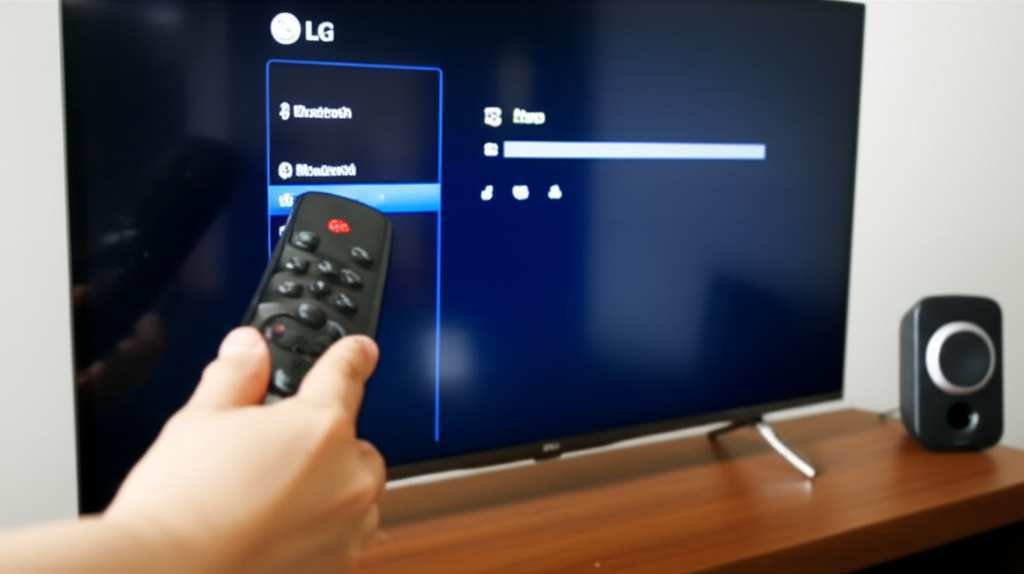
Grab your LG TV remote.
Press the Settings button. It’s often a gear icon.
Navigate to the Sound menu. You might see options like “Sound Output” or “Audio Settings.”
Look for Sound Out. This is where you tell your TV where to send the audio.
Sometimes, the menu structure can vary slightly depending on your LG TV model and its webOS version, but the general idea is always the same: find the sound output settings.
Step 3: Select Bluetooth Device
Within the Sound Out menu, you’ll see different options for audio output.
Choose Bluetooth. If you don’t see it immediately, you might need to select “Add Bluetooth Device” or “Bluetooth Device List.”
Your LG TV will now start scanning for available Bluetooth devices nearby.
This is where your TV becomes a detective, searching for your speaker.
Step 4: Pair and Connect
Once your TV has scanned, you should see a list of available Bluetooth devices.
Find the name of your Bluetooth speaker in the list. It usually matches the brand name or a model number.
Select your speaker using the remote.
Your TV will then try to connect to the speaker. You might see a confirmation message on the screen.
If prompted, confirm the pairing. Sometimes, a PIN might be required, but this is rare for speakers.
Voila! If everything worked, you should see a message indicating that your speaker is connected. You might even hear a confirmation sound from the speaker itself.
Step 5: Test the Sound!
The moment of truth!
Turn up the volume on your TV and your speaker.
Play some content on your TV – a movie, a TV show, or even just the menu sounds.
You should now hear the audio coming from your Bluetooth speaker!
If you don’t hear anything, double-check that the speaker is still in pairing mode or try disconnecting and reconnecting. Sometimes, restarting both the TV and the speaker can help clear up any glitches.
Troubleshooting Common Connection Issues
Even with simple steps, technology can sometimes be a little quirky. If you’re having trouble, don’t panic! Here are a few common issues and their easy fixes.
My Speaker Isn’t Showing Up in the List
Is it in pairing mode? This is the most common reason. Make sure you held down the Bluetooth button long enough.
Is it too far away? Keep your speaker close to the TV, especially during the initial pairing.
Is it already connected to something else? Many Bluetooth speakers can only connect to one device at a time. Disconnect it from your phone or tablet, then try again.
Restart both devices. Turn off your speaker and your TV, wait a minute, then turn them back on.
The TV Says it’s Connected, But There’s No Sound
Check the volume levels. Make sure the volume isn’t muted or set too low on both your TV and your speaker.
Verify the sound output. Go back into your TV’s sound settings to ensure Bluetooth is still selected as the primary sound output.
Try a different audio source. Play a different channel, app, or input to see if the issue is with a specific piece of content.
Re-pair the devices. Sometimes, removing the speaker from your TV’s list of paired devices and then pairing it again can resolve connection hiccups.
The Sound is Choppy or Cuts Out
Reduce distance and obstructions. Walls, furniture, and even other electronic devices can interfere with the Bluetooth signal. Try to have a clear line of sight between your TV and speaker.
Check for interference. Microwaves, Wi-Fi routers, and other wireless devices can sometimes disrupt Bluetooth. Try turning off other nearby wireless devices temporarily.
Update your TV’s software. Manufacturers often release updates that can improve performance and fix bugs. Check your TV’s general settings for software updates.
A little patience goes a long way with tech! Most of the time, these simple fixes will get your sound flowing smoothly.
Tips for a Seamless Bluetooth Experience
Want to make sure your audio experience is always top-notch? Here are a few extra tips:
Keep Firmware Updated: Just like your TV, your Bluetooth speaker might have firmware updates available. Check the manufacturer’s website or app for instructions. Updates can improve performance and add new features.
Manage Paired Devices: Your TV can likely remember multiple Bluetooth devices. If you’re connecting a new speaker, you might need to remove an old one from the list to make space or avoid confusion.
Consider Audio Lag: For movies and TV shows, you might sometimes notice a slight delay between the video and the audio (audio lag). This is a common issue with Bluetooth. Some LG TVs have an audio sync setting that can help correct this. Look for “AV Sync Adjustment” or similar in your sound settings.
Use Speakerphone Mode Carefully: If your speaker also has a microphone for calls, make sure it’s not accidentally activated when you’re trying to watch TV.
These little tricks can help prevent minor annoyances and ensure you get the best possible sound from your connected speaker.
LG TV Bluetooth Audio Features: What to Look For
LG TVs are pretty smart when it comes to audio. Many models offer specific features to enhance your Bluetooth audio experience.
Dual Play Feature
Some LG TVs have a “Dual Play” feature that allows you to connect two Bluetooth speakers or headphones simultaneously. This is great if you want to share the sound with someone else without disturbing others, or if you want a more immersive stereo sound by using two identical speakers.
Audio Output Options
As we saw, your LG TV gives you choices for sound output. You can usually select between TV Speaker, Wired Speaker, or Bluetooth Device. This flexibility means you can easily switch between your TV’s built-in speakers and your Bluetooth speaker whenever you like.
Sound Mode Settings
Your LG TV likely has various sound modes (e.g., Standard, Cinema, Music, Game). Experiment with these modes even when using a Bluetooth speaker. Sometimes, the TV’s processing can still enhance the audio signal sent to the speaker, making a noticeable difference.
Bluetooth Version Compatibility
While most modern devices use Bluetooth 4.0 or higher, older devices might use earlier versions. Bluetooth 5.0 and later offer faster speeds, better range, and more stable connections. Your LG TV will likely have a recent Bluetooth version, but it’s good to ensure your speaker is also reasonably up-to-date for the best performance.
For example, Bluetooth 5.0 offers up to twice the speed of Bluetooth 4.2 and four times the range. This means a more reliable connection with less chance of dropouts, even if you’re a few feet away from the TV.
Connecting a Bluetooth Speaker to Older LG TVs
What if you have an older LG TV that might not have built-in Bluetooth? Don’t despair! You can still enjoy wireless sound.
Use a Bluetooth Transmitter/Adapter
These small devices plug into your TV’s audio output (usually a headphone jack or an optical audio port) and broadcast a Bluetooth signal. You then pair your Bluetooth speaker to the transmitter, not the TV directly.
How it works: The transmitter takes the audio signal from your TV and converts it into a Bluetooth signal.
What to look for: Ensure the transmitter supports the latest Bluetooth codecs (like aptX Low Latency if available) for minimal audio delay, which is crucial for watching videos.
Setup: Connect the transmitter to your TV’s audio out, power it up, put it in pairing mode, and then put your speaker in pairing mode to connect them.
This is a fantastic and affordable solution for giving older TVs Bluetooth capabilities. You can find these transmitters easily online from various tech retailers.
FAQs: Your Bluetooth Speaker & LG TV Questions Answered!
Here are some common questions beginners often ask about connecting Bluetooth speakers to LG TVs.
Q1: Can all LG TVs connect to Bluetooth speakers?
A1: Most LG TVs made in the last 5-7 years have built-in Bluetooth. However, some older or very basic models might not. If you can’t find a Bluetooth option in your TV’s sound settings, you might need a Bluetooth transmitter.
Q2: Will my Bluetooth speaker work with my LG TV if it’s not a specific LG brand speaker?
A2: Absolutely! Bluetooth is a universal standard. As long as both your LG TV and your speaker support Bluetooth, they should be able to connect, regardless of brand.
Q3: How do I make sure the sound syncs up correctly?
A3: You might experience a slight delay with Bluetooth. Look for an “AV Sync Adjustment” or “Audio Delay” setting in your LG TV’s sound menu. You can use this to manually adjust the audio delay to match the video. Some TVs do this automatically when a Bluetooth device is connected.
Q4: Can I connect my soundbar and a Bluetooth speaker at the same time?
A4: Generally, LG TVs allow you to select only one primary audio output at a time. So, you can usually connect either your soundbar (via HDMI ARC or optical) OR your Bluetooth speaker, but not both simultaneously for the main TV audio. Some TVs might have a “Dual Play” feature for two Bluetooth devices, but not usually a mix of wired and Bluetooth.
Q5: My speaker is paired but not connecting. What should I do?
A5: Try turning off Bluetooth on your TV and then turning it back on. You can also try “forgetting” the speaker in your TV’s Bluetooth device list and then re-pairing it from scratch. Ensuring the speaker is in pairing mode is also key.
Q6: Does connecting a Bluetooth speaker drain my TV’s battery?
A6: LG TVs are usually plugged into a power outlet, so they don’t have a battery to drain. The Bluetooth function itself uses a small amount of the TV’s power, but it’s negligible and won’t impact your TV’s energy consumption significantly.
Q7: How close does my speaker need to be to my LG TV?
A7: For a stable connection, it’s best to keep your speaker within about 30 feet (10 meters) of your TV. However, this range can be affected by walls and other electronic devices. For the best performance, try to keep them relatively close and with a clear line of sight.
Bringing the Cinema Experience Home
Connecting a Bluetooth speaker to your LG TV is a fantastic way to boost your audio experience. Whether you’re a movie buff, a music enthusiast, or a hardcore gamer, better sound makes everything more immersive and enjoyable. You’ve learned how to pair your devices, troubleshoot common issues, and even find solutions for older TVs.
It’s all about making technology work for you, and with these simple steps, you’ve unlocked a new level of entertainment. No more struggling with tiny TV speakers or tangled wires! You’re all set to enjoy rich, clear sound that truly brings your favorite content to life.
Now go forth and fill your room with amazing audio! Enjoy every scene, every song, and every game with the fantastic sound your new setup provides. Make every moment louder and better!