Resetting your Bluetooth speaker is super simple! If it’s acting up, a quick reset often fixes connection problems and gets your music playing again. Let’s get it sorted!
Hey there, tech explorer! So, you’ve got a Bluetooth speaker, huh? Those little sound machines are awesome. They bring our music to life, make movie nights pop, and even help us rock out while we’re cleaning. It’s like having a personal concert wherever you go!
But sometimes, tech can be a bit… well, quirky. Maybe your speaker won’t connect, or it’s acting a little glitchy. It can be frustrating when your jam session is interrupted. You might start wondering if you picked the wrong speaker or if it’s just being stubborn.
Don’t you worry! Most of the time, these little hiccups have super easy fixes. We’re going to dive into one of the most common solutions: resetting your Bluetooth speaker. It sounds technical, but trust me, it’s as easy as pressing a button.
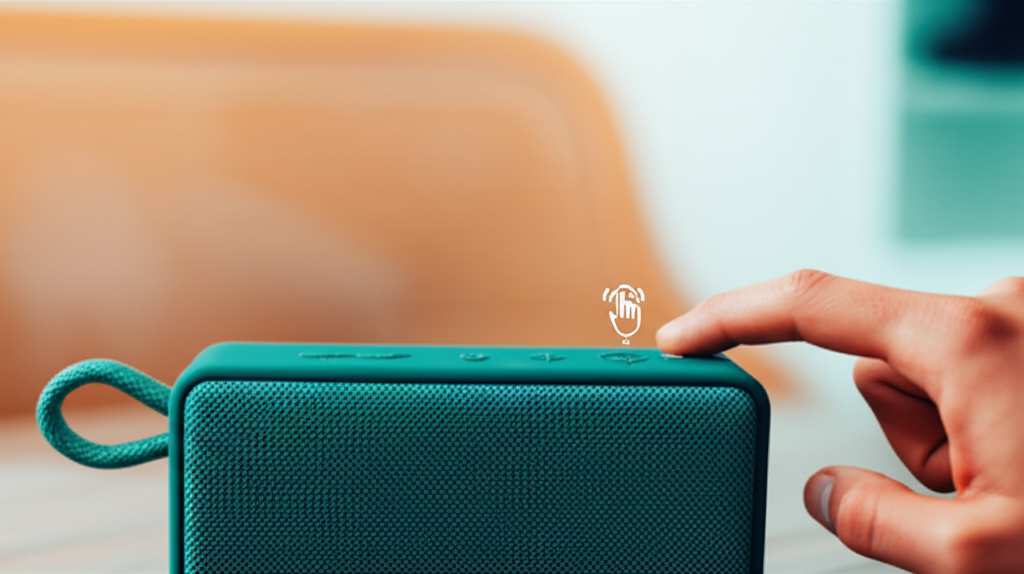
We’ll walk through it step by step. You’ll be back to enjoying your favorite tunes in no time. Let’s make this tech stuff simple and fun, shall we?
Why Would You Even Reset Your Bluetooth Speaker?
Think of resetting your speaker like giving it a fresh start. It’s like when your phone freezes, and you have to turn it off and on again. That little reboot often clears out any temporary glitches.
Your Bluetooth speaker works by communicating with your phone or tablet using Bluetooth. Sometimes, this communication gets a little tangled up. Maybe it’s trying to remember too many devices, or a software hiccup occurred.
Resetting your speaker wipes its memory clean. It forgets all the devices it’s paired with. This is super helpful if you’re having trouble connecting to a new device, or if it’s stuck trying to connect to an old one. It’s like clearing the mental whiteboard so it can focus on what’s new.
Common Signs Your Speaker Needs a Reset
How do you know if a reset is the right move? Here are a few signs that your speaker might be ready for a refresh:
Connection Problems: This is the big one! If your speaker refuses to pair with your phone, or it keeps disconnecting, a reset is often the first thing to try. It’s like saying, “Okay, let’s forget all those past connections and start fresh.”
Speaker Not Found: Your phone can’t find the speaker in the Bluetooth list, even when it’s turned on and nearby. This can happen if the speaker’s Bluetooth module is in a weird state.
Audio Stuttering or Cutting Out: While this can sometimes be a range or interference issue, a stubborn stutter might mean the speaker’s internal software is struggling. A reset can clear that up.
Speaker Won’t Turn On or Respond: If your speaker is completely unresponsive, a reset (especially a hard reset) can sometimes jolt it back to life.
Issues After a Firmware Update: Sometimes, software updates don’t go perfectly. If your speaker started acting up after an update, a reset can help re-establish a stable connection.
It’s like when you’re trying to talk to a friend, and they’re not really listening. You might have to say, “Hey, can you focus? Let’s start this conversation over.” A reset is the speaker’s way of saying that.
How to Reset Your Bluetooth Speaker: The Simple Steps
Okay, here’s the good news: resetting most Bluetooth speakers is pretty straightforward. The exact steps can vary a little between brands and models, but the general idea is the same.
Most speakers have a physical button or a combination of buttons you need to press. Let’s break down the common methods.
Method 1: The Power Button Trick (The Most Common Way!)
Many speakers have a dedicated reset function built into their power button. This is often the easiest way to go.
Here’s how it usually works:
1. Turn Off Your Speaker: Make sure your speaker is completely powered down.
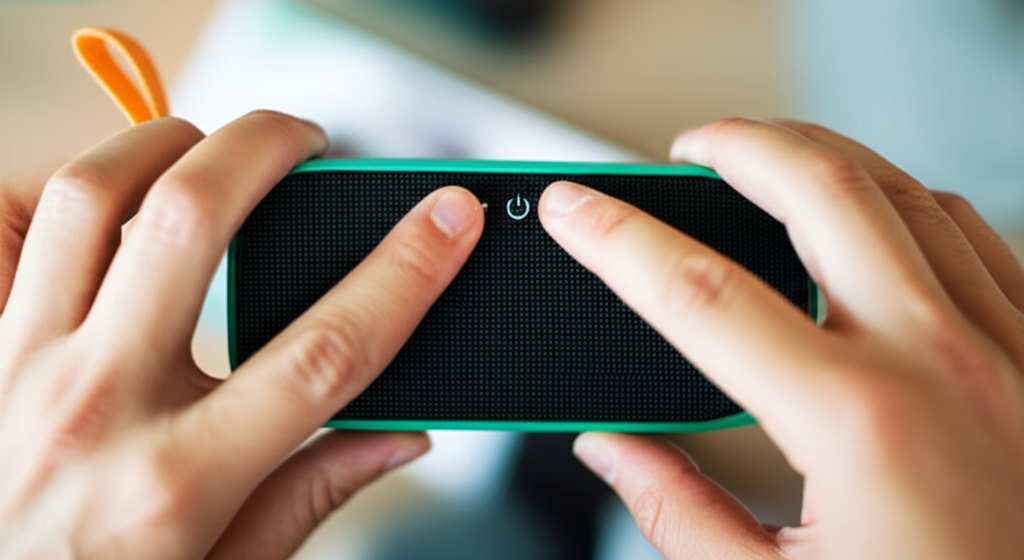
2. Press and Hold the Power Button: Now, press and hold the power button for a longer time than usual. We’re talking about 10 to 15 seconds, sometimes even up to 30 seconds.
3. Listen for a Sound or Look for a Light: You might hear a beep, a chime, or a different sound than the normal power-on sound. The LED indicator lights might flash in a specific pattern or change color. This usually signals that the reset is complete.
4. Release the Button: Once you hear or see the reset confirmation, let go of the button.
5. Turn Your Speaker Back On: Power your speaker on normally. It should now be in its factory default state, ready to pair like it was brand new.
Pro Tip: Always check your speaker’s manual if you have it! It will give you the exact button sequence for your specific model. You can usually find manuals online by searching for your speaker’s brand and model number.
Method 2: The Bluetooth Pairing Button Combo
Some speakers use a combination of the power button and the Bluetooth pairing button to reset. This is also very common.
Here’s the drill:
1. Ensure Speaker is Off: Start with your speaker powered off.
2. Press and Hold Power AND Bluetooth Buttons: Simultaneously press and hold both the power button and the Bluetooth pairing button.
3. Hold for About 10-15 Seconds: Keep holding them down.
4. Watch and Listen: You’ll likely see the LED lights flash rapidly or change color. You might also hear a confirmation sound. This means it’s resetting.
5. Release Buttons: Let go of both buttons once you get the confirmation.
6. Restart Your Speaker: Turn it on again. It’s now reset!
This method is great because it explicitly tells the speaker to forget all pairings and reset its Bluetooth module.
Method 3: The “Mystery” Button (Less Common, But Worth Knowing)
Occasionally, you might find a tiny, recessed button on your speaker. This is usually a hard reset button.
What it looks like: It’s often a small hole, and you’ll need a paperclip or a toothpick to press it.
How to use it:
1. With the speaker on or off (check your manual), gently insert the paperclip into the hole.
2. Press and hold the button inside for about 5-10 seconds.
3. Release.
4. You might need to power cycle the speaker (turn it off and on) afterward.
This is less common for simple Bluetooth speakers but more frequent on smart speakers or more complex audio devices.
Method 4: The “Disconnect All” Feature (Software Reset)
Some higher-end speakers or brands might have a software-based reset. This usually involves going into a companion app on your smartphone.
How it works: You connect your speaker to its app, navigate through the settings menu, and look for an option like “Reset Speaker,” “Factory Reset,” or “Clear Settings.”
Why it’s useful: This method often resets more than just the Bluetooth pairings; it can reset all custom settings you might have made in the app.
This is super convenient if you’re already using the app for your speaker.
Popular Speaker Reset Examples
Let’s look at a couple of popular brands to see how their resets work. Remember, these are just examples, and your model might be slightly different!
JBL Speakers
Many JBL speakers, like the Flip or Charge series, use a combination reset.
1. Turn on your JBL speaker.
2. Press and hold the “Volume +” button and the “Bluetooth” button simultaneously for about 5-10 seconds.
3. You might hear a sound or see the lights flash, indicating a successful reset.
4. Turn the speaker off and then on again to re-pair.
Sony Speakers
Sony speakers often have a power button reset or a specific combination.
For many models (like SRS-XB series):
1. Turn the speaker off.
2. Press and hold the Power button for about 10-15 seconds.
3. Release the button. The speaker will likely power on by itself, indicating a reset.
Some models might require holding the Bluetooth button and Power button.
Bose Speakers
Bose often uses a power button hold or a specific sequence.
For many portable Bose speakers:
1. Turn the speaker on.
2. Press and hold the Power button for about 10-15 seconds until the speaker powers off.
3. This action typically resets the device and clears the paired device list.
Fun Fact: Did you know that Bluetooth technology was named after a Viking king? Harald Bluetooth united Danish tribes, just like Bluetooth technology aims to unite devices!
What Happens After a Reset?
Once you’ve successfully reset your speaker, it’s like it’s brand new again. This means:
All previous Bluetooth pairings are gone. Your speaker won’t automatically try to connect to your old phone, your friend’s phone, or your neighbor’s device anymore.
It’s ready for new connections. You’ll need to put it back into pairing mode to connect it to any device. This is usually done by pressing the Bluetooth button until the indicator light flashes.
You might need to re-pair it with all your devices. This is a small extra step, but it ensures clean connections.
It’s like moving into a new house – you have to set up all your utilities and furniture again, but it’s a fresh start!
Pairing Your Speaker After a Reset
After your speaker is reset, pairing it with your device is just like the first time.
1. Turn on your speaker.
2. Put your speaker into pairing mode. This usually means pressing and holding the Bluetooth button until the indicator light flashes rapidly (often blue).
3. On your phone or tablet, go to Bluetooth settings.
4. Scan for new devices.
5. Select your speaker from the list. It should appear with its model name.
6. Confirm pairing. You might hear a confirmation sound from the speaker.
That’s it! Your device and speaker should now be connected and ready to go.
When a Reset Doesn’t Work: Other Quick Fixes
If a reset doesn’t solve your problem, don’t despair! Here are a few other things you can try.
Charge Your Speaker: A low battery can cause all sorts of weird behavior. Make sure your speaker is fully charged.
Restart Your Device: Just like the speaker, your phone or tablet might need a reboot. Turn it off and then on again.
Check for Interference: Other wireless devices (microwaves, other Bluetooth devices, Wi-Fi routers) can interfere with the signal. Try moving your speaker and device closer together and away from potential interference sources.
Update Your Device’s Software: Ensure your phone or tablet has the latest operating system updates installed.
Update Speaker Firmware (If Applicable): Some speakers can be updated via a companion app or USB. Check the manufacturer’s website.
* Forget and Re-pair on Your Device: On your phone/tablet, go to Bluetooth settings, find your speaker, and select “Forget This Device.” Then, try pairing it again from scratch.
Sometimes, the issue isn’t with the speaker itself but with how your device is communicating with it.
Understanding Bluetooth Speaker Features: A Quick Guide
When you’re picking out a speaker, or just trying to understand how yours works, knowing a few key features helps.
| Feature | What It Means | Why It Matters |
| :—————- | :————————————————————————————————————- | :———————————————————————————- |
| Bluetooth Version | The generation of Bluetooth technology (e.g., 4.2, 5.0, 5.2). Higher numbers are generally better. | Affects connection stability, range, power efficiency, and data transfer speed. |
| Pairing Mode | The state your speaker is in when it’s discoverable by other devices. Usually activated by a button press. | You need to activate this to connect your phone to the speaker. |
| Multipoint Pairing | Allows the speaker to connect to two devices simultaneously. | Great if you switch between your phone and laptop often. |
| Battery Life | How long the speaker can play on a single charge, usually measured in hours. | Determines how long you can enjoy music without needing to plug in. |
| Water Resistance | An IP rating (like IPX7) indicating how well the speaker can withstand water or dust. | Essential for pool parties, beach trips, or using it in the bathroom. |
| Audio Codecs | Protocols like SBC, AAC, aptX that handle audio transmission over Bluetooth. | Better codecs can mean higher sound quality and less delay. |
| Stereo Pairing| The ability to connect two identical speakers to create a true stereo sound experience. | Doubles the sound and creates a wider, more immersive audio field. |
Let’s break down the table: For example, a Bluetooth 5.0 speaker will generally have a more stable connection and a longer range than a Bluetooth 4.2 speaker. And if you love outdoor adventures, looking for a speaker with an IPX7 rating means it can handle being submerged in water for a short period – perfect for poolside!
Frequently Asked Questions (FAQ)
Q1: How often should I reset my Bluetooth speaker?
You don’t need to reset your speaker regularly. Only do it when you’re experiencing connection issues or strange behavior. It’s a troubleshooting step, not routine maintenance.
Q2: Will resetting my speaker delete my music?
No, absolutely not! Resetting the speaker only clears its Bluetooth connection history and internal settings. Your music is stored on your phone or other playback device, not on the speaker itself.
Q3: My speaker still won’t connect after a reset. What now?
Try forgetting the speaker on your phone/tablet and then re-pairing. Also, ensure your phone’s Bluetooth is on and that you’re within range. If problems persist, check the manufacturer’s support for your specific model.
Q4: Can I reset my speaker without a manual?
Yes, most of the time! The common methods involve holding the power button or a combination of power and Bluetooth buttons for about 10-15 seconds. If that doesn’t work, a quick online search for “[Your Speaker Brand and Model] reset” will usually give you the exact instructions.
Q5: What’s the difference between a soft reset and a hard reset?
A “soft reset” is often just turning the speaker off and on again. A “hard reset” or “factory reset” is what we’ve discussed – it clears all settings and pairings. Some speakers have a tiny, recessed button for a hard reset, requiring a pin to press.
Q6: Do all Bluetooth speakers have a reset button?
Most do, but the method can vary. Some rely on button combinations, while others might have a hidden reset pinhole or a software option in an app. If you can’t find one, consulting the manual or the manufacturer’s website is your best bet.
Wrapping It All Up: Enjoying Your Sound!
So there you have it! Resetting your Bluetooth speaker is a super handy trick to have up your sleeve. It’s often the quickest way to fix those annoying connection glitches and get your favorite tunes flowing again.
We’ve covered why you’d reset, the common signs that it’s needed, and the simple steps to perform the reset for most speakers. Plus, we’ve touched on what happens after and what to do if the reset doesn’t quite do the trick. You’re now equipped to handle those little tech hiccups like a pro!
Don’t be afraid to try these steps. Technology is meant to be enjoyed, and sometimes it just needs a little nudge to get back on track. Now go enjoy amazing sound and make every moment louder and better!