Want to connect your Bluetooth speaker to your Roku TV? It’s super easy! Just follow these simple steps to boost your TV’s sound and enjoy movies, music, and games like never before. No tech wizardry needed, just a few quick clicks!
Hey there, tech explorers! Max here from AffTechy.com. You know, sometimes the sound from our TVs just doesn’t cut it, right? We want that booming bass for action movies or crystal-clear dialogue for our favorite shows. That’s where a good Bluetooth speaker comes in handy!
But then comes the slightly tricky part: getting your shiny new speaker to talk to your Roku TV. It can feel a bit daunting with all the buttons and menus. Don’t worry, though! I’m here to make it as simple as enjoying your favorite popcorn.
We’ll walk through this together, step by step. Think of me as your friendly guide, holding your hand through the whole process. By the end, you’ll be a pro at wirelessly streaming audio from your TV. Let’s make your entertainment sound amazing!
Why Connect a Bluetooth Speaker to Your Roku TV?
Imagine this: you’re about to watch that epic space battle movie. The explosions are supposed to shake your room, but they sound more like a gentle pop. Or maybe you’re trying to catch every word of a whispered conversation in a drama, and it’s lost in the background music. Sound familiar?
That’s where a Bluetooth speaker can seriously level up your home theater game. It’s not just about making things louder. Good speakers can add depth, clarity, and a whole new dimension to your viewing experience. Plus, who doesn’t love fewer wires cluttering up the place?
Connecting a Bluetooth speaker means you can ditch those long, tangled audio cables. It’s a clean, modern way to get superior sound. And the best part? Most Roku TVs make this connection surprisingly straightforward. You don’t need to be a tech genius to make it happen!
What You’ll Need Before You Start
Before we dive into the actual steps, let’s make sure you’re all set. It’s like preparing your ingredients before you start cooking. A little prep goes a long way!

- Your Roku TV: Obviously! Make sure it’s powered on and connected to your Wi-Fi.
- Your Bluetooth Speaker: Ensure it’s charged up and in pairing mode. We’ll talk more about pairing mode in a bit.
- Your Roku Remote: You’ll be using this to navigate the menus.
That’s pretty much it! No special apps or complicated software required for this. Just your TV, your speaker, and your remote. Easy peasy!
Understanding Bluetooth and Roku TV Compatibility
Okay, let’s get a tiny bit technical, but I promise to keep it super simple. Bluetooth is a wireless technology that lets devices talk to each other over short distances. Think of it like a secret handshake for gadgets.
Now, not all Roku TVs have built-in Bluetooth audio output. This is a super important detail! Many Roku TVs have Bluetooth for remote control or casting, but not for connecting speakers. This can be confusing, so let’s clear it up right away.
How to Check if Your Roku TV Supports Bluetooth Audio Output:
- Turn on your Roku TV.
- Press the Home button on your remote.
- Scroll down to Settings.
- Select Remotes & Devices.
- Look for an option like Bluetooth or Add Bluetooth Device.
If you see options related to pairing audio devices here, you’re golden! If you don’t see anything like that, your Roku TV might not support direct Bluetooth audio output. But don’t despair! There are still ways to get that awesome sound. We’ll cover those too.
Fun Fact: Bluetooth technology was named after a Viking king, Harald Bluetooth, who was known for uniting Danish tribes. Just like King Harald united tribes, Bluetooth unites your devices!
Method 1: Connecting Directly to Your Roku TV (If Supported)
If your Roku TV has Bluetooth audio output, this is the easiest and cleanest way to connect your speaker. Let’s get this done!
Step 1: Put Your Bluetooth Speaker in Pairing Mode
This is the most crucial step for your speaker. Every speaker is a little different, but usually, there’s a button you need to press and hold. It might be labeled “Bluetooth,” “Pair,” or have a Bluetooth icon (like a stylized “B”).
You’ll often hear a sound or see a flashing light on the speaker to let you know it’s ready to connect. Check your speaker’s manual if you’re unsure. It’s usually a quick press-and-hold action.
Step 2: Access Bluetooth Settings on Your Roku TV
Now, let’s go back to your Roku TV. We need to tell it to look for new devices.
- Press the Home button on your Roku remote.
- Navigate to Settings.
- Select Remotes & Devices.
- Choose Add Bluetooth Device (or something similar).
Your Roku TV will now start scanning for nearby Bluetooth devices that are in pairing mode. This might take a few seconds.
Step 3: Select Your Speaker from the List
You should see a list of available Bluetooth devices appear on your TV screen. Look for the name of your speaker. It might be something like “JBL Flip 5” or “Sony SRS-XB23.”
Once you find it, highlight your speaker’s name using your remote and press OK. Your Roku TV will attempt to connect to your speaker.
Step 4: Confirm the Connection
If everything goes smoothly, you’ll see a confirmation message on your TV screen, like “Connected” or “Pairing Successful.” You might also hear a confirmation sound from your speaker.
Now, try playing something on your Roku TV. The sound should automatically come from your Bluetooth speaker. If not, you might need to go into the Roku TV’s audio settings and ensure Bluetooth audio is selected as the output.
Pro Tip: Keep your speaker relatively close to your TV during the initial pairing process. Once connected, you can usually move it further away, depending on the Bluetooth range.
Method 2: Using a Bluetooth Transmitter (For TVs Without Built-in Bluetooth)
Okay, so what if your Roku TV doesn’t have that handy Bluetooth audio option in its settings? Don’t worry, you’re not out of luck! Many people face this, and there’s a simple solution: a Bluetooth transmitter.
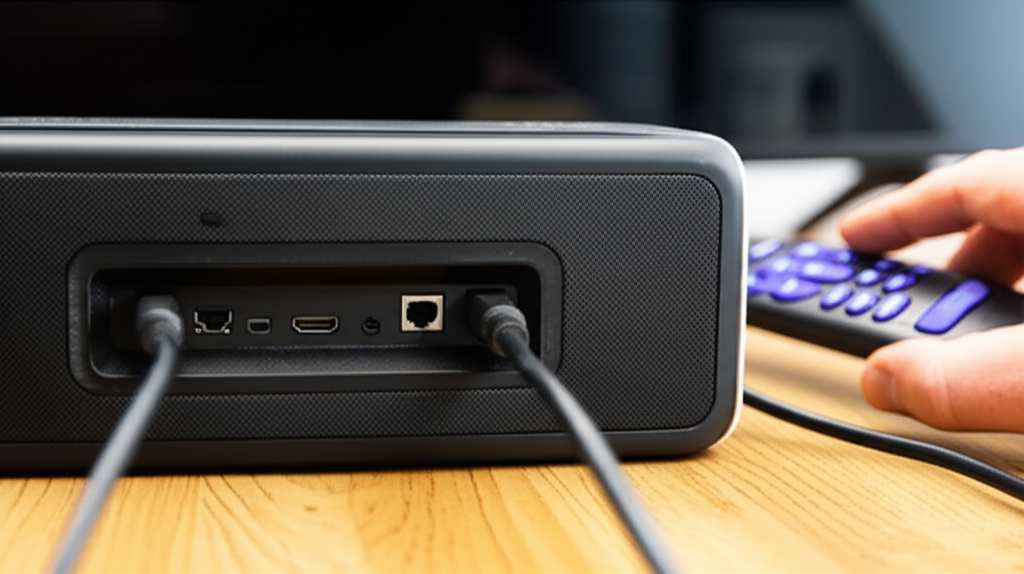
A Bluetooth transmitter is a small device that plugs into your TV’s audio output (usually the headphone jack or optical port) and broadcasts the sound wirelessly via Bluetooth. Your speaker then connects to this transmitter, not directly to the TV.
What is a Bluetooth Transmitter?
Think of it as a translator. Your TV speaks audio through a wire, and the transmitter converts that into a wireless Bluetooth signal that your speaker understands. It’s like giving your older TV super-powered Bluetooth ears!
How to Connect Using a Bluetooth Transmitter
- Connect the Transmitter to Your TV: Plug the transmitter into your TV’s audio output. The most common ones are the 3.5mm headphone jack or an optical audio port (often labeled “SPDIF” or “Optical Out”). The transmitter will usually come with the necessary cables.
- Power Up the Transmitter: Most transmitters are powered by a USB cable, which you can plug into a USB port on your TV or a wall adapter.
- Put the Transmitter in Pairing Mode: Just like your speaker, the transmitter will have a button to put it into pairing mode. Check its manual for specific instructions. It usually involves pressing and holding a button until a light flashes.
- Put Your Bluetooth Speaker in Pairing Mode: Follow the same steps as in Method 1, Step 1.
- Connect the Transmitter and Speaker: The transmitter is designed to pair with Bluetooth devices. Once both are in pairing mode, they should find each other and connect automatically. You’ll know they’re connected when the flashing lights on both devices become solid or change color.
- Configure Your TV’s Audio Output: This is important! You need to tell your Roku TV to send audio out through the port you connected the transmitter to. Go to your Roku TV’s Settings > Audio & Video (or similar) and select the correct audio output (e.g., “Headphone” or “Optical”).
And voilà! Your sound should now be streaming wirelessly to your Bluetooth speaker. This method works for almost any TV with an audio output, making it a really versatile solution.
Where to Find Good Bluetooth Transmitters: You can find these easily online on sites like Amazon or at electronics stores. Look for ones with good reviews, especially those mentioning long-range connectivity and low latency (less delay between the video and audio).
Connecting a Bluetooth Headset or Earbuds
The process for connecting Bluetooth headphones or earbuds is generally the same as connecting a speaker. If your Roku TV supports Bluetooth audio output, you’ll follow Method 1.
Just remember to put your headphones or earbuds into their pairing mode. This often involves opening the charging case with the earbuds inside or pressing a button on the headset.
Why Use Headphones? Bluetooth headphones are fantastic for late-night viewing without disturbing others, or for gamers who want immersive sound without a lot of wires. Some Roku models even have a “Private Listening” mode where you can use the Roku mobile app to send audio directly to your phone, and then use your headphones with your phone.
Troubleshooting Common Connection Issues
Sometimes, technology throws us a curveball. If you’re having trouble connecting, don’t get frustrated! Here are a few common hiccups and how to fix them.
- Speaker Not Appearing in List:
- Make sure your speaker is definitely in pairing mode.
- Turn the speaker off and on again, then put it back into pairing mode.
- Restart your Roku TV (unplug it for 30 seconds, then plug it back in).
- Make sure your speaker isn’t already connected to another device (like your phone).
- Connection Fails or Drops:
- Move your speaker closer to the TV or transmitter.
- Check for interference from other wireless devices (microwaves, other Bluetooth devices).
- Forget the device on your Roku TV and try pairing again. Go to Settings > Remotes & Devices > Bluetooth, select your speaker, and choose “Forget Device.”
- Audio Delay (Latency):
- This is more common with older Bluetooth versions or cheaper transmitters. Look for “low latency” transmitters if this is a big issue.
- Some Roku TVs might have an audio sync setting you can adjust in the Settings > Audio & Video menu.
- If using a transmitter, try a different audio output on your TV (e.g., optical instead of headphone jack).
- No Sound After Connecting:
- Double-check your Roku TV’s audio output settings to ensure Bluetooth audio is selected.
- Make sure the volume on both your TV and your speaker is turned up.
- Try playing audio from a different app or source on your Roku TV to see if the issue is with a specific app.
Helpful Tip: Sometimes, simply restarting both your speaker and your Roku TV can solve many minor glitches. It’s the tech equivalent of a fresh start!
Choosing the Right Bluetooth Speaker for Your Roku TV
The world of Bluetooth speakers is huge! How do you pick one that’s perfect for your TV setup? Here are a few things to consider.
Key Features to Look For:
- Sound Quality: This is subjective, but generally, look for speakers with good bass response and clear treble. Reading reviews can help a lot here.
- Battery Life: If you plan to move your speaker around or use it away from a power outlet, check how long it lasts on a single charge.
- Connectivity: Ensure it uses a recent Bluetooth version (like 4.2 or 5.0) for better stability and range.
- Durability/Portability: Do you need something rugged for outdoor use, or a sleek speaker for your living room?
- Price: Bluetooth speakers range from budget-friendly to high-end. Set a budget before you start shopping.
Speaker Types and What They’re Good For:
Here’s a quick look at some popular types of Bluetooth speakers:
| Speaker Type | Best For | Considerations |
|---|---|---|
| Portable Bluetooth Speakers | Versatility, small spaces, moving around the house | Sound might be less powerful than larger options |
| Soundbars (with Bluetooth) | Enhancing TV audio significantly, living room setups | Less portable, typically more expensive |
| Smart Speakers (with Bluetooth) | Music streaming, voice control, general audio | May require more setup, focus is not solely on TV audio |
| Home Audio Speakers (with Bluetooth) | Dedicated home theater sound, powerful audio | Can be expensive, requires space |
When choosing, think about where you’ll use it most and what kind of sound experience you’re aiming for. A small portable speaker might be great for a dorm room, while a larger soundbar could transform your main TV area.
Comparing Popular Bluetooth Speaker Features
To give you a better idea, here’s a comparison of some popular Bluetooth speaker categories. Prices are approximate and can vary widely!
| Feature | Budget ($30-$70) | Mid-Range ($70-$150) | Premium ($150+) |
|---|---|---|---|
| Sound Quality | Decent, good for casual listening | Rich, clear, good bass | Excellent, immersive, studio-like |
| Battery Life | 6-10 hours | 10-20 hours | 15-30+ hours |
| Bluetooth Version | 4.0 – 4.2 | 4.2 – 5.0 | 5.0 and above |
| Durability | Basic | Often water/dust resistant | Premium materials, rugged options |
| Extra Features | Basic connectivity | Multi-device pairing, app control | Smart assistant integration, advanced EQ |
This table shows that you can get good sound even on a budget, but investing a bit more often gets you better battery life, more robust features, and superior audio quality. It really depends on what matters most to you!
Maintaining Your Bluetooth Connection
Once you’ve got your speaker connected, you want it to stay that way! Here are a few tips for keeping your Bluetooth connection happy.
- Keep Firmware Updated: For some speakers and transmitters, there might be firmware updates available that can improve performance or fix bugs. Check the manufacturer’s website.
- Regularly Charge Devices: A low battery can sometimes cause connection instability. Keep both your speaker and your transmitter (if used) charged.
- Avoid Too Many Connections: While some speakers can connect to multiple devices, trying to juggle too many at once can sometimes lead to issues.
- Store Properly: If you store your speaker for long periods, make sure it’s in a safe place to avoid damage to the internal components.
These simple maintenance steps can help ensure your Bluetooth audio setup works smoothly for a long time.
Frequently Asked Questions (FAQ)
Q1: My Roku TV doesn’t have Bluetooth audio. What should I do?
A1: No worries! You can use a Bluetooth transmitter. It plugs into your TV’s audio port and sends the sound wirelessly to your speaker. It’s a super effective workaround!
Q2: Can I connect more than one Bluetooth speaker to my Roku TV?
A2: Most Roku TVs can only connect to one Bluetooth audio device at a time. Some very high-end speakers or specific setups might allow for stereo pairing of two identical speakers, but this is less common for TV connections.
Q3: Will connecting a Bluetooth speaker affect my TV’s picture quality?
A3: No, connecting a Bluetooth speaker only affects the audio output. Your picture quality will remain the same. However, you might experience a slight audio delay (latency) with some Bluetooth connections, which can sometimes be adjusted in your TV’s audio settings.
Q4: How far can my Bluetooth speaker be from my Roku TV?
A4: Standard Bluetooth range is typically around 30 feet (10 meters) in an open space. However, walls, furniture, and other electronic devices can reduce this range. For the best performance, keep your speaker within about 15-20 feet of your TV.
Q5: My sound is delayed. What can I do?
A5: This is called latency. Try moving your speaker closer to the TV or transmitter. Also, check your Roku TV’s audio settings for an “AV Sync” or “Audio Delay” adjustment. If using a transmitter, look for one specifically advertised as “low latency.”
Q6: Do I need a specific type of Bluetooth speaker for my Roku TV?
A6: Not really! Most standard Bluetooth speakers will work. The key is that your Roku TV (or your Bluetooth transmitter) can connect to it. The type of speaker you choose should depend more on your sound preferences and budget.
Q7: Can I connect my phone’s Bluetooth speaker to my Roku TV?
A7: You can connect your phone to your Roku TV for screen mirroring or casting content, but you generally cannot use your phone’s Bluetooth speaker as the audio output for the Roku TV itself. The speaker needs to connect directly to the TV or a transmitter.
Enjoy Your Enhanced Audio Experience!
So there you have it! Connecting a Bluetooth speaker to your Roku TV is totally achievable, whether your TV has built-in Bluetooth or you need a handy transmitter. We’ve covered how to pair, troubleshoot, and even pick out the perfect speaker.
Remember, the goal is to make your entertainment sound as amazing as it looks. Don’t be afraid to experiment with different speakers or settings to find what sounds best for you. Technology is meant to make life more enjoyable, and better sound is a big part of that!
Now go forth and enjoy that incredible audio! Whether it’s the roar of a stadium, the subtle score of a film, or your favorite playlist, your Roku TV and Bluetooth speaker are ready to deliver. Happy watching, and more importantly, happy listening!