
Connecting your Bluetooth speaker to your Epson projector is super easy! Follow these simple steps to get awesome sound for your movies, games, and presentations in minutes. No tech headaches, just great audio!
Hey there, tech explorers! Max here from AffTechy.com. You know, sometimes you’ve got this amazing projector, showing big, beautiful pictures. But then, you realize the sound… well, it’s just okay. That’s where a good Bluetooth speaker comes in, right? It can totally transform your movie nights or gaming sessions from ‘meh’ to ‘WOW!’
I remember when I first got my projector. The built-in speakers were… let’s just say, not the star of the show. I wanted that booming sound, that immersive experience. And I figured, “Hey, I’ve got this awesome Bluetooth speaker, why can’t they just play nice together?” It felt like a puzzle at first, trying to figure out how to bridge that gap between my projector and my speaker.
But guess what? It’s not as complicated as it might sound. Most modern Epson projectors are pretty smart about connecting to other devices. And those Bluetooth speakers? They’re designed to be user-friendly. So, if you’ve ever felt a little lost trying to get your projector and speaker to talk, you’ve come to the right place. We’re going to break it down together, step by step, and get you enjoying incredible sound without any fuss.
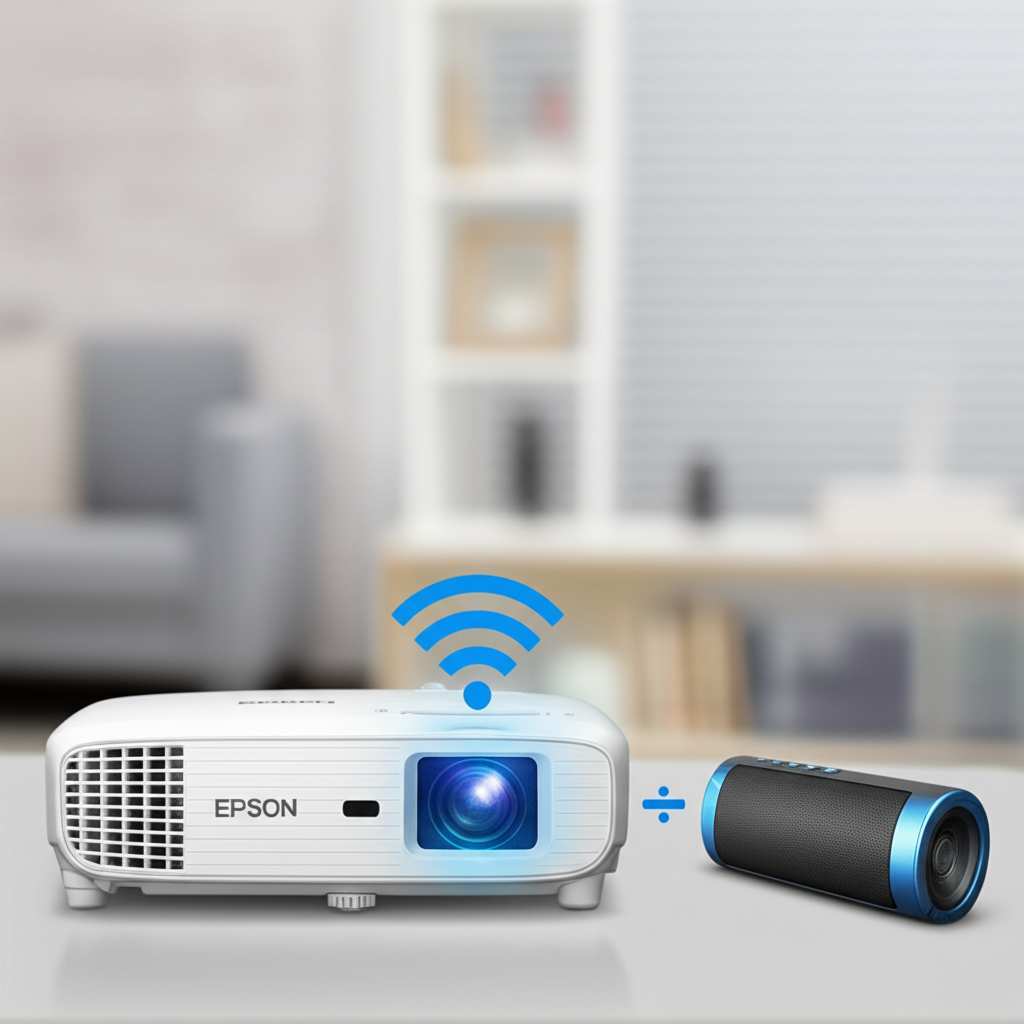
Ready to ditch the tinny projector sound and blast your favorite tunes or movie scores? Let’s dive in and make your Epson projector sing!
Why Connect a Bluetooth Speaker to Your Epson Projector?
Let’s be honest, the sound from most projector speakers is just… there. It’s functional, but it doesn’t really add to the experience. Think about watching an action movie or playing a video game. You want that rumble, that explosion sound, that subtle background music that pulls you in. Built-in speakers rarely deliver that.
A Bluetooth speaker can change everything. It brings richness, depth, and volume that makes your content truly come alive. Plus, Bluetooth is super convenient! No messy wires to trip over or hide. Just a simple, wireless connection that lets you place your speaker exactly where you want it for the best sound.
It’s like upgrading from a small TV speaker to a full home theater system, but without all the complicated setup. You get big sound, big picture, and big fun, all wirelessly!
Does Your Epson Projector Even Have Bluetooth?
This is the first big question, right? Not all projectors, especially older models, come with built-in Bluetooth audio output. It’s like checking if your phone has a headphone jack – sometimes it’s there, sometimes it isn’t!
How do you find out? It’s pretty simple. You’ll want to check your projector’s manual or dive into its settings menu. Look for options related to ‘Audio Output,’ ‘Sound,’ ‘Bluetooth,’ or ‘Wireless Connections.’ If you see anything about pairing or outputting audio wirelessly, you’re golden!
Most newer Epson projectors, especially their home cinema and business models, do have this handy feature. But it never hurts to double-check. If your projector doesn’t have built-in Bluetooth, don’t worry! There are still ways to get wireless sound, and we’ll touch on those later. For now, let’s assume yours does, and we’ll walk through the connection process.
Let’s Talk Sound: Understanding Projector Audio
Projectors are amazing for visuals, but audio is a whole different ballgame. Most projectors have small, internal speakers. These are usually designed for basic audio cues or voiceovers in presentations. They’re not built for the deep bass or clear highs needed for movies or music.
That’s why external speakers are a game-changer. And Bluetooth speakers are super popular because they’re wireless. This means you can position your speaker for the best sound experience, maybe even place it behind you for a more immersive feel. No more struggling with speaker placement near the projector itself!
When you connect a Bluetooth speaker, your projector essentially sends its audio signal wirelessly to the speaker. The speaker then plays that sound for you. It’s a neat piece of tech that makes a huge difference!
Finding Your Projector’s Bluetooth Settings
Okay, so you’ve checked, and your Epson projector does have Bluetooth! Awesome! Now, where do you find the settings to get it all hooked up? This can vary a little depending on your specific Epson model, but the general idea is the same.
Usually, you’ll need to navigate through your projector’s on-screen menu. Grab your remote control and press the ‘Menu’ or ‘Settings’ button. Look for categories like ‘Audio,’ ‘Sound Settings,’ ‘Bluetooth,’ or ‘Wireless.’ It might even be under a ‘Network’ or ‘System’ menu, depending on how Epson organized things for your model.
Once you find the Bluetooth section, you should see options to ‘Search,’ ‘Pair,’ or ‘Connect.’ This is where the magic happens. Your projector will start looking for nearby Bluetooth devices, and your speaker will need to be in its own pairing mode.
Putting Your Bluetooth Speaker in Pairing Mode
This is a crucial step! Your speaker needs to tell the projector, “Hey, I’m here and ready to connect!” Each speaker is a little different, but there’s almost always a button dedicated to Bluetooth pairing.
Look for a button with the Bluetooth symbol (it looks like a little ‘B’ made of lines). Sometimes, you have to press and hold this button for a few seconds. You might hear a beep, see a flashing light, or get a voice prompt telling you it’s in pairing mode. If you’re not sure, quickly check your speaker’s manual. It’ll tell you exactly how to activate pairing mode.
Once your speaker is in pairing mode, it will be discoverable by other devices, like your Epson projector. Make sure your speaker is charged up or plugged in, so it doesn’t run out of juice mid-setup!
Step-by-Step: Connecting Your Epson Projector and Bluetooth Speaker
Alright, let’s get down to business! This is where we connect everything. Follow these steps, and you’ll be enjoying great sound in no time. Think of it like a recipe – follow the steps, and you get a delicious outcome (in this case, awesome audio!).
Step 1: Turn On Your Projector and Speaker
First things first, power up both your Epson projector and your Bluetooth speaker. Make sure they are both in a state where they can be used. For the projector, this means it’s on and showing an image (or at least the menu).
Step 2: Put Your Bluetooth Speaker in Pairing Mode
As we discussed, find that Bluetooth button on your speaker. Press and hold it until you see a flashing light or hear a confirmation sound. This tells the speaker it’s ready to be found by another device.
Step 3: Access Your Projector’s Bluetooth Settings
Grab your Epson projector’s remote. Press the ‘Menu’ or ‘Settings’ button. Navigate through the on-screen menus to find the ‘Bluetooth’ or ‘Audio Output’ settings. This is where you’ll initiate the search for your speaker.
Step 4: Search for Bluetooth Devices on Your Projector
Inside the projector’s Bluetooth menu, you should see an option to ‘Scan,’ ‘Search,’ or ‘Add Device.’ Select this option. Your projector will start looking for any nearby Bluetooth devices that are in pairing mode.
Step 5: Select Your Speaker from the List
After a moment, your Bluetooth speaker’s name should pop up on your projector’s screen. It might be something like “JBL Flip 5” or “Sony SRS-XB23.” Use your remote to highlight your speaker’s name and select it.
Step 6: Confirm the Pairing
Your projector will now attempt to connect to your speaker. You might be prompted to confirm the pairing on either the projector or the speaker, though often it’s automatic. Once connected, you should see a confirmation message on your projector screen, like “Connected” or “Paired Successfully.”
Step 7: Test the Sound
The moment of truth! Play some content on your projector. You should now hear the sound coming from your Bluetooth speaker. If you don’t hear anything, don’t panic! Go back to the projector’s audio settings and make sure the audio output is set to ‘Bluetooth’ (or whatever your projector calls it).
If it’s still not working, try turning both devices off and on again, and repeat the pairing process. Sometimes, a fresh start is all it needs!
Troubleshooting Common Connection Issues
Even with the best tech, sometimes things don’t go perfectly the first time. Don’t get discouraged! Most connection problems are easy to fix. Think of it as a little tech puzzle to solve.
Problem 1: Speaker Not Showing Up in the List
Why it happens: The speaker isn’t in pairing mode, or it’s too far away from the projector. Or maybe another device is already connected to it.
The fix:
- Make sure your speaker is definitely in pairing mode. Double-check the manual if needed.
- Move the speaker closer to the projector.
- Turn off Bluetooth on any other devices (phones, tablets) that might be nearby.
- Turn both the speaker and projector off, then try the pairing process again.
Problem 2: Projector Says It’s Connected, But No Sound
Why it happens: The audio output on the projector isn’t set to Bluetooth, or the speaker volume is too low.
The fix:
- Go back into your projector’s audio settings. Ensure the audio output is selected as ‘Bluetooth’ or your speaker’s name.
- Check the volume on your Bluetooth speaker itself. Turn it up!
- Check the volume on your projector. Sometimes it’s linked, sometimes it isn’t.
- Try disconnecting and reconnecting the speaker.
Problem 3: Audio and Video Are Out of Sync (Lag)
Why it happens: This is often due to Bluetooth latency. Different Bluetooth versions and codecs can affect this. Some projectors have an ‘AV Sync’ setting to help.
The fix:
- Look for an ‘AV Sync’ or ‘Lip Sync’ setting in your projector’s audio or system menu. Adjust it to correct the delay.
- If your projector doesn’t have this setting, you might need a speaker that supports lower-latency Bluetooth codecs (like aptX Low Latency, though this is less common on basic speakers).
- For critical viewing, a wired connection might be more reliable if your projector has an audio-out port.
Problem 4: Connection Drops Frequently
Why it happens: Interference from other wireless devices, distance, or low battery on the speaker.
The fix:
- Ensure the speaker is well-charged.
- Keep the speaker relatively close to the projector.
- Minimize other wireless devices operating nearby.
- Try re-pairing the devices.
A little patience goes a long way! Most of these issues are just hiccups that can be smoothed out with a few adjustments.
Epson Projector Bluetooth Compatibility: What to Know
Epson offers a wide range of projectors, and their Bluetooth capabilities can differ. Generally, you’ll find Bluetooth audio output on their more recent models, especially those aimed at home entertainment or modern office use. Think of models in their Home Cinema, EpiqVision, and some of their higher-end Business series.
How to check your specific model:
- Check the Manual: This is your best friend! Look for sections on ‘Wireless Connectivity,’ ‘Bluetooth,’ or ‘Audio Output.’
- Look at the Projector’s Menu: As mentioned, navigate through the settings. If you see Bluetooth options, you’re good to go.
- Search Online: Type in your Epson projector’s model number followed by “Bluetooth” or “specs” into a search engine. Reputable tech review sites like CNET or the official Epson website can provide detailed specifications.
If your projector is older or a basic model, it might not have built-in Bluetooth. But don’t fret! There are still ways to achieve wireless sound, which we’ll cover next.
What If My Epson Projector Doesn’t Have Bluetooth?
Okay, so you checked, and your projector is a bit older or just doesn’t have that built-in Bluetooth magic. That’s totally fine! It doesn’t mean you’re stuck with mediocre sound. We just need a little adapter to help things along.
Option 1: Bluetooth Audio Transmitter
This is the most popular solution. A Bluetooth transmitter is a small device that plugs into your projector’s audio output port (usually a 3.5mm headphone jack or RCA audio-out ports). It then broadcasts the audio signal via Bluetooth to your speaker.
How it works:
- Find a Bluetooth transmitter that has the correct audio input for your projector (most have a 3.5mm jack).
- Plug the transmitter into your projector’s audio-out port.
- Power up the transmitter (most are USB powered).
- Put the transmitter into pairing mode (check its manual).
- Put your Bluetooth speaker into pairing mode.
- The transmitter and speaker should connect.
These are readily available online and at electronics stores. Look for ones that mention low latency if you’re concerned about sync issues.
Option 2: Wired Connection
The simplest, no-fuss solution is a good old-fashioned cable. If your projector has a headphone jack (3.5mm) or RCA audio-out ports, you can connect it directly to a powered speaker or a soundbar using an appropriate audio cable.
Pros:
- No pairing issues.
- Usually no latency (audio and video are perfectly synced).
- Often provides the best audio quality.
Cons:
- You have a wire running from the projector to the speaker, which can be a tripping hazard or unsightly.
- Speaker placement is limited by cable length.
While not wireless, a wired connection is reliable and ensures you get the best possible sound without any connection dropouts.
Choosing the Right Bluetooth Speaker for Your Projector
Not all Bluetooth speakers are created equal! When you’re pairing one with your projector, think about what you’ll be using it for most. Here are a few things to consider:
Sound Quality
This is probably the most important factor. Do you want booming bass for action movies, or crisp, clear sound for dialogue-heavy films and presentations? Read reviews and listen to speakers if you can before buying.
Battery Life
If you plan on using your speaker for long movie marathons or outdoor gatherings, battery life is key. Some speakers last 8 hours, while others can go for 20+ hours on a single charge.
Portability
Do you need a small speaker you can easily move around, or are you setting up a dedicated home theater where the speaker will stay put? Portability often means smaller size and lighter weight.
Durability
If you’re taking your projector and speaker outdoors or to parties, look for water-resistant or rugged designs.
Connectivity Features
While we’re focusing on Bluetooth, some speakers have additional features like NFC pairing (tap to connect) or the ability to link multiple speakers for stereo sound.
Price
Bluetooth speakers range from very affordable to quite expensive. Set a budget and look for the best balance of features and quality within that range.
Here’s a quick look at how some popular speaker types stack up:
| Speaker Type | Pros | Cons | Best For |
|---|---|---|---|
| Portable Bluetooth Speaker | Easy to move, good battery life, affordable | Sound quality can vary, may lack deep bass | Casual movie nights, presentations, outdoor use |
| Smart Bluetooth Speaker | Often better sound, voice assistant features | Can be more expensive, requires Wi-Fi for some features | Home theater, music streaming, multi-room audio |
| Soundbar (with Bluetooth) | Excellent sound quality, immersive experience | Less portable, typically requires power outlet | Dedicated home theater, serious movie buffs |
Remember, even a decent portable Bluetooth speaker can make a huge difference compared to your projector’s built-in sound. Don’t feel like you need to break the bank!
Tips for the Best Bluetooth Audio Experience
Want to squeeze the most out of your setup? Here are a few pro tips to make your projector and speaker combo sound even better:
- Placement is Key: Don’t just plop your speaker anywhere. Experiment with different spots. Placing it at ear level, or even slightly behind you, can create a more immersive soundstage. Avoid corners, as they can sometimes make bass sound muddy.
- Keep it Charged: A dying speaker can lead to distorted sound or connection drops. Make sure your speaker is fully charged before a long viewing session.
- Minimize Interference: Other wireless devices (microwaves, Wi-Fi routers, other Bluetooth devices) can sometimes interfere with the signal. Try to keep your speaker and projector relatively clear of these.
- Update Firmware: Some Bluetooth speakers have firmware updates that can improve performance or fix bugs. Check the manufacturer’s app or website.
- Experiment with EQ Settings: If your speaker or projector has Equalizer (EQ) settings, play around with them. You might be able to fine-tune the sound to your liking.
- Consider a Stereo Pair: If you have two identical Bluetooth speakers, many models allow you to pair them together for true stereo sound, which is amazing for movies!
These little tweaks can really elevate your audio experience. It’s all about getting the most bang for your buck (and your audio!).
Fun Fact: The History of Bluetooth
Ever wondered where the name “Bluetooth” came from? It’s actually named after a 10th-century Viking king, Harald Bluetooth! He was known for uniting Danish tribes, much like the Bluetooth technology aims to unite devices wirelessly. The technology was developed by Ericsson in the late 1990s, and the name was chosen as a temporary codename that stuck!
Frequently Asked Questions (FAQ)
Q1: How do I know if my Epson projector supports Bluetooth audio?
A1: Check your projector’s user manual or navigate through its on-screen settings menu. Look for options related to ‘Bluetooth,’ ‘Audio Output,’ or ‘Wireless Connection.’ If you see them, your projector likely supports Bluetooth audio output.
Q2: Can I connect multiple Bluetooth speakers to my Epson projector at once?
A2: Most projectors can only connect to one Bluetooth audio device at a time. Some advanced speakers might allow you to pair them in a stereo pair, but your projector still only sends a single audio stream to that pair.
Q3: My projector and speaker are paired, but I can’t hear anything. What should I do?
A3: First, check the volume on both your projector and your speaker. Then, go into your projector’s audio settings and make sure the audio output is definitely set to ‘Bluetooth’ or your speaker’s name. Sometimes, a simple disconnect and reconnect can fix it.
Q4: What is Bluetooth latency and why does it cause audio lag?
A4: Latency is the delay between when the audio is sent and when it’s heard. Bluetooth technology has a natural delay. For video, this delay can cause the sound to be out of sync with the picture. Some devices have features to minimize this, but it can sometimes be an issue.
Q5: My speaker worked before, but now it won’t connect to my projector. What’s wrong?
A5: Try forgetting the speaker on your projector’s Bluetooth list and then re-pairing it from scratch. Also, ensure the speaker isn’t connected to another device, like your phone, and try restarting both the projector and the speaker.
Q6: Can I connect a Bluetooth keyboard or mouse to my Epson projector?
A6: Some Epson projectors support Bluetooth for input devices like keyboards or mice, but this is a separate feature from Bluetooth audio output. You’ll need to check your projector’s specifications and menu settings to see if it supports Bluetooth input devices.
Q7: What’s the difference between a Bluetooth transmitter and a receiver?
A7: A transmitter (what you need for this projector setup) sends an audio signal wirelessly. A receiver takes a wireless signal and outputs it as audio, usually to a wired speaker system. They do opposite jobs!
Conclusion: Your Projector, Your Soundstage!
See? Connecting your Bluetooth speaker to your Epson projector is totally doable, and it opens up a whole new world of immersive entertainment. Whether your projector has built-in Bluetooth or you used a handy transmitter, you’ve taken a big step towards upgrading your home theater or presentation setup.
You’ve learned how to find the settings, pair your devices, and even troubleshoot common hiccups. Remember, tech is meant to be enjoyed, not to cause headaches. With these simple steps, you can easily boost your projector’s audio and make every movie night, gaming session, or important presentation sound absolutely fantastic.
So go ahead, give it a try! You’ve got the knowledge now. Experiment with speaker placement, enjoy the freedom of wireless sound, and really bring your visuals to life with great audio. Now go enjoy amazing sound and make every moment louder and better!


