Connect your Google speaker to Bluetooth in a snap! This guide makes it super simple to pair your devices and enjoy seamless audio streaming. No tech headaches, just great sound!
Hey there, tech explorers! Max here from AffTechy.com, your go-to buddy for all things gadgety. We all love diving into our favorite playlists, getting lost in epic movie soundtracks, or even just enjoying crystal-clear podcasts, right? Our smart speakers, especially the awesome Google ones, are perfect for this. They fill our rooms with sound and can even help us out with daily tasks.
Sometimes, though, getting everything connected can feel a bit like solving a puzzle. You might have a new Google speaker, or maybe you just want to connect a different device to it. It’s easy to get tangled up in menus and settings. But don’t you worry, that’s exactly why I’m here! I’m going to walk you through connecting your Google speaker to Bluetooth, step by step.
Think of this as a friendly chat where I show you all the cool tricks. We’ll make sure your speaker and your phone or tablet become best buds. You’ll be streaming your favorite tunes in no time, and it’ll be so easy, you’ll wonder why you ever worried. Ready to dive into the world of wireless sound? Let’s make this easy and fun!
Why Bluetooth Matters for Your Google Speaker
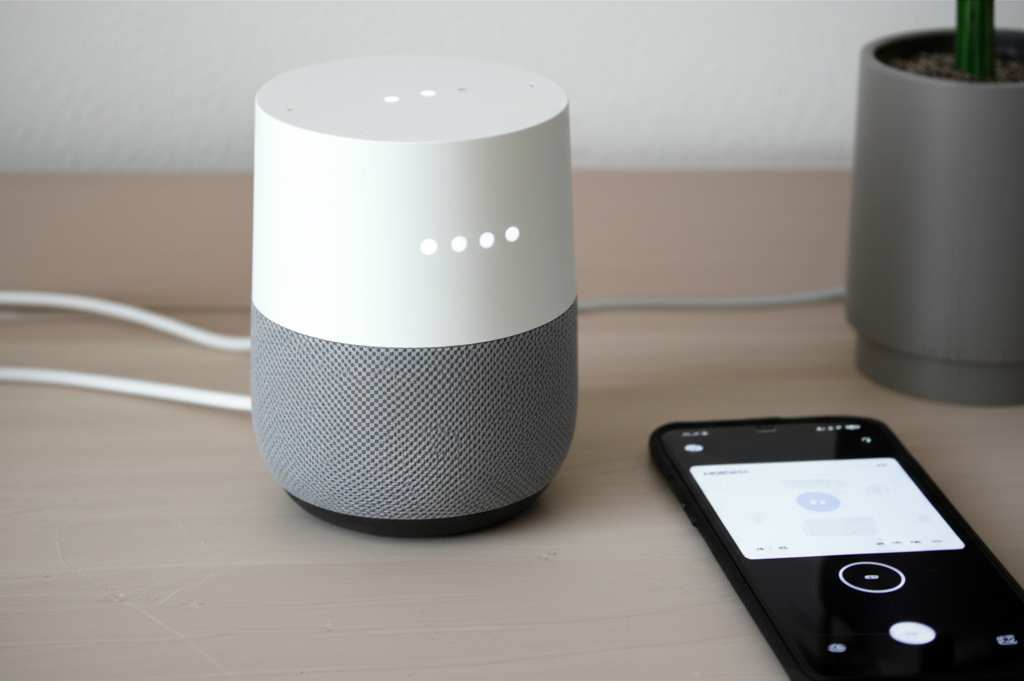
So, why bother with Bluetooth when your Google speaker is already so smart? It’s a great question! Bluetooth is like a secret handshake for devices. It lets them talk to each other wirelessly over short distances. This is super handy because it opens up a whole new world of audio possibilities for your Google speaker.
Imagine you have a new podcast app on your phone that your Google speaker doesn’t directly support yet. Bluetooth to the rescue! You can stream that podcast straight from your phone to your speaker. Or perhaps you want to play a game on your tablet and have the awesome sound come out of your Google speaker for a more immersive experience. Bluetooth makes all of this happen, effortlessly.
It’s all about giving you more freedom and options for how you enjoy your sound. Plus, it’s a fantastic way to connect devices that might not be on the same Wi-Fi network. We’ll get into the nitty-gritty of how it works and how to do it yourself in just a moment.
Getting Your Google Speaker Ready for Action
Before we start pairing, let’s make sure your Google speaker is all set. The most important thing is that it’s powered on and connected to your Wi-Fi network. This is how it usually gets its smarts and receives commands. If it’s brand new, you’ll want to set it up using the Google Home app on your smartphone or tablet first.
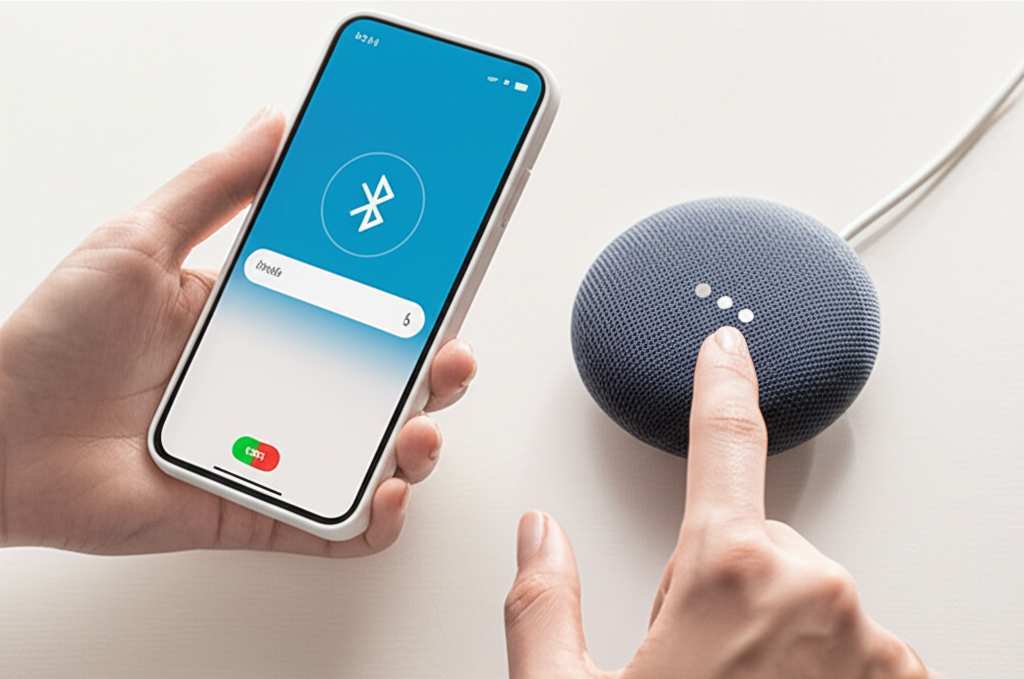
This setup process is usually pretty straightforward. The Google Home app guides you through connecting the speaker to your Wi-Fi and linking it to your Google account. Once that’s done, your speaker is ready for its next adventure: Bluetooth pairing! If you haven’t done the initial setup yet, I highly recommend checking out the official Google Nest Help page for detailed instructions. They have great visuals to guide you through that first crucial step.
Let’s Talk About Bluetooth Pairing: The Basics
Connecting your Google speaker to Bluetooth is like introducing two friends. You need to make sure they can find each other and agree to connect. Your Google speaker, whether it’s a Google Nest Mini, Google Home, or Google Home Max, has a built-in Bluetooth radio. Your phone, tablet, or even some laptops also have this.
When you put your Google speaker into Bluetooth pairing mode, it essentially says, “Hey, I’m ready to meet someone new!” Your phone or other device then scans for available Bluetooth signals. Once it spots your speaker, you confirm the connection on both devices. It’s a pretty neat process that happens behind the scenes.
A fun fact about Bluetooth: it uses radio waves in the 2.4 GHz ISM band, which is the same band used by Wi-Fi and microwaves! But don’t worry, it’s designed to work without causing too much interference. It’s all about efficient communication.
Step-by-Step: How to Connect Google Speaker to Bluetooth
Okay, ready to get down to business? This is the part where we make the magic happen. We’ll go through the steps together, and you’ll see just how simple it is. Remember, the exact wording might differ slightly depending on your Google speaker model and the app version, but the core steps are always the same.
Step 1: Open the Google Home App
First things first, grab your smartphone or tablet. Make sure you have the Google Home app installed and that you’re logged into the same Google account you used to set up your speaker. This app is your command center for all things Google Home and Nest.
If you don’t have the app yet, you can download it for free from the App Store (for iOS devices) or Google Play Store (for Android devices). Once it’s open, you should see a list of your connected devices.
Step 2: Select Your Google Speaker
In the Google Home app, find the Google speaker you want to connect to Bluetooth. It might be named something like “Living Room Speaker” or “Bedroom Nest Mini.” Tap on its icon. This will take you to the device’s settings page.
Here, you’ll see all sorts of options for controlling your speaker, like adjusting volume, checking its status, and managing its settings. It’s like the speaker’s personal dashboard.
Step 3: Find the Bluetooth Settings
On the device settings page, look for an option related to “Audio,” “Settings,” or sometimes a gear icon (which usually means settings). Tap on that. Within the settings menu, you should see an option for “Bluetooth” or “Paired devices.”
This is where we tell the speaker to get ready to pair. It’s often tucked away neatly, so don’t be surprised if it’s not the very first thing you see.
Step 4: Put Your Speaker in Pairing Mode
Once you’ve found the Bluetooth settings, you’ll usually see an option to “Pair Bluetooth device” or “Enable pairing mode.” Tap this. Your Google speaker will then enter a discoverable mode.
You might hear a little chime or sound from your speaker indicating it’s ready to connect. The app might also show a message saying it’s in pairing mode. This is its way of saying, “Come on in, the water’s fine!”
Step 5: Open Your Phone’s Bluetooth Settings
Now, switch over to your phone or tablet’s Bluetooth settings. You can usually find this in your device’s main Settings app, under a section called “Bluetooth” or “Connections.” Make sure Bluetooth is turned ON.
Your phone will start scanning for nearby Bluetooth devices. Give it a moment. You should see a list of available devices pop up.
Step 6: Select Your Google Speaker from the List
Look for the name of your Google speaker in the list of available Bluetooth devices on your phone. It should appear as its model name or the name you gave it during setup. Tap on it to initiate the connection.
Sometimes, you might see a confirmation prompt on both your phone and your speaker. Just follow the on-screen instructions to confirm the pairing. This is the final handshake!
Step 7: Confirm the Connection
Once you’ve tapped to connect, your devices will try to pair. If successful, you’ll usually hear a confirmation sound from your Google speaker, and your phone will show the speaker as a connected device.
Your Google speaker is now connected via Bluetooth! You can start streaming audio from any app on your phone or tablet directly to your speaker. Pretty cool, right?
Troubleshooting Common Bluetooth Connection Issues
Sometimes, even with the best intentions, things don’t connect perfectly the first time. Don’t get discouraged! Most Bluetooth issues are pretty easy to fix. Here are a few common problems and their simple solutions.
Speaker not showing up: Make sure your speaker is still in pairing mode. Sometimes, it times out after a few minutes. Try re-enabling pairing mode in the Google Home app. Also, ensure your phone’s Bluetooth is on and that you’re close enough to the speaker.
Connection failed: Try turning Bluetooth off and then back on again on your phone. You can also try restarting your Google speaker by unplugging it for about 10 seconds and plugging it back in. This often clears up temporary glitches.
Audio cutting out: This can happen if you’re too far from the speaker or if there’s a lot of interference. Try moving your phone closer to the speaker. Also, try to minimize other wireless devices that might be causing interference, like microwaves or other Bluetooth gadgets.
Cannot find the Bluetooth option in Google Home app: Ensure your Google speaker is running the latest software updates. Sometimes, a new feature like improved Bluetooth handling is rolled out via an update. The app usually prompts you if an update is available.
A good rule of thumb for Bluetooth is to keep your devices within about 30 feet (10 meters) of each other for a stable connection. This range can be reduced by walls or other obstacles.
Advanced Tips for a Better Bluetooth Experience
Once you’ve got the basics down, there are a few extra tricks to make your Bluetooth experience even smoother. These little tips can save you time and frustration.
Set a Default Bluetooth Device: Some Google speakers allow you to set a preferred Bluetooth device. This means if you often connect your phone, you can set it so your speaker automatically tries to connect to your phone when it’s in range and Bluetooth is on. Check your Google Home app for this setting.
Unpair Old Devices: If you’ve connected your speaker to many different phones or tablets, it might get confused. In the Google Home app’s Bluetooth settings, you can usually see a list of paired devices. You can “forget” or unpair devices you no longer use to keep things tidy.
Use Voice Commands: Once paired, you can often use voice commands! For example, you might be able to say, “Hey Google, disconnect Bluetooth,” or “Hey Google, connect to my phone.” Experiment with what your speaker supports.
Check for Software Updates: Google regularly updates its speakers and the Google Home app. These updates often include performance improvements and bug fixes for Bluetooth connectivity. Always make sure your app and speaker firmware are up to date.
Comparing Google Speaker Models and Their Bluetooth Capabilities
Google offers a range of smart speakers, and while most share core functionalities, there can be slight differences in their Bluetooth features or sound quality. Understanding these can help you choose the right one for your needs.
Here’s a quick look at some popular models and what to expect regarding Bluetooth:
| Speaker Model | Bluetooth Version | Key Bluetooth Feature | Typical Use Case |
|---|---|---|---|
| Google Nest Mini (2nd Gen) | 5.0 | Standard audio streaming, voice control | Great for small rooms, bedside tables, or as a starter smart speaker. |
| Google Nest Audio | 5.0 | Enhanced audio streaming, stereo pairing with another Nest Audio | Ideal for living rooms or larger spaces where better sound quality is desired. |
| Google Home Max | 4.2 | High-fidelity audio streaming, robust sound | For audiophiles or those who want powerful sound for parties or immersive media. |
As you can see, most recent Google speakers use Bluetooth 5.0. This version offers better range, faster speeds, and improved power efficiency compared to older versions. The Google Home Max, being an older model, uses Bluetooth 4.2, which is still perfectly capable for audio streaming but might not offer the same efficiency as 5.0.
When you pair via Bluetooth, your phone or tablet acts as the audio source. This means the quality of the sound you hear is heavily dependent on the audio file you’re playing and your phone’s audio processing. However, the speaker itself plays a big role in how that sound is reproduced. A speaker like the Nest Audio or Home Max will naturally deliver a richer, fuller sound than a smaller Nest Mini.
Fun Facts About Smart Speakers and Sound
Did you know that smart speakers are evolving at an incredible pace? The technology inside them is getting smaller, smarter, and more powerful every year. For example, many modern smart speakers, including Google’s, use advanced algorithms to process sound and adapt it to the room they’re in. This is called room-filling sound, and it helps your music sound great no matter where you place the speaker.
Another interesting tidbit: Bluetooth technology has been around for a while, with the first version released in 1999! It was named after a Viking king, Harald Bluetooth, known for uniting Danish tribes. Just like Harald united tribes, Bluetooth unites our devices. Pretty cool historical connection for something we use every day!
Frequently Asked Questions (FAQ)
Here are some common questions beginners have about connecting their Google speaker to Bluetooth.
Can I connect my Google speaker to my TV via Bluetooth?
Most Google speakers do not support connecting to a TV via Bluetooth to act as the TV’s audio output. They are primarily designed to stream audio from phones, tablets, and computers. For TV audio, you might need a soundbar or a speaker system specifically designed for that purpose.
Do I need Wi-Fi to use Bluetooth on my Google speaker?
Yes, you generally need Wi-Fi for the initial setup and for your Google speaker to function as a smart assistant. However, once it’s set up and paired via Bluetooth, you can stream audio from your phone without an active internet connection on your phone, as long as the speaker itself is connected to Wi-Fi.
How do I disconnect my phone from my Google speaker’s Bluetooth?
You can disconnect by going into your phone’s Bluetooth settings and tapping “Disconnect” next to your speaker’s name. Alternatively, you can usually disable Bluetooth on your phone, or in the Google Home app, go to the speaker’s Bluetooth settings and select “Disconnect” or “Disable pairing.”
Can I use my Google speaker for phone calls via Bluetooth?
While some smart speakers support this, most Google speakers are not designed to function as a hands-free device for phone calls. They are optimized for audio playback and voice commands. You’ll typically need to take calls on your phone.
What if my Google speaker won’t enter pairing mode?
Try restarting the speaker by unplugging it for about 30 seconds and plugging it back in. Also, ensure you are using the Google Home app correctly to initiate pairing mode. If problems persist, check for Google Home app updates or consult Google’s support pages.
Can I connect multiple phones to my Google speaker via Bluetooth at the same time?
No, most Google speakers can only maintain an active Bluetooth connection with one device at a time. If another device tries to connect, you may need to disconnect the current device first.
* Is Bluetooth audio quality as good as Wi-Fi streaming?
For general listening, Bluetooth audio is excellent. However, for the absolute highest fidelity audio, streaming over Wi-Fi (like through Chromecast built-in for compatible services) can sometimes offer slightly better quality and stability, especially for very high-resolution audio files.
Wrapping It Up: Your Sound, Your Way!
See? Connecting your Google speaker to Bluetooth is totally doable and opens up so many fun ways to enjoy your favorite sounds. You’ve learned how to get your speaker ready, put it in pairing mode, and link it up with your phone or tablet. We even covered some handy tips to keep things running smoothly and answered some of those burning questions.
Now you can stream podcasts from that niche app, play music from any source, or even get that game audio booming from your smart speaker. It’s all about making your tech work for you, and Bluetooth is a fantastic tool to achieve that. Don’t be afraid to experiment and explore all the ways you can use your connected devices.
Go ahead, try it out! You’ve got this. Now go enjoy amazing sound and make every moment louder and better!