
Elevate your karaoke nights by seamlessly connecting your Bluetooth sound box! This guide walks you through pairing your device, troubleshooting common issues, and optimizing your setup for maximum singing fun. Get ready to hit those high notes with crystal-clear audio.
Get ready to belt out your favorite tunes because we’re diving deep into how to connect your Bluetooth sound box for an epic karaoke night! Forget tangled wires and complicated setups. With the magic of Bluetooth, you can create a portable, powerful karaoke station anywhere. Whether you’re a seasoned performer or just love singing in the shower (or living room!), having a reliable sound system is key. This guide will make connecting your Bluetooth sound box as easy as hitting play.
Imagine this: you’ve got your song list ready, your friends are gathered, and the only thing missing is the booming sound to match your incredible vocals. Connecting your Bluetooth sound box might seem a little daunting if you’re new to it, but trust me, it’s simpler than you think. We’ll cover everything from the initial pairing process to making sure your sound is absolutely perfect for a night of unforgettable singing. So, grab your microphone (or just use your voice!), and let’s get this party started!
Key Takeaways
- Understand Pairing Basics: Most Bluetooth sound boxes and source devices (phones, tablets) have a straightforward pairing process involving putting the speaker in discoverable mode and selecting it on your source device.
- Check Compatibility: Ensure your source device (smartphone, tablet, laptop) supports Bluetooth and that your Bluetooth sound box is compatible with it.
- Troubleshoot Connection Issues: If pairing fails, try restarting both devices, forgetting the speaker on your source device and re-pairing, checking for interference, and ensuring devices are within range.
- Optimize Sound Quality: Proper placement of your sound box and ensuring a strong Bluetooth signal are key to achieving the best audio experience for your karaoke sessions.
- Consider Microphone Integration: Some Bluetooth sound boxes have built-in microphone inputs or can pair with Bluetooth microphones, enhancing the karaoke experience.
📑 Table of Contents
Step 1: Getting Your Bluetooth Sound Box Ready
Before you can even think about singing “Bohemian Rhapsody,” you need to make sure your Bluetooth sound box is primed and ready for action. This involves a few simple checks and preparations.
Charge It Up!
First things first, always ensure your Bluetooth sound box is fully charged. Nothing kills the karaoke vibe faster than your speaker dying mid-chorus. Check the battery indicator, and if it’s low, plug it in using the provided charger. Some speakers can be used while charging, which is a great option if you have a long night of singing planned.
Familiarize Yourself with the Controls
Every Bluetooth sound box is a little different, but they all have some common features. Take a moment to locate the power button, the Bluetooth pairing button, and any volume controls. Knowing where these are will make the connection process much smoother. You’ll often find the Bluetooth button marked with the universal Bluetooth symbol (a stylized “B”).
Locate the Pairing Button
This is the most crucial button for our mission. When you want to connect a new device, you’ll typically need to press and hold this button until the speaker enters “pairing mode.” Often, this is indicated by a flashing light or an audible cue. Some speakers automatically enter pairing mode when turned on for the first time or when no device is already connected. Always consult your speaker’s manual if you’re unsure.
Step 2: Pairing Your Source Device (Phone, Tablet, Laptop)
Now that your sound box is ready, it’s time to connect it to the device that will be playing your karaoke tracks – usually your smartphone, tablet, or laptop.
Enable Bluetooth on Your Source Device
On your smartphone or tablet, navigate to the Settings menu. You’ll find a “Bluetooth” option there. Tap it and make sure the Bluetooth toggle is switched to “On.” For laptops, the process is similar; you’ll find Bluetooth settings within your operating system’s control panel or system preferences. For example, on an iPhone, it’s directly in the Settings app. On Android, it’s usually under “Connections” or “Connected devices.” On Windows, it’s in “Settings” > “Devices” > “Bluetooth & other devices.”
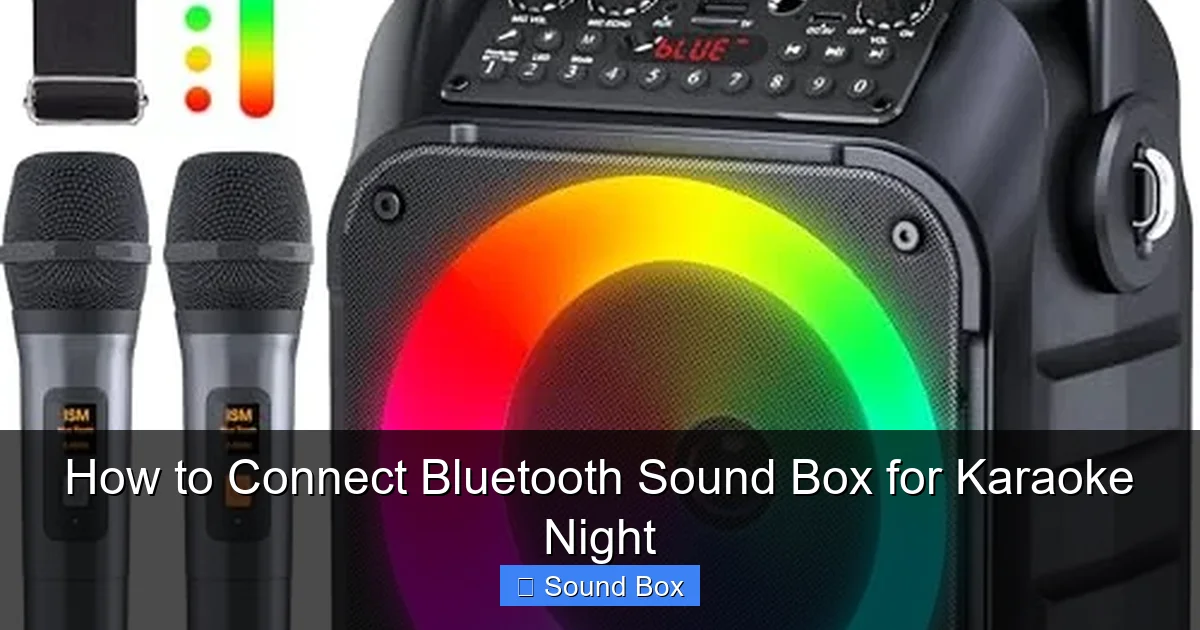
Visual guide about How to Connect Bluetooth Sound Box for Karaoke Night
Image source: m.media-amazon.com
Put Your Sound Box into Pairing Mode
As mentioned, press and hold the Bluetooth pairing button on your sound box until it indicates it’s in pairing mode. This might be a flashing blue light or a distinct sound. This action makes your speaker discoverable by other Bluetooth devices.
Scan for Devices and Connect
Go back to the Bluetooth settings on your source device. You should see a list of available Bluetooth devices. Your sound box should appear in this list, often by its brand name or model number. Tap on your sound box’s name to initiate the connection. You might be prompted to enter a PIN code; if so, it’s usually “0000” or “1234” – check your speaker’s manual if you’re unsure.
Once connected, your source device will usually indicate that the speaker is paired and connected. The flashing light on your sound box should turn solid, and you might hear a confirmation sound. Congratulations, your devices are now linked!
Tip: Connecting an iPhone to a Bluetooth Speaker
Connecting an iPhone to a Bluetooth speaker is a breeze. Just go to Settings > Bluetooth, ensure Bluetooth is on, and your speaker should appear under “Other Devices.” Tap it to pair. This is a common setup for many karaoke enthusiasts, and for more detailed instructions, you can check out our guide on how to connect iPhone to speaker Bluetooth easy guide.
Step 3: Choosing Your Karaoke Platform and Songs
With your sound box connected, it’s time to decide where your karaoke magic will happen. There are many fantastic options available.
YouTube Karaoke Channels
This is arguably the most popular and accessible option. Search for “[Song Title] karaoke” or “[Artist Name] karaoke version” on YouTube. You’ll find countless channels dedicated to providing high-quality karaoke tracks with lyrics displayed on screen. Just hit play on your chosen video, and the audio will stream through your connected Bluetooth sound box.
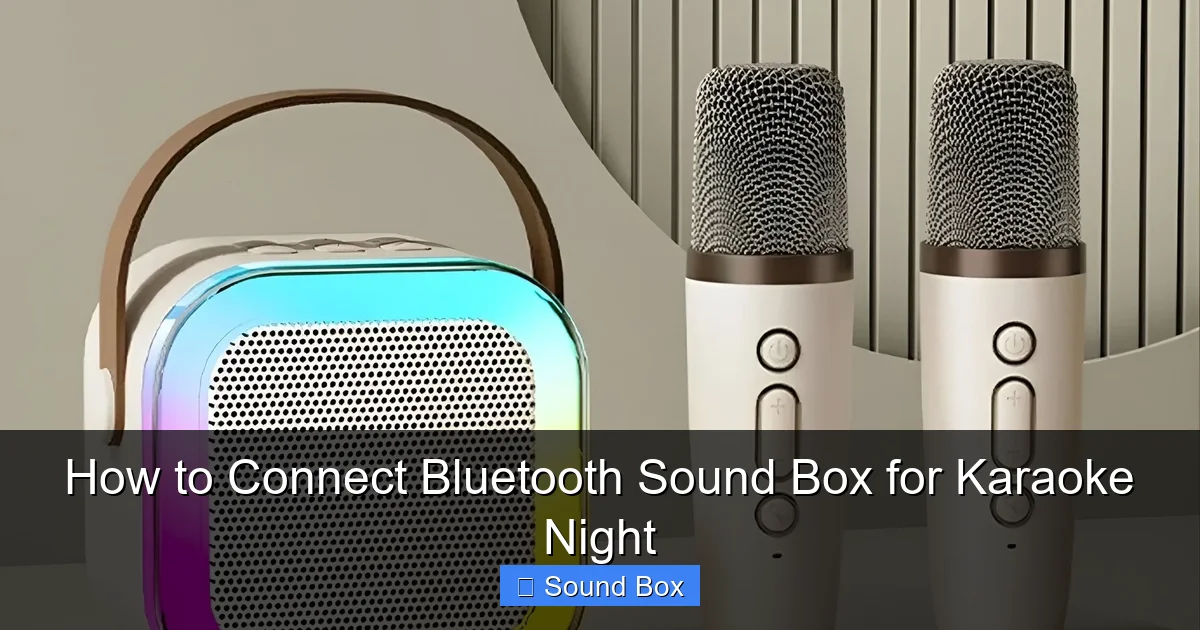
Visual guide about How to Connect Bluetooth Sound Box for Karaoke Night
Image source: samoklikni.com
Dedicated Karaoke Apps
There are numerous apps available for both smartphones and tablets that offer a vast library of songs, often with vocal tracks you can mute, lyrics, and even scoring features. Popular options include Smule, Sing!, and StarMaker. These apps are designed specifically for karaoke and offer a more interactive experience.
Karaoke Software on Laptops
If you’re using a laptop, you can also find karaoke software or utilize online karaoke services. Many of these can stream directly to your connected Bluetooth speaker. If you’re looking to connect your laptop to a Bluetooth speaker, we have a helpful guide on how to connect a Bluetooth speaker to a laptop quick fix.
Local Music Files with Lyrics
Some users prefer to have their karaoke tracks downloaded locally. You can find karaoke versions of songs online and then play them through your device’s music player. Ensure your player can display lyrics or use a separate lyric app for the best experience.
Step 4: Optimizing Sound Quality and Volume
Connecting is just the first step. To truly make your karaoke night shine, you need to ensure the sound is just right.
Placement is Key
Where you place your Bluetooth sound box can significantly impact the audio. Avoid placing it directly in a corner, as this can sometimes lead to excessive bass that muddies the sound. Experiment with different locations. For best results, place the speaker at ear level or slightly above. You might want to check out our tips on how to set up Bluetooth speakers for best sound amazing results for more advanced placement strategies.
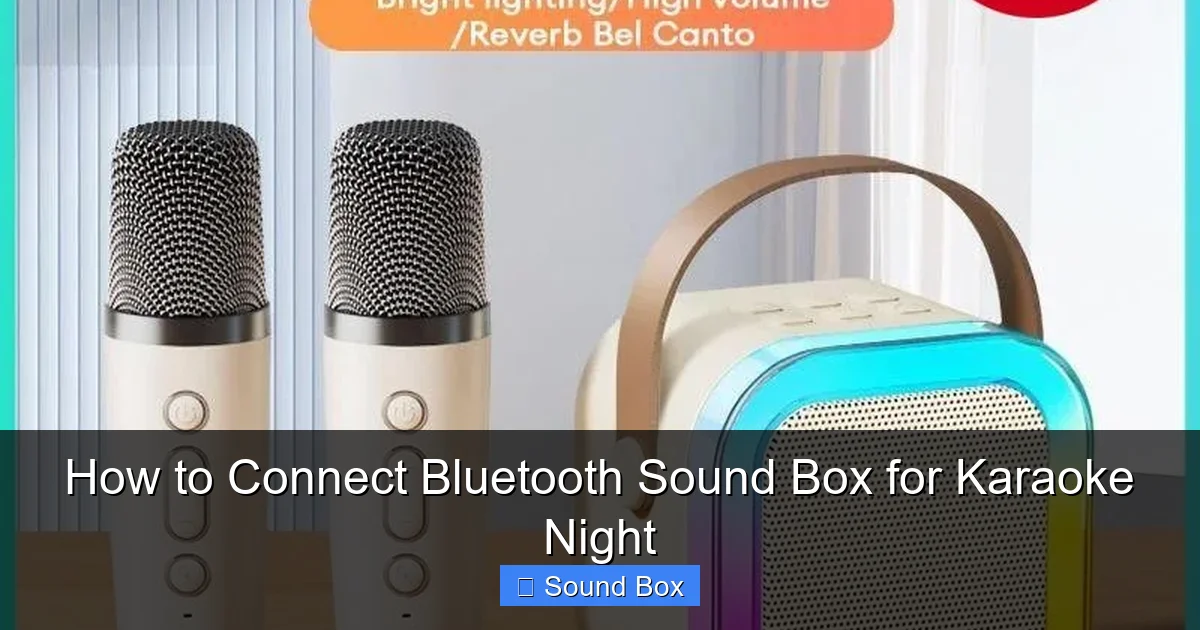
Visual guide about How to Connect Bluetooth Sound Box for Karaoke Night
Image source: down-ph.img.susercontent.com
Mastering Volume Levels
Start with a moderate volume on both your source device and your sound box. Gradually increase the volume until it’s comfortable for singing but loud enough to be immersive. Listen for any distortion or clipping, which indicates the volume is too high. You want a clear, powerful sound, not a harsh, blown-out one. Finding that sweet spot is crucial for a good karaoke experience.
Consider the Microphone Input (If Available)
Some Bluetooth sound boxes come with microphone inputs. If yours does, you can plug in a wired microphone directly for a professional feel. If your sound box doesn’t have a mic input but you want to use a wireless microphone, you might need a separate Bluetooth microphone or a system that allows for multiple Bluetooth connections, though this can sometimes be complex. For a simpler approach, check out how to connect karaoke mic to Bluetooth speaker easy guide for direct speaker integration.
Connecting Multiple Speakers (Optional)
If you have more than one Bluetooth speaker, you might be able to pair them together for a more immersive stereo sound or to fill a larger space. Many modern speakers support pairing with another identical speaker. Some devices and apps also allow you to connect to multiple speakers simultaneously. For instance, if you have two speakers, you might want to learn how to connect two Bluetooth speakers amazing sound to create a more dynamic audio environment for your karaoke party.
Step 5: Troubleshooting Common Connection Issues
Even with the best intentions, you might run into a snag. Don’t worry, most Bluetooth connection problems are easily fixed.
“My Speaker Isn’t Appearing in the List”
Solution: Ensure your sound box is still in pairing mode. If it’s been a while, it might have timed out. Turn it off and on again, then re-activate pairing mode. Also, make sure your source device’s Bluetooth is on and that you’re within range (usually about 30 feet or 10 meters).
“The Devices Paired, But There’s No Sound”
Solution: Check the volume levels on both your source device and your sound box. Make sure the audio output on your source device is set to the Bluetooth speaker. Sometimes, your phone might still be trying to play through its internal speaker. On your iPhone, for example, when playing audio, you can tap the AirPlay icon (a triangle with a circle above it) to select your Bluetooth speaker as the output. Also, try playing a different audio source or app to rule out a specific file or app issue.
“Interference or Choppy Sound”
Solution: Bluetooth signals can be affected by physical obstructions and other wireless devices (like Wi-Fi routers or microwaves). Try moving closer to your sound box, removing any obstacles between your device and the speaker, and turning off other nearby wireless devices temporarily to see if the sound improves. Ensure your sound box is not too far from your source device; for general connection, how to connect Bluetooth speaker easy guide offers basic range considerations.
“My Device Won’t Connect to the Speaker Anymore”
Solution: Try “forgetting” the speaker on your source device. In your Bluetooth settings, find your speaker in the list of paired devices and select the option to forget or unpair it. Then, put the speaker back into pairing mode and try connecting again as if it were a new device. This often resolves persistent connection issues.
Step 6: Enhancing Your Karaoke Experience
Once you’ve mastered the connection, you can focus on making your karaoke nights even more fun and memorable.
Use a Karaoke App with Features
Many karaoke apps offer more than just songs. Look for features like vocal effects, pitch correction, or even duet modes if you’re singing with a friend. These can add a professional polish to your performance.
Lighting and Atmosphere
Don’t forget the ambiance! Dim the lights, get some colorful mood lighting, or even use a disco ball if you’re feeling adventurous. A good atmosphere can really boost the energy and make everyone feel like a star.
Mic Technique (Even Without a Real Mic!)
Even if you’re just using your phone’s mic or singing without one, practice good posture and project your voice. Imagine you have a microphone and sing with confidence!
Have Fun and Be Inclusive!
The most important part of karaoke is having fun. Encourage everyone to participate, no matter their singing skill level. Keep the song choices varied and try to get a good mix of upbeat tunes and ballads. Remember, it’s about creating shared memories and enjoying yourselves.
Connecting your Bluetooth sound box for karaoke night is a fantastic way to bring the party to life. By following these steps, you can ensure a smooth setup, great sound, and a night filled with laughter and music. So go ahead, pick your power ballad, crank up the volume (responsibly!), and let your inner rockstar shine!
Frequently Asked Questions
What is the easiest way to connect a Bluetooth sound box for karaoke?
The easiest way is to ensure both your sound box and your phone or tablet have Bluetooth enabled, put your sound box into pairing mode, and then select it from the list of available devices on your phone or tablet. Most devices will guide you through the process with clear prompts.
Do I need a special app to use my Bluetooth sound box for karaoke?
No, you don’t necessarily need a special app. You can use platforms like YouTube to find karaoke tracks with lyrics. However, dedicated karaoke apps offer more features like song libraries, scoring, and vocal effects, which can enhance the experience.
Can I connect a microphone to a Bluetooth sound box for karaoke?
Some Bluetooth sound boxes have dedicated microphone inputs, allowing you to plug in a wired microphone. Others might support pairing with Bluetooth microphones, but this is less common and depends on the specific model of your sound box and microphone.
What should I do if my Bluetooth sound box won’t connect?
If your sound box won’t connect, try turning both devices off and on again. You can also try “forgetting” the speaker in your device’s Bluetooth settings and re-pairing it. Ensure both devices are charged and within Bluetooth range.
How can I get the best sound quality from my Bluetooth sound box for singing?
To get the best sound, place your sound box at an optimal position, ideally at ear level, and avoid corners. Ensure the volume is at a good level where it’s clear and powerful without distortion. Experiment with different placements to find what sounds best in your room.
Can I connect multiple Bluetooth speakers for a louder karaoke experience?
Yes, many modern Bluetooth sound boxes can be paired with another identical speaker to create a stereo sound or to cover a larger area. You might also find some devices or apps that support connecting to more than one Bluetooth speaker simultaneously for an even more immersive party sound.

