
Yes, you absolutely can connect to more than one Bluetooth speaker! It’s a fantastic way to fill your space with richer sound or create an immersive audio experience for parties, movies, or gaming. Let’s explore how to do it easily.
Hey there, tech adventurers! It’s Max from AffTechy.com, your go-to spot for making technology feel like a breeze. We all love our gadgets, right? Especially those little Bluetooth speakers that bring music, podcasts, and movie soundtracks to life. But have you ever found yourself wishing for just a little more sound, or maybe to spread it out across the room?
I remember staring at my two identical Bluetooth speakers, wondering if they could team up. It felt like a puzzle! Many of us get a bit tangled up in the tech specs, but trust me, getting more than one speaker to play together is way simpler than you might think. It’s like unlocking a secret level for your audio.
We’re going to dive into how you can double up your sound, making your music sound bigger and better. No complicated jargon, just clear steps and friendly advice. Let’s make your sound system amazing, shall we?
Let’s Talk About Doubling Up Your Sound!
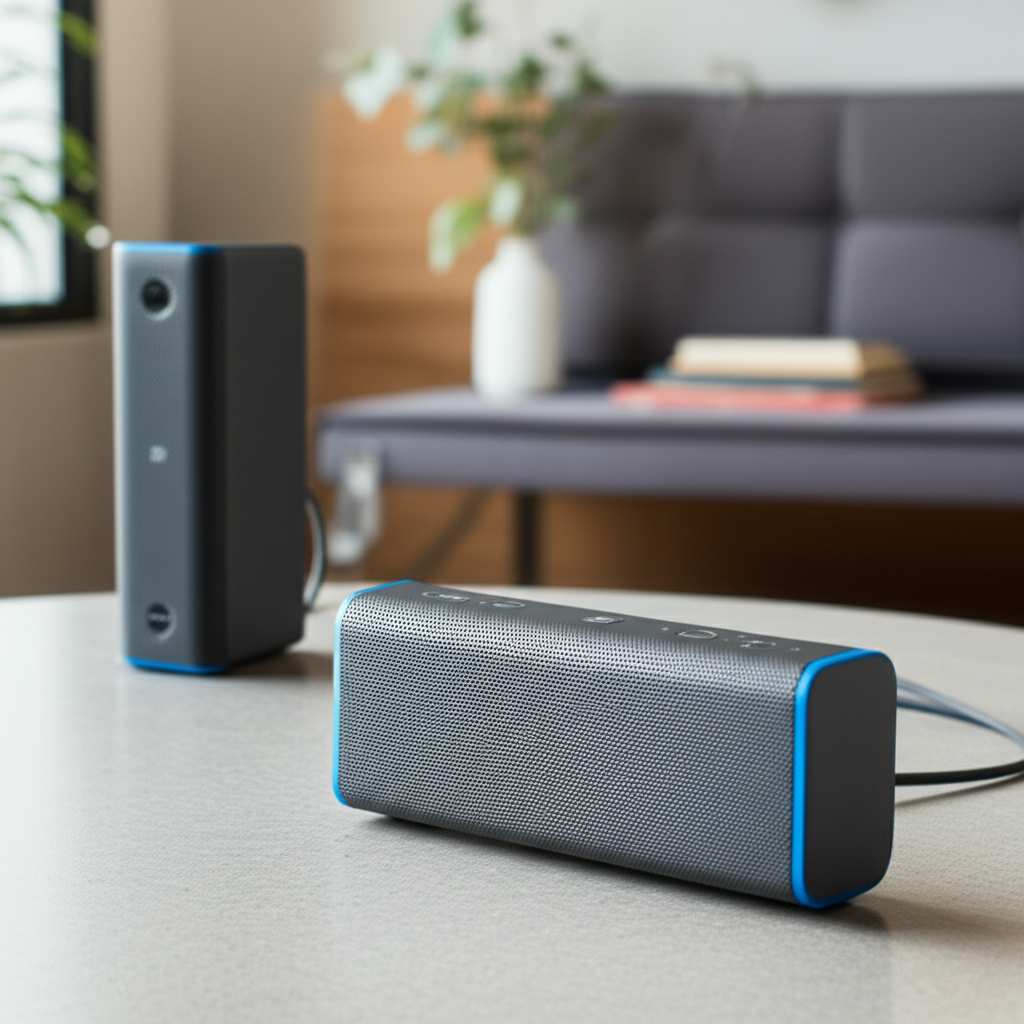
So, can you connect to more than one Bluetooth speaker? The short answer is a big, resounding YES! This is often called “stereo pairing” or “multi-speaker pairing.” It’s like giving your music a superpower boost. Imagine the crisp sound from one speaker, then imagine it coming from two – or even more! It’s a game-changer for parties, movie nights, or just making your favorite tunes fill every corner of your home.
This feature is becoming super common in modern Bluetooth speakers. Manufacturers know we love immersive sound, and they’re making it easier for us to get it. Think of it like having two friends working together to carry a big box; together, they can do a much better job than one alone. Your audio experience gets that same kind of amplified effect!
Why Would You Want More Than One Speaker?
There are tons of reasons why connecting to more than one Bluetooth speaker is a great idea. It’s not just about loudness; it’s about the quality and experience of your sound.
- Better Stereo Sound: Many speakers can pair up to create a true stereo image. This means one speaker handles the left audio channel, and the other handles the right. It makes music sound much richer and more dynamic, just like in a concert hall or a high-end home stereo system.
- Wider Sound Coverage: If you have a large room or an outdoor space, one speaker might not be enough. By syncing multiple speakers, you can spread the sound evenly, ensuring everyone can hear clearly without being too close to a single source.
- Party Power: Hosting a get-together? Multiple speakers can create an amazing atmosphere. You can place them strategically around your space to ensure the music reaches every guest.
- Immersive Gaming and Movies: Want to feel like you’re really in the action? Connecting two speakers can create a more cinematic or gaming experience, making sounds feel like they’re coming from different directions.
- Convenience: Sometimes, you might already have two speakers from different brands, or two identical speakers from a previous purchase. Knowing you can link them up saves you money and gives you a better audio setup without buying new equipment.
Is It Universal? The Brands and Technologies
Here’s where things can get a tiny bit technical, but don’t worry, I’ll make it super simple! Not all Bluetooth speakers can connect to each other. Most of the time, for true stereo pairing, the speakers need to be the same model from the same brand. This is because they use specific technology developed by that brand to sync up perfectly.
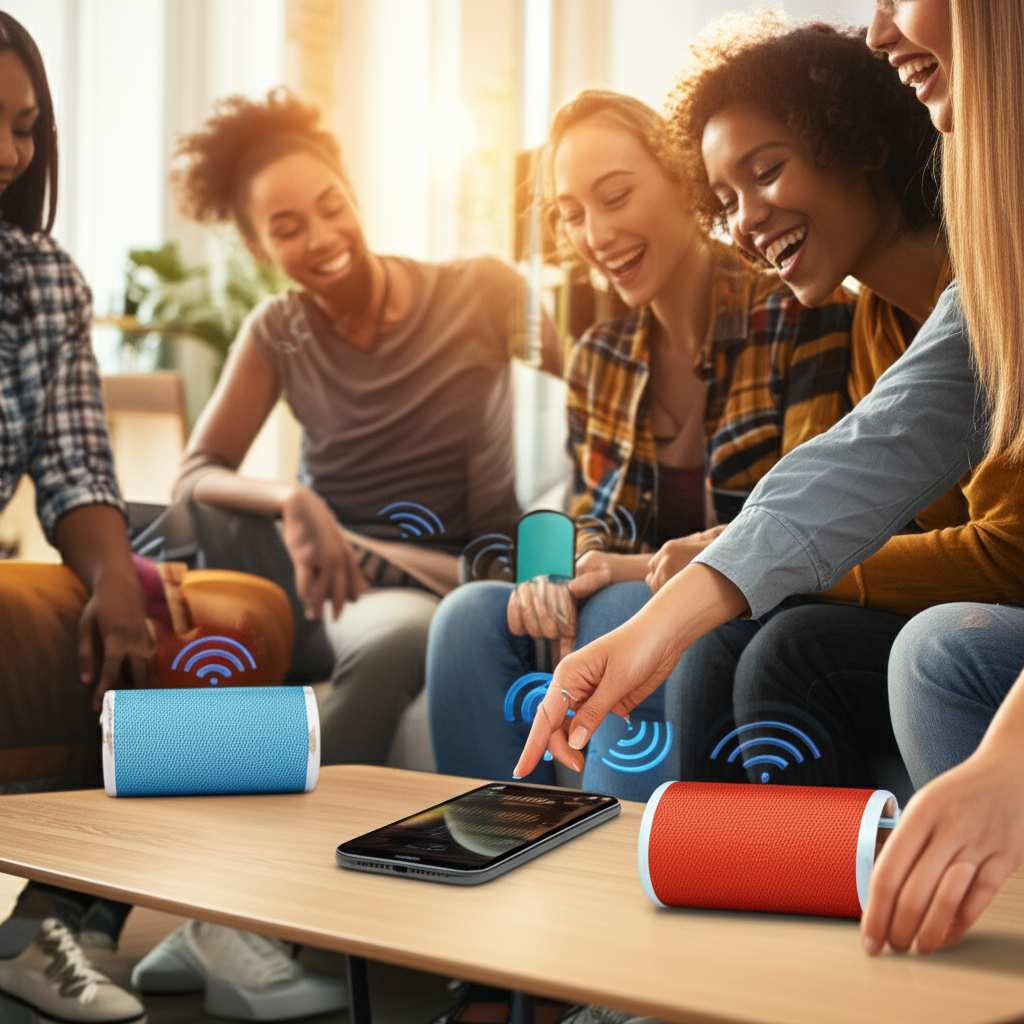
Think of it like needing a specific charger for your phone. While many chargers use USB, they might have different charging speeds or protocols. Similarly, speakers need to speak the same “Bluetooth language” to pair up in a stereo configuration. However, some newer Bluetooth standards, like Bluetooth 5.0 and later, are starting to offer broader multi-speaker support, but it’s still less common than brand-specific solutions.
Key Technologies to Look For:
- Brand-Specific Pairing: Most major brands have their own proprietary pairing technology. For example, JBL has “JBL Connect+” or “PartyBoost,” Bose has “Bose SimpleSync,” and Sony has “Party Chain.” You’ll need two compatible speakers from the same brand to use these.
- True Wireless Stereo (TWS): This is a common term you’ll see. TWS usually means two speakers can pair to act as a left and right stereo pair. Again, this is often brand-specific.
- Bluetooth 5.0+ Standard: While Bluetooth 5.0 itself doesn’t automatically mean multi-speaker pairing, it laid the groundwork for better audio streaming and connection stability, which some manufacturers leverage for their multi-speaker features. Some devices might allow you to connect to two different speakers (not in stereo, but just to play audio simultaneously) using newer Bluetooth versions, but this is less common and might have limitations.
A great resource for checking speaker compatibility is the manufacturer’s website or the product manual. If you’re buying new speakers and want this feature, always check the specs for “stereo pairing” or “multi-speaker connectivity” and ensure both speakers are compatible models.
How to Connect Two Bluetooth Speakers: The Step-by-Step Guide
Alright, let’s get down to business! Connecting two speakers usually follows a similar pattern, though the exact button presses might differ slightly between brands. We’ll cover the general steps. Remember, for the best experience, you’ll typically want two identical speakers.
Step 1: Charge Them Up!
This might sound obvious, but it’s crucial. Make sure both of your Bluetooth speakers have a good amount of battery life. If one dies halfway through your playlist, your amazing sound experience will be cut short!
Step 2: Turn On Both Speakers
Power on both of your Bluetooth speakers. You’ll usually hear a sound or see an indicator light that shows they are on and ready to connect.
Step 3: Connect the FIRST Speaker to Your Device
Pick one of your speakers and connect it to your phone, tablet, or computer via Bluetooth as you normally would. Go into your device’s Bluetooth settings, find the speaker’s name, and select it. Once connected, you should see it listed as an “active” or “connected” device.
Pro Tip: Play some music for a few seconds to ensure the first speaker is working correctly before moving on. This helps you troubleshoot if there’s an issue with the initial connection.
Step 4: Activate the Pairing Mode on the SECOND Speaker
Now, you need to tell your second speaker to look for the first one to pair up. This is where the magic happens. Look for a dedicated pairing button. It might be labeled with a Bluetooth symbol, a “link” icon, or sometimes you have to press and hold the power or volume button for a few seconds.
Consult your speaker’s manual if you’re unsure. Some brands have a specific button for this multi-speaker link. For example, with JBL speakers, you might press and hold the Play button on the second speaker.
Step 5: Initiate the Stereo Link/Pairing
Once the second speaker is in pairing mode, you usually need to press a specific button (or combination of buttons) on one of the speakers (often the first one you connected, or a dedicated link button) to tell them to connect to each other. This process establishes the stereo link.
You should hear a confirmation sound, or see indicator lights change on both speakers, to let you know they have successfully linked. Now, your phone will only show one of the speakers as connected in its Bluetooth menu, but the audio will be sent to both.
Step 6: Test the Sound!
Play your favorite song or podcast. You should now hear audio coming from both speakers! If you paired them in stereo mode, one should be playing the left channel and the other the right. You can test this by listening closely or by moving one speaker further away.
Troubleshooting Tip: If it doesn’t work, try turning off Bluetooth on your device, then turning both speakers off and on again. Repeat the steps, paying close attention to the button presses for pairing the second speaker and linking them.
When Identical Speakers Aren’t an Option: Connecting to Multiple Speakers Simultaneously (Not Stereo)
Okay, what if you have two different speakers, or you just want to play the same music on both without stereo separation? This is a bit less common and depends heavily on your device and the Bluetooth version.
Some smartphones and operating systems have a feature called “Dual Audio” or “Audio Sharing.” This allows your phone to stream audio to two different Bluetooth devices at the same time. However, these two devices usually won’t be in stereo. They will both play the same audio stream.
How to Check for Dual Audio (Samsung Example):
On many Samsung phones, you can find this under Settings > Bluetooth > Advanced. If available, you’ll see an option to enable “Dual Audio” or “Media Sharing.” You can then connect two different Bluetooth speakers, and your phone will send audio to both.
Other Devices: This feature is not as widespread. Some Android versions might offer it, but it’s rare on iPhones (Apple’s AirPlay 2 is their solution for multi-device audio, but it’s Wi-Fi based, not Bluetooth). Always check your phone’s settings or your device manufacturer’s support pages.
Limitations:
- Not Stereo: As mentioned, this is usually not true stereo. Both speakers play the same thing.
- Potential Lag: You might experience a slight delay between the two speakers, which can be noticeable.
- Brand Dependent: This is a feature of your phone or source device, not the speakers themselves.
Speaker Pairing Features Compared
To give you a better idea of how different brands handle this, here’s a look at some popular speaker pairing features. Keep in mind that specific model compatibility is key!
| Brand | Feature Name | How it Works | Requires Identical Speakers? | Stereo Mode? |
|---|---|---|---|---|
| JBL | PartyBoost / Connect+ | Press and hold button on one speaker to link to another compatible speaker. | Yes (usually same model or series) | Yes |
| Bose | Bose SimpleSync™ | Connects compatible Bose speakers or soundbars to each other. | Yes (compatible Bose models) | Yes |
| Sony | Party Chain / Stereo Pairing | Specific button press on one speaker to link to others. | Yes (identical models for Stereo Pair) | Yes (for Stereo Pair) |
| UE (Ultimate Ears) | PartyUp | Connect up to 100+ speakers wirelessly. | Yes (compatible UE models) | No (simultaneous playback, not true stereo) |
| Anker | Soundcore App Pairing | Use the Soundcore app to easily pair two compatible speakers. | Yes (compatible Soundcore models) | Yes |
What does this table tell you? You can see that most brands have their own system. If you have two JBL speakers, you’ll likely use JBL’s PartyBoost. If they are Bose, you’ll look for Bose SimpleSync. The “Requires Identical Speakers?” column is super important – for true stereo sound, you almost always need two of the exact same model or at least from the same compatible series. “Stereo Mode?” tells you if you’ll get that left-and-right channel separation for a more immersive experience.
This makes choosing speakers easier: if you know you want to pair them, stick with one brand and model known for this feature. Sites like CNET often have reviews that mention multi-speaker capabilities!
Tips for the Best Multi-Speaker Experience
Want to make sure your double-speaker setup sounds absolutely fantastic? Here are a few tips:
- Placement is Key: Don’t just plop your speakers down anywhere. For stereo sound, place them roughly equidistant from where you’ll be sitting or standing, forming a V-shape with you at the point. For wider coverage, spread them out across the room.
- Keep Them Close (For Pairing): When you’re first linking the speakers, it’s best to have them relatively close to each other. Once they’re paired, you can move them further apart.
- Check Your Source Device Volume: Ensure your phone or tablet volume is turned up sufficiently before adjusting speaker volumes. Sometimes, low volume on the source can make it seem like the speakers aren’t loud enough.
- Update Firmware: If your speakers have an app (like JBL Connect or Soundcore), check for firmware updates. These updates can improve connectivity and sound performance.
- Avoid Interference: Too many Bluetooth devices or Wi-Fi signals in a small area can sometimes cause interference. If you notice dropouts, try moving away from other wireless devices.
- Consider Power: If you’re using speakers outdoors for an extended period, make sure you have a portable power bank or a way to keep them charged.
A little bit of thought into placement can make a huge difference in how the sound fills your space. It’s like setting up your living room for the best movie view – a little arrangement goes a long way!
Are There Any Downsides?
While connecting multiple Bluetooth speakers is awesome, it’s good to know about potential limitations. It’s not always perfect, but understanding these can help you manage expectations.
- Compatibility Issues: As we’ve discussed, you often need identical speakers from the same brand. Trying to mix and match can lead to frustration.
- Slight Lag: Even with identical speakers, there can be a tiny delay between them, especially if they are very far apart. This is usually unnoticeable for music but might be apparent with dialogue in movies.
- Battery Drain: Running two speakers simultaneously will drain your source device’s battery faster, as it’s constantly transmitting to two devices.
- Complexity: For absolute beginners, the pairing process might seem a little fiddly the first time. But once you do it, it becomes second nature!
- Not Always True Stereo: Some “multi-speaker” features, especially those using your phone’s dual audio, might just play the same audio on both speakers without true left/right separation.
For the most seamless experience, especially for stereo sound, investing in a pair of speakers designed to be linked is the way to go. Brands like TechRadar often highlight speakers with excellent pairing features.
Frequently Asked Questions (FAQ)
Got more questions? No worries, let’s clear them up!
Q1: Can I connect speakers from different brands?
Generally, no, not for true stereo pairing. Most brands require identical speakers from the same brand to link up for stereo sound. Your phone might be able to stream to two different speakers simultaneously using features like Samsung’s Dual Audio, but this isn’t true stereo and depends on your phone.
Q2: Do I need a special app to connect two speakers?
Sometimes, yes! Many brands, like Anker (Soundcore) or UE, use a dedicated app to manage multi-speaker connections. Other brands have a button on the speaker itself. Always check your speaker’s manual or the manufacturer’s website.
Q3: Will connecting two speakers drain my phone battery faster?
Yes, a bit. Your phone’s Bluetooth radio is working harder to maintain connections with two speakers, which uses more power than connecting to just one.
Q4: How far apart can my speakers be?
This varies by brand and Bluetooth version. For the initial pairing, keep them close. Once linked, they can often be 30-50 feet apart (around 10-15 meters) or even more, especially with newer Bluetooth versions. However, very long distances can sometimes lead to audio lag or dropouts.
Q5: What if I only have one speaker that supports pairing?
If only one of your speakers has a linking feature, you can still use it as a single, standalone speaker. The multi-speaker function simply won’t be available. You might still be able to connect it to your phone via Bluetooth as usual.
Q6: Can I connect more than two speakers?
Yes, some brands allow you to connect three, four, or even many more speakers! For example, UE’s PartyUp feature lets you link over 100 compatible speakers. Again, check the specifications of your particular speakers.
Q7: Is there a difference between “stereo pairing” and just playing on two speakers at once?
Absolutely! Stereo pairing means one speaker plays the left audio channel and the other plays the right, creating a true stereo soundstage. Just playing audio on two speakers at once (like through your phone’s dual audio feature) usually means both speakers play the exact same sound, which is great for coverage but lacks the depth of true stereo.
Conclusion: Get Ready for a Louder, Fuller Sound!
So there you have it! Connecting to more than one Bluetooth speaker is totally possible and opens up a whole new world of audio experiences. Whether you’re aiming for that immersive stereo sound for your music or just want to fill your backyard with tunes, you’ve got the knowledge to make it happen.
Remember, the key is usually to have compatible speakers, often from the same brand. But even if your speakers aren’t designed for stereo pairing, your phone might offer ways to play audio on multiple devices simultaneously. Don’t be afraid to experiment and check those manuals!
Now go forth and amplify your audio! You’ve learned how to unlock richer sound, create a more dynamic listening environment, and really make your music and entertainment pop. Enjoy the amazing sound and make every moment louder and better!


