Your Bluetooth speaker keeps dropping connection? Don’t worry! This guide helps you fix it fast. We’ll explore common reasons and easy solutions so you can enjoy uninterrupted music again. Let’s get your speaker playing smoothly!
Hey there, tech explorer! Ever get that frustrating moment when your favorite song suddenly cuts out? Or when your movie sound goes wonky because your Bluetooth speaker decided to take a break? It’s like the music just vanishes mid-beat! I’ve been there, and it’s totally annoying when you’re trying to relax or have fun.
Bluetooth speakers are awesome for wireless freedom. They let you blast tunes by the pool, set the mood for a party, or just enjoy clearer sound for your calls. But when they start acting up, disconnecting and reconnecting like they’re playing tag, it can really ruin the vibe. It feels like magic turning into a mystery!
But guess what? Most of the time, these little glitches have simple fixes. You don’t need to be a tech wizard to solve them. I’m here to walk you through it, step by step. We’ll uncover why this happens and how to get your speaker back to its best. Ready to dive in and make your sound system sing again? Let’s make this easy and fun!

Why Is My Bluetooth Speaker So Fussy? Let’s Find Out!
It’s super common for Bluetooth speakers to lose their connection. Think of Bluetooth like a tiny, invisible radio wave trying to chat between your phone and your speaker. Sometimes, things can get in the way of that chat, making it choppy or causing it to stop altogether. It’s not usually the speaker’s fault, but more about the environment or settings around it.
The good news is that understanding these little roadblocks is the first step to fixing them. We’re going to look at the most common culprits. This way, you’ll know exactly what’s happening and how to stop it. No more sudden silences during your favorite podcast or important call!
The Usual Suspects: What’s Causing the Disconnects?
There are a few common reasons why your Bluetooth speaker might be playing musical chairs with its connection. Let’s break them down:
- Distance: Bluetooth has a range, like any wireless signal. If you move too far from your device, the signal can get weak.
- Obstacles: Walls, furniture, even your own body can block the Bluetooth signal. It’s like trying to talk through a crowded room.
- Interference: Other electronic devices can buzz on the same frequencies. Microwaves, other Bluetooth devices, and even Wi-Fi routers can cause a fuss.
- Low Battery: Sometimes, a speaker running on fumes just can’t maintain a stable connection.
- Outdated Software: Your speaker or the device it’s connected to might need a software update.
- Too Many Devices: Some speakers get confused if too many devices are trying to connect at once.
- Speaker or Device Issues: Occasionally, the speaker itself or your phone/tablet might have a minor glitch.
Step-by-Step Fixes: Get Your Bluetooth Speaker Singing Again!
Okay, let’s roll up our sleeves and tackle these issues. Here are the easy steps to get your speaker connected and staying connected.
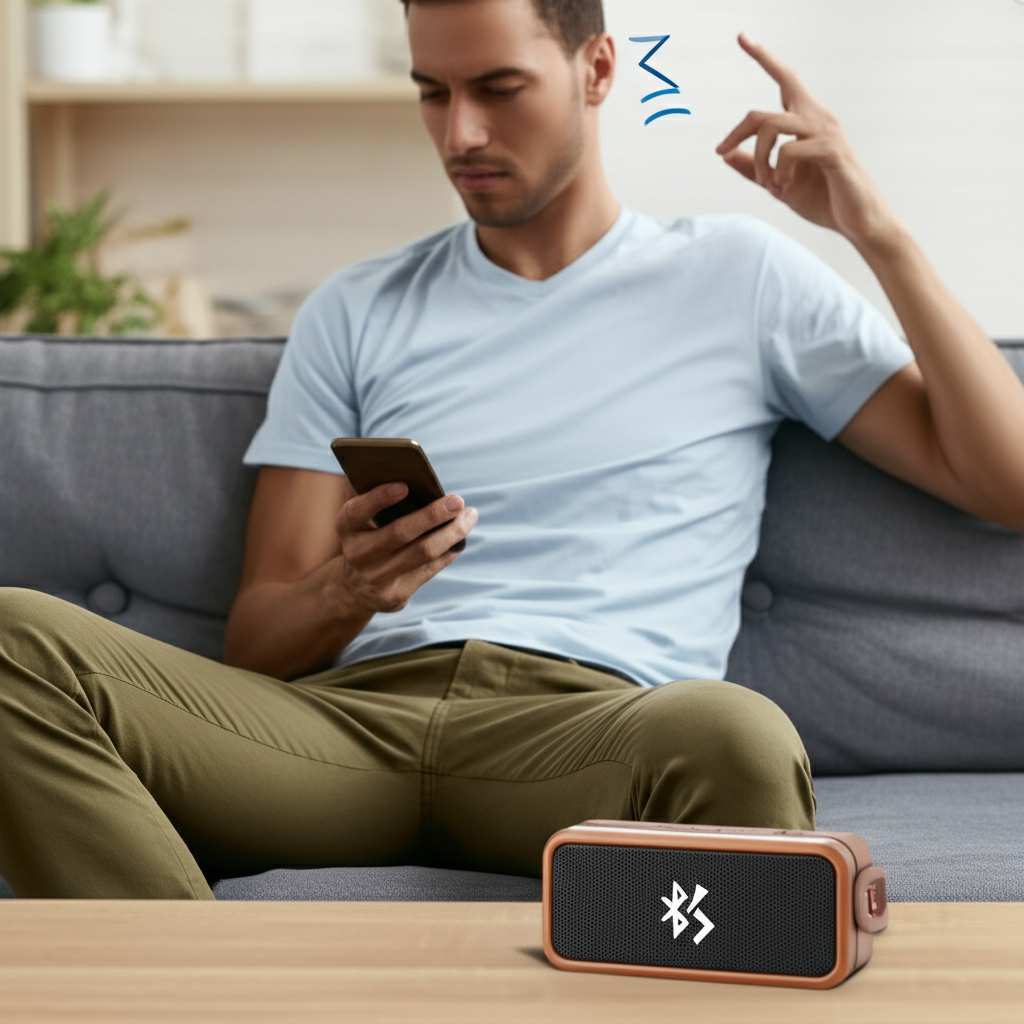
1. Get Closer: The Power of Proximity
This is the simplest fix. Bluetooth has a certain range, usually around 30 feet (10 meters). But this is an ideal, open-space number. In real life, walls and objects shrink that range.
Try this: Move your speaker and your device closer together. Aim for within 10-15 feet (3-5 meters) with nothing in between. See if the connection becomes stable. If it does, you know distance was the main problem!
2. Clear the Path: Remove Obstacles
Imagine trying to shout a message across a room full of furniture. It’s tough, right? The same goes for Bluetooth signals. Thick walls, metal objects, and even bodies can weaken the signal.
Try this: Ensure there’s a clear line of sight between your speaker and your device. Try moving them away from large furniture, thick walls, or appliances like refrigerators. Sometimes, just shifting your phone from your back pocket to your hand can make a difference.
3. Tame the Interference: Find a Quieter Spot
Your home is full of wireless signals. Wi-Fi routers, other Bluetooth gadgets, even microwaves can create “noise” that messes with your speaker’s connection. These devices often operate on similar radio frequencies.
Try this: Move your speaker and connected device away from potential sources of interference. This includes your Wi-Fi router, other wireless speakers, and kitchen appliances. If you’re in a public place, try moving to a different spot where there might be less wireless chatter.
4. Power Up: Check Those Batteries!
A speaker running low on battery might not have enough power to maintain a strong, consistent Bluetooth connection. It’s like trying to run a marathon on an empty stomach!
Try this: Make sure both your Bluetooth speaker and the device you’re connecting from (phone, tablet, etc.) have a good amount of battery life. Charge them up if they’re low. This is a super quick check that often solves the problem.
5. The Magic Reboot: Restart Everything
Sometimes, all technology needs is a fresh start. This clears out any temporary glitches or software hiccups.
Try this:
- Turn off your Bluetooth speaker.
- Turn off Bluetooth on your phone or tablet.
- Wait about 10-15 seconds.
- Turn Bluetooth back on on your device.
- Turn your Bluetooth speaker back on.
- Try reconnecting.
This simple restart can fix a surprising number of connection issues. It’s like giving your devices a mini-reset button.
6. Forget and Re-Pair: A Clean Slate
If restarting doesn’t work, the pairing information between your speaker and device might be corrupted. You can fix this by making them “forget” each other and then pairing them up again.
Try this:
- On your phone or tablet, go to Bluetooth settings.
- Find your speaker in the list of paired devices.
- Tap on it and select “Forget Device,” “Unpair,” or “Remove.”
- Put your Bluetooth speaker into pairing mode (check your speaker’s manual for how to do this – often by holding a button).
- On your device, scan for new Bluetooth devices.
- Select your speaker when it appears and pair them again.
This fresh pairing can often resolve persistent connection problems.
7. Update Your Gear: Keep Software Fresh
Manufacturers often release software updates to improve performance, fix bugs, and enhance connectivity. Outdated software can lead to all sorts of weird issues.
Try this:
- For your speaker: Check the manufacturer’s website or app for any firmware updates for your specific speaker model. Follow their instructions to install them.
- For your device: Go to your phone or tablet’s settings and check for system or operating system updates. Install any available updates.
Keeping your devices up-to-date is crucial for smooth operation. For instance, a recent update for iOS or Android might improve Bluetooth stability.
8. Less is More: Limit Connected Devices
Some Bluetooth speakers can only handle a few active connections at a time. If you have many devices trying to connect or already connected, your speaker might get confused and drop the connection.
Try this:
- Disconnect your speaker from any other devices you’re not currently using.
- On your phone or tablet, temporarily turn off Bluetooth for other devices that are nearby and might be trying to connect.
- Try connecting just your speaker to one primary device.
This helps the speaker focus its connection resources.
9. Check Speaker-Specific Settings
Some advanced Bluetooth speakers have companion apps with settings that can affect connectivity. For example, some might have power-saving modes that could impact connection stability.
Try this: If your speaker has a dedicated app, open it and look for settings related to Bluetooth, power management, or connection stability. Make sure no settings are inadvertently causing your speaker to disconnect.
When It’s Not You, It Might Be Them: Device-Specific Troubleshooting
Sometimes, the problem isn’t with the speaker itself but with the device you’re connecting from. Let’s look at a couple of common scenarios.
Your Phone or Tablet is Being Stubborn
If your speaker works fine with other devices but not yours, the issue is likely with your phone or tablet. Besides the reboot and re-pair steps we already covered, here are a few more things to try:
- Clear Bluetooth Cache (Android): On Android devices, you can sometimes clear the Bluetooth cache. Go to Settings > Apps > Show System Apps > Bluetooth > Storage > Clear Cache. This can fix corrupted Bluetooth data.
- Reset Network Settings: This is a more drastic step that will reset all your network settings (Wi-Fi, Bluetooth, cellular data). On iOS, go to Settings > General > Transfer or Reset iPhone > Reset > Reset Network Settings. On Android, it’s usually in Settings > System > Reset options > Reset Wi-Fi, mobile & Bluetooth.
Your Computer is the Culprit
Computers, especially laptops, can sometimes have more complex Bluetooth drivers or settings that cause issues.
- Check Bluetooth Drivers: Ensure your computer’s Bluetooth drivers are up-to-date. You can usually do this through your computer’s device manager or the manufacturer’s support website.
- Disable Bluetooth Power Management: Sometimes, Windows tries to save power by turning off Bluetooth devices. Go to Device Manager, find your Bluetooth adapter, right-click, select Properties, go to the Power Management tab, and uncheck “Allow the computer to turn off this device to save power.”
Understanding Bluetooth Versions and Your Speaker
Did you know that Bluetooth technology has evolved over the years? Different versions offer different capabilities, like better range, faster speeds, and more stable connections. Your speaker and your device might be using different Bluetooth versions, which can sometimes affect performance.
Here’s a quick look at some common Bluetooth versions and their typical range:
| Bluetooth Version | Typical Range (Open Air) | Key Improvements |
|---|---|---|
| Bluetooth 4.0 | ~30 meters (100 feet) | Introduced Bluetooth Low Energy (BLE) for better power efficiency. |
| Bluetooth 4.2 | ~30 meters (100 feet) | Improved security and speed over 4.0. |
| Bluetooth 5.0 | ~240 meters (800 feet) | Significantly increased range, speed, and broadcast capacity. |
| Bluetooth 5.1 | ~240 meters (800 feet) | Added direction finding for improved location services. |
| Bluetooth 5.2 | ~240 meters (800 feet) | Enhanced audio quality and power efficiency, especially for LE Audio. |
| Bluetooth 5.3 | ~240 meters (800 feet) | Further improvements in connection reliability and efficiency. |
Why this matters: If your speaker uses Bluetooth 5.0 or later, and your phone also supports it, you should generally experience a more robust and longer-range connection compared to older versions. If you have an older device and a newer speaker, or vice-versa, it might connect using the older, less capable standard. Always check your device and speaker specs!
When to Consider a New Speaker (or Device!)
If you’ve tried all the troubleshooting steps and your speaker still keeps disconnecting, it might be time to consider if the speaker itself is faulty. Technology doesn’t last forever, and sometimes a component can fail.
Also, if your device is quite old and only supports an older version of Bluetooth (like 3.0 or earlier), it might struggle to maintain a stable connection with newer speakers, or you might not get the best performance. In that case, upgrading your phone or tablet could solve the problem and unlock better audio experiences.
Looking for a new speaker? Brands like Bose, JBL, and Sony consistently offer great sound and reliable Bluetooth connectivity. For example, the JBL Charge series is known for its robust build and dependable connection, while Bose offers premium sound quality. Check out reviews on sites like CNET to find one that fits your needs!
Frequently Asked Questions (FAQ)
Q1: Why does my Bluetooth speaker disconnect when I move my phone?
This usually happens because you’ve moved out of the Bluetooth range or an obstacle is blocking the signal. Try keeping your phone and speaker closer, ideally within 10-15 feet, with a clear line of sight.
Q2: Can Wi-Fi interfere with my Bluetooth speaker?
Yes, they can! Both Wi-Fi and Bluetooth often use the 2.4 GHz frequency band. Too many devices trying to use this band at once can cause interference, leading to dropped connections. Try moving your speaker away from your Wi-Fi router or other busy electronic devices.
Q3: My Bluetooth speaker keeps reconnecting on its own. What’s wrong?
This can sometimes happen if the speaker is trying to connect to multiple devices, or if there’s an issue with the pairing data. Try unpairing the speaker from all devices and then re-pairing it with just the one you want to use. Also, ensure both devices have full battery.
Q4: Does a low battery on my phone affect the Bluetooth speaker connection?
Yes, it can! When a device’s battery is very low, it might not have enough power to send a strong, stable Bluetooth signal. Make sure both your phone and your speaker are well-charged for the best connection.
Q5: How do I know if my speaker needs a firmware update?
Check the speaker manufacturer’s website or any companion app they provide. They will usually list available updates for your model. Firmware updates are important for fixing bugs and improving performance, including Bluetooth connectivity.
Q6: Is it better to connect my speaker to my laptop or my phone?
It depends! Newer laptops and phones with modern Bluetooth versions (like 5.0+) will generally offer stable connections. Sometimes, a laptop’s internal Bluetooth might have driver issues, while a phone’s might be more optimized. If one is giving you trouble, try the other!
Q7: My speaker only disconnects when I’m using a specific app. Why?
This is interesting! It could be that the app is a heavy data user and is somehow interfering with the Bluetooth signal, or it might have its own audio processing that conflicts. Try closing other apps running in the background on your device. If the problem persists with that app, it might be an app-specific bug.
Wrapping Up: Enjoying Uninterrupted Sound!
Phew! We’ve covered a lot of ground, haven’t we? From simple distance checks to deeper dives into software updates, you’ve got the tools to tackle those pesky Bluetooth disconnects. Remember, most of the time, it’s just a little hiccup that’s easily fixed.
You’ve learned how to troubleshoot distance issues, interference, battery problems, and even how to give your devices a fresh start with re-pairing. Plus, you now know a bit more about how Bluetooth versions can impact your experience. It’s all about making technology work for you, not against you!
So, the next time your speaker starts acting up, don’t get frustrated. Just run through these steps. You’re now equipped to be your own tech support hero! Go on, try these tips out. You’ll be back to enjoying your music, podcasts, or movies without a single drop. Now go enjoy amazing sound and make every moment louder and better!