Turn your Alexa device into a fantastic Bluetooth speaker in just a few simple steps! Enjoy streaming music, podcasts, and more from any device with this easy and amazing hack.
Hey there, tech explorers! Ever find yourself with a favorite playlist or a must-watch show, but the sound just isn’t cutting it? We’ve all been there. Sometimes, the speakers built into our devices are just… okay. And who wants just ‘okay’ sound when we can have great sound?
You might have a super smart Alexa device, like an Echo Dot or a full-sized Echo, sitting on your shelf. It’s awesome for asking questions, setting timers, or controlling your smart home. But did you know it can do even more? What if I told you that your Alexa can also be your new favorite Bluetooth speaker, letting you play audio from your phone, tablet, or computer with amazing clarity?
It sounds like a big tech secret, right? But trust me, it’s surprisingly simple. We’re going to walk through how to unlock this hidden talent in your Alexa device. No complicated wires or confusing software needed. Just a few easy steps to get your music pumping.
Ready to upgrade your listening experience without buying a new gadget? Let’s dive in and make your Alexa device sing!
Alexa Plus Bluetooth: A Match Made in Tech Heaven
So, why would you even want to turn your Alexa into a Bluetooth speaker? Think about it. You’ve got your phone with all your favorite music, podcasts, or even audiobooks. But maybe your phone’s speaker is a bit tinny, or the volume just doesn’t go high enough. Your Alexa device, on the other hand, is designed to fill a room with sound.
Imagine this: you’re getting ready for a party, and you want to play your ultimate party mix from your phone. Instead of awkwardly holding your phone up or relying on its small speaker, you can just connect it to your Alexa. Boom! Instant party atmosphere. Or maybe you’re watching a movie on your tablet, and the dialogue is hard to hear. Connecting it to Alexa makes everything sound so much richer and clearer.
This little trick is a game-changer because it uses a device you already own in a whole new way. It’s like discovering a secret superpower for your smart speaker. You get better sound, more volume, and a simpler way to enjoy your audio content.
Let’s Talk About Sound: Why Alexa Makes a Great Bluetooth Speaker
Alexa devices, especially the larger Echo models, are built with decent speakers. They’re engineered to pick up your voice commands from across a room, which means they’re designed to produce sound that’s clear and projects well. When you use it as a Bluetooth speaker, you’re tapping into that same audio power, but for your own media.
This is a fantastic way to get more bang for your buck from your existing tech. Instead of needing a separate Bluetooth speaker, your Alexa can pull double duty. It’s smart, it’s helpful, and now, it’s your personal concert hall!
The “Amazing Hack”: Turning Alexa into a Bluetooth Speaker
Okay, the “hack” part sounds a bit dramatic, but really, it’s just using a built-in feature that Alexa has. Amazon designed these devices to be versatile, and Bluetooth connectivity is a key part of that. It’s not really a hack, more like unlocking its full potential!
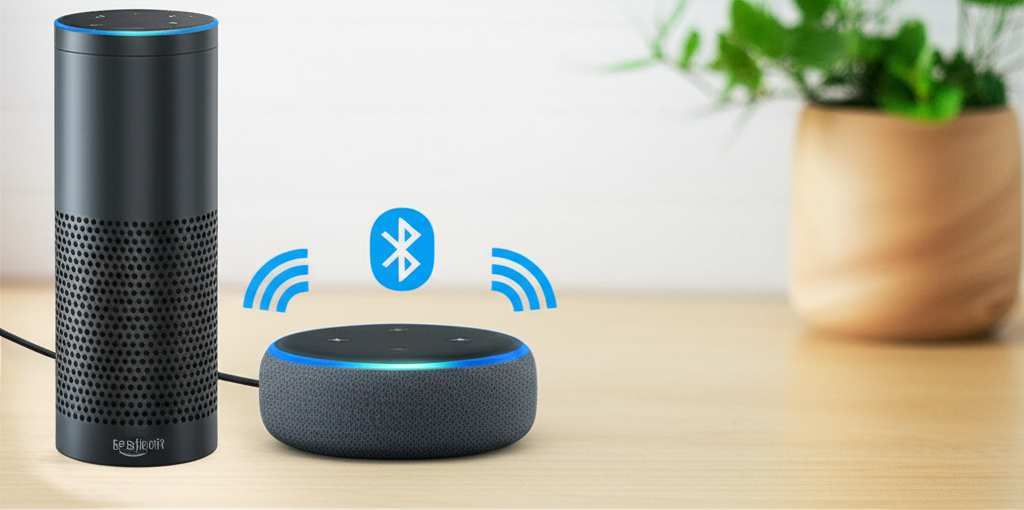
Here’s the magic: you can pair almost any device that has Bluetooth – like your smartphone (iPhone or Android), your tablet, or your laptop – with your Amazon Echo device. Once they’re paired, your Echo will play whatever audio comes from your phone or tablet. It’s like giving your phone or tablet a super-powered sound system.
This is super handy for a few reasons. You can stream music from apps like Spotify, Apple Music, or Amazon Music. You can listen to podcasts without straining your ears. Or you can even enhance the sound for videos and games you play on your tablet.
Step-by-Step: Connecting Your Device to Alexa via Bluetooth
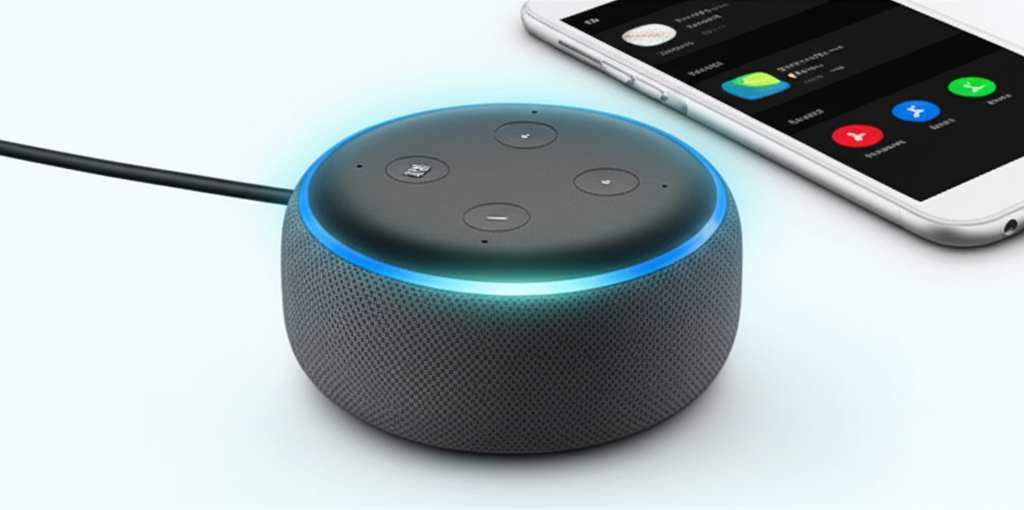
Ready to get this party started? It’s easier than you think. You’ll mainly use the Alexa app on your phone or tablet to set this up.
Here’s what you need to do:
1. Open the Alexa App: Make sure you have the Amazon Alexa app downloaded on your smartphone or tablet. If you don’t have it, you can get it from the Apple App Store or Google Play Store.
2. Go to Devices: In the app, tap on the ‘Devices’ icon. It usually looks like a little house or a set of devices.
3. Select Your Echo Device: You’ll see a list of all your Alexa-enabled devices. Tap on the specific Echo device you want to use as a Bluetooth speaker.
4. Find Settings: On your Echo device’s screen within the app, look for a gear icon or a ‘Settings’ button. Tap on that.
5. Choose Bluetooth: Scroll down in the settings menu until you see ‘Bluetooth’. Tap on it.
6. Pair New Device: Now, you’ll see an option like ‘Pair a New Device’. Select this. Your Alexa will go into pairing mode and start searching for nearby Bluetooth devices. You might hear a sound or see a message indicating it’s ready to pair.
7. Open Bluetooth on Your Phone/Tablet: Go to the Bluetooth settings on your smartphone or tablet. Make sure Bluetooth is turned on.
8. Find Your Echo Device: Your phone or tablet will scan for available Bluetooth devices. You should see your Echo device’s name appear in the list. It might be something like “Echo Dot (Living Room)” or “Amazon Echo.”
9. Connect: Tap on your Echo device’s name in the list on your phone or tablet. You might hear a confirmation sound from your Alexa device, like “Connected to [Your Device Name].”
10. Play Your Audio: That’s it! Now, anything you play on your phone or tablet – music, podcasts, videos – will come out of your Alexa speaker.
It’s really that straightforward! You’ve just turned your smart assistant into a powerful Bluetooth speaker.
Troubleshooting Tips: When Things Don’t Connect
Sometimes, tech can be a little stubborn. If you’re having trouble connecting, don’t worry! Here are a few common fixes:
Restart Everything: The oldest trick in the book! Try turning off Bluetooth on your phone/tablet and turning it back on. Also, try restarting your Echo device by unplugging it for a few seconds and plugging it back in.
Check the Distance: Make sure your phone or tablet is close enough to your Echo device. Bluetooth has a range, usually around 30 feet (10 meters), but walls and other electronics can interfere.
Forget and Re-pair: If your device was connected before and isn’t working, try “forgetting” the Echo device in your phone’s Bluetooth settings. Then, go back through the pairing steps to connect again.
Update the Alexa App: Ensure you have the latest version of the Alexa app installed. Sometimes, updates fix connectivity issues.
Check Alexa’s Connection: In the Alexa app, under the Bluetooth settings for your Echo, it should say “Connected to [Your Device Name]”. If it says “Not Connected,” try the pairing process again.
Switching Back: Using Alexa for Voice Commands Again
The best part about this is that it’s not permanent. You can easily switch back to using Alexa for her regular voice commands.
To disconnect your phone or tablet from Alexa:
1. Use the Alexa App: Go back to the Bluetooth settings for your Echo device in the Alexa app. You should see your connected device listed. Tap on it, and you’ll usually find an option to ‘Disconnect’.
2. Use a Voice Command: You can also tell Alexa to disconnect. Try saying, “Alexa, disconnect Bluetooth.” She should confirm that the connection is broken.
3. Turn Off Bluetooth on Your Device: Simply turning off Bluetooth on your smartphone or tablet will also automatically disconnect it from your Echo.
Once disconnected, Alexa will go back to listening for her wake word and will respond to your voice commands as usual. You can reconnect any time you want to use her as a speaker again!
Alexa vs. Dedicated Bluetooth Speakers: What’s the Difference?
It’s a fair question to ask: how does using Alexa as a Bluetooth speaker compare to a dedicated Bluetooth speaker? Here’s a quick rundown:
Key Differences: Alexa as Bluetooth Speaker vs. Dedicated Bluetooth Speaker
| Feature | Alexa as Bluetooth Speaker | Dedicated Bluetooth Speaker |
| :—————— | :——————————————————- | :—————————————————– |
| Primary Function | Smart assistant with added Bluetooth capability. | Designed solely for wireless audio playback. |
| Sound Quality | Varies by Echo model; generally good for casual listening. | Often superior, with models optimized for bass, clarity, etc. |
| Portability | Requires Wi-Fi and power outlet; not portable. | Often battery-powered, highly portable. |
| Setup | Uses Alexa app; relatively simple. | Usually simple pairing via device’s Bluetooth settings. |
| Cost | Uses existing device; no extra cost if you own Alexa. | Requires purchase of a separate speaker. |
| Extra Features | Smart home control, voice assistant capabilities. | Some offer water resistance, speakerphone, multi-device pairing. |
When you use your Alexa as a Bluetooth speaker, you’re leveraging a device you likely already have. This is fantastic for convenience and saving money. The sound quality is often surprisingly good, especially on the larger Echo models. However, if you’re an audiophile who needs the absolute best sound or wants to take your music to the beach, a dedicated portable Bluetooth speaker might be a better choice.
For everyday listening at home, though, Alexa is a superb option. It’s about maximizing what you already own!
Fun Facts About Bluetooth and Alexa
Did you know Bluetooth technology is named after a Viking king? Harald Bluetooth was famous for uniting Danish tribes, much like Bluetooth technology unites devices. Pretty cool, right?
Amazon Alexa devices also have different audio capabilities depending on the model. For instance, the full-sized Amazon Echo and Echo Studio are known for their richer sound compared to the smaller Echo Dot. So, if you have a larger Echo, you’re in for an even better Bluetooth audio experience!
When to Use Alexa as Your Bluetooth Speaker
This feature is perfect for so many situations! Here are a few ideas:
Morning Music: Wake up and instantly play your favorite morning playlist from your phone on your bedside Echo.
Kitchen Tunes: While cooking, stream recipes or music from your tablet to your kitchen Echo.
Home Office Sound: Connect your laptop to your Echo for clearer conference calls or background music while you work.
Podcast Power: Listen to your favorite podcasts with better volume and clarity than your phone can offer.
Movie Night Upgrade: If your tablet’s speakers are lacking, connect it to your Echo for a more immersive viewing experience.
It’s all about enhancing your everyday audio moments without any extra hassle.
Protecting Your Privacy: A Quick Note
When you pair your device with Alexa via Bluetooth, your audio is streamed to the Echo. However, Alexa’s core voice assistant functionality still requires an internet connection and her own processing. Your Bluetooth audio is handled separately. Amazon has privacy policies in place, and you can manage your voice recordings and other settings within the Alexa app if you wish. Just remember that when your Echo is actively streaming Bluetooth audio, it’s still technically “on” and connected to your Wi-Fi.
Frequently Asked Questions (FAQ)
Got more questions? We’ve got answers!
Can I use any Alexa device as a Bluetooth speaker?
Yes, most Amazon Echo devices can be used as Bluetooth speakers. This includes the Echo Dot, Echo, Echo Show, Echo Studio, and others. The sound quality will vary depending on the specific model.
Does turning Alexa into a Bluetooth speaker use Wi-Fi?
No, the Bluetooth connection itself does not use your Wi-Fi. However, your Alexa device still needs to be connected to Wi-Fi for its smart assistant features to work, and for you to set up the Bluetooth connection via the Alexa app.
Will Alexa still listen for my commands when it’s a Bluetooth speaker?
Yes, Alexa will still listen for her wake word and respond to commands, even when connected to a device via Bluetooth. However, if Alexa is speaking (like an alarm or a response), it might interrupt your Bluetooth audio briefly.
How do I know if my Echo is in Bluetooth pairing mode?
When you select “Pair a New Device” in the Alexa app, your Echo will usually make a sound or the light ring will change color (often blue) to indicate it’s ready to pair. You can also ask, “Alexa, pair Bluetooth.”
Can I connect multiple devices to my Alexa via Bluetooth?
Your Echo device can remember multiple paired devices, but it can typically only be actively connected to one device at a time for audio playback. You’ll need to disconnect one device before connecting another.
What if I want to use my Alexa for both music and smart home control?
That’s the beauty of it! You can stream music from your phone, and still ask Alexa to turn off your smart lights or set a timer. She handles both tasks, though sometimes Alexa’s responses might briefly interrupt your audio.
Is it safe to stream audio to my Alexa device?
Yes, it is safe. The Bluetooth pairing process is secure, and your audio is streamed directly to your device. You can always manage your privacy settings in the Alexa app.
Conclusion: Your Sound, Your Way!
See? Turning your Alexa device into a Bluetooth speaker is a super simple and incredibly useful trick. You’ve learned how to connect your phone, tablet, or computer to your Echo for richer, louder sound. It’s a fantastic way to get more out of the technology you already own.
No more quiet music or muffled dialogue! Now you can enjoy your favorite audio content with the power of your Alexa speaker. It’s all about making technology work for you, making your life a little more fun and a lot more sound-filled.
So go ahead, give it a try! Connect your device, crank up the volume, and enjoy the amazing sound. Now go enjoy amazing sound and make every moment louder and better!