Resetting your QFX Bluetooth speaker is a quick fix for connection issues or glitches. Just hold the power button for 10-15 seconds until it turns off and on again. This simple step often brings your speaker back to life, ready for your favorite tunes!
Hey there, tech explorers! Max here from AffTechy.com. You know, there’s nothing quite like the freedom of wireless sound. Whether you’re blasting your workout playlist, setting the mood for a movie night, or just chilling with some mellow tunes, Bluetooth speakers are awesome companions. They make our lives a little more vibrant, a lot more fun.
But sometimes, even the coolest gadgets can act a bit quirky, right? You might have your trusty QFX speaker, ready to pump out some tunes, but suddenly it’s not connecting, or maybe it’s making weird noises. It can be super frustrating when your sound system decides to take a break!
Don’t worry, though! We’ve all been there, scratching our heads at a gadget that’s not doing what it should. The good news is, most of the time, these little tech hiccups have super simple solutions. And today, we’re diving into one of the easiest fixes for your QFX Bluetooth speaker.
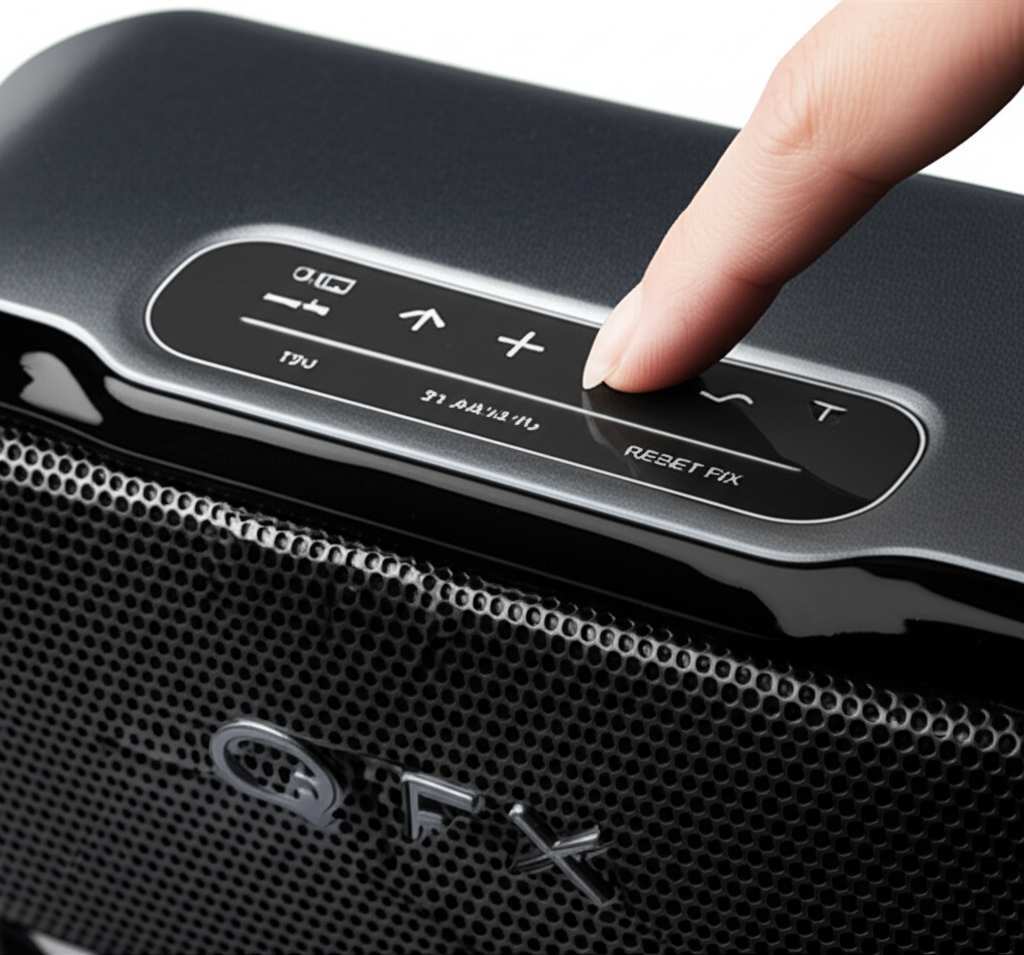
We’re going to walk through exactly how to reset it. Think of it like giving your speaker a quick refresh, a little reboot to get it back on track. It’s a straightforward process, and by the end of this, you’ll feel like a pro at troubleshooting your audio gear. Let’s make this easy and get your music playing again!
Why Would You Need to Reset Your QFX Bluetooth Speaker?
So, why would you even bother hitting that reset button? Well, there are a few common reasons why your QFX speaker might be acting up. Sometimes, it’s just a small glitch in its internal software. This can happen if it’s been on for a long time or if it had trouble connecting to a device.
Think of it like your computer freezing up. You don’t need to buy a new one, right? You just give it a restart. A reset for your speaker is pretty similar. It clears out any temporary confusion the speaker might be having.
Another common reason is when your speaker refuses to pair with a new device, or it keeps trying to connect to an old one it shouldn’t. If your speaker is playing musical chairs with your Bluetooth connections, a reset can help it forget all those past pairings and start fresh. This is super handy if you’re sharing the speaker with friends or switching between your phone and tablet.
Sometimes, the sound quality might suddenly go wonky. Maybe it’s crackling, or the volume is acting strange. While this could be a bigger issue, a reset is always the first and easiest step to try before assuming the worst. It’s like a digital tune-up for your speaker!
Understanding What a Reset Does
When you reset your QFX Bluetooth speaker, you’re essentially telling it to go back to its factory settings. This means it forgets everything it has learned. It forgets all the devices it was paired with before. It also clears any temporary settings or glitches that might have crept in.
It’s important to know that a reset usually won’t delete any firmware updates you might have installed. It’s more about clearing the speaker’s short-term memory. So, it’s a safe process that won’t harm your speaker. It just wipes the slate clean for a fresh start.
After a reset, your speaker will be like a brand-new one, ready to be paired with your devices all over again. You’ll have to go through the initial Bluetooth pairing process, but this is usually a good thing. It ensures a stable and clean connection.
This process is your go-to move for many common Bluetooth speaker problems. It’s quick, it’s easy, and it often solves the issue without needing any special tools or technical know-how. Let’s get to the how-to!
How to Reset Your QFX Bluetooth Speaker: The Step-by-Step Guide
Alright, let’s get down to business! Resetting your QFX Bluetooth speaker is usually super simple. Most QFX models follow a similar pattern, and it mostly involves a button. Here’s how you can do it:
Step 1: Power Off Your Speaker
First things first, make sure your QFX speaker is turned on. You can’t reset it if it’s already off. Once it’s powered on, you’re ready for the next step.
Step 2: Locate the Power Button
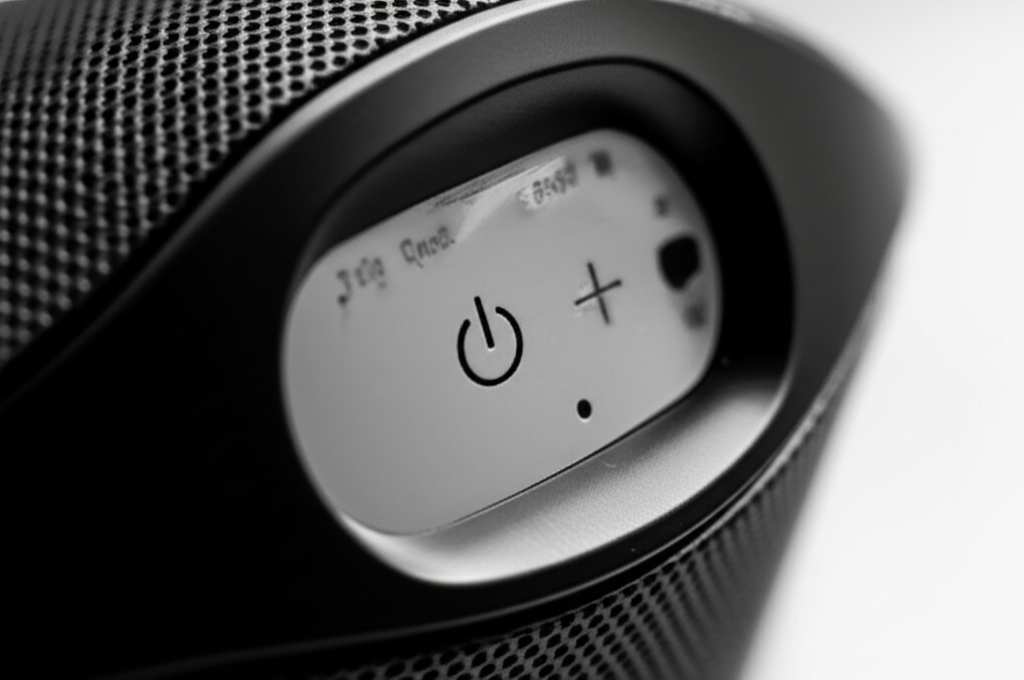
Now, find the power button on your QFX speaker. It’s usually pretty obvious, often marked with a power symbol (a circle with a line in it). On some models, it might be a dedicated button, while on others, it could be part of a multi-function button. Take a peek around your speaker – it’s usually on the top, side, or back.
Step 3: Press and Hold the Power Button
This is the main event! Press and hold down the power button. You’ll need to keep holding it for a specific amount of time. For most QFX Bluetooth speakers, this is typically around 10 to 15 seconds.
Don’t just tap it quickly; you need to hold it down continuously. You might hear a beep, or the lights on the speaker might flash or change color. This is a good sign that the reset process is happening.
Step 4: Release the Power Button
After holding it for about 10-15 seconds, release the power button. The speaker will likely turn off on its own, and then it might power back on automatically. This indicates that the reset has been successful.
Step 5: Power On and Re-Pair
If your speaker didn’t power back on automatically, go ahead and press the power button normally to turn it on. Now, your speaker is reset and ready to be paired with your Bluetooth device.
You’ll need to go into your phone or tablet’s Bluetooth settings, turn Bluetooth on, and scan for new devices. Your QFX speaker should appear in the list of available devices. Select it to pair.
And voilà! Your QFX speaker should now be connected and ready to play your favorite audio. It’s that simple.
Troubleshooting Common Reset Issues
What if it didn’t quite work the first time? Don’t sweat it! Here are a few things to check if your QFX speaker isn’t resetting as expected:
Are you holding the right button? Double-check that you’re pressing the actual power button and not another control.
Did you hold it long enough? Try holding the power button for a little longer, maybe up to 20 seconds, just to be sure.
Is the speaker charged? While unlikely to prevent a reset, a low battery can sometimes cause odd behavior. Make sure it has some charge.
Consult Your Manual: Every QFX model can be a little different. If you have the user manual handy, it’s always the best source for specific instructions for your exact speaker. You can often find these manuals online on the QFX website if you’ve lost yours.
Remember, patience is key! Sometimes, tech just needs a second try.
When a Reset Isn’t Enough: Other QFX Speaker Fixes
If resetting your QFX Bluetooth speaker doesn’t solve the problem, don’t despair! There are a few other things you can try. These are also pretty simple and can often get your speaker back in action.
Check Your Bluetooth Connection
Sometimes, the issue isn’t with the speaker itself but with the device you’re trying to connect.
Turn Bluetooth Off and On: On your phone or tablet, try turning the Bluetooth off completely, waiting a few seconds, and then turning it back on.
Forget the Device: Go into your device’s Bluetooth settings. Find your QFX speaker in the list of paired devices and select the option to “Forget” or “Unpair” it. Then, try pairing it again from scratch.
Check Device Compatibility: Ensure your phone or tablet is compatible with your QFX speaker’s Bluetooth version. Most modern devices work well, but it’s good to be aware.
Restart Your Connecting Device
Just like resetting the speaker, restarting the device you’re connecting from can also clear up temporary software glitches. Power your phone or tablet off completely, wait a moment, and then turn it back on.
Update Your Device’s Software
Sometimes, older operating system versions on your phone or tablet can cause connectivity issues with newer Bluetooth devices. Check if there are any software updates available for your device and install them.
Test with Another Device
To figure out if the problem is with your speaker or your primary device, try connecting your QFX speaker to a different phone, tablet, or computer. If it connects and works fine with another device, the issue likely lies with your original connecting device.
Consider Environmental Factors
Bluetooth signals can be affected by distance and interference.
Get Closer: Make sure your speaker and your device are within the recommended Bluetooth range (usually around 30 feet or 10 meters).
Reduce Interference: Other electronic devices, like microwaves, Wi-Fi routers, or even other Bluetooth devices, can sometimes interfere with the signal. Try moving your speaker away from potential sources of interference.
Check the QFX Support Website
For specific model issues or more advanced troubleshooting, the official QFX support website is a great resource. They often have FAQs, user manuals, and contact information for customer support. You might find helpful articles like those on CNET’s troubleshooting guides.
QFX Bluetooth Speaker Features to Know
QFX offers a range of Bluetooth speakers, and while the reset process is usually similar, understanding some common features can be helpful. Knowing these will make you a more informed user and help you troubleshoot better.
Here are some typical features you might find on QFX speakers:
Bluetooth Connectivity: The core feature! Allows wireless streaming from your devices.
Rechargeable Battery: Lets you take your speaker on the go without needing a plug. Battery life varies greatly by model.
Auxiliary Input (AUX): A port that lets you connect non-Bluetooth devices using a cable. This is a great backup if Bluetooth fails.
USB Port: Some speakers have a USB port for playing music directly from a USB drive or even for charging other devices (power bank function).
MicroSD Card Slot: Similar to a USB port, you can play music directly from a MicroSD card.
Built-in Microphone: Enables hands-free calling if you pair your speaker with your smartphone.
Water Resistance: Some models are designed to withstand splashes or even submersion, making them great for outdoor or poolside use.
TWS (True Wireless Stereo): This allows you to pair two identical QFX speakers together for a stereo sound experience.
Knowing these features can help you utilize your speaker to its full potential and understand why certain connection or playback methods might be available or preferred.
A Quick Look at QFX Speaker Battery Life
One of the most important aspects of a portable Bluetooth speaker is its battery life. Nobody wants their music to die halfway through a party! QFX offers speakers with a wide range of battery performance.
Here’s a general idea of what you might expect. Keep in mind that actual battery life depends heavily on volume, the type of audio being played, and the specific model.
| QFX Speaker Series/Model (Example) | Typical Playtime (Hours) | Charging Time (Hours) | Notes |
|---|---|---|---|
| QFX BT-300 | 4-6 | 2-3 | Compact, budget-friendly model. |
| QFX PB-3000 | 6-8 | 3-4 | Mid-range portable speaker. |
| QFX LBT-90 | 8-12 | 4-5 | Larger, more powerful unit. |
| QFX JUMP-N-GO Series | 10-20+ | 4-6 | Often includes power bank features, larger batteries. |
When you look at battery life, consider how you’ll be using your speaker. If it’s for short listening sessions at home, 4-6 hours might be plenty. But if you’re planning all-day picnics or beach trips, you’ll want to aim for a model with 10 hours or more. Always check the product specifications for the most accurate details. Good battery life means more uninterrupted fun!
QFX Speaker Sound Quality: What to Expect
Sound quality is subjective, but we can talk about general expectations for QFX speakers. As a brand that often focuses on affordability and accessibility, QFX speakers generally offer a decent audio experience for their price point.
What Makes Good Sound?
Clarity: Can you hear vocals and instruments clearly without them sounding muddled?
Bass: Do the low frequencies sound rich and punchy, or are they weak and boomy?
Volume: Can the speaker get loud enough for your needs without distorting?
* Balance: Are the highs, mids, and lows balanced, or does one overpower the others?
For casual listening, podcasts, or background music, most QFX speakers will perform admirably. If you’re an audiophile looking for studio-grade sound, you might need to invest in higher-end brands. However, for everyday enjoyment, QFX speakers provide a solid and accessible audio solution.
For example, smaller QFX models might focus on portability and clear mids for vocals, while larger ones might offer more robust bass for a fuller sound. It’s always a good idea to read reviews for the specific model you’re interested in to get a better sense of its sound profile. Check out reviews on sites like TechRadar for general speaker insights.
Frequently Asked Questions (FAQ)
Got more questions about your QFX Bluetooth speaker? Here are some common ones that beginners often ask.
What does it mean to factory reset my QFX speaker?
A factory reset returns your QFX speaker to its original settings, just like when you first bought it. It erases all previous Bluetooth pairings, custom settings, and any temporary software glitches. It’s a great way to fix connection problems or performance issues.
Will resetting my QFX speaker delete my saved music?
No, resetting your QFX speaker does not delete any music files. Your music is stored on your phone, tablet, or computer, not on the speaker itself. The speaker only plays the audio streamed to it via Bluetooth.
How do I know if my QFX speaker is reset?
Usually, when you reset your QFX speaker, it will either turn off and then back on by itself, or you will hear a distinct sound or see lights flash differently. After the reset, it will no longer be automatically connected to your devices, and you’ll need to pair it again.
Can I reset my QFX speaker if it’s not powering on?
If your QFX speaker isn’t powering on at all, a reset might not be possible or the right solution. First, try charging it for a few hours. If it still won’t turn on, there might be a battery issue or a hardware problem, and you may need to contact QFX customer support.
My QFX speaker won’t pair after resetting. What should I do?
If your QFX speaker won’t pair after a reset, try restarting both your speaker and your phone/tablet. Also, ensure Bluetooth is enabled on your device and that the speaker is in pairing mode (usually indicated by a flashing light). You might also need to “forget” the speaker in your device’s Bluetooth settings and try pairing again.
How often should I reset my QFX Bluetooth speaker?
You don’t need to reset your QFX speaker regularly. Only perform a reset when you encounter specific problems like connection issues, glitches, or unusual behavior. Frequent resetting isn’t necessary and can be a bit of a hassle since you have to re-pair your devices.
Is there a difference in reset methods for different QFX models?
While the core method of holding the power button for 10-15 seconds is common across most QFX models, there can be slight variations. Always refer to your specific QFX speaker’s user manual for the most accurate reset instructions. If you don’t have the manual, a quick search on the QFX website for your model number should provide it.
Wrapping Up: Your QFX Speaker, Good as New!
There you have it, friends! You’ve learned how to give your QFX Bluetooth speaker a quick and easy reset. It’s a simple trick that can solve a whole lot of common audio annoyances. Remember, holding down that power button for about 10 to 15 seconds is your magic key to a fresh start.
We’ve covered why you might need to do this, what exactly happens during a reset, and even what to do if that doesn’t quite fix the problem. You also got a peek at some common QFX features and what to expect regarding battery life and sound quality. You’re now armed with the knowledge to keep your tunes flowing without a hitch!
Don’t be afraid to try these steps. Tech is meant to be enjoyed, and understanding these simple fixes makes it even more fun. So, the next time your QFX speaker is being a bit stubborn, you’ll know exactly what to do.
Now go enjoy amazing sound and make every moment louder and better! Happy listening!