Connect your Serato setup to a Bluetooth speaker easily! This guide shows you the simple steps to get your music playing wirelessly, making parties and practice sessions way more fun.
Hey there, tech adventurer! So, you’ve got your Serato all set up, ready to spin some amazing tunes. But then you think, “Wouldn’t it be awesome to blast this through a cool Bluetooth speaker?” I totally get it! Music sounds so much better when it’s filling the room, not just coming out of tiny computer speakers.
Sometimes, getting your DJ gear to talk to wireless speakers can feel a bit like solving a puzzle. You might have tried a few things, and maybe it didn’t quite work out. Don’t worry, that’s super common! We’ve all been there, staring at blinking lights and wondering what’s going on.
But here’s the good news: it doesn’t have to be complicated. My mission is to make tech feel simple and fun for everyone. We’ll walk through this together, step by step, and you’ll have your Bluetooth speaker singing along with your Serato in no time. It’s easier than you think, and soon you’ll be enjoying your mixes everywhere.
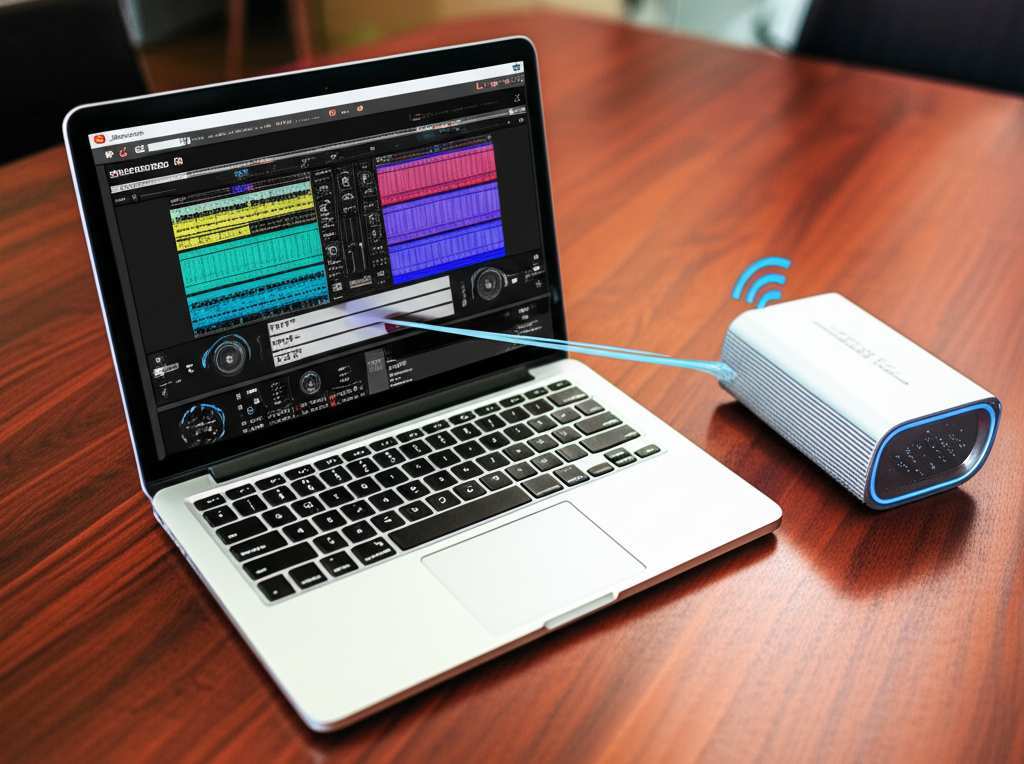
Ready to get this party started wirelessly? Let’s dive in and make some noise!
Why Connect Serato to a Bluetooth Speaker?
Imagine this: you’re practicing your DJ skills in your living room, or maybe you’re at a friend’s place and want to show off a new mix. Having a good speaker makes a huge difference, right? It’s not just about volume; it’s about feeling the bass and hearing every detail.
Bluetooth speakers are fantastic because they’re portable and super easy to use. You can take them to the park, set them up in a different room, or just get rid of those pesky cables. Connecting your Serato setup to one means you can enjoy your music with more freedom and better sound quality, no matter where you are. It’s all about making your DJ experience smoother and more enjoyable.
Understanding the Connection: What You Need
Before we jump into the steps, let’s chat about what makes this whole connection thing work. Serato DJ software itself doesn’t have a built-in Bluetooth transmitter. Think of Serato as the brain, and your DJ controller or sound card as the hands that make the music. A Bluetooth speaker is like a separate ear that needs to receive the sound.
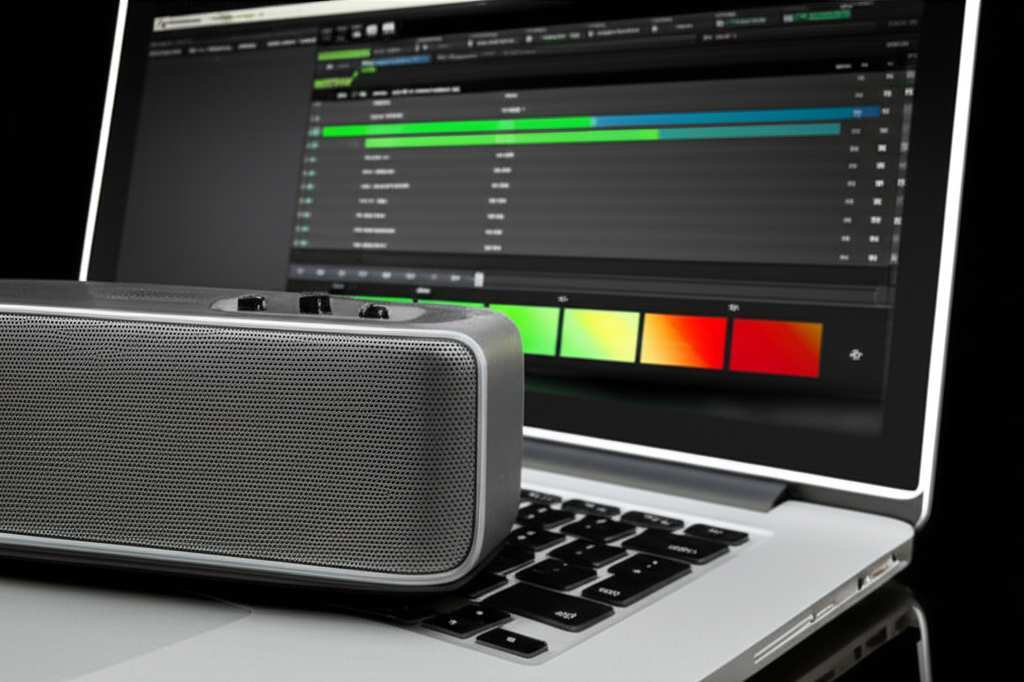
So, how do we get the sound from your Serato setup to that wireless speaker? We need a bridge! This bridge usually involves your computer. Your computer has Bluetooth capabilities, and it’s what will send the audio signal wirelessly. You’ll also need your Serato DJ software running, and your audio output set up correctly.
Your Essential Gear Checklist:
Your Computer: This is where Serato runs and where the Bluetooth connection will happen. Make sure it has Bluetooth enabled.
Serato DJ Software: The latest version is usually best, so check for updates.
A Bluetooth Speaker: Any good quality Bluetooth speaker will do.
Your DJ Controller or Audio Interface (Optional but Recommended): While you can sometimes route audio through your computer’s built-in sound card, using a dedicated DJ controller or audio interface with Serato often gives you better sound quality and more control.
The Basic Idea: Computer is the Key!
Here’s the main secret sauce: your computer is going to be the central hub. Serato sends the audio to your computer, and then your computer’s Bluetooth sends that audio to your speaker. It’s like your computer is the DJ’s assistant, taking the music and broadcasting it wirelessly.
This means the audio quality you get will depend on a few things: how good your computer’s Bluetooth is, the quality of your Bluetooth speaker, and how well your computer handles sending audio wirelessly. For the best experience, especially for serious DJing, a direct connection to speakers or an audio interface is usually preferred. But for casual listening, practice, or parties, Bluetooth is a fantastic option!
Step-by-Step: Connecting Your Serato to a Bluetooth Speaker
Alright, let’s get down to business! Follow these simple steps, and you’ll be grooving to your Serato mixes on your Bluetooth speaker in no time.
Step 1: Get Your Bluetooth Speaker Ready
First things first, turn on your Bluetooth speaker. Make sure it’s charged or plugged in. You want it to be discoverable. Most speakers have a Bluetooth button you need to press to put them in pairing mode. You’ll usually see a blinking light to show it’s ready to connect.
Step 2: Enable Bluetooth on Your Computer
Now, head over to your computer. You need to make sure Bluetooth is turned on.
On Windows: Go to Settings > Devices > Bluetooth & other devices. Toggle the Bluetooth switch to ‘On’.
On Mac: Go to System Preferences > Bluetooth. Click ‘Turn Bluetooth On’.
You should see a Bluetooth icon appear in your taskbar or menu bar.
Step 3: Pair Your Bluetooth Speaker with Your Computer
This is where your computer finds and connects to your speaker.
1. On your computer, in the Bluetooth settings, click ‘Add Bluetooth or other device’ (Windows) or ‘+’ button (Mac).
2. Select ‘Bluetooth’ when prompted.
3. Your computer will start scanning for nearby Bluetooth devices.
4. Your Bluetooth speaker should appear in the list. Click on its name to select it.
5. Follow any on-screen prompts to complete the pairing. You might see a confirmation message or hear a sound from your speaker.
Once paired, your speaker should show up as a connected device.
Step 4: Configure Serato DJ Audio Settings
This is a crucial step! You need to tell Serato to send its audio through your computer’s output, which is now connected to your Bluetooth speaker.
1. Open Serato DJ software.
2. Go to the ‘Setup’ menu. You can usually find this in the top-right corner.
3. Click on the ‘Audio’ tab.
4. Look for the ‘Audio Output’ or ‘Master Output’ settings.
5. Here’s the key part: You need to select your computer’s built-in audio output or the Bluetooth speaker itself if it appears as a selectable output device. This can sometimes be tricky. If you see options like ‘Speakers (Realtek High Definition Audio)’ or ‘MacBook Pro Speakers,’ choose that. If your Bluetooth speaker shows up directly in this list, that’s even better!
6. Make sure the ‘Output Device’ is set to your computer’s main sound. Serato will then use whatever is connected to your computer’s main sound output, which is your Bluetooth speaker.
7. Close the Setup window.
Step 5: Test Your Sound!
Now for the moment of truth! Load a track in Serato. Play it. You should hear the music coming from your Bluetooth speaker.
If you hear nothing: Double-check that your speaker is still connected via Bluetooth to your computer. Also, go back to Serato’s audio settings and ensure you selected the correct output device. Make sure your computer’s volume isn’t muted.
If you hear through your computer speakers: You likely need to re-select the correct audio output in Serato’s setup. Sometimes, closing and reopening Serato after pairing the speaker can help it recognize the new audio device.
Troubleshooting Common Issues
It’s not always a perfectly smooth ride, is it? If you’re having trouble, don’t get discouraged. Here are some common hiccups and how to fix them.
Issue 1: Speaker Not Appearing in Bluetooth List
Fix: Make sure your speaker is in pairing mode. Turn it off and on again, then try to put it back into pairing mode. Ensure it’s not already connected to another device, like your phone.
Issue 2: Connected but No Sound from Serato
Fix: This is usually an audio output setting in Serato. Go back to Serato’s Setup > Audio and verify the correct output device is selected. Sometimes, restarting your computer and the speaker can clear up connection glitches.
Issue 3: Audio Lag or Delay (Latency)
Fix: Bluetooth can sometimes introduce a slight delay between when you cue a track and when you hear it. This is called latency. For casual listening or practice, it might be okay. For serious DJing, especially with scratching, it can be a problem.
Tip: Close any other applications on your computer that might be using a lot of processing power.
Tip: Check your computer’s audio settings for a ‘Bluetooth audio codec’ option and try a different one if available (like aptX if both devices support it, as it often has lower latency).
Reality Check: For the best DJ experience with minimal latency, a wired connection to speakers or an audio interface is always recommended. Bluetooth is great for convenience, but not always for precision DJing.
Issue 4: Sound Cutting In and Out
Fix: This often happens if your speaker is too far from your computer, or if there are other wireless devices (like microwaves or other Bluetooth devices) causing interference. Try moving the speaker closer to your computer and minimizing other wireless activity.
Advanced Tip: Using a Bluetooth Transmitter/Receiver
What if your computer’s built-in Bluetooth isn’t great, or you want to connect a non-Bluetooth speaker wirelessly? A Bluetooth transmitter/receiver can be your new best friend!
These little gadgets plug into your audio source (like your DJ controller’s headphone jack or RCA outputs) and then transmit the sound wirelessly to your Bluetooth speaker. Some can also receive audio, acting as a bridge.
How it works: You plug the transmitter into your audio output. You then pair your Bluetooth speaker to the transmitter. The sound from your Serato setup goes into the transmitter, and the transmitter sends it to your speaker.
* Benefits: Can offer better sound quality and potentially lower latency than built-in computer Bluetooth. It also works with any speaker, even older non-Bluetooth ones.
You can find these handy devices online from brands like Mpow, TaoTronics, or Avantree. They are relatively inexpensive and can really upgrade your wireless audio experience.
Comparing Bluetooth Speaker Options for DJs
When you’re thinking about a Bluetooth speaker for your Serato setup, consider what matters most. Here’s a quick look at some features to keep in mind.
| Feature | Why it Matters for Serato | What to Look For |
| :————- | :—————————————————— | :——————————————————————————- |
| Sound Quality | Crucial for hearing your mixes accurately. | Clear highs, solid mids, and punchy bass without distortion at higher volumes. |
| Battery Life | For portable gigs or long practice sessions. | At least 8-10 hours of playback at a moderate volume. |
| Connectivity | Reliable Bluetooth connection is key. | Latest Bluetooth version (e.g., 5.0 or higher) for better range and stability. |
| Portability | Easy to move around your space or take with you. | Compact size, lightweight, and maybe a carrying strap. |
| Durability | If you plan to use it outdoors or on the go. | Water-resistant (IPX rating) or rugged build. |
| Latency | How quickly the sound reaches the speaker. Low is best. | Look for speakers that mention low-latency codecs like aptX LL (if compatible). |
Here’s a little table with some popular types of Bluetooth speakers and what they might be good for when using with Serato.
| Speaker Type | Pros for Serato Use | Cons for Serato Use |
| :—————– | :——————————————————————————- | :——————————————————————————————————————- |
| Portable Speakers | Great for practice, small gatherings, easy to move. | Sound quality can vary; some might have noticeable latency. |
| Home Audio Speakers | Often better sound quality and power for home use. | Less portable; might require mains power. |
| Party Speakers | Loud and powerful, great for parties. | Can be very bulky and expensive; latency might still be an issue for precise mixing. |
| Computer Speakers** | Designed to work with computers, some have Bluetooth. | Sound quality might be average; dedicated DJ speakers are usually superior. |
Remember, for critical DJing where precision is key, like scratching or beatmatching by ear, a wired connection to professional speakers or monitors is always the top choice. Bluetooth is more for convenience, casual listening, or when a little bit of lag isn’t a deal-breaker.
Fun Fact!
Did you know that Bluetooth technology is named after a Viking king? Harald Bluetooth was known for uniting warring Danish tribes, just like Bluetooth technology aims to unite different devices! Pretty cool, huh?
Frequently Asked Questions (FAQ)
Here are some common questions beginners have about connecting Serato to Bluetooth speakers.
Q1: Can I connect my Serato DJ controller directly to a Bluetooth speaker?
Generally, no. Most Serato DJ controllers and audio interfaces don’t have built-in Bluetooth transmitters. The audio signal usually needs to go through your computer first, and then your computer sends it wirelessly to the speaker.
Q2: Will there be a delay (latency) when using a Bluetooth speaker with Serato?
Yes, there often is a slight delay. This is because Bluetooth technology takes time to send and receive audio data. For casual listening and practice, it might be fine, but for serious DJing like scratching, it can be noticeable and problematic. Wired connections are always best for low latency.
Q3: What if my Bluetooth speaker doesn’t show up in Serato’s audio settings?
That’s normal! Serato typically only shows professional audio interfaces and controllers. You need to set your computer’s system audio output to the Bluetooth speaker in your computer’s settings, and then tell Serato to use your computer’s main audio output.
Q4: Can I use my phone’s Bluetooth speaker with Serato?
You can’t connect your phone’s speaker directly to Serato itself. However, you can connect your phone’s Bluetooth speaker to your computer, and then set Serato to output audio through your computer’s main sound, which is now connected to your phone’s speaker.
Q5: Is the sound quality good enough for parties?
It depends on the speaker! Many modern Bluetooth speakers offer surprisingly good sound quality. For smaller gatherings or casual parties, they can work very well. For larger events or professional setups, you’d typically use larger, wired PA systems or DJ monitors for the best performance and volume.
Q6: How do I know if my computer has Bluetooth?
Most laptops made in the last 10 years have Bluetooth. On Windows, check Settings > Devices > Bluetooth. On a Mac, look for the Bluetooth icon in the menu bar or check System Preferences > Bluetooth. If you don’t see it, you might need a USB Bluetooth adapter.
Making Some Noise, Wirelessly!
There you have it! Connecting Serato to a Bluetooth speaker is totally achievable, and it opens up a world of possibilities for practicing and sharing your mixes. We’ve gone through setting up your speaker, pairing it with your computer, configuring Serato’s audio, and even troubleshooting those pesky little issues.
Remember, the key is using your computer as the bridge. While Bluetooth offers amazing convenience and freedom from cables, it’s good to be aware of potential latency, especially if you’re getting serious about DJing. For the absolute best performance, a direct wired connection is still king. But for many situations, especially for learning and having fun, Bluetooth is an excellent choice!
So, don’t hesitate to try it out. Connect your speaker, load up your favorite tracks, and feel the music fill your space without any wires holding you back. You’ve got this!
Now go enjoy amazing sound and make every moment louder and better!