To reboot your router automatically, set up scheduled tasks or use third-party automation tools to keep your network running smoothly without manual intervention. This ensures your internet stays fast and secure, even when you’re not around.
In short, automating your router’s reboot process can be a game-changer for maintaining optimal network performance. By scheduling regular restarts, you prevent overheating, clear temporary glitches, and improve connectivity without lifting a finger. Setting this up might seem tricky at first, but with the right tools and straightforward steps, it becomes a simple routine. Whether you’re managing a home network or a small office setup, automating reboots helps keep everything running seamlessly, saving you time and frustration in the long run. Let’s explore how you can easily get your router to reboot automatically, ensuring your internet connection remains reliable and lightning-fast.

How to Reboot Router Automatically: A Complete Guide
Rebooting your router regularly is a simple way to keep your internet connection stable and strong. Doing this automatically saves you time and ensures your network remains smooth without manual intervention. This guide will walk you through different methods to set up automatic router reboots effectively.
Why Is Automatic Reboot Important for Your Router?
Routers can slow down over time due to various factors such as overheating or software glitches. Automatic reboot schedules help clear cache, refresh connections, and prevent slow internet speeds.
Regular reboots can also reduce the chances of network issues and improve overall security by closing inactive sessions. It’s a simple step that keeps your network running smoothly 24/7.
Methods to Reboot Router Automatically
There are several ways to set up your router to reboot automatically. Each method suits different types of routers and user needs. Below, we explore the most popular options.
Using Your Router’s Built-in Firmware
Many modern routers include a feature to schedule automatic reboots. You can access this via the router’s web interface.
Accessing Router Settings
- Open a web browser and type your router’s IP address, often 192.168.1.1 or 192.168.0.1.
- Log in using your admin username and password. This information is usually on the router or in its manual.
- Find the section labeled “System,” “Administration,” or “Maintenance.”
- Look for options like “Reboot Schedule” or “Automatic Reboot.”
Setting Up Automatic Reboot
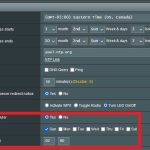
- Enable the reboot schedule feature.
- Select the frequency, such as daily, weekly, or monthly.
- Choose the time for the reboot to occur, preferably during off-peak hours.
- Save your settings, and your router will reboot automatically based on the schedule.
Using a Network Management App or Software
Some routers can be managed via mobile apps or dedicated software that offer automation options. This is especially useful for smart routers with advanced features.
Popular Apps and Management Software
- TP-Link Tether
- NETGEAR Nighthawk App
- Asus Router App
- OpenWRT or DD-WRT interfaces for custom firmware
Automating Reboot with Apps
- Download and install the app compatible with your router.
- Login with your router’s credentials.
- Navigate to the reboot or maintenance section.
- Set a schedule for automatic reboots, choosing day and time.
- Save your settings, and the app will handle reboots automatically.
Using Power Scheduling Devices
If your router doesn’t support scheduling, an external power strip with scheduling features can do the job.
How to Use Power Scheduling Devices
- Plug your router into a smart power strip or outlet with scheduling capabilities.
- Configure the schedule via the device’s app or control panel.
- Set the power to turn off and on at desired times.
- This effectively reboots your router during the power cycle.
Creating Custom Scripts for Advanced Users
If you’re comfortable with command-line tools, custom scripts can automate reboots on routers that support SSH or telnet access.
Prerequisites for Scripting
- Router firmware supporting SSH or telnet access, such as OpenWRT or DD-WRT.
- Basic knowledge of scripting languages like Bash or Python.
Sample Script for Automatic Reboot
#!/bin/bash
# Reboot router via SSH
ssh admin@router_ip 'reboot'
Schedule this script to run at desired intervals using cron jobs or Windows Task Scheduler.
Considerations for Setting Up Automatic Reboots
While automating reboots is helpful, remember to choose appropriate times to avoid interrupting your work or entertainment. Off-peak hours, such as late at night, are ideal for scheduled reboots.
Always keep your router’s firmware updated to ensure compatibility with management features and security patches. Regular updates help avoid issues when setting up automation.
Test your setup after configuring to verify that the router reboots at the correct times without any problems.
Additional Tips for Maintaining Your Router
Besides automated reboots, consider these tips to keep your router in top condition:
- Secure your router with a strong password to prevent unauthorized access.
- Disable features you don’t need to improve performance.
- Place the router in a well-ventilated, central location to reduce overheating.
- Regularly check for firmware updates from the manufacturer’s website.
Related Topics
Optimizing Router Settings for Better Performance
Adjusting QoS, changing channels, and updating firmware can all help improve your network.
Understanding Router Firmware and Custom ROMs
Custom firmware like OpenWRT or DD-WRT offers more control, including advanced scheduling and automation options.
Security Best Practices for Your Network
Always use WPA3 or WPA2 encryption, and change default passwords to enhance your network security.
Automating your router’s reboot process can significantly improve your internet experience by reducing downtime and maintaining network speed. Choose the method that fits your technical skills and router capabilities, and enjoy a smoother, more reliable connection without manual effort.
How to reboot your router automatically when Wi-Fi goes down! – Zobox Router Rebooter – Tech Talk
Frequently Asked Questions
How can I set my router to reboot automatically at scheduled times?
Most routers offer a scheduling feature that allows you to set specific times for automatic reboots. To enable this, log in to your router’s admin panel, navigate to the maintenance or system tools section, and find the reboot scheduler or similar option. Set your preferred times and save the changes. This way, your router will restart automatically without manual intervention, helping maintain optimal performance.
What is the best way to use scripting to reboot my router periodically?
You can create a script on a computer or network device that sends a command to reboot your router at regular intervals. For routers that support SSH or Telnet, write a script that logs into the router’s interface and executes the reboot command. Schedule this script with a task scheduler like Windows Task Scheduler or cron on Linux. This approach provides flexibility for custom reboot timings based on your needs.
Can I automate router reboots using third-party tools or apps?
Yes, several third-party network management tools and apps can automate router reboots. These tools often provide scheduling options or remote control features that allow you to set reboot times. Before using them, ensure they are compatible with your router model and follow security best practices to protect your network credentials when configuring these tools.
Are there any risks associated with scheduling automatic reboots for my router?
While automating reboots can improve network stability, it’s essential to schedule them during off-peak hours to avoid disrupting active connections. Frequent or improperly timed reboots might temporarily disconnect devices or lead to configuration issues. Always back up your router settings before setting up automatic reboots and monitor the network after implementing any scheduling to address potential problems quickly.
How can I ensure my router reboots successfully when scheduled automatically?
Verify that your router’s firmware supports scheduled reboots or scripting. Test the schedule a few times to confirm the reboot occurs correctly and the router restarts as intended. Make sure your router has a stable power supply and that any connected devices do not rely solely on an active connection during these reboots. Regularly check your router’s logs to confirm scheduled reboots happen without errors.
Final Thoughts
To recap, learning how to reboot router automatically ensures your network stays reliable and efficient. Regular, scheduled reboots prevent slowdowns and connectivity issues. Most routers support automatic reboot features or can be managed via third-party apps. Setting up these options is straightforward and saves time. Implementing automatic reboots is a smart move for seamless internet performance.