Quick Summary: Pairing your Sony Bluetooth speaker is super simple! Just turn it on, put it in pairing mode (usually by holding a button), and select it from your device’s Bluetooth menu. Easy peasy sound!
Hey there, tech explorer! Ever feel like your gadgets are speaking a different language? I get it. Sometimes, getting a new piece of tech to talk to your phone or tablet can feel like solving a puzzle. But what if I told you it doesn’t have to be that way? Especially when it comes to bringing your favorite tunes to life with a Sony Bluetooth speaker!
Imagine this: you’ve got that awesome new Sony speaker, ready to blast your favorite playlist for a backyard party or just to make your morning coffee taste better. You unbox it, excited, and then… the dreaded “how do I connect this?” moment hits. It’s a common feeling, and honestly, it’s why I started AffTechy.com – to make tech feel less like a mystery and more like a friend.
Sony makes some seriously cool speakers. They sound great, look stylish, and can really level up your listening experience. But before you can enjoy that rich bass or crisp highs, you need to get your device and your speaker to recognize each other. That’s where Bluetooth pairing comes in, and trust me, it’s way less complicated than it sounds.
We’re going to walk through this together, step by step. Think of me as your friendly guide, holding your hand through the process. We’ll cover everything from what pairing mode even means to how to troubleshoot if things get a little fuzzy. By the end, you’ll be a Sony Bluetooth speaker pairing pro, ready to connect any of your devices in a flash. Let’s make some noise!
Why Pairing Your Sony Speaker is a Game Changer
So, why bother with Bluetooth pairing? It’s all about freedom and convenience. Gone are the days of tangled wires and limited movement. With a Bluetooth connection, your music can follow you from room to room, or your podcasts can keep playing while you’re cooking in the kitchen.
A good Bluetooth speaker can transform any space. It can create the perfect ambiance for a dinner party, pump you up during a workout, or make movie nights feel more immersive. Sony’s speakers are known for their sound quality, and getting them paired is your ticket to unlocking that amazing audio experience.
This connection allows your phone, tablet, or laptop to send audio signals wirelessly to your speaker. It’s like a magic invisible cable, and once it’s set up, you’ll wonder how you ever lived without it. Let’s get this magic started!
Let’s Get Your Sony Speaker Ready: The First Steps
Before we dive into the actual pairing, there are a couple of quick things to do. Think of these as the warm-up exercises for your speaker. They ensure everything is ready for a smooth connection.
Charge It Up!
First things first, make sure your Sony Bluetooth speaker has enough juice. If it’s brand new, it might have a little charge, but it’s always best to plug it in and let it charge fully. This prevents the battery from dying mid-song, which is a total mood killer.
Most Sony speakers come with a USB cable. You can plug this into a wall adapter, a power bank, or even your computer. Look for an indicator light that shows it’s charging, and usually turns off or changes color when it’s full.
Know Your Speaker Model
Sony has a wide range of Bluetooth speakers, from the compact XB13 to the larger SRS-XG500. While the pairing process is very similar across most models, knowing your specific model can be helpful if you need to look up the manual later. You can usually find the model number on the bottom or back of the speaker.
Don’t worry if you can’t find the manual right away. The basic steps we’re covering today will work for almost all Sony Bluetooth speakers. We’re aiming for universal awesomeness here!
Putting Your Sony Speaker in Pairing Mode: The Magic Step
This is the most important part! Your speaker needs to be in “pairing mode” to be discoverable by your phone or other devices. Think of it like the speaker raising its hand and saying, “Hey, I’m ready to connect!”
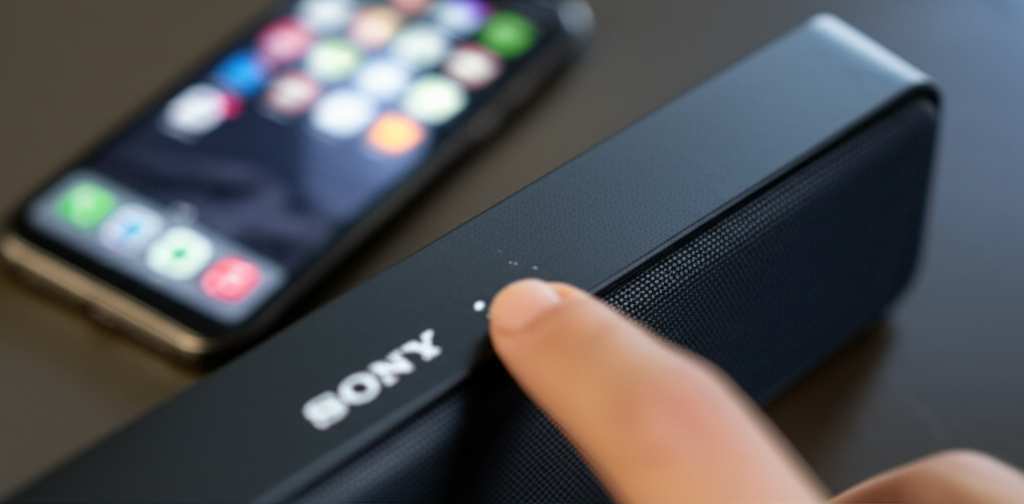
The exact button to press can vary slightly, but it’s usually pretty obvious. Look for a button with the Bluetooth symbol on it. It often looks like a stylized ‘B’ or a circle with lines extending from it.
Here’s how to do it for most Sony speakers:
- Locate the Bluetooth Button: Find the button with the Bluetooth symbol on your speaker. It might be on the top, side, or back panel.
- Press and Hold: Press and hold this Bluetooth button. You’ll usually hear a sound, or see a light start to flash. This flashing light is your signal that the speaker is in pairing mode and ready to be found.
- Check the Manual (If Needed): If you’re unsure, a quick peek at your speaker’s manual (or a quick search online for “[Your Speaker Model] pairing mode”) will confirm the exact steps.
Some newer Sony speakers might automatically go into pairing mode when you first turn them on if they haven’t been connected to anything yet. Others might require a specific button press every time you want to connect a new device.
Connecting Your Smartphone or Tablet
Now that your speaker is broadcasting its “hello, I’m here!” signal, it’s time to get your phone or tablet to see it. This process is handled by your device’s Bluetooth settings.
For iPhones and iPads:
- Open the Settings app on your iPhone or iPad.
- Tap on Bluetooth. Make sure the Bluetooth toggle is switched ON (it will be green).
- Your device will start searching for nearby Bluetooth devices.
- Under the “Available Devices” list, you should see your Sony speaker appear. It might show up with its model name (e.g., “SRS-XB23” or “Sony Speaker”).
- Tap on your Sony speaker’s name in the list.
- You might hear a confirmation sound from your speaker, and the flashing light should turn solid, indicating a successful connection.
For Android Phones and Tablets:
- Open the Settings app on your Android device.
- Tap on Connections or Connected devices (this wording can vary slightly by Android version and manufacturer).
- Tap on Bluetooth. Ensure the Bluetooth toggle is switched ON.
- Your device will scan for available devices.
- Look for your Sony speaker in the list of “Available devices.”
- Tap on your Sony speaker’s name.
- Again, you should hear a confirmation sound from the speaker, and the flashing light will likely become solid.
And voilà! You’ve just paired your device with your Sony Bluetooth speaker. It’s that simple. Now you can play any audio from your device, and it will come out of your speaker.
Connecting Your Laptop or Computer
Connecting a laptop is very similar to connecting a phone. The exact steps depend on whether you’re using Windows or macOS.
For Windows 10/11:
- Go to Settings (you can search for it in the Windows search bar).
- Click on Devices (or Bluetooth & devices).
- Make sure Bluetooth is turned ON.
- Click on Add Bluetooth or other device.
- Select Bluetooth.
- Your computer will search for devices. Ensure your Sony speaker is in pairing mode.
- When your speaker appears in the list, click on it to connect.
For macOS:
- Click the Apple menu in the top-left corner of your screen.
- Select System Settings (or System Preferences on older macOS versions).
- Click on Bluetooth.
- Make sure Bluetooth is turned ON.
- Your Mac will scan for devices. Your Sony speaker should appear in the list when it’s in pairing mode.
- Click Connect next to your speaker’s name.
Once connected, your computer should automatically use the Sony speaker as its audio output. You might need to check your computer’s sound settings if it doesn’t happen automatically.
Troubleshooting: When Things Don’t Go Smoothly
Sometimes, even with the simplest instructions, tech can be a little stubborn. If you’re having trouble pairing your Sony Bluetooth speaker, don’t panic! Here are some common issues and their easy fixes.
Issue: Speaker Not Showing Up in Device List
This is a common one. If your device can’t “see” the speaker, it’s usually because the speaker isn’t in pairing mode or is too far away.
- Re-enter Pairing Mode: Turn off Bluetooth on your device, then turn your speaker off and on again. Put the speaker back into pairing mode by holding the Bluetooth button until the light flashes. Then, turn your device’s Bluetooth back on.
- Check Distance: Make sure your speaker and device are close to each other, ideally within 10 feet (3 meters) for the initial pairing.
- Clear Previous Connections: If your speaker has been paired with many devices before, it might be struggling to find a new one. Some Sony speakers have a way to clear their memory. Check your manual for instructions, but often it involves holding a combination of buttons for a few seconds.
Issue: Pairing Fails or Connection Drops
If your device connects but then immediately disconnects, or the connection is unstable, try these steps.
- Restart Everything: Turn off your speaker and your device. Turn them back on and try pairing again. It’s the classic tech fix for a reason!
- Forget the Device: On your phone or computer, go to the Bluetooth settings and “forget” or “unpair” your Sony speaker. Then, put the speaker back into pairing mode and try connecting as if it were new.
- Check for Interference: Other wireless devices (like microwaves, Wi-Fi routers, or even other Bluetooth devices) can sometimes interfere. Try moving to a different location or turning off other nearby wireless devices temporarily.
- Update Device Software: Ensure your smartphone, tablet, or computer has the latest operating system updates. Sometimes, these updates include improvements to Bluetooth connectivity.
Issue: Speaker is Connected, But No Sound
This can be frustrating! You see the connection, but silence. Here’s what to check.
- Check Volume: First, make sure the volume on both your device and your speaker is turned up! It sounds simple, but it’s often overlooked.
- Verify Audio Output: On your device, check which audio output is selected. Sometimes, it might still be set to the device’s internal speaker. Make sure your Sony speaker is chosen as the audio output.
- Test with Another Device: Try pairing the speaker with a different phone or tablet. If it works with another device, the issue is likely with your original device’s settings.
If you’ve tried all these steps and are still having trouble, consulting the official Sony support website for your specific speaker model is a great next step. They often have detailed FAQs and troubleshooting guides.
Sony Speaker Pairing Tips & Tricks
Beyond the basic pairing, there are a few extra things that can enhance your experience and make using your Sony speaker even smoother.
Using the Sony Music Center App
Many Sony Bluetooth speakers can be controlled using the Sony Music Center app (available for iOS and Android). This app lets you:
- Adjust sound settings and EQ.
- Control speaker lighting effects (on applicable models).
- Update the speaker’s firmware.
- Connect multiple speakers together for stereo sound or a wider party feel (using features like Party Connect or Wireless Party Chain).
Downloading this app can unlock the full potential of your Sony speaker, making it more than just a playback device. It’s a smart audio companion!
Multipoint Connection: Connecting Two Devices
Some Sony speakers support “Multipoint Connection.” This allows the speaker to be connected to two devices simultaneously. For example, you could be connected to your laptop for a video call and your phone for music.
If your speaker supports this, you usually enable it in the speaker’s settings via the Music Center app. Once enabled, you can connect your first device normally. Then, put the speaker back into pairing mode and connect your second device. The speaker will then switch between them as needed.
Clearing Speaker Memory
If your speaker is acting up or you want to pair it with a completely new set of devices, you might need to clear its previous pairings. The method varies, but often involves holding down specific buttons (like the power and Bluetooth button, or a dedicated reset button) for about 10-15 seconds while the speaker is on.
Always refer to your speaker’s manual for the exact procedure. Clearing the memory is like giving your speaker a fresh start, ready for new connections.
Sony Bluetooth Speaker Models: A Quick Look
Sony offers a fantastic range of Bluetooth speakers, each with its own strengths. Here’s a small peek at a couple of popular ones and what makes them stand out:
| Speaker Model | Key Feature | Battery Life (Approx.) | Water/Dust Resistance |
|---|---|---|---|
| Sony SRS-XB13 | Compact, Extra Bass, Loud Sound for Size | 16 Hours | IP67 |
| Sony SRS-XE300 | 360° Sound, Clear & Powerful Bass | 24 Hours | IP67 |
| Sony SRS-XG500 | Large, Powerful Sound, Party Lights | 30 Hours | IP66 |
As you can see, even the smaller speakers pack a punch with great battery life and durability. The IP ratings (like IP67) mean they can handle splashes and dust, making them perfect for outdoor adventures or poolside listening. You can find more detailed comparisons on tech review sites like CNET.
Frequently Asked Questions (FAQ)
Got more questions? We’ve got friendly answers!
Q1: How do I know if my Sony speaker is in pairing mode?
A: Your speaker is usually in pairing mode when a light is flashing. This light is often blue and might be located near the Bluetooth button or on the speaker’s body. You might also hear a specific sound cue.
Q2: Can I pair my Sony speaker with more than one device at a time?
A: Some newer Sony models support Multipoint Connection, allowing connection to two devices. For older models, you typically need to disconnect from one device before connecting to another. Check your speaker’s manual or the Music Center app to see if it supports Multipoint.
Q3: Do I need the Sony Music Center app to pair my speaker?
A: No, you don’t need the app for the initial Bluetooth pairing. You can pair your speaker directly through your device’s Bluetooth settings. However, the app is great for accessing extra features and controls.
Q4: My speaker won’t connect. What’s the first thing I should try?
A: The first and simplest step is to try turning off Bluetooth on your device, then turning your speaker off and on again. After that, put the speaker back into pairing mode and try connecting again.
Q5: How do I update my Sony speaker’s firmware?
A: Firmware updates are usually done through the Sony Music Center app. Connect your speaker to your device, open the app, and it will usually notify you if an update is available.
Q6: Is it okay to leave my speaker plugged in all the time?
A: Most modern rechargeable batteries are designed to handle being plugged in. While it’s generally good practice to let the battery discharge somewhat occasionally, leaving it plugged in when not in use for extended periods shouldn’t harm it significantly, especially if it has battery protection features.
Q7: My speaker was working fine, but now it won’t connect to my phone. What should I do?
A: Try “forgetting” your speaker in your phone’s Bluetooth settings and then re-pairing it from scratch. Also, ensure your speaker isn’t connected to another device nearby, like a tablet or laptop.
Conclusion: Enjoy Your Wireless Sound!
See? Pairing your Sony Bluetooth speaker is totally doable, and it opens up a world of amazing, wire-free sound. We’ve covered getting your speaker ready, putting it into pairing mode, connecting all sorts of devices, and even tackled a few common hiccups along the way.
Remember, tech is meant to make our lives easier and more enjoyable. With these simple steps, you’re now equipped to get your Sony speaker connected and filling your space with fantastic audio. Don’t be afraid to explore the extra features the Sony Music Center app offers, too!
So go ahead, try pairing your phone, your tablet, or your laptop. Test out that playlist you’ve been meaning to listen to, or get ready for your next movie night. You’ve got this! Now go enjoy amazing sound and make every moment louder and better!