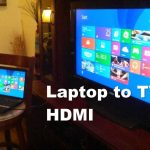
To instantly mirror your laptop screen to your TV, use simple options like HDMI cables or wireless streaming solutions such as Miracast, Chromecast, or AirPlay. These methods are straightforward and allow you to enjoy your content on a larger screen effortlessly.
Connecting your laptop to your TV can be quick and hassle-free with the right tools. Whether it’s a wired connection or wireless technology, you don’t need to be tech-savvy to set it up. Just choose the method that suits your devices best, and you’ll be watching movies, giving presentations, or gaming on a big screen in no time.
If you’re looking to mirror your laptop screen to your TV, you can do so through a wired connection, like HDMI, or wirelessly, using devices such as Chromecast, Miracast, or Apple AirPlay. The process is simple and enables you to expand your viewing experience easily. In the following steps, I’ll guide you through the most effective methods to make your screen mirroring seamless and stress-free.

How to Mirror Laptop Screen to TV: A Complete Guide
Mirroring your laptop screen onto your TV can make watching movies, giving presentations, or playing games much more enjoyable. With the right method, you can easily connect your devices and enjoy a larger display. This guide will walk you through each step, covering different methods and key tips to make the process smooth and hassle-free.
Reasons Why You Might Want to Mirror Your Laptop Screen to TV
People choose to mirror their laptop screens to TVs for various reasons. It enhances viewing experiences for movies and shows by providing a bigger picture. It also allows for easier sharing of work presentations during meetings or group discussions. Additionally, gaming on a larger screen can become more fun and immersive.
Preparing Your Devices for Screen Mirroring
Before you start, ensure both your laptop and TV are ready for connection. Check that your devices are compatible with the chosen method of mirroring. Make sure your laptop is updated with the latest operating system and your TV is connected to the same Wi-Fi network if you’re using wireless options.
Understanding Different Types of Connections
There are mainly two ways to mirror your laptop screen to a TV: wired and wireless. Each method has its benefits and drawbacks, which we’ll explore below.
Wired Connections
Wired connections involve physically connecting your laptop to the TV using cables. They offer stable and high-quality signals without lag or interruption. Common options include HDMI, DisplayPort, and VGA cables.
Wireless Connections
Wireless options use Wi-Fi or other technologies to connect devices without cables. They are more convenient, especially for quick setups, but may be susceptible to lag or signal interference depending on your network quality.
How to Mirror Laptop Screen to TV Using HDMI
The HDMI connection is the most straightforward and reliable method for screen mirroring. Most laptops and modern TVs support HDMI ports.
Step-by-step Process
- Locate the HDMI port on your laptop and TV. If your laptop does not have an HDMI port, you might need an adapter compatible with your device.
- Connect the HDMI cable from your laptop to your TV.
- Switch the TV’s input source to the correct HDMI port using the remote control.
- Configure display settings on your laptop. Usually, your laptop will automatically detect the TV as an external display.
Troubleshooting HDMI Issues
If the screen does not appear on your TV, double-check the cable connections and input source. Restart both devices if needed, and ensure the HDMI port is active. Updating your graphics drivers can also help resolve detection issues.
Using Miracast for Wireless Screen Mirroring
Miracast is a popular wireless technology allowing devices to connect directly without requiring Wi-Fi. It is supported on many Windows laptops and select Smart TVs.
Steps to Use Miracast
- Ensure both your laptop and TV support Miracast.
- Connect both devices to the same Wi-Fi network or ensure Wi-Fi Direct is enabled.
- On your laptop, press Windows key + K to open the connect menu.
- Select your TV from the device list.
- Follow any on-screen prompts to complete the connection.
Best Practices for Miracast
Keep your devices close to minimize interference, and ensure your Wi-Fi network is strong. Miracast works best with updated devices and drivers.
Using Chromecast for Wireless Casting
Google Chromecast offers another wireless streaming method. It works by casting your laptop screen through the Chrome browser, providing a flexible and easy-to-use option.
Steps to Cast Using Chromecast
- Connect your Chromecast device to the TV’s HDMI port and set it up using the Google Home app.
- Connect your laptop and Chromecast to the same Wi-Fi network.
- Open Google Chrome browser on your laptop.
- Click the three-dot menu icon and select “Cast.”
- Choose your Chromecast device from the list.
- Select ‘Cast Desktop’ for full screen mirroring.
Additional Tips
Update Chrome and your Chromecast firmware regularly to improve performance. Close unnecessary browser tabs and apps to prevent lag during casting.
Using Apple TV and AirPlay for Mac Users
If you are using a MacBook and an Apple TV, AirPlay is the ideal solution for wireless mirroring. It provides high-quality audio and video streaming with minimal lag.
Steps for AirPlay Mirroring
- Ensure both your MacBook and Apple TV are connected to the same Wi-Fi network.
- Click the AirPlay icon on your Mac’s menu bar. If not visible, enable AirPlay in Display preferences.
- Select your Apple TV from the list.
- Opt for “Mirror Display” to project your entire screen onto the TV.
Troubleshooting AirPlay
If the connection fails, verify Wi-Fi connectivity, restart your devices, and check for software updates. Sometimes toggling the AirPlay option off and on can resolve glitches.
Enhancing Your Screen Mirroring Experience
For optimal results, consider the following tips: ensure all devices are updated, use high-quality cables, and minimize Wi-Fi interference. Adjust your display resolution for the best clarity.
Adjusting Display Settings
Your laptop might automatically extend or duplicate displays. To set your preferred setup:
- On Windows, go to Display Settings by right-clicking the desktop and selecting “Display Settings.”
- On Mac, open System Preferences and select “Displays.”
- Choose “Duplicate” to mirror or “Extend” for a multi-display setup.
Related Technologies and Devices
Besides the primary methods, other devices and technologies can help you mirror screens conveniently. Examples include smart TVs with built-in casting features and third-party apps that support multiple platforms.
Third-Party Apps for Screen Mirroring
- Apps like AirParrot and Reflector support cross-platform mirroring with additional features.
- They work over Wi-Fi and are compatible with many devices, offering flexibility for varied setups.
Choosing the Right Method
Select your preferred approach based on device compatibility, convenience, and connection stability. Wired connections are reliable, while wireless options offer greater mobility.
Safety Tips and Best Practices
Always keep your software up to date to ensure security. Avoid unsecured public Wi-Fi networks when casting sensitive information. Use secure passwords for your network and devices.
By following these detailed steps and tips, you can easily mirror your laptop screen to your TV, making your viewing and sharing experiences much more enjoyable.
How to Connect & Mirror Laptop Screen on Any Smart TV Wirelessly (No App)
Frequently Asked Questions
What are the steps to connect a Windows laptop to a smart TV using HDMI?
To connect your Windows laptop to a smart TV with HDMI, first locate the HDMI port on your laptop and TV. Connect one end of the HDMI cable into your laptop’s HDMI port and the other end into the TV’s HDMI input. Turn on your TV and select the corresponding HDMI input source. On your laptop, press the Windows key + P and choose the “Duplicate” or “Extend” option based on your preference. Your laptop screen should now appear on your TV.
How can I mirror my laptop screen wirelessly without additional software?
If your laptop and TV support Miracast or similar Wi-Fi display technology, you can use it without extra software. On your Windows laptop, open the Settings app, navigate to “Devices” > “Bluetooth & other devices,” and click “Add a device.” Select your TV from the list of available devices. Follow on-screen instructions to establish the connection. Once connected, your laptop screen will mirror onto your TV wirelessly.
What should I do if my laptop doesn’t recognize my TV when trying to connect?
If your laptop doesn’t detect your TV, ensure both devices are on the same Wi-Fi network or properly connected with cables. Check that your TV input is set correctly. Restart both the laptop and TV to refresh their connection. Update your laptop’s display drivers through the device manager or manufacturer’s website. If using wireless methods, verify that your laptop supports the required wireless display protocols.
Can I use Bluetooth to mirror my laptop screen to the TV?
Bluetooth alone typically can’t mirror your laptop screen, as it mainly handles audio and simple device connections. For screen mirroring, use Wi-Fi-based methods like Miracast or an HDMI cable. If your TV and laptop support Bluetooth for other functions, ensure they are properly paired, but for display purposes, prefer wireless display protocols or physical connections.
Are there specific requirements my laptop needs to mirror its screen to a TV successfully?
Your laptop should support either an HDMI port or wireless display technology like Miracast. It needs the appropriate graphics drivers installed and updated. The TV must support the selected connection method, such as HDMI input or wireless display protocols. Also, ensure both devices are using compatible software and are on the same network if connecting wirelessly. Having the latest system updates on your laptop can also prevent compatibility issues.
Final Thoughts
To mirror laptop screen to TV, ensure both devices are connected to the same Wi-Fi network. Use built-in options like Miracast, AirPlay, or Chromecast depending on your device compatibility. Select your TV from the list of available devices on your laptop to establish the connection.
In conclusion, knowing how to mirror laptop screen to TV makes sharing content easier. Follow the steps to connect wirelessly or with an HDMI cable. This method simplifies presentations and entertainment, making your experience seamless.