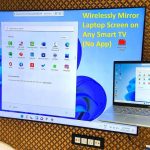
To connect your laptop to your TV quickly, use an HDMI cable for a seamless connection—just plug it in, select the right input on your TV, and you’re good to go! Alternatively, you can use wireless options like Chromecast or Miracast for a cable-free setup. These methods are simple and instantly turn your big screen into an extended display or media hub.
Connecting your laptop to a TV is easier than you might think. Whether you prefer a wired or wireless approach, there are straightforward steps to get your screens synchronized. With the right tools and a little bit of know-how, you can enjoy movies, presentations, or gaming on a larger display in just a few minutes. This guide will walk you through the most effective ways to make the connection smoothly and effortlessly.

How to Connect Laptop to TV
Connecting your laptop to a TV allows you to enjoy larger screens for movies, gaming, or presentations. There are several methods available, each suited to different devices and setups. In this guide, you’ll learn about the most common ways to connect your laptop to a TV with clear, simple steps. Understanding these options will help you choose the best method for your needs.
Using an HDMI Cable
One of the easiest and most reliable ways to connect your laptop to a TV is by using an HDMI cable. This method transmits both high-definition video and audio through a single cable, making it very convenient.
What You Need
- HDMI cable long enough to reach from your laptop to your TV
- A laptop with an HDMI port
- A TV with an HDMI input
Step-by-Step Instructions
- Connect one end of the HDMI cable to your laptop’s HDMI port.
- Plug the other end into an available HDMI port on your TV.
- Turn on your TV and select the correct HDMI input using the remote.
- On your laptop, go to display settings to adjust the resolution and screen options.
- If necessary, choose the display mode: duplicate, extend, or second screen only.
Tips for Best Performance
- Use a high-quality HDMI cable to ensure good video and audio quality.
- Update your graphics driver if the display isn’t recognized properly.
- Adjust the resolution to match your TV’s native resolution for the best image.
Using Wireless Connection Options
Wireless connections offer convenience without cables, but they may need specific equipment or setup. These options are ideal if you prefer a clutter-free environment.
Connecting via Miracast
Many Windows laptops support Miracast, a technology that allows wireless display sharing.
Requirements
- A Miracast-compatible laptop
- A Miracast-compatible TV or a Miracast dongle (like Chromecast or Microsoft Wireless Display Adapter)
Steps to Connect
- Ensure both your laptop and TV/dongle are connected to the same Wi-Fi network.
- Open your laptop’s display settings or press the Windows key + P.
- Select ‘Connect to a wireless display’.
- Choose your TV or dongle from the list of available devices.
- Follow on-screen prompts to complete the connection.
Using Google Chromecast
Chromecast allows you to cast content from your laptop to your TV wirelessly.
Requirements
- Google Chromecast plugged into your TV’s HDMI port
- Google Home app installed on your laptop or mobile device
Steps to Set Up
- Set up your Chromecast following the instructions in the Google Home app.
- Ensure your laptop and Chromecast are on the same Wi-Fi network.
- Open the Chrome browser on your laptop.
- Click the three-dot menu and select ‘Cast’.
- Choose your Chromecast device from the list.
- Click ‘Sources’ to select whether to cast the tab, desktop, or specific content.
Using Display Adapters and Converters
If your laptop lacks an HDMI port, or you want more options, adapters and converters are a good solution.
Common Adapter Types
- USB-C to HDMI adapters
- DisplayPort to HDMI converters
- VGA to HDMI adapters (for older equipment)
How to Use Them
- Connect the adapter to your laptop’s output port.
- Plug an HDMI cable into the adapter and the TV.
- Switch your TV to the correct input source.
- Adjust display settings on your laptop if necessary.
Adjusting Display Settings for the Best Viewing Experience
Once your laptop is connected, tweaking the display settings enhances your viewing experience. This is especially true for resolution and screen arrangement.
Choosing the Display Mode
- Duplicate: Shows the same content on both screens.
- Extend: Creates a larger workspace by spreading your desktop across both screens.
- Second Screen Only: Displays content only on the TV, turning off your laptop screen.
Resolution and Aspect Ratio
Set the resolution to match your TV’s native resolution for optimal image clarity. Adjust the aspect ratio if the picture appears stretched or letterboxed.
Troubleshooting Common Problems
- If the TV shows no signal, check all cable connections and input settings.
- If the display appears blurry or pixelated, adjust the resolution settings.
- If sound isn’t transmitting, ensure your audio output is set to the TV.
Additional Tips for Connecting Your Laptop to TV
Consider some extra advice for a smoother connection experience.
Keep Your Devices Updated
Update your laptop’s graphics and wireless drivers for compatibility with the latest display technologies.
Use Quality Cables and Adapters
Invest in high-quality cables and adapters to prevent connectivity issues and ensure good picture and sound quality.
Check Compatibility Before Buying Equipment
Verify that your laptop and TV support the connection method you plan to use to avoid frustration.
Consider the Distance and Placement
Make sure cables are long enough for comfortable placement, especially for HDMI connections that need to reach between devices.
Enjoy Your Content!
Once connected, explore your TV’s settings for picture quality, sound enhancement, and other adjustments to enjoy the best viewing experience.
This detailed guide covers everything you need to know about connecting your laptop to a TV. Whether using cables or wireless options, following these steps helps you set up quickly and easily. Understanding different connection types and troubleshooting tips ensures a smooth experience each time you want a bigger screen.
How to Connect Laptop to TV (Wireless & HDMI)
Frequently Asked Questions
What are the different types of cables I can use to connect my laptop to my TV?
You can connect your laptop to your TV using various cables depending on the ports available. HDMI cables are the most common and support both audio and video signals. If your laptop or TV lacks HDMI, VGA cables can work for video only, but you’ll need an auxiliary cable for audio. DVI and DisplayPort are other options if supported by your devices. Always check your laptop and TV ports to choose the most compatible cable for a seamless connection.
Can I connect my laptop to my smart TV wirelessly?
Yes, many smart TVs support wireless connections such as Miracast, Chromecast, or Apple AirPlay. To use this feature, ensure both devices are connected to the same Wi-Fi network. On your laptop, enable the casting or screen mirroring option, then select your TV from the list of available devices. Keep in mind that the quality of wireless connections may vary depending on your network stability and device compatibility.
What steps should I follow if my laptop doesn’t recognize my TV after connecting the cable?
If your laptop doesn’t detect your TV after connecting with a cable, first verify that the cable is securely connected and compatible with both devices. Then, check your display settings on the laptop to ensure it’s set to duplicate or extend the display. You might need to manually select the input source on your TV. Restarting both devices can also resolve detection issues, and updating your graphics driver can improve compatibility.
How can I adjust the display resolution for optimal viewing when connected to my TV?
To optimize your display quality, go to your laptop’s display settings. Under resolution options, select a setting recommended for your TV model, typically the native resolution. For a clearer image, avoid setings that are too low or too high. Adjust the display scaling if needed for better readability and ensure the refresh rate matches your TV’s specifications. These adjustments can help provide a seamless viewing experience.
What should I consider if I want to connect a laptop to a non-smart TV?
If you’re connecting to a non-smart TV, you’ll likely need a physical connection method like HDMI, VGA, or DVI. Make sure your laptop has the compatible port, or use an adapter if necessary. You should also set your TV to the correct input source. Since non-smart TVs lack built-in wireless capabilities, avoid relying on wireless connections unless you use a wireless display adapter compatible with your devices. Ensuring proper cable connections and settings will deliver the best results.
Final Thoughts
Connecting your laptop to TV is a simple process. First, identify the available ports on both devices, such as HDMI or VGA. Use the appropriate cable to establish a physical connection. Then, select the correct input source on your TV.
Adjust display settings on your laptop to mirror or extend the screen, depending on your preference. Confirm the connection works smoothly and enjoy your content on a larger screen.
In summary, how to connect laptop to TV involves choosing the right cable, selecting the correct input, and configuring display settings. This makes it easy to enjoy your media effortlessly.