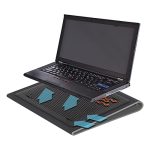
To connect two monitors to your laptop, you simply need the right ports and perhaps some adapters or docking stations. Start by checking your laptop’s available video ports, such as HDMI, DisplayPort, USB-C, or VGA. Then, connect each monitor using compatible cables, and configure your display settings to extend or duplicate your screen. Yes, it’s that straightforward!
Connecting two monitors to a laptop can dramatically boost your productivity and make multitasking smoother. Many laptops support dual displays, but the process varies depending on your device’s ports and graphics capabilities. Whether you want to extend your workspace or mirror your screen for presentations, knowing how to set up multiple monitors can give you a significant edge. In this guide, we’ll walk through the steps to connect two monitors to your laptop easily and efficiently, ensuring you maximize your device’s potential without any hassle.

How to Connect Two Monitors to a Laptop
Connecting two monitors to your laptop can make your workspace more efficient and enjoyable. Whether you want extra screen space for work or gaming, setting up multiple displays is easier than many think. Let’s explore the steps and options to connect two monitors to your laptop effectively.
Check Your Laptop’s Video Output Ports
The first step is to identify the available video output ports on your laptop. Common ports include HDMI, DisplayPort, USB-C, VGA, and Mini DisplayPort. Look for these ports along the sides or back of your laptop.
The types of ports determine what cables or adapters you’ll need. For example, some older laptops might only have VGA, while newer models often include HDMI and USB-C ports. Knowing what your laptop offers will help plan the connection setup.
Determine the Capabilities of Your Laptop
Not all laptops support connecting more than one monitor. Check your laptop’s specifications or user manual to confirm its multi-monitor capabilities. Look for terms like “multi-display support” or “extended desktop support.”
Some laptops can handle two external monitors directly, while others may need additional hardware. Confirming this will save you time and prevent frustration during setup.
Gather Necessary Cables and Adapters
Based on your laptop’s ports, gather the appropriate cables. For example, you might need an HDMI cable, a DisplayPort cable, or a USB-C to HDMI adapter. Here are some common options:
- HDMI cable for HDMI port
- DisplayPort cable for DisplayPort
- USB-C to HDMI or DisplayPort adapter
- VGA cable for older models
Using the right combination of cables and adapters ensures seamless connection of dual monitors.
Connecting Monitors to Your Laptop
Direct Connection Method
If your laptop has multiple video output ports, connect each monitor directly using compatible cables. Plug one end into the monitor and the other into your laptop’s port. Repeat for the second monitor.
Power on the monitors first, then turn on your laptop. Your system should recognize the connected displays automatically.
Using a Docking Station or Hub
For laptops with limited ports, a docking station or USB-C hub can extend multiple video outputs. Connect the dock to your laptop via USB-C or Thunderbolt, then plug the monitors into the dock’s available ports.
Docking stations often provide additional USB, Ethernet, or charging options, making them a convenient choice for many users.
Configuring Your Dual Monitors in Windows
Open Display Settings
Right-click on your desktop and select “Display Settings.” This opens a menu where you can see your connected monitors. You can identify each by clicking the “Identify” button.
Arrange Monitors
Drag and position the monitor icons to match their physical placement on your desk. Proper arrangement allows your mouse to move smoothly between screens.
Choose Display Modes
- Extend: Treats both monitors as one large desktop. Ideal for multitasking.
- Duplicate: Shows the same image on both screens. Useful for presentations.
- Show only 1 or 2: Uses only one monitor, turning off the other.
Select “Extend” if you want to maximize your workspace across two monitors.
Troubleshooting Common Connection Issues
No Signal or Unrecognized Monitors
Ensure cables are securely connected and monitors are powered on. Restart your laptop if the monitors aren’t detected.
Update your graphics driver through the device manager or manufacturer’s website to improve compatibility.
Resolution and Display Quality Problems
Adjust the resolution settings in “Display Settings” to match monitor specifications for clear images. Sometimes, using higher quality cables can improve display performance.
Additional Tips for a Better Multiple Monitor Setup
- Use color calibration to ensure consistent display quality across monitors.
- Position monitors at eye level to reduce neck strain during long use.
- Use monitor stands or mounts to optimize space and ergonomics.
- Explore software solutions for managing multiple screens, such as window snapping or virtual desktops.
Related Topics
Best Monitors for Dual Setup
When choosing monitors, consider size, resolution, refresh rate, and connectivity options. Matching monitors in size and resolution provides a harmonious workspace.
Upgrading Your Laptop for Better Display Support
If your current laptop can’t support dual monitors, upgrading to a model with more video outputs or higher graphics capabilities might be worthwhile. This ensures a smoother and more flexible multi-monitor experience.
Using Wireless Display Technologies
Technologies like Miracast or Chromecast enable wireless connections to monitors or TVs. This can be a clutter-free alternative to cables, especially in modern setups.
Safety and Power Considerations
Ensure your power supply can handle additional monitors. Use surge protectors to safeguard your equipment. Avoid overloading your laptop’s USB ports or power sources.
Connecting two monitors to a laptop takes some planning, but with the right tools and setup, you can create a productive and enjoyable workspace. Remember to check your laptop’s capabilities, gather the necessary cables or adapters, and configure your displays properly for the best experience.
Dual Monitor Setup: How to Connect Two Monitors to One Laptop
Frequently Asked Questions
What types of ports are typically used for connecting multiple monitors to a laptop?
Most laptops come with a variety of ports suitable for connecting additional monitors, including HDMI, DisplayPort, USB-C, and VGA. HDMI and DisplayPort are common for high-definition video output, while USB-C ports often support DisplayPort functionality with the right adapter. VGA ports are older but still found on some devices. Check your laptop’s available ports and choose the appropriate cable or adapter based on the monitor’s input options.
How can I configure my display settings to extend my desktop across two monitors?
Start by connecting both monitors to your laptop. Once connected, go to your display settings through the control panel or system preferences. Select the option to extend your desktop, which allows you to use both screens as one continuous workspace. Adjust the position of each monitor within the display settings to match their physical placement, ensuring smooth cursor movement between screens.
Are there any compatibility considerations when connecting two monitors to a laptop?
Yes, ensure your laptop supports multiple displays by checking the specifications and available ports. Some laptops might require a docking station or external graphics adapter to handle two external monitors effectively. Also, verify that your graphics card drivers are up to date, which can impact multi-monitor functionality. Different monitors may have different resolutions, so confirm compatibility to avoid display issues.
What types of adapters or docking stations can help in connecting two external monitors?
Depending on your laptop’s ports, you can use HDMI splitters, USB-C multiport adapters, or docking stations designed for multiple displays. Docking stations often provide a combination of HDMI, DisplayPort, and USB ports, simplifying the connection process and providing additional USB or Ethernet ports. Choose a docking station compatible with your laptop’s specifications and ensure it supports dual monitor output.
What are some common troubleshooting steps if my second monitor is not displaying content?
First, verify all cables and connections are secure and functioning properly. Check your display settings to ensure the second monitor is enabled and set to extend or duplicate mode as desired. Update your graphics drivers if necessary and restart your laptop. If the monitor still doesn’t display, test the monitor with another device or try a different cable to identify potential hardware issues. Adjust resolution settings to ensure compatibility with your monitor’s specifications.
Final Thoughts
Connecting two monitors to a laptop enhances productivity and multitasking. First, check your laptop’s video output ports such as HDMI, DisplayPort, or USB-C. Use compatible cables or adapters to connect each monitor to these ports.
Configure display settings in your operating system to extend or mirror your screen as needed. Adjust resolution and orientation for optimal viewing.
In conclusion, knowing how to connect two monitors to a laptop involves identifying available ports, selecting the right cables, and configuring display settings. This straightforward process can significantly improve your workflow and efficiency.