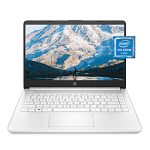
Thinking of boosting your productivity or creating a seamless workspace? Using your laptop as a second monitor is a smart way to expand your screen real estate without investing in new hardware. It’s easier than you might think—whether you’re working from home, gaming, or multitasking on multiple apps, turning your existing devices into a dual-display setup can save you both time and money. The trick is to use software or built-in features to connect your devices effectively. With just a few simple steps, you can transform your laptop into an additional monitor that complements your main screen, making your workflow smoother and more efficient.
In essence, to use your laptop as a second monitor, you need to connect it to your primary computer via specialized software or built-in display sharing options. This involves setting up the connection, configuring display settings, and adjusting resolution for optimal viewing. Whether you’re on Windows or Mac, there are straightforward methods to make this happen quickly and effortlessly.
To use your laptop as a second monitor, you can utilize built-in Windows or macOS features or third-party applications that facilitate screen sharing over Wi-Fi or cable. The process involves connecting the two devices, configuring display settings, and optimizing resolution for a seamless multi-screen experience.
If you’re looking to expand your workspace without extra expense or complicated hardware, transforming your laptop into a second monitor is a practical solution. This guide will walk you through simple, step-by-step methods suitable for both Windows and Mac users, ensuring you can maximize your productivity with minimal effort.

How to Use Laptop as Second Monitor
Using your laptop as a second monitor can increase your productivity and make multitasking easier. It allows you to extend your workspace without needing to buy a new monitor. Whether you want to display emails, research, or a different application, turning your laptop into a second screen is simple once you know the right steps. In this guide, we will explore various methods and tips to set up your laptop as a second monitor effectively.
Understanding the Benefits of Using Your Laptop as a Second Monitor
Before diving into how to set up your laptop as a second monitor, it helps to understand why this can be useful. It creates extra screen real estate, helping you work more efficiently. You can keep chat windows, calendars, or reference documents open on your second screen while working on your main computer.
This setup is especially helpful for students, professionals, gamers, and anyone who needs to manage multiple applications at once. Using a second monitor can also reduce eye strain by providing a larger workspace. Plus, it saves money since you won’t need an extra physical monitor.
Prerequisites for Using Your Laptop as a Second Monitor
Before setting up, ensure your devices meet some basic requirements. Check that both your main computer and laptop support the connection methods you plan to use. You’ll need the right hardware, software, and sometimes specific ports or wireless capabilities.
Make sure your laptops have the necessary ports such as HDMI, DisplayPort, or USB-C. If you’re planning a wireless connection, ensure both devices are connected to the same Wi-Fi network. Lastly, verify that your operating systems support the desired setup, whether Windows or macOS.
Choosing the Right Method for Connecting Your Laptops
Wired Connections
Wired connections tend to offer a more stable and high-quality display extension. You can use HDMI, DisplayPort, or USB-C cables to connect your laptops directly. If your main computer supports video output and your laptop supports video input, this method is straightforward.
Note that many laptops are designed only to output video and do not support video input. In such cases, a wired connection may not work without specialized hardware like a capture card.
Wireless Connections
Wireless methods are more flexible but can sometimes experience lag or lower resolution. They are ideal if you want to avoid cable clutter or if your devices are far apart. Popular tools include apps like Microsoft’s Wireless Display, SpaceDesk, or Duet Display.
Wireless options are especially handy if your laptop supports Miracast or similar standards. Make sure both laptops are connected to the same Wi-Fi network for best performance.
Steps to Use Windows Laptop as a Second Monitor
Using Built-in Windows Features
Windows 10 and Windows 11 have a feature called “Wireless Display” that allows you to connect to another Windows device. To use this, enable the feature in settings and connect via the Connect app.
Follow these steps:
- Open Settings on your main PC and navigate to “System” > “Projecting to this PC”.
- Set your PC to “Available everywhere” and select “Require PIN for pairing” if desired.
- On your second laptop, press Windows + K to open the connect menu.
- Select your main PC from the list to project the screen.
Using Third-Party Apps like SpaceDesk or Duet Display
Apps like SpaceDesk and Duet Display turn your laptop into a second monitor with minimal setup. Download and install the app on both devices.
After installing, launch the app on your main computer and your laptop. Follow the app’s instructions to connect the two devices, usually via Wi-Fi or USB.
These apps typically offer touch support, high resolution, and easy configuration options. They work well for most Windows-to-Windows setups and sometimes for Mac and other devices.
Steps to Use macOS Laptop as a Second Monitor
Using Sidecar (for Mac users with compatible devices)
Apple’s Sidecar feature allows a Mac to extend its display to an iPad or another Mac.
To activate Sidecar:
- Ensure both devices are signed into the same Apple ID and are on macOS Catalina or later.
- Click the AirPlay icon in the menu bar on your main Mac.
- Select your secondary device from the list.
- Choose “Extend Display” to use it as a second monitor.
Using Third-Party Apps like Luna Display or Duet Display for Mac
Similar to Windows, Mac users can use third-party apps to extend their display to another Mac or even to an iPad. Install the app on both devices and follow the setup instructions for a seamless connection.
Additional Tips for a Better Second Monitor Setup
- Position your screens logically: Arrange your virtual or physical screens so they match their physical placement for easier navigation.
- Adjust display settings: Open display settings to change resolution, orientation, and scaling for optimal clarity.
- Use keyboard shortcuts: Learn shortcuts like Windows + P or Mission Control on macOS for quick switching between display modes.
- Upgrade hardware if needed: For wired setups, consider USB adapters or capture cards for devices lacking video input support.
- Ensure strong Wi-Fi connectivity: Wireless methods work best on a stable, high-speed network to prevent lag and disconnection issues.
Troubleshooting Common Problems
Lag or Low Resolution
If your second monitor lags or has poor resolution, check your Wi-Fi connection quality or try a wired connection. Lowering the display resolution may also improve performance.
Devices Not Detecting Each Other
Make sure both devices are connected to the same network and that all drivers or apps are up to date. Restarting both devices can also solve recognition issues.
Compatibility Issues
If your device doesn’t support the intended connection method, consider hardware upgrades or alternative apps that support your hardware.
Related Topics
- Best Software for Extending Displays: Review of popular apps like Duet Display, Luna Display, and iDisplay.
- Choosing the Right Second Monitor: Tips for selecting monitors based on size, resolution, and connectivity.
- Enhanced Multitasking Tips: How to organize multiple screens for maximum efficiency.
Using your laptop as a second monitor is a practical way to extend your workspace and improve productivity. With the right setup, whether wired or wireless, you can enjoy a seamless experience that suits your workflow. Experiment with different methods to see which works best for your devices and needs.
How to use a Laptop a Second Monitor
Frequently Asked Questions
What are the different methods to connect a laptop as a second monitor?
You can connect your laptop as a second display using wired options like HDMI or DisplayPort, or through wireless solutions such as Miracast, Chromecast, or specialized apps. Ensure your devices support the chosen connection type for a seamless setup.
How can I set up my laptop to act as a second monitor on Windows?
Start by opening the Settings menu and navigating to the ‘System’ section. Select ‘Display’ and click on ‘Multiple displays.’ Choose the option ‘Extend these displays’ and select your primary display. Use the ‘Connect to a wireless display’ feature if you’re connecting wirelessly, and follow prompts to complete the setup.
Are there specific software tools I should use to turn my laptop into a second monitor?
Yes, several applications like SpaceDesk, Duet Display, and Twomon USB enable you to use your laptop as an extra screen. These tools often offer both wired and wireless options, making it easier to customize your display setup according to your needs.
What hardware requirements should I check before using my laptop as a second monitor?
Ensure your laptop has a compatible video output port if you plan to connect via cable. For wireless connections, verify that both devices support standards like Miracast or have the necessary Wi-Fi capabilities. Additionally, check that your laptop has sufficient processing power and RAM to handle the extended display tasks smoothly.
Final Thoughts
Using your laptop as a second monitor is straightforward with the right tools. Select software like Duet Display or Spacedesk to connect your devices easily. Ensure both devices are on the same Wi-Fi network for a smooth experience.
Adjust display settings on your primary laptop to extend your screen. This setup boosts productivity and multitasking capabilities without extra hardware.
In conclusion, how to use laptop as second monitor hinges on choosing the right software and configuring settings properly. With simple steps, you can effortlessly expand your workspace and enhance your workflow.