To cool down a laptop quickly, start by shutting down unnecessary programs, using a cooling pad, and ensuring proper airflow. You can also clean dust from vents and avoid placing the laptop on soft surfaces. These simple steps can significantly reduce heat and improve performance.
If your laptop is overheating, immediately turn it off and give it some time to cool down. Use a cooling pad or elevate the device to enhance airflow, and clean dust from the vents to prevent overheating. Keeping your laptop cool extends its lifespan and keeps it running smoothly.
Overheating laptops can be frustrating and may lead to hardware damage if not addressed promptly. As laptops become more powerful, managing their heat becomes even more important. Luckily, there are easy solutions to keep your device cool—be it through simple maintenance or using accessories like cooling pads. In this guide, we’ll explore practical tips to help you cool down your laptop quickly and keep it functioning at its best, no matter how demanding your tasks.

How to Cool Down a Laptop
Importance of Keeping Your Laptop Cool
A laptop that runs too hot can slow down or shut off unexpectedly. Overheating can also damage internal parts over time. Keeping your laptop cool ensures it works smoothly and lasts longer.
Common Signs Your Laptop is Overheating
Knowing the signs helps you act quickly. Look for these clues:
- Frequent sudden shutdowns
- Slow performance or lag
- Fans running loudly for no reason
- Hot to touch on the bottom or sides
- Unexpected error messages related to temperature
Basic Tips to Cool Down Your Laptop
Start with simple steps. These are easy and effective:
- Use in a cool, ventilated space. Avoid placing your laptop in a cozy, enclosed area.
- Improve airflow. Keep vents free from dust and obstructions.
- Close unnecessary programs. Running many apps can increase heat.
- Reduce brightness. Bright screens generate extra heat.
How to Use a Cooling Pad Effectively
Cooling pads can drastically lower laptop temperature. Follow these tips:
Select the Right Cooling Pad
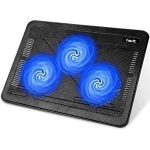
Look for a cooling pad with good airflow, sturdy support, and adjustable height. Some models have multiple fans for better cooling.
Proper Placement and Usage
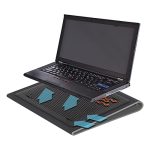
Place your laptop on the cooling pad flat. Make sure the vents are unobstructed. Turn on the fans before starting your work for optimal results.
Cleaning and Maintaining Your Laptop’s Cooling System
Dust buildup can block vents and fans, causing overheating. Regular maintenance helps:
- Use compressed air to blow dust out of vents and fans.
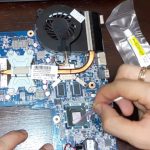
- Open the laptop to clean internal fans, if comfortable.
- Check for and remove any debris around vents.
- Replace thermal paste if your laptop is old or overheating persists.
Adjusting Power Settings for Better Cooling
Your laptop’s power plan influences heat. Follow these steps:
Set Power Plans to Power Saver or Balanced
Switching to these modes reduces CPU usage, lowering heat production.
Limit Processor Usage
Use Task Manager or Activity Monitor to identify and close programs overusing CPU resources. This decreases overall heat.
Upgrading Hardware Components for Improved Cooling
Sometimes, hardware upgrades are necessary:
Installing a Better Cooling System
Replace stock cooling fans with higher quality ones suitable for your laptop model.
Upgrading RAM or Storage
More RAM or faster storage can reduce the load on the CPU and lessen heat output.
Monitoring Laptop Temperature
Track your laptop’s internal temperature with software tools:
- Core Temp
- HWMonitor
- SpeedFan
Set temperature thresholds to alert you if overheating occurs.
Additional Tips for Maintaining Optimal Laptop Temperature
Other small actions can make a big difference:
- Avoid using your laptop on soft surfaces like beds or couches that block vents.
- Ensure your workspace is cool and free from direct sunlight.
- Use external keyboards and mice to keep the laptop oriented for better airflow.
- Keep your laptop’s BIOS and drivers updated for better thermal management.
Related Topics
Considering other factors helps keep your laptop cool:
- Cooling solutions for gaming laptops. Heavy use generates more heat.
- Best practices for laptop maintenance. Regular cleaning extends lifespan.
- How environmental factors affect laptop temperature. Humidity and temperature play roles.
Learning how to cool down a laptop involves simple steps like improving airflow, cleaning vents, and using cooling accessories. Regular maintenance and mindful usage can prevent overheating and keep your laptop running smoothly for years. Remember that keeping your device cool enhances performance and prolongs its life.
How To Cool Down Your Laptop
Frequently Asked Questions
What are some effective ways to improve airflow around my laptop?
To enhance airflow, keep your laptop on a hard, flat surface like a desk instead of soft surfaces like beds or cushions that block vents. Use a stand or cooling pad to elevate the laptop, allowing better air circulation underneath. Regularly clear dust and debris from vents and fans to prevent blockage. Ensuring proper room ventilation also helps maintain lower temperatures during extended usage.
How can adjusting your laptop’s settings help reduce its temperature?
Lowering the CPU’s workload reduces heat generation. You can do this by closing unnecessary background applications and limiting running processes. Adjust your power settings to a power saver or balanced mode to slow down processor activity. Keeping your graphics settings low during intensive tasks and reducing screen brightness also helps keep temperatures in check.
What maintenance steps can prevent my laptop from overheating?
Regularly clean your laptop’s vents and fans to prevent dust buildup, which can impede cooling. Check for and remove any software or malware that causes high CPU usage. Keep your operating system and drivers updated to ensure optimal performance and temperature regulation. Additionally, replace thermal paste when necessary to maintain proper heat transfer between components and the cooling system.
Are there any external accessories that assist in cooling my laptop?
Using a quality cooling pad or stand equipped with built-in fans can significantly improve cooling. These accessories elevate your laptop and promote better airflow, reducing internal temperatures. Avoid using cheap or poorly designed cooling devices, as they may not provide effective heat dissipation. Proper positioning and choosing a device with adjustable fan speeds can further optimize cooling performance.
Can software help monitor and manage my laptop’s temperature?
Yes, various software tools enable you to monitor the temperature of key components like the CPU and GPU. These programs often allow you to set temperature thresholds and receive alerts if temperatures rise too high. Some software can also control fan speeds or suggest actions to lower heat, helping you actively manage and prevent overheating during heavy usage.
Final Thoughts
To cool down a laptop effectively, start by ensuring proper ventilation. Keep your device on a flat surface and avoid using it on soft materials like beds or cushions. Cleaning dust from vents also helps improve airflow. Using a cooling pad can further reduce operating temperatures.
Regularly checking and updating your system’s drivers prevents overheating caused by software issues. Limiting background apps reduces CPU load and heat generation.
In summary, knowing how to cool down a laptop involves proper ventilation, cleaning, and managing software. Implement these steps to keep your laptop cool and running smoothly.