To fix your laptop overheating quickly, start by cleaning the vents, using a cooling pad, and ensuring your workspace is cool and well-ventilated. Keep your laptop’s software updated and close unnecessary background apps to reduce strain. If the problem persists, consider replacing thermal paste or seeking professional repair.
Overheating can make your laptop sluggish, cause crashes, and shorten its lifespan. Fortunately, many overheating issues have simple fixes you can try at home. By maintaining proper airflow, cleaning dust from vents, and managing your system’s workload, you can keep your device running smoothly and extend its lifespan. In this guide, we’ll explore practical steps to troubleshoot and prevent overheating, ensuring your laptop stays cool even during demanding tasks. Whether you’re working, gaming, or streaming, these tips will help you maintain optimal performance without the risk of overheating.

How to Fix Laptop Overheating: A Complete Guide
Laptop overheating can cause serious problems like slowing down your device, unexpected shutdowns, or even hardware damage. Fortunately, there are simple steps you can take to cool your laptop and prevent future overheating issues. In this guide, we’ll explore how to fix laptop overheating with easy-to-follow tips and techniques. Whether your device gets hot during gaming, heavy work, or simple browsing, these solutions will help keep your laptop running smoothly.
Understanding Why Laptops Overheat
Before fixing overheating, it’s important to understand why it happens. Laptops generate heat when components like the CPU and GPU work hard. When proper cooling isn’t in place, temperature rises dangerously high. Common causes include dust buildup, outdated software, and hardware issues.
Common Causes of Laptop Overheating
- Dust and dirt clogging cooling fans and vents
- Blocked airflow due to improper placement or obstructions
- Old or ineffective thermal paste between CPU and heatsink
- Running intensive programs for long periods
- Malware or background processes consuming excessive resources
- Hardware issues like failing fans or damaged vents
How to Prevent Laptop Overheating
Prevention is better than repair. Regular maintenance can significantly reduce overheating risks. Keep your laptop clean and ensure good airflow to maintain optimal temperatures. Also, avoid using the device on soft surfaces like beds or couches that block vents.
Best Practices for Preventing Overheating
- Use your laptop on hard, flat surfaces such as desks or tables.
- Keep air vents clear of dust and debris.
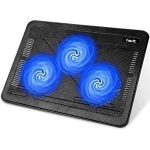
- Use a cooling pad or external fans for added airflow.
- Regularly update your operating system and drivers.
- Check and replace thermal paste if needed.
- Limit background programs that consume CPU resources.
Cleaning and Maintaining Your Laptop
One of the most effective ways to fix overheating is by physically cleaning your device. Dust buildup can obstruct airflow and cause components to overheat.
Step-by-step Cleaning Process
- Turn off the laptop and disconnect all power sources.
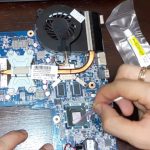
- Open the back panel if possible, following the manufacturer’s instructions.
- Use compressed air to blow out dust from vents, fans, and heatsinks.
- Gently clean visible dust with a soft brush or cloth.
- Ensure vents are free of blockages before reassembling.
Replacing Thermal Paste
Thermal paste helps transfer heat from the CPU to the heatsink efficiently. Over time, it may dry out and lose effectiveness, leading to higher temperatures.
- Remove the heatsink carefully.
- Clean old thermal paste using isopropyl alcohol and a lint-free cloth.
- Apply a small, pea-sized amount of new thermal paste.
- Reattach the heatsink securely.
Improving Laptop Cooling Performance
Enhancing cooling performance involves both hardware and software adjustments. These steps ensure your laptop remains cool during intensive tasks.
Using Cooling Pads
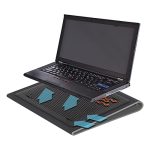
Cooling pads with built-in fans can dramatically reduce temperatures. Place your laptop on a cooling pad before starting demanding applications.
Adjusting Power Settings
In Windows or Mac, optimize power settings to reduce CPU workload. Selecting balanced or power saver modes helps minimize heat.
Monitoring Temperatures
Use temperature monitoring software to keep track of CPU and GPU heat levels. If temperatures exceed safe limits, consider closing unnecessary programs or reducing workload.
Software Solutions to Fix Overheating
Sometimes, overheating stems from software issues, like unnecessary processes hogging resources or outdated drivers. Managing these can help keep your laptop cool.
Closing Unnecessary Processes
Use Task Manager (Windows) or Activity Monitor (Mac) to identify and close processes consuming high CPU and RAM. This reduces workload and heat generation.
Updating Drivers and BIOS
Outdated drivers or BIOS versions can affect hardware performance. Regular updates improve hardware efficiency and cooling capabilities.
Running Antivirus Scans
Malware can cause your laptop to work harder, generating more heat. Perform regular virus scans to keep your system clean and efficient.
Hardware Upgrades for Better Cooling
If basic cleaning and software optimization aren’t enough, consider hardware upgrades. These changes can provide better cooling and improve performance.
Adding RAM or Storage
Upgrading RAM can reduce the load on the CPU, lowering heat. Similarly, replacing traditional HDD with SSD decreases power consumption and heat output.
Replacing Fans
If your fans are noisy or not working properly, replacing them can restore proper airflow and cooling efficiency.
When to Seek Professional Help
If your laptop continues to overheat despite following these steps, it might have a hardware problem. Contact a professional technician for diagnosis and repair. Persistent overheating can damage internal components if left unaddressed.
In summary, fixing laptop overheating involves a combination of regular maintenance, hardware checks, software management, and proper usage habits. By following these comprehensive steps, you can extend your device’s lifespan and ensure smooth performance.
Laptop Overheating Issue Super Quick Fix ! #Shorts
Frequently Asked Questions
What steps can I take to improve air circulation around my laptop?
Place your laptop on a hard, flat surface to allow proper airflow underneath. Avoid using it on soft surfaces like beds or couches, which can block vents. Elevate the rear of your laptop slightly using a small stand or books to increase ventilation. Regularly clean the vents and fans to remove dust buildup that can hinder airflow and cause overheating.
How can I optimize my laptop’s performance to reduce overheating?
Close unnecessary programs and background processes that put extra load on the CPU and GPU. Update your system and drivers to ensure optimal performance and better thermal management. Adjust your power settings to prevent your laptop from running at maximum capacity unnecessarily, which can generate excess heat.
Are there any software tools that help monitor and manage laptop temperatures?
Yes, several software applications enable you to monitor your laptop’s temperature in real-time. These tools often allow you to set alerts for high temperatures and sometimes provide options to control fan speeds. Using such software helps you keep track of thermal performance and take preventive measures if temperatures rise dangerously.
Final Thoughts
To fix laptop overheating, start by cleaning dust from vents and fans regularly. Ensure proper airflow by using a cooling pad or elevating your laptop. Adjust power settings to prevent excessive CPU usage. Applying these steps helps maintain optimal temperatures.
Addressing overheating promptly prevents hardware damage and extends your device’s lifespan. By taking these simple measures, you ensure your laptop runs smoothly without overheating issues. Overall, following these tips on how to fix laptop overheating keeps your device cool and efficient.