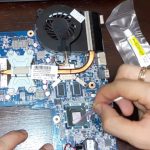
To clean your laptop fan quickly and effectively, turn off your laptop, open the back panel, and gently remove dust with compressed air or a soft brush. Be cautious not to damage any components and ensure the fan spins freely afterward. Regular maintenance like this keeps your laptop cool and running smoothly.
Cleaning your laptop fan might sound daunting, but it’s simpler than you think. Over time, dust and debris accumulate inside your laptop, especially around the cooling fan, causing it to slow down or become noisy. If your laptop is overheating or shutting down unexpectedly, a good cleaning could be the fix. In this guide, we’ll walk you through easy steps to safely remove dust and keep your device cool without needing professional help. Whether you’re a tech novice or just want to extend your laptop’s lifespan, maintaining your fan is a straightforward task that can save you money and improve performance.

How to Clean Laptop Fan
Cleaning your laptop fan is an essential task to keep your device running smoothly and prevent overheating. Dust and debris can accumulate inside the fan over time, which reduces airflow and causes your laptop to heat up. Proper cleaning can extend the life of your laptop and improve performance. In this guide, we’ll explore detailed steps and tips on how to clean your laptop fan effectively and safely.
Understanding Why Cleaning Your Laptop Fan Matters
Dust buildup is common in laptops, especially if you use your device in dusty environments. When dust clogs the fan, it hampers the airflow needed to cool the internal components. This can lead to overheating, system crashes, and even hardware damage. Regular maintenance helps maintain optimal cooling, prolongs your laptop’s lifespan, and keeps it running quietly.
Tools You’ll Need to Clean Your Laptop Fan
Before beginning, gather the necessary tools to ensure a smooth cleaning process:
- Compressed Air Can – To blow off dust particles without touching internal parts
- Small Phillips-head screwdriver – For opening the laptop case
- Antistatic wrist strap – To prevent static buildup that could damage components
- Soft brush or microfiber cloth – For gentle cleaning
- Isopropyl alcohol (90% or higher) – To clean stubborn grime, if necessary
- Tweezers or Canned Air Nozzle – To reach tight spaces
Having these tools ready ensures a safe and effective cleaning process.
Preparing Your Laptop for Cleaning
Start by turning off your laptop and unplugging all cables. Remove the battery if your device allows, as this minimizes any risk of electrical damage. Place the laptop on a clean, static-free workspace with good lighting. Wearing an antistatic wrist strap helps prevent static electricity from damaging internal components.
Accessing the Fan Inside Your Laptop
Every laptop model is different, but generally, you will need to open the bottom panel. Use your screwdriver to carefully remove screws securing the case, keeping track of where each screw belongs. Gently pry open the panel with a plastic tool if necessary, avoiding force to prevent cracking the shell.
Locating the Fan
Once the case is open, identify the fan—usually a small, circular component with blades. It is often connected to a heat sink or cooling system. Take note of its orientation and how wires are connected for reassembly.
Cleaning the Laptop Fan Effectively
The cleaning process involves removing dust, dirt, and debris from both the fan blades and the surrounding areas. Use compressed air to blow away dust and prevent damage to delicate parts.
Step-by-step Cleaning Process
- Hold the fan blades in place gently to prevent them from spinning excessively, which could damage the fan.
- Use the compressed air can to blow dust off the blades, vents, and heat sink. Use short bursts and keep the can upright.
- Clean the vents thoroughly to improve airflow. Pay special attention to air exhausts and intakes.
- If stubborn grime remains, dip a soft brush or microfiber cloth lightly in isopropyl alcohol and gently wipe the blades and surrounding areas.
- Avoid touching the fan blades with your fingers or any metal tools to prevent damage or static buildup.
Additional Tips for Thorough Cleaning
- Use a can of canned air with a straw attachment to reach tight spots.
- Do not apply excessive force when cleaning delicate components.
- Repeat the process if the area still appears dusty or dirty.
- Be cautious around electrical connections to avoid unintentional disconnection.
Reassembling Your Laptop
After cleaning, carefully put the case back together. Reattach all screws and reconnect any cables or components removed during disassembly. Ensure everything is secured properly before turning the laptop back on.
Post-Cleaning Checks and Maintenance Tips
Once reassembled, power on your laptop to verify proper functioning. Listen for unusual noises or overheating signs. Regular cleaning every six to twelve months can prevent new dust buildup and help your laptop stay cool.
Preventive Measures to Keep Your Laptop Clean
To maintain a dust-free environment:
- Use your laptop on clean surfaces, avoiding dusty or dirty areas.
- Keep vents unobstructed and avoid blocking airflow.
- Store your laptop in a clean, dust-free space when not in use.
- Use a desktop fan or air purifier in dusty environments to reduce airborne dust levels.
Addressing Common Concerns
Some users worry about damaging internal components during cleaning. Remember, gentle handling and using the proper tools minimize risks. If you’re uncomfortable opening your device, seek professional help to prevent accidental damage.
How to Clean External Air Vents and Ports
External vents can also collect dust, impacting airflow. Use compressed air to blow out dust from ports and vents. Regular external cleaning complements internal fan maintenance.
Understanding Fan Types and Their Cleaning Needs
Different laptops use various types of fans, such as sleeve bearing or ball bearing fans. Sleeve bearing fans may require more careful handling as they can be less durable. Check your laptop’s specifications for specific cleaning advice.
Recognizing Signs that Your Laptop Fan Needs Cleaning
Signs include loud fan noise, overheating, or sudden shutdowns. If your laptop feels unusually hot or loud during operation, it’s time to inspect and clean the fan.
When to Seek Professional Help
If you’re unsure about opening your laptop or encounter complex disassembly, consult a professional technician. They have specialized tools and experience to clean fans without risking damage.
Cleaning your laptop fan is a straightforward process that can significantly enhance your device’s performance. Regular maintenance prevents overheating and prolongs the life of your laptop. Take your time, follow safety precautions, and keep your device cool and efficient.
How To Clean a Laptop Fan Safely (Best Method Without Damage) 💻
Frequently Asked Questions
What tools do I need to safely clean my laptop’s fan?
To clean your laptop’s fan effectively, gather a can of compressed air, a small screwdriver if removing panels, and a soft brush or microfiber cloth. Using compressed air helps dislodge dust without damaging internal components, while the brush allows you to gently remove stubborn dirt from fan blades. Ensure your workspace is static-free and work in a well-ventilated area to avoid inhaling dust particles.
How can I prevent dust buildup inside my laptop in the future?
Regularly cleaning your workspace and keeping your laptop in a dust-free environment can significantly reduce dust accumulation. Use a protective case or cover when transporting your device to avoid collecting dirt. Additionally, periodically using compressed air to blow out vents and fans helps maintain cleanliness without opening the device, which minimizes the risk of internal damage.
Is it safe to clean a laptop fan without opening the device?
Yes, cleaning your laptop fan with compressed air can be safe if you do not open the device. Hold the laptop upside down or at an angle to direct the airflow into the vents. Keep the fan blades stationary by gently holding them, preventing them from spinning excessively during cleaning. Avoid using liquids or applying direct pressure to internal parts to prevent damage.
Final Thoughts
To clean your laptop fan effectively, turn off your device and unplug it. Use compressed air to blow dust from the fan vents gently. If needed, open the laptop casing carefully to access the fan directly. Remove dirt and debris without causing damage.
Regular cleaning maintains optimal airflow and prevents overheating. Remember, learning how to clean laptop fan is simple with the right tools and precautions. Keeping your laptop clean ensures better performance and longevity.