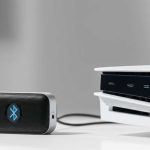
Connect your TV to a Bluetooth speaker easily for awesome sound! This guide makes it simple to get richer audio for movies, music, and games without tangled wires. Let’s boost your home entertainment experience today!
Hey there, tech adventurer! Ever feel like your TV’s built-in speakers are just… okay? You know, they get the job done, but they don’t quite make that explosion in your favorite action movie boom or that quiet dialogue in a drama crystal clear. I totally get it. Sometimes, the sound from your TV is like watching a great movie on a tiny screen – it’s missing that immersive magic. And let’s be honest, picking out the right speaker can feel like learning a new language with all those technical terms!
But what if I told you that upgrading your TV’s sound is super easy, even if you’re not a tech wizard? We’re talking about connecting your TV to a Bluetooth speaker. Imagine filling your room with rich, powerful sound that makes every movie night a cinematic event or every gaming session feel like you’re right in the middle of the action. It’s not as complicated as it sounds, I promise!
Think of it like this: your TV is the director, and the Bluetooth speaker is the incredible sound engineer. Together, they create an amazing experience. We’re going to walk through how to make them best friends, step by simple step. No confusing jargon, just clear instructions to get you from “meh” sound to “WOW!” sound. Ready to make your living room sound amazing? Let’s dive in!

Why Bother Connecting Your TV to a Bluetooth Speaker?
Let’s get real for a sec. TV manufacturers pack so much into those slim screens – sharp visuals, smart features, all the streaming apps you could ever want. But there’s one thing that often takes a backseat: the sound. Most built-in TV speakers are small and tucked away, designed to be as unobtrusive as possible. This means they often lack the depth, clarity, and power to truly bring your entertainment to life.
This is where a good Bluetooth speaker swoops in like a superhero! It can transform your viewing experience. Suddenly, you’ll hear the subtle rustle of leaves in a nature documentary, the thunderous roar of a T-Rex in Jurassic Park, or the crisp dialogue from your favorite characters without straining to hear. It’s about making your TV experience more immersive and enjoyable. Plus, many Bluetooth speakers are portable, so you can move them around or even take them to another room!
Does Your TV Even Support Bluetooth? Let’s Find Out!
This is the first, and most important, question to answer. Not all TVs have built-in Bluetooth, especially older models or some budget-friendly ones. Don’t worry, though! Finding out is usually pretty straightforward.
Here’s how to check:
Dive into your TV’s Settings Menu: This is your best bet. Grab your TV remote and navigate to the main settings or menu. Look for options like “Sound,” “Audio,” “Connections,” “Network,” or “Bluetooth.” If you see a “Bluetooth” option and can toggle it on or search for devices, congratulations! Your TV is Bluetooth-enabled.
Check your TV’s Manual or Manufacturer Website: If you can’t find it in the settings, the next step is to consult your TV’s user manual. If you’ve misplaced it, no worries! Just search online for your TV’s model number and “manual” or “specifications.” The manufacturer’s website will have all the details.
Look for a Bluetooth Symbol: Sometimes, you might find a small Bluetooth symbol (it looks like a stylized ‘B’) printed on the back or side of your TV. This is a quick visual clue, but always double-check in the settings or manual to be sure.
What If My TV Doesn’t Have Bluetooth?
Don’t despair if your TV isn’t Bluetooth-ready! There are still fantastic ways to get that amazing sound. The most common solution is a Bluetooth transmitter/adapter. These little gadgets plug into your TV’s audio output (usually a headphone jack or optical port) and then broadcast a Bluetooth signal that your speaker can pick up. It’s like giving your TV Bluetooth superpowers! We’ll touch more on these later.
Connecting Your TV to a Bluetooth Speaker: The Step-by-Step Magic
Alright, let’s get down to business! Assuming your TV does have built-in Bluetooth, connecting your speaker is usually a simple process. Think of it like pairing your phone to your car’s audio system – it’s that easy.
Step 1: Put Your Bluetooth Speaker into Pairing Mode
This is crucial! Your speaker needs to be discoverable so your TV can find it. The way to do this varies slightly between speaker brands and models, but here’s the general idea:
Look for a dedicated Bluetooth button: Many speakers have a button with the Bluetooth symbol on it. Press and hold this button for a few seconds. You’ll usually hear a sound or see a light flash to indicate it’s in pairing mode.
Check the power button: On some speakers, you might need to press and hold the power button when you first turn it on to enter pairing mode.
Consult your speaker’s manual: If you’re unsure, your speaker’s manual is your best friend here. It will tell you exactly how to put it into pairing mode.
Pro Tip: Once your speaker is in pairing mode, it usually stays that way for a few minutes, so make sure you start the TV search process quickly!
Step 2: Put Your TV into Bluetooth Pairing Mode
Now, you need to tell your TV to look for nearby Bluetooth devices. This is done through your TV’s settings menu. The exact wording might differ depending on your TV brand (Samsung, LG, Sony, TCL, etc.), but the general path is similar:
1. Navigate to Settings: Press the “Home” or “Menu” button on your TV remote.
2. Find Bluetooth Settings: Look for options like “Sound,” “Audio Output,” “Connections,” “Network,” or “General.” Within these, you should find a “Bluetooth” or “Add Device” option.
3. Scan for Devices: Select the option to search for or add a new Bluetooth device. Your TV will then start scanning the airwaves for any devices that are in pairing mode.
Step 3: Select Your Speaker from the TV’s List
Once your TV has finished scanning, you should see a list of available Bluetooth devices appear on your screen. Find the name of your Bluetooth speaker (it’s usually the brand name or model number, like “JBL Flip 5” or “Sony SRS-XB23”).
Select your speaker: Use your remote to highlight your speaker’s name and press “OK” or “Select.”
Confirm pairing (if prompted): Some TVs and speakers might ask you to confirm a pairing code. If this happens, just follow the on-screen instructions. Usually, it’s just a matter of confirming that the codes match.
Step 4: Confirm the Connection and Enjoy!
If the pairing is successful, your TV will usually display a confirmation message, and your speaker might make a sound or its indicator light will change to show it’s connected. Now, try playing something on your TV! The sound should automatically come through your Bluetooth speaker.
Quick Troubleshooting Tip: If your TV can’t find the speaker, try turning both devices off and on again, making sure the speaker is still in pairing mode, and rescanning from your TV’s settings. Sometimes, it just needs a little refresh!
When Your TV Doesn’t Have Built-in Bluetooth: The Transmitter Solution
So, what if your TV is a bit older and doesn’t have that magical built-in Bluetooth feature? Don’t let that stop you from getting awesome sound! The solution is a Bluetooth transmitter adapter. These handy gadgets are relatively inexpensive and super easy to use.
How a Bluetooth Transmitter Works
A Bluetooth transmitter plugs into your TV’s audio output port. This port is usually a standard 3.5mm headphone jack or an optical audio port (also called TOSLINK or S/PDIF). The transmitter then takes the audio signal from your TV and broadcasts it wirelessly via Bluetooth to your speaker.
Types of Audio Ports on Your TV:
3.5mm Headphone Jack: This looks just like the jack on your smartphone or headphones. It’s usually clearly labeled with a headphone symbol.
Optical Audio Out (TOSLINK/S/PDIF): This is a small, often square-shaped port, usually with a red light inside. It’s known for delivering high-quality digital audio.
RCA Audio Out (Red and White Jacks): Less common on modern TVs, these are two separate circular jacks, one red and one white.
How to Connect with a Transmitter:
1. Choose the Right Transmitter: Make sure the transmitter you buy has the correct audio input to match your TV’s output. Many transmitters come with multiple cable options (like 3.5mm to 3.5mm and 3.5mm to RCA).
2. Plug it In: Connect the transmitter to your TV’s audio output port using the appropriate cable.
3. Power Up the Transmitter: Most transmitters are powered via a USB cable, which you can plug into a USB port on your TV or a wall adapter.
4. Put the Transmitter in Pairing Mode: Like your speaker, the transmitter needs to be put into pairing mode. There’s usually a button on the transmitter itself for this. Check its manual.
5. Pair Your Speaker: With the transmitter in pairing mode, put your Bluetooth speaker into its pairing mode as well. The transmitter should then connect to your speaker.
6. Adjust TV Audio Settings: This is super important! You’ll need to tell your TV to send audio to the output you used. Go back to your TV’s sound settings and select “Headphone,” “Audio Out,” or “External Speaker” as the audio output. If you used an optical cable, you might need to select “Optical” or “Digital Audio Out” and sometimes even change the digital audio format to “PCM.”
Fun Fact: Many modern Bluetooth transmitters can actually connect to two Bluetooth speakers or headphones at once! This is perfect for sharing the sound with a friend or partner without disturbing anyone else.
Choosing the Right Bluetooth Speaker for Your TV
Not all Bluetooth speakers are created equal, and what works great for music might be just okay for TV. Here are a few things to consider when picking one out:
Sound Quality Matters
Bass Response: For movies and games, you want a speaker with good bass. This gives explosions, soundtracks, and engine sounds that satisfying rumble.
Clarity: Clear mid-range and treble are essential for dialogue. You don’t want to miss what characters are saying!
Stereo Sound: Some speakers are designed to work in pairs for true stereo sound, which can create a more immersive audio experience.
Latency: The Silent Killer of Sync
This is a big one for TV. Latency is the slight delay between when the video plays on screen and when the audio comes out of your speaker. If the latency is too high, your dialogue will be out of sync with the actors’ lips, which is super annoying!
Look for Low Latency or aptX Low Latency: Some Bluetooth codecs (the technology that transmits the audio) are better than others. aptX Low Latency is a standard specifically designed to minimize this delay. If your TV and speaker both support aptX Low Latency, you’re golden! If not, a good quality speaker and transmitter might still have acceptable latency, but it’s something to be aware of.
Connectivity Options
While we’re focusing on Bluetooth, some speakers offer other ways to connect, like an AUX-in port. This can be a good backup if Bluetooth is giving you trouble.
Power and Battery Life
For TV Use: If the speaker will mostly stay near your TV, consider a model that can be plugged into the wall for continuous power. You won’t have to worry about battery life.
Portability: If you plan to move it around, check the battery life to ensure it lasts long enough for your needs.
Size and Design
This is personal, but consider where you’ll place the speaker. Do you want something small and discreet, or a larger unit that makes a statement?
Comparing Popular Bluetooth Speaker Features for TV
Let’s look at how different features can impact your TV sound experience.
| Feature | Importance for TV | Notes |
| :——————— | :—————————————————- | :————————————————————————————————————————————- |
| Sound Quality | Very High | Good bass for impact, clear mids/highs for dialogue. |
| Latency (aptX LL) | Very High | Crucial for keeping audio and video in sync. Look for aptX Low Latency support on both TV (or transmitter) and speaker. |
| Power Source | High (if stationary) | Wall power is ideal for constant TV use. Battery is great for portability. |
| Connectivity | High | Bluetooth is primary. AUX-in is a good backup. |
| Stereo Pairing | Medium (enhances immersion) | Two speakers working together can create a wider soundstage. |
| Volume Control | High | Easy control from the speaker itself is convenient. |
| Durability/Waterproof | Low (unless you watch TV in the shower!) | More relevant for portable use, but nice to have for peace of mind. |
Understanding Latency: A Deeper Dive
When we talk about latency, think of it as a tiny echo. Your TV sends the audio signal, and the Bluetooth connection takes a split second to transmit it. For music, a tiny delay might not be noticeable. But for video, where sound and picture are synchronized, even a small delay can be jarring.
That’s why aptX Low Latency is a game-changer. It’s a Bluetooth audio codec (a set of rules for compressing and transmitting audio) that significantly reduces this delay, often to imperceptible levels.
Here’s a quick comparison of common Bluetooth codecs and their typical latency:
| Bluetooth Codec | Typical Latency (ms) | Notes |
| :—————- | :——————- | :—————————————————————————————————— |
| SBC (Standard) | 150-300 ms | The most basic and widely compatible. Can have noticeable delay. |
| AAC | 100-150 ms | Common on Apple devices. Better than SBC but still not ideal for video. |
| aptX | 30-50 ms | Better quality and lower latency than SBC/AAC. |
| aptX Low Latency | < 40 ms | The gold standard for video. Keeps audio and video virtually perfectly in sync. |
| aptX Adaptive | Variable (15-80 ms) | Adjusts quality and latency based on environment. Can be good, but aptX LL is more reliably low latency. |
What this means for you: If your TV or transmitter supports aptX Low Latency, and your speaker also supports it, you’re in for a smooth, synced viewing experience. If either your TV or speaker doesn’t support aptX LL, you might experience a slight lip-sync issue. In that case, consider a good Bluetooth transmitter that does support aptX LL. You can find excellent ones from brands like Mpow, Anker, and Avantree. For more on Bluetooth audio, CNET has a great breakdown: https://www.cnet.com/tech/mobile/bluetooth-aptx-hd-and-ldac-explained-audio-codecs/
Tips for the Best TV Bluetooth Speaker Experience
Once you’re connected, here are a few extra tips to make your sound even better:
Speaker Placement: Don’t just shove your speaker behind the couch! For the best sound, try placing it in front of your TV, at ear level if possible. Experiment with different spots to see what sounds best in your room.
Adjust TV Volume: You might want to set your TV’s internal speakers to a very low volume or even mute them completely once your Bluetooth speaker is working. This prevents echoes.
Use Speaker Volume Controls: Most Bluetooth speakers have their own volume controls. You can often find a sweet spot by setting your TV volume to a moderate level (e.g., 50%) and then using the speaker’s volume to adjust the final loudness.
Check for Firmware Updates: Some higher-end Bluetooth speakers can be updated with new firmware. Check the manufacturer’s app or website. Updates can sometimes improve performance or fix bugs, including latency issues.
Keep Devices Charged/Plugged In: If you’re using a battery-powered speaker, make sure it’s charged before a long movie marathon. If it’s a wall-powered speaker, ensure it’s plugged in.
Frequently Asked Questions (FAQ)
Here are some common questions people have when connecting their TV to a Bluetooth speaker:
Q1: Can I connect my TV to multiple Bluetooth speakers at once?
A1: Most TVs can only connect to one Bluetooth audio device at a time. Some Bluetooth transmitters, however, can pair with two speakers simultaneously, allowing you to share the sound.
Q2: My sound is lagging behind the video. What can I do?
A2: This is called latency. Make sure both your TV (or transmitter) and speaker support aptX Low Latency. If not, try repositioning your devices, or consider a transmitter specifically designed to reduce latency. Restarting both devices can also sometimes help.
Q3: My TV doesn’t show a Bluetooth option. How do I connect a speaker?
A3: You’ll need a Bluetooth transmitter adapter! These plug into your TV’s audio output (like a headphone jack) and broadcast the sound wirelessly to your speaker.
Q4: Will connecting a Bluetooth speaker drain my TV’s battery faster?
A4: TVs typically don’t run on batteries, so this isn’t a concern. If you’re using a Bluetooth transmitter that’s powered by USB from your TV, it will draw a small amount of power, but it’s usually negligible.
Q5: How close do my TV and speaker need to be?
A5: Bluetooth has a range of about 30 feet (10 meters) in open space. Walls and other electronic devices can interfere with the signal, so it’s best to keep them within a reasonable distance, usually less than 20 feet for a stable connection.
Q6: Can I use my soundbar with Bluetooth if it’s not from the same brand as my TV?
A6: Absolutely! As long as your TV can send audio out (either via Bluetooth, or you use a transmitter for optical/headphone out), you can connect any Bluetooth-enabled soundbar or speaker. The brands don’t need to match for Bluetooth connections.
Bringing It All Together for Amazing Sound
See? Connecting your TV to a Bluetooth speaker is totally achievable, even if you’re new to this. You’ve learned how to check if your TV is ready for Bluetooth, how to pair your devices step-by-step, and what to do if your TV needs a little help with a Bluetooth transmitter. We’ve also covered how to choose the right speaker and what to watch out for, like that pesky latency.
Now you’re equipped to ditch those tinny TV speakers and dive into a world of richer, more immersive audio. Whether you’re catching up on your favorite series, getting lost in a blockbuster movie, or battling it out in a video game, that upgraded sound will make all the difference. Don’t be afraid to experiment with speaker placement and settings to find what sounds best in your space.
So go ahead, give it a try! You’ve got this. Now go enjoy amazing sound and make every moment louder and better!