Yes, you absolutely can connect your TV to a Bluetooth speaker! It’s a fantastic way to boost your TV’s sound without messy wires. We’ll show you exactly how to do it, making your movie nights and gaming sessions way more awesome.
Hey there, tech explorer! Ever wished your TV’s sound was just a little… bigger? Maybe you love movie nights or get really into your games, and the built-in TV speakers just don’t cut it. You’ve probably seen those sleek Bluetooth speakers and wondered if they could team up with your TV. Well, get ready for some good news! Connecting your TV to a Bluetooth speaker is totally possible, and it’s not as tricky as it sounds.
I remember when I first started playing with gadgets, figuring out how everything connected felt like solving a puzzle. But honestly, most of the time, it’s just about finding the right buttons and settings. Connecting a Bluetooth speaker to your TV is one of those simple upgrades that makes a huge difference in your everyday entertainment. It’s like giving your TV a super-powered voice!
So, if you’re ready to ditch the tinny TV sound and dive into a richer audio experience, you’re in the right place. We’re going to walk through everything you need to know, step by step. No confusing tech jargon, just clear, friendly instructions. Let’s break it down and get your sound booming!
Let’s Talk About Sound: Why Bother?
Think about your favorite movie scene or that epic game moment. The visuals are stunning, right? But what about the sound? A great sound system pulls you right into the action. It makes explosions feel more impactful, whispers more intimate, and music more immersive. Your TV’s built-in speakers are okay, but they’re usually small and don’t have much room to create deep, rich sound.
This is where Bluetooth speakers shine. They’re designed for audio! Many are portable, meaning you can move them around easily. And when you connect one to your TV, you’re essentially giving your TV a much bigger, better voice. It’s a simple upgrade that can transform your living room into a mini-cinema. Plus, no more tripping over speaker wires!
Can My TV Even Do This? Finding the Bluetooth Magic
The first big question is: does your TV have Bluetooth built-in? Not all TVs do, especially older models. But many newer smart TVs come with it. It’s usually hidden away in the settings menu.
How to Check if Your TV Has Bluetooth
Here’s a quick way to find out:
Look in your TV’s Settings Menu: This is your best bet. Navigate through your TV’s settings. Look for options like “Sound,” “Audio,” “Connections,” “Network,” or “Bluetooth.” If you see a “Bluetooth” option, your TV likely has it!
Check Your TV’s Manual: If you still have the user manual that came with your TV, it will tell you if it has Bluetooth capabilities.
Search Online: A quick Google search for your TV’s model number and “Bluetooth” should give you the answer.
If your TV doesn’t have built-in Bluetooth, don’t worry! There’s still a way to make it work. You can use a little gadget called a Bluetooth transmitter. We’ll get to that later.
Connecting Your TV to a Bluetooth Speaker: The Step-by-Step Guide
Okay, let’s say your TV does have Bluetooth. Great! Now, let’s get that speaker connected. It’s usually a pretty straightforward process, much like pairing your phone to your speaker.
Step 1: Get Your Bluetooth Speaker Ready
First things first, make sure your Bluetooth speaker is charged up and turned on. You’ll need to put it into “pairing mode.” This is how the speaker tells other devices, like your TV, that it’s ready to connect.
How to Enter Pairing Mode: This is different for every speaker. Usually, there’s a dedicated Bluetooth button you press and hold. Sometimes, you just turn the speaker on, and it automatically goes into pairing mode if it’s not already connected to something. Check your speaker’s manual if you’re unsure. You’ll often see a blinking light or hear a sound cue that tells you it’s in pairing mode.
Step 2: Put Your TV in Bluetooth Pairing Mode
Now, you need to tell your TV to look for Bluetooth devices. This is done in the TV’s settings menu. The exact steps vary depending on your TV brand (Samsung, LG, Sony, Roku TV, etc.), but the idea is the same.
Navigate to TV Settings: Go to your TV’s main settings menu.
Find Bluetooth Settings: Look for the Bluetooth menu. It might be under “Sound,” “Connections,” or a dedicated “Bluetooth” section.
Scan for Devices: Select the option to “Scan,” “Add Device,” or “Pair Device.” Your TV will start searching for nearby Bluetooth devices that are in pairing mode.
Step 3: Select Your Speaker from the TV’s List
Once your TV is scanning, it should find your Bluetooth speaker. You’ll see its name appear on the TV screen.
Choose Your Speaker: Use your TV remote to select your speaker’s name from the list.
Confirm Pairing: Your TV might ask you to confirm the connection or enter a PIN (though this is rare for speakers). Follow the on-screen prompts.
If everything goes well, you’ll hear a confirmation sound from your speaker, or you’ll see a message on your TV saying the speaker is connected. Now, any sound your TV makes should come out of your Bluetooth speaker!
Step 4: Adjust Volume and Settings
You can usually control the volume using your TV remote. Sometimes, you might need to use the volume buttons on the speaker itself, or your TV remote might control the speaker’s volume directly. Experiment to see what works best!
What If My TV Doesn’t Have Bluetooth? The Transmitter Trick!
So, your TV is a bit older, or you’ve checked, and there’s no built-in Bluetooth. No sweat! You can still get that awesome Bluetooth sound. The solution is a Bluetooth transmitter.
What is a Bluetooth Transmitter?
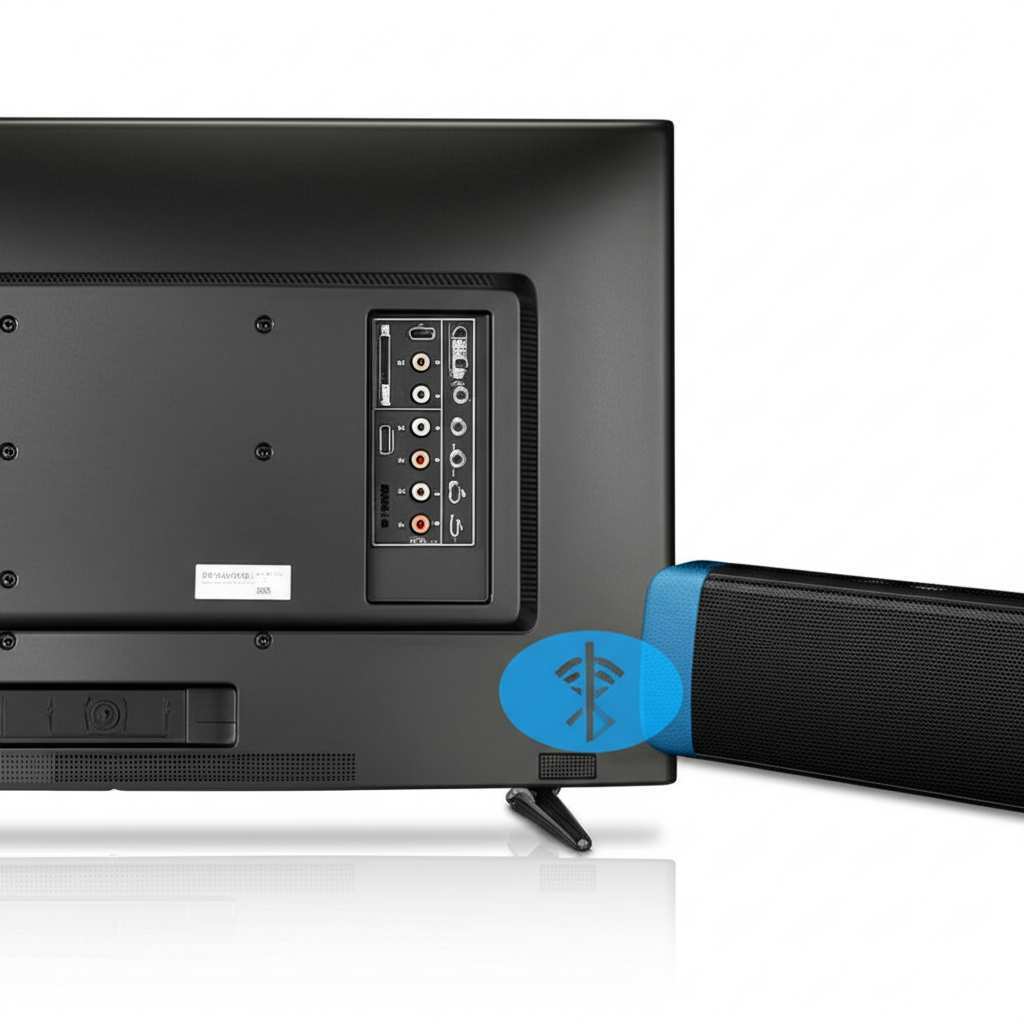
Think of it as a little adapter that adds Bluetooth capability to devices that don’t have it. You plug it into your TV’s audio output, and it broadcasts the sound wirelessly to your Bluetooth speaker.
How to Use a Bluetooth Transmitter
1. Connect the Transmitter to Your TV: Most transmitters plug into your TV using an audio cable. You’ll typically use the 3.5mm headphone jack or the RCA audio out ports (red and white connectors) on your TV.
2. Power the Transmitter: Some transmitters are powered by USB, so you might plug them into a USB port on your TV or a wall adapter.
3. Put the Transmitter in Pairing Mode: Just like your speaker, the transmitter has a button to put it into pairing mode.
4. Put Your Speaker in Pairing Mode: Do the same for your Bluetooth speaker.
5. Connect Them: The transmitter and speaker should automatically find each other and pair. Some transmitters have a screen to select devices, but most just pair automatically with the first device they find in pairing mode.
6. Set TV Audio Output: You might need to go into your TV’s audio settings and select the correct output (e.g., “Headphone” if you used the headphone jack) so the sound goes to the transmitter.
It sounds like a few extra steps, but it’s really quite simple once you have the transmitter.
Choosing the Right Bluetooth Speaker for Your TV
Not all Bluetooth speakers are created equal. When you’re picking one to pair with your TV, there are a few things to consider.
Key Features to Look For
Sound Quality: This is the most important! Listen to reviews or try to demo speakers if you can. Look for speakers that offer clear highs, solid mids, and decent bass.
Battery Life: If you plan to use it for long movie marathons or parties, good battery life is essential.
Connectivity: While we’re focusing on Bluetooth, some speakers have other input options, which can be handy.
Durability: If you’re a bit clumsy or have kids or pets, a more robust speaker might be a good idea.
Latency (Audio Delay): This is super important for TVs! Latency is the delay between the video on screen and the sound coming from your speaker. Some Bluetooth connections can have a noticeable delay, making it feel like people’s mouths aren’t matching the sound. Look for speakers or transmitters that use advanced codecs like aptX Low Latency, which helps minimize this delay.
Speaker Types for Your TV
You’ve got a few main options when it comes to Bluetooth speakers for your TV:
Portable Bluetooth Speakers: These are the most common. They’re great because you can move them anywhere. Brands like JBL, Bose, and Sony offer excellent portable options.
Soundbars (with Bluetooth): Some soundbars are Bluetooth-enabled. These are designed to sit in front of your TV and provide a much richer sound experience than TV speakers. They often offer better bass and a wider soundstage.
Home Stereo Speakers (with Bluetooth): If you have existing home stereo speakers, you might be able to connect them to a Bluetooth receiver to stream audio from your TV wirelessly.
Here’s a quick look at some popular speaker types and what makes them good for TV viewing:
| Speaker Type | Pros | Cons | Best For |
|---|---|---|---|
| Portable Bluetooth Speaker | Versatile, easy to move, wide range of prices. | Can sometimes have slight audio delay, bass might be limited in smaller models. | Casual viewers, supplementing TV sound, portability. |
| Bluetooth Soundbar | Designed for TV audio, improved bass and clarity, sleek look. | Less portable, can be more expensive, might require specific TV connections. | Improving overall TV sound without clutter. |
| Home Stereo System (with Bluetooth Receiver) | Excellent sound quality, immersive experience. | Requires existing stereo equipment, can be complex to set up, not portable. | Audiophiles, dedicated home theater setups. |
This table gives you a quick idea of what to expect. For most people looking to upgrade their TV sound simply, a good portable speaker or a dedicated Bluetooth soundbar is the way to go.
Troubleshooting Common Connection Issues
Sometimes, technology doesn’t play nice right away. If you’re having trouble connecting, don’t get frustrated! Here are a few common issues and how to fix them.
Speaker Not Showing Up on TV?
Is it in Pairing Mode? Double-check that your speaker is actively in pairing mode. A blinking light is usually the signal.
Is it Too Far Away? Bluetooth has a limited range, usually around 30 feet (10 meters). Try moving the speaker closer to the TV.
Is it Already Connected to Something Else? Most Bluetooth devices can only connect to one source at a time. Make sure your speaker isn’t connected to your phone or tablet. Turn off Bluetooth on those devices temporarily.
Restart Both Devices: Sometimes, a simple restart of both your TV and your speaker can clear up connection glitches.
Sound is Lagging (Audio Delay)?
This is the most common issue with Bluetooth and video.
Check for AptX Low Latency: If both your TV (or transmitter) and speaker support aptX Low Latency, make sure it’s enabled. This technology is designed to reduce the delay.
Try a Wired Connection (if possible): If Bluetooth delay is a major problem, and your TV has an audio-out port, you could consider a wired connection using an audio cable. This eliminates Bluetooth delay entirely.
Use a Dedicated Bluetooth Transmitter: As mentioned before, some Bluetooth transmitters are specifically designed to minimize latency. Look for those that advertise low-latency features.
Update Firmware: Check if your TV or speaker has any firmware updates available. Manufacturers sometimes release updates to improve Bluetooth performance.
Speaker Connects But No Sound?
Check TV Audio Output Settings: Make sure your TV is set to output audio to Bluetooth, not its internal speakers.
Check Volume Levels: Ensure the volume is turned up on both the TV and the speaker.
Try a Different Audio Source: Play something from a different app or input on your TV to see if the issue is with a specific program or app.
A little bit of patience goes a long way when troubleshooting. Most issues can be solved by checking the basics and making sure all devices are ready to connect.
Fun Facts About Bluetooth and Sound
Did you know Bluetooth technology was named after a Viking king? King Harald Bluetooth united Denmark and Norway in the 10th century, and the technology’s creator, Jim Kardach, thought it was a fitting name for a technology that would unite different communication devices. Pretty cool, right?
Also, here’s a neat tidbit: the average person spends about 4.5 hours a day watching TV. That’s a lot of time to be enjoying your favorite shows, and even more reason to make that audio experience the best it can be! Imagine all those hours with richer, more immersive sound.
Making the Most of Your Bluetooth Audio Setup
Once you’ve got your TV and Bluetooth speaker happily connected, here are a few tips to really make the most of it:
Experiment with Speaker Placement: Don’t just plop the speaker anywhere. Try different spots in the room. Placing it near a wall can sometimes boost bass. Angling it towards your seating area can improve clarity.
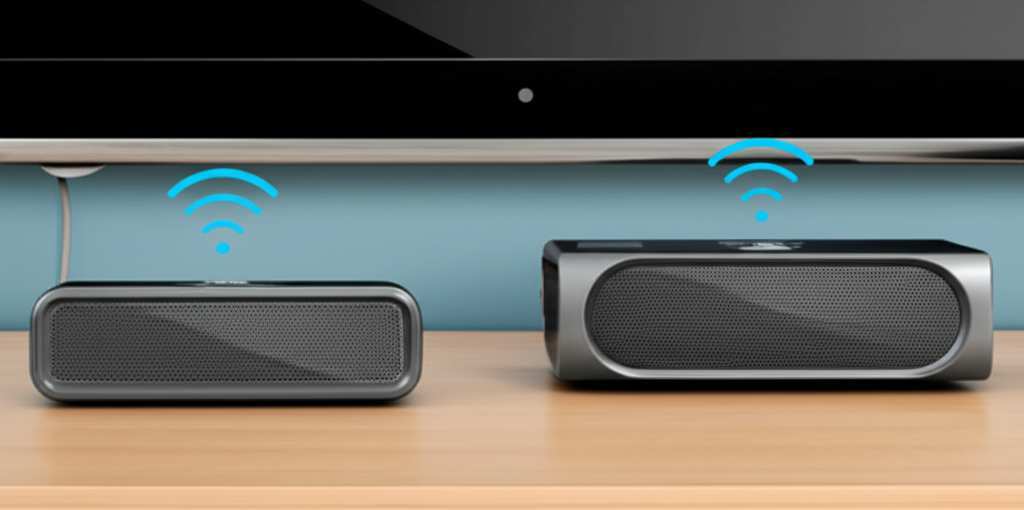
Consider a Stereo Pair: Some Bluetooth speakers can be paired together to create a true stereo sound experience, with one speaker for the left channel and one for the right. This can be amazing for movies and games!
Use a Dedicated Transmitter for Best Results: If your TV lacks Bluetooth, investing in a good quality Bluetooth transmitter with low latency support is often worth it. Brands like Avantree or Anker make reliable options. You can find great reviews on sites like CNET.
Keep Your Devices Updated: As mentioned, software updates can improve performance and fix bugs. Regularly check for updates for your TV and your Bluetooth speaker.
Frequently Asked Questions (FAQ)
Here are some common questions beginners have about connecting their TV to Bluetooth speakers.
Q1: Do I need a special TV for Bluetooth speakers?
Not necessarily! Many modern smart TVs have built-in Bluetooth. If your TV doesn’t, you can easily add Bluetooth capability using a Bluetooth transmitter, which plugs into your TV’s audio output.
Q2: Will there be a delay between the video and the sound?
Sometimes, yes. This is called latency. It’s a common issue with Bluetooth. Look for speakers or transmitters that support “aptX Low Latency” technology, as this significantly reduces the delay.
Q3: Can I connect multiple Bluetooth speakers to my TV at once?
Most TVs and speakers can only connect to one Bluetooth device at a time. Some advanced TVs or specific apps might support connecting two speakers, but it’s not standard. Some speakers, however, can be paired together to create a stereo sound system.
Q4: Which is better: a Bluetooth speaker or a soundbar for my TV?
It depends on your needs! A portable Bluetooth speaker is versatile and easy to use. A Bluetooth soundbar is specifically designed to enhance TV audio, often offering better bass and a more immersive experience for movies.
Q5: My TV isn’t finding my Bluetooth speaker. What should I do?
Make sure your speaker is in pairing mode, close to the TV, and not already connected to another device (like your phone). Try restarting both your TV and the speaker.
Q6: Can I use my Bluetooth headphones with my TV?
Yes, absolutely! The process is very similar to connecting a Bluetooth speaker. If your TV has Bluetooth, you’ll pair your headphones through the TV’s settings. If not, a Bluetooth transmitter will work for headphones too.
Q7: How do I know if my TV has Bluetooth?
Check your TV’s settings menu for a “Bluetooth” option, usually found under Sound, Connections, or Network settings. You can also check your TV’s user manual or search your TV model online.
Your Sound Upgrade Awaits!
See? Connecting your TV to a Bluetooth speaker is totally doable and makes a world of difference. Whether you have a new smart TV or an older model that needs a little help, there’s a way to get that awesome sound. You can enjoy clearer dialogue, more powerful movie effects, and a truly immersive gaming experience without a tangled mess of wires.
So go ahead, give it a try! Explore your TV’s settings, pair up that speaker, or grab a handy Bluetooth transmitter. You’ve got the knowledge now to make your home entertainment system sing. Now go enjoy amazing sound and make every moment louder and better!