Unlock wireless audio freedom by connecting your sound box to your PC via Bluetooth. This guide provides a simple, step-by-step process to pair your devices for immersive sound without tangled wires. Follow these easy instructions to enjoy your music, movies, and games with enhanced audio quality.
Are you tired of messy cables cluttering your desk? Do you dream of filling your room with rich, immersive sound from your favorite speakers without being tethered to your computer? Connecting your sound box to your PC via Bluetooth is the perfect solution! It’s not as complicated as it might sound. In fact, it’s a straightforward process that can elevate your audio experience significantly. Imagine seamlessly streaming music while you work, enjoying cinematic sound for movies, or getting that competitive edge in games with crystal-clear audio, all wirelessly.
This guide is here to walk you through every step. We’ll cover everything from making sure your devices are ready to troubleshooting common hiccups. By the end of this article, you’ll be a pro at connecting your sound box to your PC via Bluetooth, opening up a world of wireless audio convenience. So, let’s get started and transform your listening experience!
- Bluetooth Pairing Essentials: Ensure both your PC and sound box have Bluetooth enabled and are discoverable.
- Windows Bluetooth Setup: Navigate to your PC’s Bluetooth settings to initiate the pairing process.
- Sound Box Pairing Mode: Activate pairing mode on your sound box, usually indicated by a blinking light.
- Device Selection: Once discoverable, select your sound box from the list of available Bluetooth devices on your PC.
- Connection Confirmation: Verify the connection by playing audio and checking that it outputs through the sound box.
- Troubleshooting Common Issues: Address potential problems like connection drops or no sound by checking device status and restarting.
- Driver Updates: Keeping your PC’s Bluetooth drivers updated can prevent connectivity issues and improve performance.
📑 Table of Contents
Getting Your Devices Ready for Bluetooth Connection
Before we dive into the actual pairing process, it’s crucial to ensure both your PC and your sound box are prepped and ready to go. This initial check can save you a lot of frustration later on. Think of it as laying the groundwork for a smooth connection.
Checking Bluetooth Availability
First things first: does your PC have Bluetooth capabilities? Most modern laptops come with built-in Bluetooth, but many desktop PCs do not.
* For Laptops: Look for a Bluetooth icon in your system tray (usually in the bottom-right corner of your screen). If you don’t see it, you might have Bluetooth turned off, or your laptop might not have it. You can also check your laptop’s specifications online or in its user manual.
* For Desktops: If your desktop PC doesn’t have built-in Bluetooth, you’ll need a Bluetooth adapter. These are small USB dongles that you can purchase at most electronics stores. Simply plug one into a USB port, and follow the included instructions to install any necessary drivers.
Ensuring Your Sound Box is Bluetooth-Enabled
This might seem obvious, but double-check that your sound box actually supports Bluetooth connectivity. Look for a Bluetooth logo on the speaker itself or in its user manual. Most portable speakers and many home audio systems nowadays are Bluetooth-ready.
Charging Your Devices
Low battery levels can sometimes interfere with the Bluetooth pairing process. Make sure both your PC (if it’s a laptop) and your sound box have sufficient battery charge, or keep them plugged in during the setup. This ensures a stable connection throughout the pairing and initial use.
Putting Your Sound Box into Pairing Mode

Visual guide about How to Connect Sound Box to Pc via Bluetooth
Image source: techsynchron.com
This is a critical step. For your PC to “see” and connect to your sound box, the speaker needs to be in a discoverable state, which is commonly referred to as “pairing mode.” The exact method for activating pairing mode varies from one sound box to another, but here are the common ways:
Locating the Bluetooth Button
Most Bluetooth speakers have a dedicated Bluetooth button. It might be labeled with the Bluetooth symbol (a stylized ‘B’) or the word “Bluetooth.”
* Press and Hold: Often, you’ll need to press and hold this button for a few seconds until you hear an audible cue or see a light on the speaker start to blink. This blinking light is usually your visual confirmation that the speaker is ready to be paired.
* Short Press: Some speakers might require just a short press of the Bluetooth button to enter pairing mode.
Consulting Your Sound Box Manual
If you’re unsure about your specific model, the best place to find this information is in your sound box’s user manual. It will clearly outline how to put the device into pairing mode. You can usually find digital copies of manuals on the manufacturer’s website if you no longer have the physical booklet.
Recognizing Pairing Mode
How do you know it’s in pairing mode?
* Flashing Lights: A rapidly blinking LED light, often blue or white, is the most common indicator. It might change to a solid or slowly blinking light once successfully connected to a device.
* Audible Chimes or Voice Prompts: Many speakers will play a specific sound or announce “pairing” or “ready to connect” when in pairing mode.
Once your sound box is in pairing mode, leave it on and nearby your PC. Don’t turn it off or exit this mode prematurely.
Connecting via Windows Bluetooth Settings
Visual guide about How to Connect Sound Box to Pc via Bluetooth
Image source: images.airdroid.com
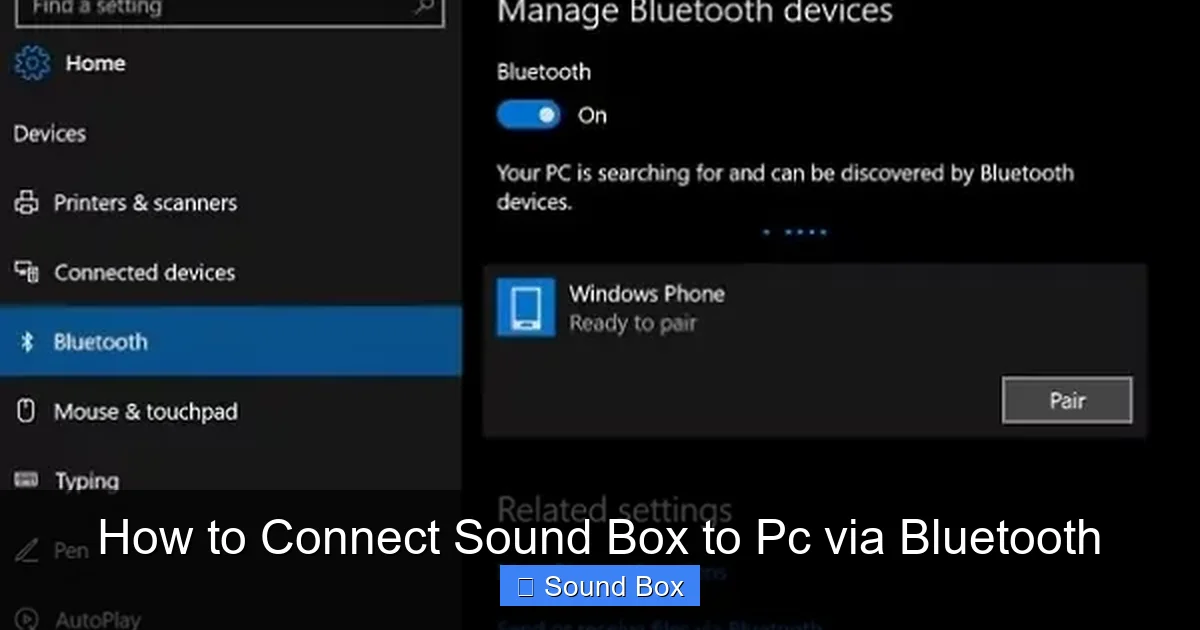
Now, let’s focus on your Windows PC. The process is designed to be user-friendly, guiding you through finding and connecting to your sound box.
Accessing Bluetooth Settings
There are a couple of easy ways to get to your Bluetooth settings in Windows:
* Through the Settings App:
1. Click the **Start button** (the Windows logo) in the bottom-left corner.
2. Click on **Settings** (the gear icon).
3. Select **Devices**.
4. Click on **Bluetooth & other devices** in the left-hand menu.
* Via the Action Center:
1. Click on the **Action Center icon** in the bottom-right corner of your taskbar (it looks like a speech bubble).
2. Find the **Bluetooth tile**. If it’s not visible, you might need to click “Expand.”
3. **Right-click** on the Bluetooth tile and select **”Go to Settings.”** This will take you directly to the Bluetooth settings page.
Turning On Bluetooth
On the “Bluetooth & other devices” screen, ensure that the **Bluetooth toggle switch is turned On**. If it’s off, click it to enable Bluetooth. You should see a list of devices, and your PC will start scanning for nearby Bluetooth devices.
Adding a New Device
To initiate the search for your sound box, click on the **”+ Add Bluetooth or other device”** button at the top of the Bluetooth settings page. A new window will pop up.
Selecting “Bluetooth”
In the “Add a device” window, choose **”Bluetooth.”** This tells Windows to look for devices that use Bluetooth technology, such as speakers, headphones, and other peripherals.
Windows will now actively search for any discoverable Bluetooth devices in its vicinity. This process usually takes a few seconds to a minute.
Selecting and Connecting Your Sound Box

Visual guide about How to Connect Sound Box to Pc via Bluetooth
Image source: i.ytimg.com
This is where your sound box, now in pairing mode, should appear on your PC’s screen.
Identifying Your Sound Box in the List
In the “Add a device” window, you will see a list of available Bluetooth devices. Look for the name of your sound box. The name is usually printed on the speaker itself or can be found in its manual. Common names include brand names (e.g., “JBL Flip 5,” “Bose SoundLink Mini”) or generic names (e.g., “Bluetooth Speaker,” “Audio Device”).
Initiating the Connection
Click on the name of your sound box once you’ve found it. Windows will then attempt to connect to the device. You might see a message like “Connecting…”
Confirming the Connection
* Pairing Prompt: In some cases, you might be asked to confirm a pairing code or a prompt on both devices. If this happens, ensure the codes match and click “Yes” or “Pair” on both your PC and potentially on the speaker if it has a display.
* Connection Successful: Once successfully paired, you’ll usually see a message like “Your device is ready to go!” or “Connected” next to your sound box’s name in the Bluetooth settings. The blinking light on your sound box should also change, often becoming solid or blinking slowly, indicating a stable connection.
Setting Your Sound Box as the Default Audio Output
Even after connecting, your PC might not automatically send audio to your new sound box. You need to set it as the default audio playback device.
Accessing Sound Settings
1. Right-click on the **speaker icon** in your system tray (bottom-right corner of the screen).
2. Select **”Sounds”** or **”Open Sound settings.”** If you choose “Sounds,” a new window will pop up; select the **”Playback”** tab.
Choosing the Correct Playback Device
In the Sound control panel or the Sound settings, you’ll see a list of all your audio output devices. Your newly connected sound box should appear here, likely with an icon indicating it’s a Bluetooth audio device.
* **Right-click** on your sound box in the list.
* Select **”Set as Default Device.”**
* You might also want to select **”Set as Default Communication Device”** if you use your sound box for calls or voice chats.
Testing the Audio
To confirm everything is working, play a song, video, or any audio on your PC. The sound should now be coming from your Bluetooth sound box! You can adjust the volume using the controls on your PC or directly on the sound box.
Troubleshooting Common Bluetooth Connection Issues
Sometimes, things don’t go as smoothly as planned. Here are some common problems and how to fix them when you try to connect your sound box to your PC via Bluetooth.
Sound Box Not Appearing in the List
* Is it in Pairing Mode? Double-check that your sound box is still in pairing mode. Try turning it off and on again, then reactivating pairing mode.
* Too Far Away? Ensure your sound box is close enough to your PC, ideally within 30 feet (about 10 meters), with minimal obstructions.
* Bluetooth is On? Verify that Bluetooth is enabled on your PC. Sometimes, it can be accidentally turned off.
* Restart Devices: A simple restart of both your PC and your sound box can often resolve temporary glitches.
Connection Fails or Drops Frequently
* **Interference:** Other wireless devices (like Wi-Fi routers, microwaves, or other Bluetooth devices) can interfere with the signal. Try moving your PC and sound box away from potential sources of interference.
* Outdated Drivers: Outdated Bluetooth drivers on your PC are a common culprit.
1. Go to **Device Manager** (search for it in the Windows search bar).
2. Expand **”Bluetooth.”**
3. Right-click on your Bluetooth adapter and select **”Update driver.”**
4. Choose “Search automatically for drivers.” If that doesn’t work, try visiting your PC manufacturer’s website for the latest drivers.
* Re-pair the Device: Sometimes, removing the device from your PC’s known Bluetooth devices and then re-pairing it can fix persistent connection issues. In your PC’s Bluetooth settings, click on your sound box and select “Remove device,” then repeat the pairing process.
No Sound After Connection
* **Default Device Check:** As mentioned earlier, ensure your sound box is set as the default audio playback device in Windows sound settings.
* **Volume Levels:** Check the volume levels on both your PC and your sound box. Ensure neither is muted or set to the lowest volume.
* **Audio Source Issues:** Try playing audio from a different application or source to rule out an issue with a specific program.
* **Check Speaker Functionality:** Try connecting your sound box to another device (like your smartphone) to ensure the speaker itself is working correctly.
Connecting your sound box to your PC via Bluetooth is a fantastic way to enjoy wireless audio. With these steps and troubleshooting tips, you should be able to set it up without any major headaches. Enjoy your enhanced sound experience!
Conclusion
Connecting your sound box to your PC via Bluetooth opens up a world of wireless audio possibilities. No more struggling with tangled cables or being limited by cord length. You can now enjoy your music, movies, and games with richer, more immersive sound from anywhere in the room. By following the simple steps outlined in this guide – from ensuring your devices are ready, putting your sound box into pairing mode, and navigating your PC’s Bluetooth settings – you can achieve a seamless connection. Remember to set your sound box as the default audio device and don’t hesitate to use the troubleshooting tips if you encounter any hiccups. Embrace the convenience and superior audio quality that Bluetooth connectivity brings to your PC experience.
Frequently Asked Questions
How do I put my Bluetooth sound box into pairing mode?
Typically, you’ll need to press and hold a dedicated Bluetooth button on your sound box. Look for a button with the Bluetooth symbol. A blinking light on the speaker usually indicates it’s in pairing mode and ready to connect.
My PC can’t find my Bluetooth sound box. What should I do?
Ensure your sound box is in pairing mode and close to your PC. Also, make sure Bluetooth is turned on in your PC’s settings. Sometimes, restarting both devices can resolve detection issues.
What if my sound plays through my PC speakers instead of my Bluetooth sound box?
You need to set your Bluetooth sound box as the default audio playback device in Windows. Right-click the speaker icon in your taskbar, go to Sound settings, and select your sound box as the default device.
Is it normal for the Bluetooth connection to sometimes drop?
Occasional drops can happen due to interference from other devices or distance. Try moving your devices closer together and away from potential sources of wireless interference. Ensuring your Bluetooth drivers are up-to-date can also help maintain a stable connection.
Can I connect my sound box to my PC if my PC doesn’t have built-in Bluetooth?
Yes, you can. You’ll need to purchase a USB Bluetooth adapter. Plug it into a USB port on your PC, install any necessary drivers, and then you can proceed with pairing your sound box just like you would with a PC that has built-in Bluetooth.
How do I update my PC’s Bluetooth drivers?
You can update your Bluetooth drivers through Windows Device Manager. Search for “Device Manager,” expand the “Bluetooth” section, right-click your Bluetooth adapter, and select “Update driver.” If it doesn’t find one, check your PC manufacturer’s website for the latest drivers.