Effortlessly link your phone to any party sound box to unleash booming audio for your events. This guide covers the most common connection methods, including Bluetooth and AUX, and provides simple troubleshooting steps to ensure your music never stops. Get ready to amplify your fun!
Hosting a party or just want to share your epic playlist with a room full of friends? Nothing kills the vibe faster than struggling to connect your phone to the sound system. You’ve got the perfect tunes ready to go, but getting them from your device to that big, booming speaker can sometimes feel like a tech puzzle. Don’t worry, we’ve all been there! This guide is here to make connecting your party sound box to your phone a breeze, so you can focus on the fun.
Whether you’re dealing with a brand new, sleek wireless speaker or a more traditional setup, there’s usually a straightforward way to get your audio flowing. We’ll walk you through the most common connection methods, from the magic of Bluetooth to the reliable simplicity of an AUX cable. Plus, we’ll throw in some handy tips to troubleshoot those occasional tech hiccups. Let’s get this party started!
Key Takeaways
- Bluetooth is the most common method: Most modern party sound boxes use Bluetooth for wireless connectivity with your phone.
- Ensure devices are discoverable: Both your phone and the sound box need to be in pairing mode to find each other.
- Check audio output settings: After connecting, make sure your phone is set to play audio through the sound box.
- AUX cable offers a reliable backup: For devices without Bluetooth or when wireless connectivity is spotty, a 3.5mm AUX cable is a great alternative.
- Troubleshooting is key: Simple steps like restarting devices, checking volume, and forgetting/re-pairing can solve most connection issues.
- Consider sound quality: Ensure your sound box and phone are set up to deliver the best possible audio experience for your party.
📑 Table of Contents
The Power of Bluetooth: Wireless Freedom
Bluetooth is the undisputed champion of modern audio connections. It’s wireless, convenient, and most party sound boxes come equipped with it. Getting connected is usually a simple, multi-step process.
Putting Your Sound Box into Pairing Mode
The first step is to make sure your party sound box is ready to be discovered. Think of it like opening a door for your phone to walk through. On your sound box, you’ll typically find a dedicated Bluetooth button. Sometimes, you need to press and hold this button for a few seconds until a light starts flashing or you hear an audible cue indicating it’s in pairing mode. Consult your sound box’s manual if you’re unsure, as the exact method can vary between brands and models.
Enabling Bluetooth on Your Phone
Next, it’s time to prep your phone. On most smartphones (both Android and iOS), you’ll find the Bluetooth settings within the main Settings app. Simply toggle the Bluetooth switch to the “On” position. Your phone will then start scanning for available devices nearby.
Connecting and Pairing
Once your phone is scanning, you should see a list of available Bluetooth devices appear on your screen. Look for the name of your party sound box in this list. It might be something like “PartySpeaker 1000” or a model number. Tap on the name of your sound box to initiate the connection. You might be prompted to confirm a pairing request or enter a PIN code (often “0000” or “1234” if required, but this is less common now). Once successfully paired, your phone will usually indicate that it’s “Connected” to the sound box, and the flashing light on the speaker will likely turn solid.
Selecting the Sound Output
Sometimes, even after connecting, your phone might still try to play audio through its internal speaker. After you’ve paired, go back into your phone’s Bluetooth settings or the media output settings (this can vary by phone model and operating system version). Ensure that the party sound box is selected as the audio output device. Now, when you play music, it should stream wirelessly to your sound box. If you want to know more about how to connect your phone to a Bluetooth speaker, there are some great resources available.
The Classic AUX Connection: A Reliable Backup
Not all sound boxes are Bluetooth-enabled, or maybe you’re experiencing Bluetooth interference. In these cases, the good old AUX cable (Auxiliary cable) comes to the rescue. This method offers a direct, wired connection that’s often foolproof.
What You’ll Need
You’ll need a 3.5mm male-to-male audio cable. This is the standard headphone jack cable that most smartphones used to come with (and many still do, or you might have an adapter for USB-C or Lightning). You also need to ensure your party sound box has an “AUX In” or “Line In” port. These are typically small, round ports designed to accept this type of cable.
Connecting the Cable
Plug one end of the 3.5mm audio cable into the headphone jack of your phone. Then, plug the other end into the AUX input port on your party sound box. It’s that simple!
Switching to AUX Mode
On your sound box, you might need to manually select the input source. Look for a button labeled “Mode,” “Input,” or similar. Press this button until you cycle through the options and select “AUX” or “Line In.” Some sound boxes automatically detect an active AUX connection, while others require you to switch manually. Once selected, any audio playing on your phone should now come through the sound box.
This wired connection is fantastic because it bypasses wireless protocols and often provides a very stable audio stream. It’s especially useful for ensuring continuous playback during a long event or if you’re concerned about battery drain on your phone from constant Bluetooth usage. For those looking to connect their phone to a speaker without Bluetooth, the AUX cable is the go-to solution.
Troubleshooting Common Connection Issues
Even with the best intentions, sometimes technology throws a curveball. Don’t panic if your sound box isn’t connecting immediately. Here are some common issues and how to fix them.
Issue: Sound Box Not Showing Up in Phone’s Bluetooth List
Solutions:
- Check if the sound box is in pairing mode: As mentioned, this is crucial. Ensure the Bluetooth light is flashing.
- Restart both devices: Turn off Bluetooth on your phone and then turn it back on. Also, power cycle your sound box (turn it off and then on again).
- Ensure proximity: Keep your phone and sound box close to each other, ideally within a few feet, during the pairing process.
- Forget other devices: If your sound box has been previously paired with other phones or devices, it might be trying to connect to them. Try forgetting the sound box from your phone’s Bluetooth list and re-initiate the pairing process.
Issue: Connected via Bluetooth, but No Sound
Solutions:
- Check volume levels: This sounds obvious, but verify that the volume is turned up on both your phone and the sound box. Sometimes one is muted or set very low.
- Confirm audio output: Go back to your phone’s Bluetooth settings or media output options to make sure the sound box is selected as the audio output device.
- Restart the music app: Close the music app you’re using and reopen it.
- Restart the sound box and phone: A full reboot can often clear up temporary glitches.
- Test with a different audio source: Try playing audio from a different app or a different song to rule out an issue with the specific audio file or app.
Issue: Sound Cutting Out or Distorted Audio (Bluetooth)
Solutions:
- Reduce distance: The further your phone is from the sound box, the weaker the Bluetooth signal. Move them closer.
- Minimize interference: Other wireless devices (like Wi-Fi routers, microwaves, or other Bluetooth devices) can interfere. Try to move away from potential sources of interference.
- Check battery levels: Low battery on either your phone or the sound box can sometimes cause performance issues.
- Update phone software: Ensure your phone’s operating system is up to date, as software updates can sometimes improve Bluetooth performance.
- Update sound box firmware (if applicable): Some advanced sound boxes allow for firmware updates, which can fix bugs and improve connectivity. Check the manufacturer’s website.
Issue: AUX Cable Not Working
Solutions:
- Check cable connection: Ensure both ends of the AUX cable are firmly plugged in.
- Inspect the cable: Gently bend the cable at different points. If the sound cuts out when you bend it, the cable might be damaged and need replacing.
- Test with another cable: If possible, try a different AUX cable to rule out a faulty cable.
- Verify input mode: Make sure the sound box is set to the correct input source (AUX).
- Check phone’s headphone jack: Ensure there’s no debris or lint obstructing the headphone jack on your phone.
Maximizing Your Party Sound Experience
Once you’ve successfully connected your party sound box to your phone, you’ll want to ensure the audio quality is top-notch for your event.
Placement is Key
The position of your sound box can dramatically affect how the music sounds and fills the space. Generally, placing the speaker in an open area, away from walls or corners that can cause bass buildup and distortion, is a good start. For larger spaces, consider positioning the speaker centrally or at a height that allows the sound to project effectively. For more detailed advice, learning how to position speakers for the best sound is invaluable.
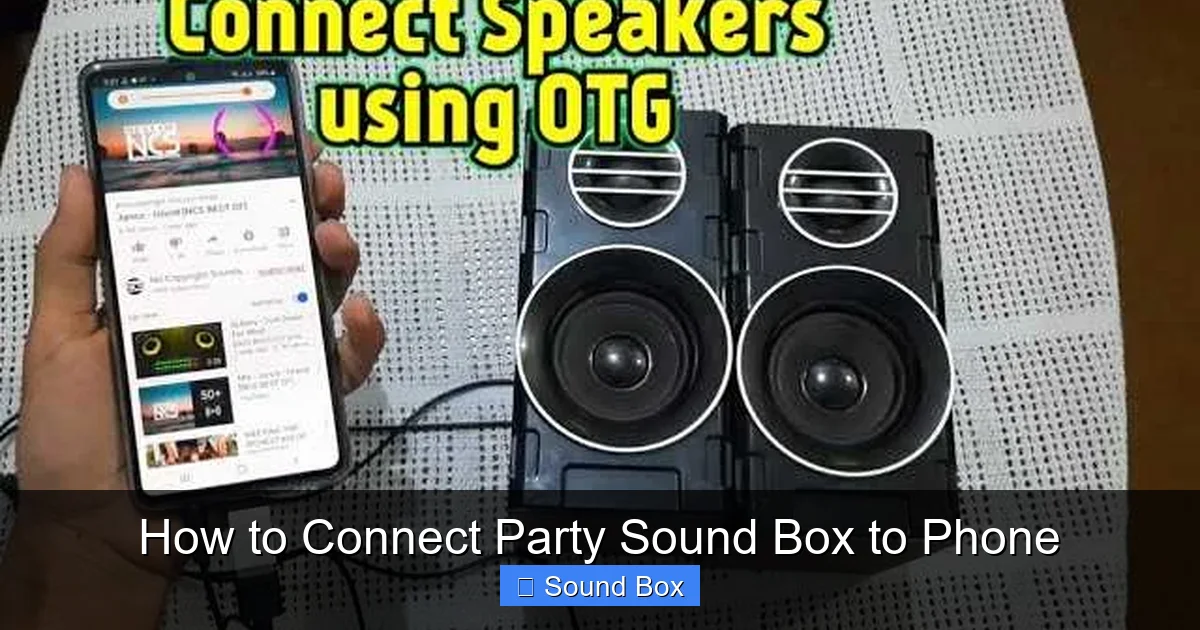
Visual guide about How to Connect Party Sound Box to Phone
Image source: techsynchron.com
Understanding Volume Limits
While it’s tempting to crank the volume to eleven, remember that pushing your sound box beyond its capabilities can lead to distorted sound and even damage the speaker. Start with a moderate volume and gradually increase it to a comfortable level that suits the atmosphere. It’s also worth noting that sometimes a slightly lower volume on the speaker and a slightly higher volume on your phone can produce clearer sound, depending on the devices.
Exploring Multiple Speakers
For truly immersive party sound, consider connecting more than one speaker. Many modern party sound boxes offer features like TWS (True Wireless Stereo) or multi-speaker pairing, allowing you to link two or more speakers together for stereo sound or to cover a larger area. This can dramatically enhance the audio experience, making it feel more dynamic and engaging. There are some amazing guides available on how to connect multiple Bluetooth speakers for an epic party sound.
Maintaining Your Speaker
Keep your party sound box in good condition by cleaning it periodically, especially if it’s used outdoors. Ensure it’s protected from extreme weather conditions and handle it with care. A well-maintained speaker will consistently deliver better sound quality.
Conclusion: Your Soundtrack Awaits
Connecting your party sound box to your phone is typically a straightforward process, whether you’re leaning on the convenience of Bluetooth or the steadfast reliability of an AUX cable. By understanding the pairing modes, checking your settings, and knowing a few basic troubleshooting tricks, you can ensure your music seamlessly powers your gatherings. Don’t let tech frustrations get in the way of a good time. With your phone and sound box in sync, you’re ready to create the perfect atmosphere for any occasion. So grab your playlist, follow these steps, and let the good times roll!
Frequently Asked Questions
How do I know if my party sound box has Bluetooth?
Most modern party sound boxes will clearly advertise their Bluetooth capabilities on the packaging, in the user manual, or directly on the device itself with a Bluetooth logo. If you can’t find any mention of Bluetooth, it’s likely it doesn’t support it, and you’ll need to rely on an AUX connection.
What is the difference between Bluetooth and AUX connection?
Bluetooth is a wireless technology that allows devices to communicate over short distances. AUX (Auxiliary) is a physical cable connection, typically using a 3.5mm jack, that transmits audio directly. Bluetooth offers freedom from wires but can sometimes have connection issues, while AUX is very stable but requires a physical cable.
Can I connect my phone to a party sound box that doesn’t have Bluetooth using an adapter?
Yes, if your sound box has an AUX input and your phone lacks a headphone jack, you can use a USB-C to 3.5mm or Lightning to 3.5mm adapter to connect your phone to the sound box via an AUX cable.
What should I do if my phone is connected to the sound box but the sound is still coming from my phone?
This usually means your phone isn’t set to output audio through the connected sound box. Check your phone’s media output settings or Bluetooth audio output settings after connecting and ensure the party sound box is selected. Restarting both devices can also resolve this.
How far can my phone be from the party sound box when using Bluetooth?
The typical range for Bluetooth is around 30 feet (10 meters) in an open area with no obstructions. However, this can be reduced by walls, furniture, or interference from other electronic devices. For the best and most stable connection, keep your phone and sound box relatively close.
Is it better to use Bluetooth or AUX for my party sound box?
It depends on your priority. Bluetooth offers convenience and wireless freedom, which is great for moving around. AUX provides a more stable, direct connection with potentially less chance of interference, making it ideal for situations where a reliable, uninterrupted audio stream is paramount.