Connect multiple Bluetooth speakers effortlessly for a room-filling sound experience! It’s easier than you think to get all your speakers playing the same music.
Hey there, tech friend! Are you ready to take your music, movies, or game nights to a whole new level? Imagine filling your entire house or backyard with amazing sound from just one device. It sounds pretty awesome, right? Sometimes, one speaker is great, but wouldn’t it be even cooler to have sound coming from everywhere?
I know, diving into tech specs can feel like learning a new language. What’s a codec? What does A2DP even mean? Don’t worry about all that jargon for now. My goal here is to make connecting multiple Bluetooth speakers super simple, like chatting with a buddy over coffee. We’ll cut through the confusion and get straight to the good stuff: awesome sound!
Think about your favorite songs or that epic movie scene. Having sound from multiple points makes everything more immersive. It’s like being right in the middle of the action or concert! I remember trying to get my speakers to play together for a party once, and it felt like a puzzle. But I figured it out, and now I’m here to share the easy way with you.
We’ll walk through how to get your speakers synced up, no matter if you’re using an iPhone, Android, or even a laptop. It’s not as complicated as it might seem. We’ll cover the different ways you can do it and what to look for. So, get ready to boost your audio game. Let’s break it down step by step and make your sound system sing!
Why Connect Multiple Bluetooth Speakers?
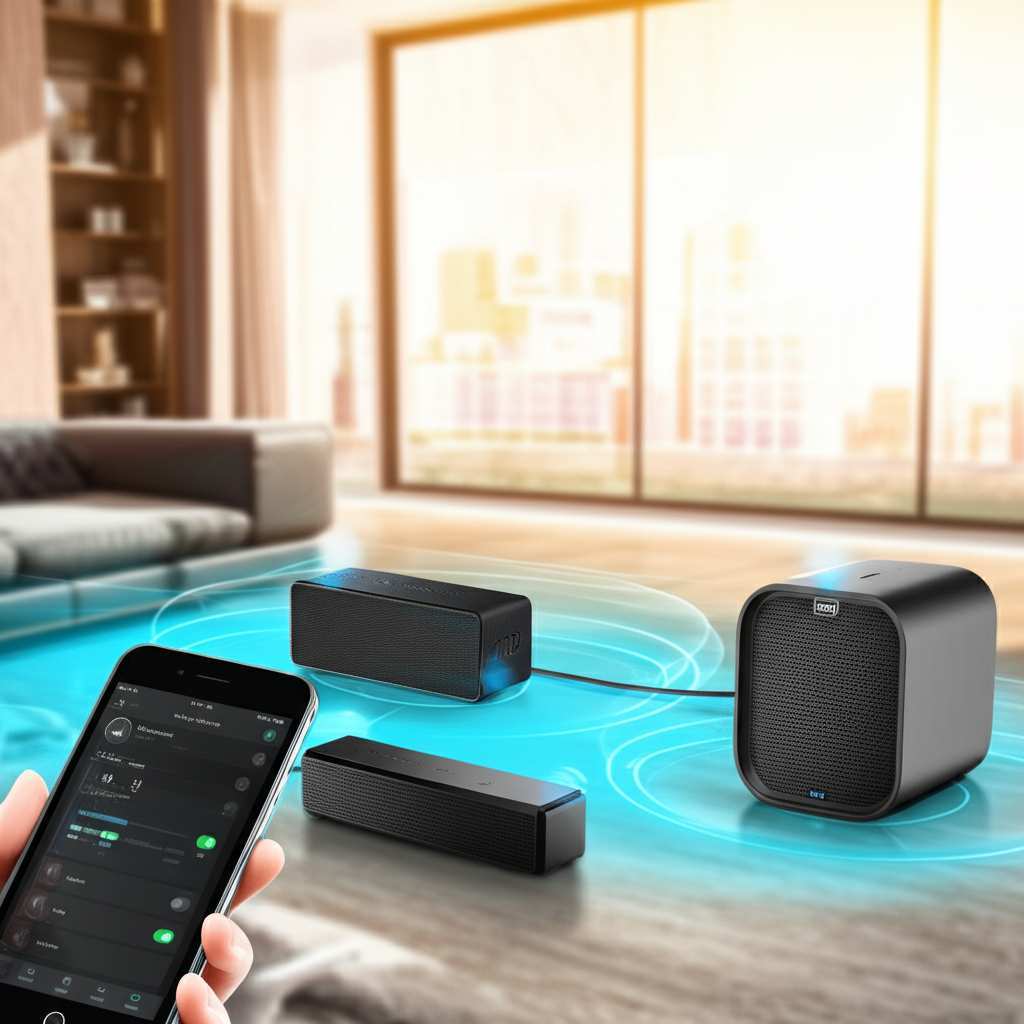
Ever feel like one speaker just isn’t enough? Maybe you’re hosting a get-together, and you want music to flow throughout your home or outdoor space. Or perhaps you’re watching a movie and wish the sound was all around you, not just coming from the TV. Connecting multiple Bluetooth speakers is the secret sauce for this. It creates a richer, more immersive audio experience.
It’s all about spreading the sound. Instead of having one “sweet spot” for listening, you get great audio pretty much anywhere you are. This is perfect for parties, backyard BBQs, or just enjoying your favorite tunes while you move around the house. It truly elevates your listening pleasure.
Understanding How It Works: The Basics
Before we jump into connecting, let’s quickly touch on how this magic happens. Bluetooth technology lets devices talk to each other wirelessly. For audio, this usually means one device (like your phone) sends the music signal to one speaker. To connect multiple speakers, we need a way for that signal to be shared or duplicated.
There are a few main ways this works. Some speakers have a built-in feature to link with other speakers from the same brand. Others rely on your phone or tablet to send the signal to multiple speakers at once. It’s like having a central command center for your sound! We’ll explore both options.
Method 1: Using Your Speaker Brand’s App (The Easiest Way!)
This is often the most straightforward and best-sounding method. Many speaker manufacturers know that people love to link their speakers. So, they build this feature right into their devices and a handy app. If your speakers are from brands like JBL, Bose, Sony, or Ultimate Ears, this is likely your best bet.
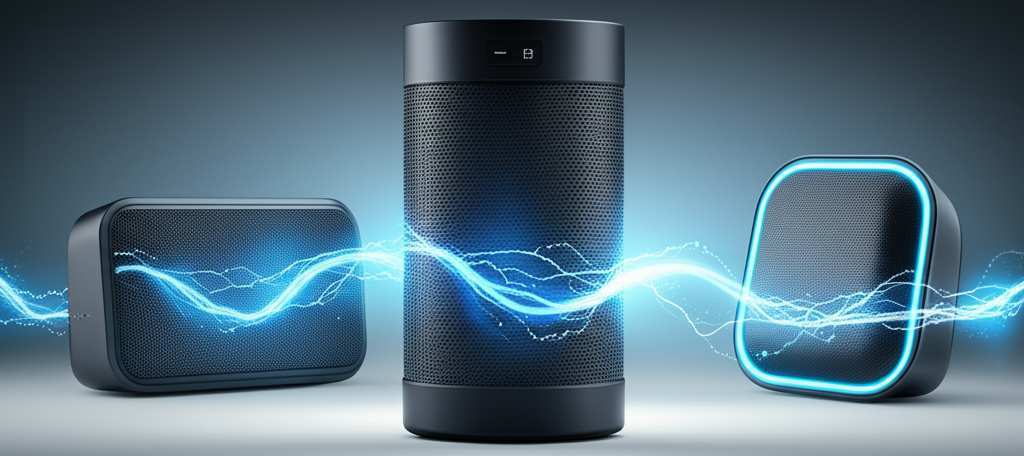
These brands often have apps you can download onto your smartphone or tablet. Inside the app, you’ll find an option to connect two or more of your compatible speakers. It’s usually a simple tap or two. The app then tells the speakers to link up and play the same audio stream from your device.
How to Use Your Speaker App: A Step-by-Step Guide
Let’s imagine you have two awesome JBL speakers. Here’s how you’d probably link them up using JBL’s Connect app. The steps will be very similar for other brands, so don’t worry if yours is a little different.
- Download the App: First, head to your phone’s app store (Google Play Store for Android or App Store for iPhone) and search for your speaker brand’s official app. For JBL, it’s “JBL Connect” or “JBL Portable.” Download and install it.
- Turn On Your Speakers: Make sure both (or all) of your speakers are powered on and in Bluetooth pairing mode. You usually do this by pressing and holding the Bluetooth button until a light flashes or you hear a sound.
- Connect One Speaker to Your Phone: Open the app. It should automatically detect your speakers if they are nearby and in pairing mode. Select one speaker to connect to your phone via Bluetooth. You might need to go to your phone’s Bluetooth settings to pair it initially.
- Initiate Speaker Linking: Within the app, you’ll see an option to link speakers. This might be a button that says “Link,” “Party Mode,” “Stereo Mode,” or an icon showing multiple speakers. Tap this option.
- Add More Speakers: The app will then guide you to add your other speakers. You might press a button on the second speaker or select it within the app. The app will show a visual of your speakers connecting.
- Enjoy the Sound: Once linked, your phone will send audio to all connected speakers simultaneously. You should hear music playing from both (or all) of them! Some apps even let you control volume and EQ for each speaker individually.
It’s really that simple! The app acts as your conductor, orchestrating all the speakers to play in harmony. This method often offers the best stereo separation if you’re linking two speakers for a true stereo effect.
Method 2: Using Your Phone’s Built-in Features (For Advanced Users or Specific Devices)
What if your speakers don’t have a dedicated app, or you want to connect speakers from different brands? This is where your phone’s operating system comes into play. Both iOS and Android have features that can help, though they might be a bit more limited than dedicated apps.
iOS: Stereo Pair or Broadcast Audio
Apple devices, especially iPhones and iPads, offer ways to broadcast audio to multiple speakers. The most seamless way is if you have two identical HomePod speakers, which can automatically form a stereo pair. For other Bluetooth speakers, the functionality is a bit different.
Stereo Pair (Limited): This feature is primarily for two identical Apple HomePods. They automatically detect each other and can be set up as a stereo pair in the Home app.
Audio Sharing (Newer iPhones): Newer iPhones (iPhone 8 and later) can share audio to two pairs of AirPods or Beats headphones. This isn’t for Bluetooth speakers, but it shows Apple’s direction.
Workaround with Third-Party Apps: While not built-in for general Bluetooth speakers, some third-party apps claim to help broadcast audio to multiple Bluetooth devices. Their effectiveness can vary, and they might introduce latency (a delay between the sound and what you see on screen).
Android: Dual Audio (Samsung) or Other Workarounds
Android phones have also been exploring ways to connect multiple Bluetooth devices. Samsung phones, for instance, often have a feature called “Dual Audio.”
Dual Audio (Samsung): On many Samsung Galaxy phones, you can go to Bluetooth settings, tap the three dots for advanced options, and enable “Dual Audio.” This allows you to send audio to two different Bluetooth devices simultaneously. It’s great for sharing music with a friend, but it might not always work perfectly for speakers that need to be perfectly synchronized.
Other Android Devices: Some other Android phones might have similar features, or you might need to explore third-party apps. Again, results can vary, and keeping multiple speakers perfectly in sync can be a challenge without specific hardware support.
It’s important to note that using your phone’s OS to broadcast to multiple speakers might not always provide the best stereo imaging or perfect synchronization, especially for video. The dedicated apps from speaker manufacturers are usually optimized for this.
Method 3: Connecting Different Brands or Older Devices
This is where things can get a little tricky. If you have speakers from different brands, or older speakers that don’t support multi-speaker linking, you might be out of luck for true synchronized playback. Bluetooth technology, by its nature, is designed to connect one device to one audio output at a time.
However, there are some workarounds you might consider, though they won’t give you perfect stereo or synchronized sound:
Bluetooth Transmitters/Splitters: You can buy Bluetooth transmitters that plug into an audio source (like a laptop or a portable music player). Some of these transmitters claim to connect to two Bluetooth headphones or speakers simultaneously. The quality and synchronization can be hit-or-miss.
Multiple Bluetooth Connections (Not Synchronized): Some devices might let you connect to multiple Bluetooth audio devices, but they usually only play audio through one at a time. You’d have to manually switch between them, which isn’t what we’re looking for.
Auxiliary Cables (If Available): If your speakers have an AUX-in port, you could potentially “chain” them. Connect your phone to Speaker A with Bluetooth, then use an AUX cable to connect Speaker A’s AUX-out to Speaker B’s AUX-in. This usually only works if Speaker A has an AUX-out port, and the sound quality can degrade with each link.
For the best experience, sticking to speakers from the same brand that support a linking feature is highly recommended. It’s designed for that purpose and generally works flawlessly.
Key Features to Look For in Multi-Speaker Systems
When you’re thinking about buying new speakers or expanding your current setup, here are some things to keep an eye out for if you plan on connecting them together:
Brand Compatibility: As we’ve seen, speakers from the same brand are usually designed to work together. Look for brands that explicitly advertise multi-speaker connectivity or “party modes.”
Dedicated App Support: A good companion app makes the process so much easier. It often allows for more control, like adjusting individual speaker volumes or setting up stereo pairs.
Stereo Pairing: If you’re connecting two speakers, look for a “stereo pair” function. This sets up the two speakers to act as a left and right channel, creating a much richer, more defined sound experience.
Water Resistance/Durability: If you plan on using your speakers outdoors or by the pool, check their IP rating (like IPX7). This tells you how well they can handle water and dust.
Battery Life: Longer battery life means more uninterrupted music. Check how long each speaker lasts on a single charge, especially if you’re linking them together.
Sound Quality: This is subjective, but read reviews! Does it offer good bass? Clear highs? Is the volume loud enough for your needs?
Connectivity Range: How far can your device be from the speakers and still maintain a stable connection? This is important for larger spaces.
Here’s a quick look at how some popular brands stack up for multi-speaker connectivity:
| Brand | Multi-Speaker Feature | App Required? | Stereo Pairing? | Notes |
|---|---|---|---|---|
| JBL | Connect+ / PartyBoost | Yes (JBL Portable/Connect) | Yes | Can link many speakers; PartyBoost is newer and more advanced. |
| Bose | Party Mode / Stereo Mode | Yes (Bose Connect) | Yes | Excellent stereo separation with two identical speakers. |
| Sony | Party Connect | Yes (Sony | Music Center) | Yes | Links up to 100 speakers (though practical use is much less). |
| Ultimate Ears (UE) | PartyUp | Yes (Boom/Megaboom App) | Yes | Known for robust linking capabilities and durable speakers. |
| Anker Soundcore | PartyCast | Yes (Soundcore App) | Yes | Often offers good value and reliable connectivity. |
This table shows that most major brands have their own systems. If you’re buying new speakers, sticking with one brand that offers these features will make your life much easier. It’s like buying all the right pieces for a puzzle; they’re designed to fit together perfectly!
Tips for the Best Multi-Speaker Experience
Once you’ve got your speakers connected, here are a few extra tips to make sure everything sounds amazing:
Placement is Key: Don’t just shove all your speakers in one corner! Spread them out to fill the room evenly. For stereo pairing, place the two speakers in a triangle formation with your listening position for the best effect.
Check for Updates: Make sure your speaker firmware and your phone’s OS are up to date. Updates often fix bugs and improve Bluetooth performance.
Minimize Interference: Other wireless devices (like microwaves or other Bluetooth gadgets) can sometimes interfere. Try to keep your speakers and phone away from major sources of interference.
Test Before You Party: Before your guests arrive, do a quick test run. Play some music and walk around the space to ensure the sound is balanced and there are no dropouts.
Volume Control: If you’re using a dedicated app, take advantage of individual volume controls. You might want one speaker a bit louder in a certain area.
Battery Management: If you’re linking multiple speakers, they will all draw power from their batteries. Make sure they’re all fully charged beforehand, or keep them plugged in if possible.
Troubleshooting Common Issues
Sometimes, tech doesn’t behave perfectly the first time. If you’re having trouble connecting your speakers, don’t panic! Here are a few common hiccups and how to fix them:
Speakers Not Appearing in App/Settings:
Make sure your speakers are turned on and in pairing mode.
Ensure Bluetooth is enabled on your phone.
Try restarting your phone and your speakers.
Check if the speakers are already connected to another device. Disconnect them from any other active connections.
Audio Lag or Out of Sync:
This is more common when using your phone’s OS to connect multiple speakers from different brands.
Try using the dedicated app from your speaker brand, as it’s optimized for synchronization.
Reduce the distance between your phone and the speakers.
Close other apps running in the background on your phone.
For video, this lag can be very noticeable. For music-only, it’s usually less of an issue.
Connection Dropping:
Ensure your speakers are within range of your phone.
Check for potential interference from other devices.
Update your speaker’s firmware and your phone’s operating system.
Only One Speaker Playing:
If you’re using a phone’s built-in feature (like Android’s Dual Audio), ensure it’s correctly configured to send audio to two devices.
* If using a brand app, double-check that all speakers are successfully added to the link group.
Remember, most issues are fixable with a simple restart or by re-checking your connections. Don’t get discouraged!
Frequently Asked Questions (FAQ)
Q1: Can I connect Bluetooth speakers from different brands together?
A1: It’s usually difficult to connect speakers from different brands for synchronized playback. The best way is to use speakers from the same brand that support a linking feature, often managed by a dedicated app.
Q2: Do I need a special app to connect multiple speakers?
A2: For the most seamless and reliable experience, yes, using the manufacturer’s app is often the easiest and best method. Some phones have built-in features, but they might be less effective.
Q3: How many Bluetooth speakers can I connect together?
A3: This depends on the speaker brand and model. Some systems allow you to link just two, while others (like Sony’s Party Connect) claim to link up to 100, though practically, linking more than 5-10 can sometimes lead to stability issues.
Q4: Will connecting multiple speakers drain my phone’s battery faster?
A4: Yes, sending an audio signal to multiple devices simultaneously requires more processing power from your phone, which will use more battery than connecting to a single speaker.
Q5: What is the difference between Stereo Mode and Party Mode?
A5: Stereo Mode typically uses two identical speakers to create a left and right audio channel for a more immersive, Hi-Fi experience. Party Mode (or similar names) connects multiple speakers to play the same audio simultaneously, filling a larger area with sound, but without distinct left/right channels.
Q6: Can I connect multiple speakers for watching movies without delay?
A6: It’s challenging to get perfect synchronization for video with multiple Bluetooth speakers, especially if they aren’t from the same brand and using a dedicated app. Latency (audio delay) can be an issue. For critical movie watching, a wired system or compatible soundbar is often better.
Q7: My speakers keep disconnecting. What can I do?
A7: Ensure your speakers are updated, your phone’s Bluetooth is clear of other connections, and you are within the recommended range. Try restarting your phone and speakers, and minimize interference from other wireless devices.
Conclusion: Your Sound, Amplified!
See? Connecting multiple Bluetooth speakers doesn’t have to be a headache. By understanding the different methods, especially leveraging your speaker brand’s own app, you can easily create a multi-room or immersive sound experience. It’s all about finding the right tools for the job and following a few simple steps.
Whether you’re throwing a party, enjoying a quiet evening with music throughout your home, or just want to feel more immersed in your entertainment, linking your speakers is a fantastic upgrade. You’ve learned how to use apps, what to look for when buying, and even how to troubleshoot common problems.
So go ahead, pair those speakers up! Experiment with placement, enjoy the freedom of wireless audio filling every corner. Now go enjoy amazing sound and make every moment louder and better!