Connect your Bose speaker to your TV via Bluetooth easily! This guide walks you through simple steps to enjoy wireless sound for movies, shows, and games. Get ready for better audio without the fuss!
Hey there, tech adventurers! Max here from AffTechy.com, your go-to buddy for making technology simple and fun. We all love diving into a great movie or getting lost in a game, right? And what makes those experiences even better? Awesome sound! That’s where a good speaker comes in, like those amazing Bose ones. But sometimes, getting your tech to play nicely together can feel like solving a puzzle. You might be wondering, “How do I get my Bose speaker to stream sound from my TV without a mess of wires?”
I get it. All those buttons, settings, and acronyms can make your head spin. But don’t worry! I’m here to hold your hand and guide you through connecting your Bose speaker to your TV using Bluetooth. It’s easier than you think, and once you’ve done it, you’ll wonder how you ever lived without it. We’re going to break down all the steps, making sure you feel confident and ready to enjoy richer sound.
Think of it like this: your TV is telling a story, and your Bose speaker is the voice that makes it come alive. We just need to help them have a clear conversation. So, grab your favorite snack, get comfy, and let’s make this happen. We’ll make sure you’re not just watching, but truly experiencing your entertainment. Ready to get started? Let’s dive in!
Why Bluetooth for Your TV Sound?
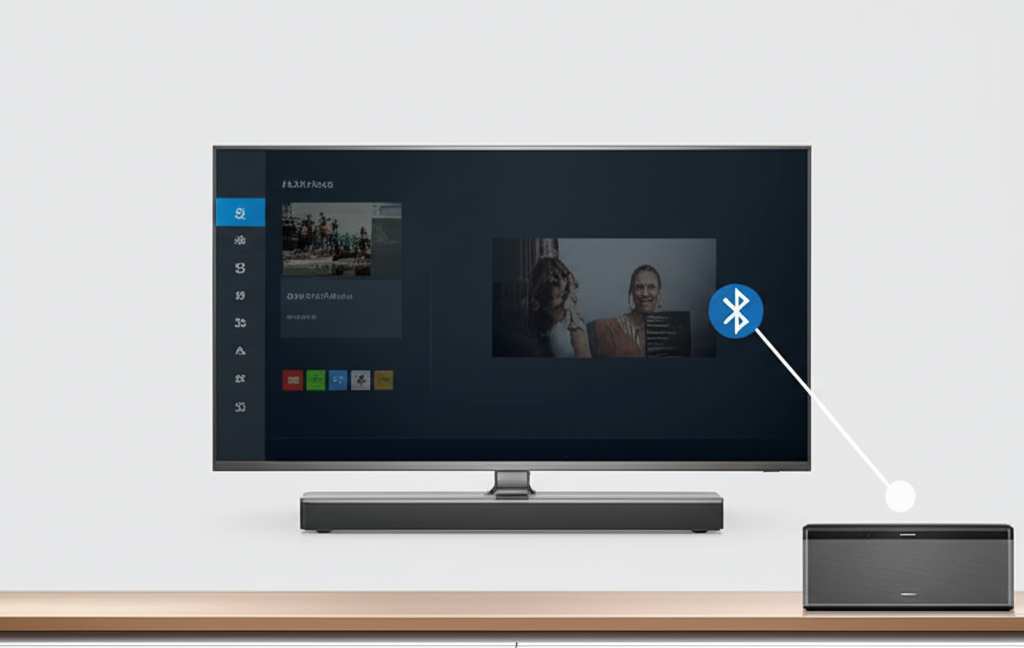
So, why is connecting your Bose speaker via Bluetooth such a cool move? Well, think about it. No more struggling with cables that are too short or getting tangled up. Bluetooth is all about freedom! It lets you place your speaker where it sounds best, or even in another room, without any wires getting in the way. It’s like magic for your audio!
Imagine watching a thrilling movie. With Bluetooth, you can have your Bose speaker positioned perfectly for immersive sound, filling your living room with epic soundtracks and crystal-clear dialogue. Or, if you’re playing a game, that extra audio punch can really pull you into the action. It’s all about upgrading your entertainment without the hassle.
Plus, most modern TVs and Bose speakers come with Bluetooth built-in. This means you probably don’t need any extra gadgets to make it work. It’s a super convenient way to boost your TV’s audio. Let’s explore how simple it can be to set up.
Understanding Bluetooth Basics
Before we jump into connecting, let’s chat for a sec about what Bluetooth actually is. Think of it as a short-range wireless connection. It lets devices talk to each other without needing cables. It’s like a secret, invisible handshake between your TV and your Bose speaker. This handshake allows sound to travel wirelessly from your TV to the speaker.
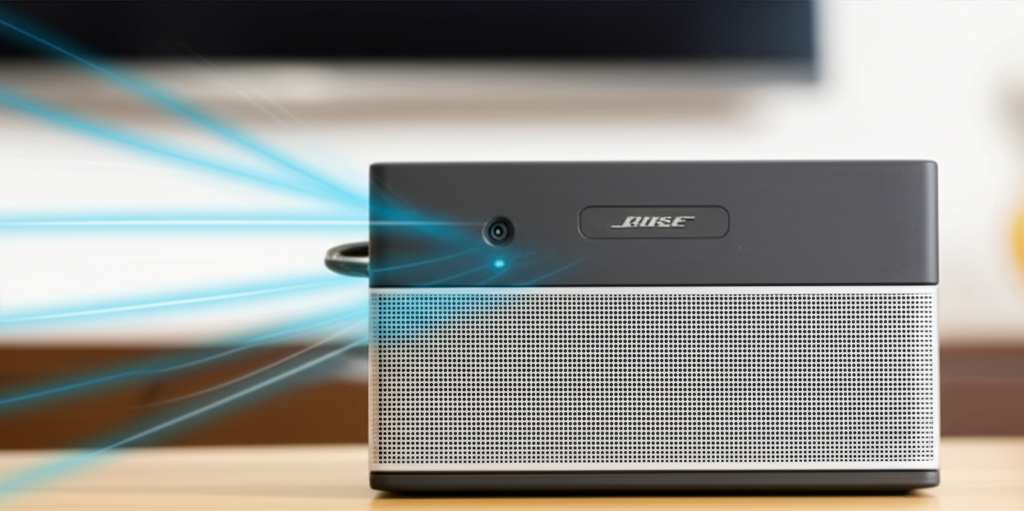
Bluetooth is really handy for things like headphones, car stereos, and, of course, speakers! It works by using radio waves. These waves are pretty short, so the devices usually need to be fairly close to each other, typically within about 30 feet (or 10 meters). This is usually more than enough space for a living room or bedroom.
The cool part is that once devices are paired – meaning they’ve recognized each other – they’ll often reconnect automatically whenever they’re both on and within range. This makes the whole process super smooth for everyday use. It’s all about making your tech life easier!
What You’ll Need
Alright, let’s make sure you have everything ready. Connecting your Bose speaker to your TV via Bluetooth is pretty straightforward. For the most part, you’ll just need the devices themselves and a little patience.
Here’s a quick checklist to make sure you’re good to go:
Your Bose Speaker: Make sure it’s charged or plugged in and powered on.
Your TV: It needs to have Bluetooth capability. Most smart TVs do these days!
Your TV Remote: You’ll use this to navigate your TV’s settings menu.
Your Bose Speaker Manual (Optional but helpful): If you get stuck, the manual for your specific Bose model can be a lifesaver. You can usually find these online on the Bose website too.
That’s pretty much it! No special cables or complicated adapters are usually needed for Bluetooth connections. We’re going to rely on the magic of wireless technology.
Step-by-Step: Connecting Your Bose Speaker to Your TV
Let’s get down to business! Follow these steps, and you’ll be enjoying enhanced TV sound in no time. Remember, the exact menu names might be a little different depending on your TV brand, but the general process is very similar.
Step 1: Put Your Bose Speaker in Pairing Mode
This is the first and most important step. Your Bose speaker needs to be ready to find and connect to your TV. How you do this depends on your specific Bose speaker model.
For most Bose Bluetooth speakers: Look for a dedicated Bluetooth button. It often has the Bluetooth symbol (a stylized ‘B’) on it. You’ll usually need to press and hold this button for a few seconds. You’ll hear a tone or see a light blinking, indicating it’s in pairing mode.
For some Bose soundbars or home theater systems: The Bluetooth pairing process might be initiated through the Bose Music app or a specific button on the remote or the device itself. Check your speaker’s manual if you’re unsure.
Once it’s in pairing mode, your speaker is broadcasting its presence, ready for your TV to discover it. Keep it powered on and nearby.
Step 2: Access Your TV’s Bluetooth Settings
Now, let’s tell your TV to look for new Bluetooth devices.
Turn on your TV and grab your remote.
Navigate to your TV’s main Settings menu. This is usually represented by a gear icon or found on the home screen.
Within the Settings menu, look for options like Sound, Audio, Connections, Network, or Bluetooth. The exact wording varies by TV brand.
Once you find the relevant menu, look for Bluetooth or Add Device. Select this option. Your TV will then start scanning for available Bluetooth devices in its vicinity.
This is where your TV acts like a detective, searching for nearby Bluetooth signals.
Step 3: Select Your Bose Speaker from the TV’s List
If your Bose speaker is in pairing mode and close enough, it should appear in the list of available devices on your TV screen.
Look for the name of your Bose speaker in the list. It might be something like “Bose SoundLink,” “Bose Home Speaker,” or a specific model number.
Once you see it, select your Bose speaker using your TV remote.
Your TV will attempt to connect to the speaker. You might see a confirmation message on your TV screen, and your Bose speaker might make a sound or its light might change to indicate a successful connection.
And voilà! You should now hear the TV’s audio coming through your Bose speaker. If you don’t hear anything immediately, check the TV’s audio output settings to ensure it’s set to Bluetooth.
Troubleshooting Common Connection Issues
Sometimes, things don’t connect perfectly on the first try. Don’t sweat it! Here are a few common hiccups and how to fix them:
Speaker not appearing on the TV: Make sure your Bose speaker is definitely in pairing mode. Turn it off and on again, then re-initiate pairing mode. Also, ensure your TV’s Bluetooth is turned on and that the speaker isn’t too far away.
Connection failed: Try turning both your TV and speaker off and then on again. Sometimes a simple restart can clear up temporary glitches. Also, check if your speaker is already connected to another device, like your phone. If it is, disconnect it from the phone first.
No sound after connecting: Go back into your TV’s sound settings. Make sure the audio output is set to the connected Bose speaker and not the TV’s internal speakers. Sometimes, you might need to adjust the volume on both the TV and the speaker.
If you’re still having trouble, consult the user manuals for both your TV and your Bose speaker. They often have specific troubleshooting tips.
When Bluetooth Isn’t an Option: Alternative Connections
While Bluetooth is fantastic for many setups, not all TVs have Bluetooth, and sometimes a wired connection offers a more stable audio link. If Bluetooth isn’t working for you, or if your TV doesn’t support it, don’t worry! There are other ways to get that great Bose sound.
Using an AUX Cable (3.5mm Audio Jack)
Many Bose speakers have an auxiliary (AUX) input. This is a standard headphone-style jack.
What you’ll need: A 3.5mm male-to-male audio cable.
How it works: Plug one end into the AUX OUT port on your TV (if it has one – check the back or side). Plug the other end into the AUX IN port on your Bose speaker.
On your TV: Go into the audio settings and select “Line Out” or “Headphone Out” as the audio output. You might need to adjust the volume on both devices.
Pros: Usually very stable, no pairing needed.
Cons: Requires a physical cable, limiting speaker placement.
Using Optical or HDMI ARC
More advanced setups use optical audio cables or HDMI ARC (Audio Return Channel). These are generally found on soundbars and higher-end speakers.
Optical Cable: This is a digital audio connection. Plug one end into the OPTICAL OUT on your TV and the other into the OPTICAL IN on your Bose system. You’ll need to select “Optical” as the audio input on your Bose device and set your TV’s audio output to Optical.
HDMI ARC: This is the most modern and often best way if your TV and Bose system support it. It uses a single HDMI cable to send audio back from the TV to the speaker. You’ll need to connect the cable to the HDMI ARC ports on both devices and enable ARC in both your TV and speaker’s settings.
Pros: High-quality digital sound, often allows for single remote control.
Cons: Requires specific ports on both devices, can be a bit more complex to set up.
Each of these methods offers a different way to enjoy superior sound. Bluetooth is usually the easiest for everyday use, but it’s good to know your other options!
Bose Speaker vs. TV Speakers: What’s the Difference?
You might be wondering, “Why bother with an external speaker when my TV already has sound?” That’s a fair question! Think of your TV’s built-in speakers like the starter engine in a car – they get you going. But a Bose speaker is like upgrading to a sports car engine – it delivers a whole new level of performance and excitement.
Here’s a quick look at why dedicated speakers make such a big difference:
| Feature | Typical TV Speakers | Bose Bluetooth Speaker (e.g., SoundLink) |
| :————— | :———————————————— | :————————————— |
| Sound Quality | Often tinny, lacking bass, and clarity. | Rich, deep bass, clear highs, immersive. |
| Volume | Can distort at higher volumes. | Designed for powerful, clear sound. |
| Bass Response| Limited; can sound thin. | Significant, full-bodied bass. |
| Placement | Fixed within the TV frame. | Flexible; place for optimal sound. |
| Connectivity | Usually wired (internal), some have basic Bluetooth. | Primarily Bluetooth, often AUX in. |
| Portability | None; part of the TV. | Often portable with battery power. |
As you can see, a dedicated Bose speaker is built with sound quality as its top priority. They use better components, advanced acoustic engineering, and are designed to fill a room with impressive audio. This means dialogue is clearer, music sounds richer, and explosions in movies feel more impactful. It’s a world of difference!
Tips for the Best Bluetooth Sound Experience
Getting connected is just the first step to awesome audio. Here are some pro tips to make sure your Bose speaker sounds its absolute best with your TV:
Minimize Interference: Other wireless devices, like microwaves or some Wi-Fi routers, can sometimes interfere with Bluetooth signals. Try to keep your speaker and TV relatively clear of major obstructions.
Update Your Devices: Ensure your TV’s firmware and your Bose speaker’s software (if applicable, via the Bose Music app) are up to date. Updates often include performance improvements, including better Bluetooth stability.
Speaker Placement Matters: Even with Bluetooth, where you place your speaker affects the sound. Try to position it at ear level and facing towards your main seating area for the best experience. Avoid placing it in a corner or too close to walls, as this can sometimes muddle the bass.
Adjust EQ Settings (If Available): Some Bose speakers and many TVs allow you to adjust equalizer (EQ) settings. Experiment with these to fine-tune the sound to your liking – maybe you want more bass for action movies or clearer mids for dialogue.
Check for Audio Lag: Occasionally, you might notice a slight delay between what you see on screen and what you hear. This is called audio lag. If it happens, check your TV’s audio settings for an “AV Sync” or “Lip Sync” adjustment. You can often fine-tune this to match the audio and video. Many modern TVs and speakers handle this very well, but it’s something to be aware of.
Following these tips can help you get the most out of your wireless audio setup. It’s all about making that sound fill your room and immerse you completely!
Bose Speaker Bluetooth Range: What to Expect
We talked a bit about Bluetooth range earlier, but it’s worth digging into a little more. Bluetooth is designed for convenience, and that means you don’t need to be tethered to your TV. However, it’s not limitless.
Generally, Bluetooth has a range of about 30 feet (around 10 meters). This is a great distance for most living rooms or bedrooms. But, and this is a big “but,” this range can be affected by several factors:
Obstructions: Walls, furniture, and even your own body can weaken the Bluetooth signal. The more solid stuff between your TV and speaker, the shorter the effective range will be.
Interference: As mentioned, other electronic devices can cause interference, reducing the signal strength and potentially causing dropouts.
* Device Quality: The quality of the Bluetooth transmitters and receivers in both your TV and your Bose speaker plays a role. Newer, higher-quality devices might offer a more robust connection.
For the most reliable connection, it’s best to keep your Bose speaker within the same room as your TV and avoid placing large obstacles directly between them. If you experience stuttering or dropouts, try moving the speaker closer to the TV. For most users, the 30-foot range is more than sufficient for a seamless experience.
For more in-depth information on Bluetooth technology and its capabilities, you can check out resources like CNET’s guide to Bluetooth.
Frequently Asked Questions (FAQ)
Let’s tackle some common questions you might still have.
Q1: My Bose speaker won’t connect to my TV. What should I do?
A1: First, make sure your Bose speaker is in pairing mode and powered on. Then, ensure your TV’s Bluetooth is enabled and that you’re looking for the correct speaker name in the TV’s device list. Try restarting both devices and attempting the connection again. If it’s still not working, check if your Bose speaker is connected to another device (like your phone) and disconnect it.
Q2: Can I connect multiple Bose speakers to my TV at once via Bluetooth?
A2: Most TVs can only connect to one Bluetooth audio device at a time for sound output. Some Bose speakers, like certain SoundLink models, can be paired with multiple devices simultaneously (e.g., your phone and your speaker), but your TV will only send its audio to one speaker. For true multi-speaker setups for TV audio, you’d typically need a more advanced home theater system.
Q3: Will connecting my Bose speaker drain my TV’s battery?
A3: TVs generally don’t have batteries like portable devices do, so this isn’t a concern. If your TV is plugged into the wall, it will continue to operate normally. If you’re using a battery-powered TV (less common), the Bluetooth connection will use a small amount of power, but it’s usually negligible.
Q4: How do I disconnect my Bose speaker from my TV?
A4: You can disconnect in a few ways. The easiest is usually to turn off your Bose speaker. Alternatively, you can go into your TV’s Bluetooth settings and choose to “Disconnect” or “Forget” the Bose speaker. If you “Forget” it, you’ll need to re-pair it later.
Q5: Is there a delay when using Bluetooth for TV audio?
A5: Sometimes, there can be a slight delay, known as audio lag. This is more common with older Bluetooth versions or less sophisticated devices. Modern TVs and Bose speakers are usually very good at minimizing this. If you notice it, check your TV’s audio settings for an “AV Sync” or “Lip Sync” adjustment feature to correct it.
Q6: Can I use the Bose Music app to connect my speaker to the TV?
A6: The Bose Music app is primarily used for managing your Bose speaker’s settings, firmware updates, and streaming music directly to the speaker from your phone. It doesn’t typically facilitate the connection between your TV and the speaker. The connection is made directly through your TV’s Bluetooth settings.
Q7: What if my TV doesn’t have Bluetooth?
A7: No problem! As we discussed, you can often use an AUX cable (if your TV has an audio-out or headphone jack) or an optical audio cable. For smart TVs without Bluetooth, a Bluetooth transmitter that plugs into your TV’s audio output can also be a great solution.
Making Your Entertainment Sing!
See? Connecting your Bose speaker to your TV via Bluetooth is totally achievable and makes a huge difference in your viewing and gaming experience. You’ve learned how to put your speaker in pairing mode, navigate your TV’s settings, and even troubleshoot common issues. Plus, you now know about alternative connection methods and how to get the best sound quality.
It’s all about making your tech work for you, bringing that cinema-quality sound right into your living room without any fuss. Don’t be afraid to experiment with speaker placement and settings to find what sounds best for your space. The goal is pure enjoyment!
Now go ahead, pair up that Bose speaker, and get ready to be blown away by the sound. Whether it’s a quiet drama, an action-packed blockbuster, or your favorite playlist, you’re about to experience it all in a whole new way. Enjoy the incredible sound and make every moment louder and better!