
Connect your Bose speaker to your TV via Bluetooth easily! This guide will walk you through simple steps to get amazing sound for your movies and shows without fuss.
Hey there, tech adventurer! Ever feel like your TV’s built-in speakers are just… well, a bit flat? You know, the kind where the explosions in action movies sound more like a gentle pop, and the dialogue gets lost in the background music? I totally get it! It’s like watching a masterpiece in black and white when you know there’s a whole spectrum of color waiting.
That’s where a great speaker like a Bose comes in. These sound wizards can turn your living room into a mini cinema or a concert hall. But then comes the tricky part: connecting it. Sometimes, technology can feel like a puzzle, right? You see wires, buttons, and Bluetooth symbols, and your brain just goes, “Whoa, slow down!”
But don’t you worry! I’m Max, and here at AffTechy.com, we believe that tech should be your buddy, not a bully. We’re going to make connecting your Bose speaker to your TV via Bluetooth as easy as ordering pizza. No confusing jargon, just clear, simple steps.
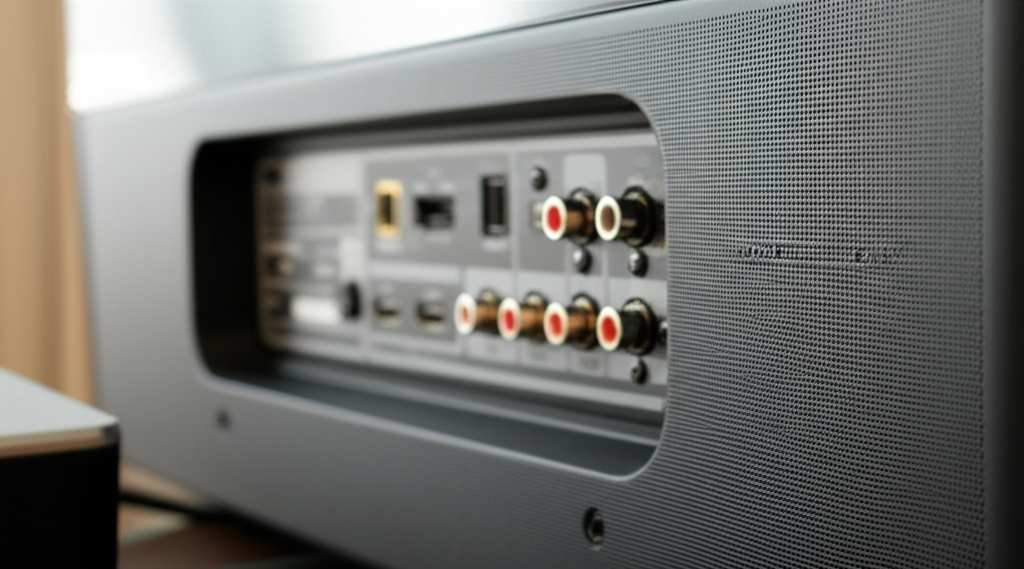
So, get ready to boost your movie nights and game days. Let’s dive in and unlock that awesome sound!
Why Bluetooth is Your New Best Friend for TV Sound
You might be wondering, “Why Bluetooth? Isn’t there a wire for this?” And you’d be right, there often is! But Bluetooth offers this magical thing called freedom. Think about it: no more tripping over cables that snake across your living room floor. Plus, it’s super convenient. You can place your Bose speaker just about anywhere you want for the best sound experience.
It’s all about making your home entertainment more immersive and, honestly, just more enjoyable. Imagine the rich bass of a movie soundtrack filling your room, or crystal-clear dialogue that you don’t have to strain to hear. That’s the power of a good speaker, and Bluetooth is the easy way to get it connected. It’s like upgrading from a basic radio to a surround-sound system, but with way less hassle.
Let’s Talk About Your Bose Speaker
Bose speakers are famous for their incredible sound quality. They pack a punch, delivering clear highs and deep lows that really bring your audio to life. Whether you have a portable Bose SoundLink or a more robust home speaker, the goal is the same: fantastic sound.
But to get that sound connected to your TV, we need to use its smarts. Most modern Bose speakers have Bluetooth built right in. This is the magic wand that lets them talk wirelessly to other devices, including your TV. It’s a bit like how your phone connects to your earbuds without any wires. Pretty neat, huh?
Does Your TV Speak Bluetooth?
This is a super important first step. Not all TVs have Bluetooth capabilities built-in. It’s like trying to have a conversation with someone who doesn’t speak your language – it just won’t work! Most newer smart TVs do have Bluetooth, but older or simpler models might not.
How do you check? It’s usually in the TV’s settings menu. Look for options like “Sound,” “Audio,” “Network,” or “Connections.” If you see a “Bluetooth” option there, you’re golden! If you can’t find it, don’t panic. There are still ways to get your Bose speaker connected, and we’ll cover those too.
Here’s a quick way to check your TV’s manual or search online for your specific TV model to see if it supports Bluetooth audio output.
Step-by-Step: Connecting Your Bose Speaker to Your TV via Bluetooth
Alright, let’s get down to business! This is where the magic happens. We’ll break it down into simple, easy-to-follow steps.
Step 1: Power Up and Prepare Your Bose Speaker
First things first, make sure your Bose speaker is charged up or plugged in. You don’t want the music to stop halfway through your favorite show!
Next, you need to put your Bose speaker into pairing mode. This is how it tells other devices, like your TV, “Hey, I’m available! Come connect to me!” The way you do this can vary a little depending on your specific Bose model.
Look for a dedicated Bluetooth button on your speaker. It often looks like a little Bluetooth symbol. You usually need to press and hold this button for a few seconds. Some models might have you press the power button in a specific way.
You’ll typically hear a little chime or a voice prompt saying it’s in pairing mode, and a light on the speaker might start blinking, usually blue. This blinking light is your signal that it’s ready to be found!
Step 2: Access Your TV’s Bluetooth Settings
Now, let’s switch gears to your TV. You need to tell your TV to look for Bluetooth devices.
Head over to your TV’s settings menu. This is usually accessed by pressing a “Settings” or “Menu” button on your remote control.
Once you’re in the settings, navigate to the audio or sound options. Look for anything related to Bluetooth or wireless audio.
The exact wording can differ between TV brands. You might see options like:
- Bluetooth Audio
- Sound Output
- Wireless Speaker Manager
- Device Connection
Step 3: Scan for Devices on Your TV
In your TV’s Bluetooth settings, you should find an option to “Scan,” “Search,” or “Add Device.” Select this option.
Your TV will now start looking for any nearby Bluetooth devices that are in pairing mode. This might take a few moments.
Keep your Bose speaker close to the TV during this step to ensure a good connection.
Step 4: Select Your Bose Speaker from the List
If everything is going according to plan, your Bose speaker should appear in the list of available devices on your TV screen. It will likely be listed by its model name (e.g., “Bose SoundLink Mini,” “Bose Home Speaker 500”).
Find your Bose speaker’s name in the list and select it using your TV remote.
Step 5: Confirm Pairing
Your TV will now attempt to connect to your Bose speaker. You might see a message like “Connecting…” or “Pairing…” on your TV screen.
In some cases, you might need to confirm the pairing. Your TV might ask, “Do you want to pair with this device?” Just select “Yes” or “Pair.”
Once successfully connected, you should hear a confirmation sound from your Bose speaker, and the blinking light should turn solid, indicating a stable connection. Your TV might also show a message confirming that the speaker is connected.
And voilà! You’ve just connected your Bose speaker to your TV via Bluetooth. Now, try playing something on your TV. You should hear the sound coming from your Bose speaker!
What If My TV Doesn’t Have Bluetooth? No Problem!
So, your TV didn’t have that handy Bluetooth option. Don’t throw in the towel just yet! There’s a clever workaround that still gets you wireless audio bliss. The solution? A Bluetooth transmitter.
Think of a Bluetooth transmitter as a translator. It takes the audio signal from your TV (usually through an audio port) and broadcasts it wirelessly via Bluetooth. You then pair your Bose speaker to this transmitter, just like you would with a phone.
How to Use a Bluetooth Transmitter
1. Get a Bluetooth Transmitter: You can find these online or at electronics stores. Make sure it supports audio input (like optical, RCA, or 3.5mm aux) and Bluetooth output.
2. Connect the Transmitter to Your TV: Plug the transmitter into your TV’s audio output port. Common ports are the headphone jack (3.5mm aux), RCA (red and white ports), or optical audio out.
3. Power the Transmitter: Most transmitters need to be powered, usually via a USB cable.
4. Put the Transmitter in Pairing Mode: Just like your speaker, the transmitter has a pairing button you’ll need to press and hold.
5. Pair Your Bose Speaker: Put your Bose speaker in its own Bluetooth pairing mode.
6. Connect: Your speaker should then connect to the transmitter.
This method works like a charm for older TVs or any device that lacks built-in Bluetooth. It’s a fantastic way to upgrade your sound system without replacing your TV.
Common Issues and Quick Fixes
Sometimes, tech doesn’t play nice right away. It happens! Here are a few common hiccups and how to fix them:
Speaker Not Appearing in TV List:
Make sure it’s in pairing mode: Double-check that the Bluetooth light is blinking on your Bose speaker.
Keep them close: Move the speaker and TV closer together.
Restart both devices: Turn off your speaker and TV, then turn them back on. Try pairing again.
Forget other devices: If your speaker is already connected to your phone or tablet, it might not be available for the TV. Disconnect it from other devices first.
Connection Drops or Audio Stutters:
Check for interference: Other wireless devices (microwaves, Wi-Fi routers) can interfere. Try moving them away.
Reduce distance: The further apart the devices, the weaker the signal. Bring them closer.
Update firmware: Sometimes, a speaker or TV update can fix connectivity issues. Check the Bose app or your TV’s settings for updates.
No Sound After Connecting:
Check TV Audio Output Settings: Ensure your TV is set to send audio to the Bluetooth device. Sometimes, it defaults back to TV speakers.
Check Speaker Volume: Make sure the volume on your Bose speaker isn’t turned all the way down!
Check TV Volume: Ensure your TV volume is up.
Remember, a little patience goes a long way with tech. Most issues can be resolved with a simple restart or a quick check of the settings.
Fun Fact: The Science Behind Bluetooth
Did you know Bluetooth is named after a Viking king? Yes, King Harald Bluetooth united the Danish tribes back in the 10th century. The technology was named this because it was meant to unite different communication protocols. Pretty cool, right? It’s a testament to how something as technical as wireless communication can have such a historical and interesting origin!
Bose Speaker Bluetooth Features: What to Look For
When you’re choosing a Bose speaker, or just getting to know yours better, understanding its Bluetooth features can make a big difference. Here are a few things that are good to know:
Bluetooth Version Matters
Different versions of Bluetooth offer different benefits. Newer versions are generally faster, more stable, and more energy-efficient.
| Bluetooth Version | Release Year | Key Features |
| :—————- | :———– | :———————————————- |
| Bluetooth 4.0 | 2009 | Low Energy (BLE), improved range |
| Bluetooth 4.2 | 2014 | Faster speeds, better privacy and security |
| Bluetooth 5.0 | 2016 | 2x faster, 4x longer range, 8x more data broadcast |
| Bluetooth 5.2 | 2020 | Enhanced audio quality (LE Audio), better power |
While you might not need the absolute latest version for TV audio, a speaker with Bluetooth 4.0 or newer will generally provide a smooth experience. Higher versions like 5.0 and 5.2 offer even more reliability and potential for better sound quality over Bluetooth.
Multi-Point Connectivity
Some Bose speakers can connect to two devices at once. This is called multi-point connectivity. For example, you could have your speaker connected to your TV and your phone simultaneously. If a call comes in on your phone, the speaker might switch to that audio. For TV use, it means you don’t have to re-pair every time you want to switch from your phone.
Bose Connect App
Many Bose speakers work with the Bose Connect app. This app is super handy! It lets you manage Bluetooth connections, update speaker software, and sometimes even adjust sound settings.
If you haven’t already, download the Bose Connect app from your phone’s app store. It can make managing your speaker’s connections a breeze.
Enhancing Your TV Viewing Experience
Connecting your Bose speaker isn’t just about hearing the sound; it’s about transforming your entire viewing experience.
Imagine watching a nature documentary where you can hear the rustle of leaves and the distant calls of animals with incredible clarity. Or perhaps a thrilling sports match where the roar of the crowd makes you feel like you’re in the stadium. That’s the kind of immersion a good speaker provides.
Here are some tips to make the most of your setup:
Speaker Placement: Don’t just plop the speaker anywhere. Try placing it in front of your TV, centered, or slightly to the side. Experiment to see what sounds best in your room. Avoid corners if you want to reduce boominess.
Adjust EQ Settings: If your Bose speaker or TV has equalizer (EQ) settings, play around with them. You can boost bass for action movies or emphasize dialogue for dramas.
Consider Surround Sound (Advanced): Some Bose systems can be expanded with additional speakers for a true surround-sound experience. While this goes beyond basic Bluetooth, it’s something to explore if you get hooked on great audio!
Protecting Your Investment: Bose Speaker Care
To keep your Bose speaker sounding its best for years to come, a little care goes a long way.
Keep it Clean: Dust your speaker regularly with a soft, dry cloth. Avoid harsh chemicals or abrasive cleaners.
Avoid Extreme Temperatures: Don’t leave your speaker in a hot car or direct sunlight for extended periods, as this can damage the battery and electronics.
Update Software: As mentioned, use the Bose Connect app to keep your speaker’s firmware up-to-date. Updates often include performance improvements and bug fixes.
Handle with Care: If you have a portable speaker, use a protective case when traveling to prevent scratches and damage.
A well-cared-for speaker will continue to deliver amazing sound for many movie nights and listening sessions to come!
Quick Comparison: Bluetooth vs. Wired Connections
While we’re all about Bluetooth here, it’s good to know the other option.
| Feature | Bluetooth Connection | Wired Connection (e.g., HDMI ARC, Optical) |
| :————- | :————————————————- | :——————————————————- |
| Convenience| High – No cables, flexible placement | Low – Cables can be messy, placement is fixed |
| Setup | Simple pairing process | Plug and play, sometimes requires specific ports |
| Sound Quality| Very good, but can have slight compression | Excellent, generally lossless audio |
| Interference| Can be susceptible to wireless interference | Not susceptible to wireless interference |
| Compatibility| Requires both TV and speaker to have Bluetooth | Requires compatible ports (HDMI ARC, Optical, Aux) |
| Cost | No extra cost if both devices have Bluetooth | May require purchase of specific cables or adapters |
For most casual viewers, Bluetooth offers a fantastic balance of convenience and sound quality. Wired connections are often preferred by audiophiles or for home theater setups where absolute best fidelity is the top priority.
Frequently Asked Questions (FAQ)
Q1: Can I connect multiple Bose speakers to my TV at once via Bluetooth?
Generally, no. Most TVs can only connect to one Bluetooth audio output device at a time. If you want to play sound on multiple speakers, you’d typically need a system designed for multi-room audio or a specific soundbar setup.
Q2: Will connecting my Bose speaker drain my TV’s battery?
This is a great question, but TVs don’t typically run on batteries like a laptop or phone, so it won’t drain a “battery.” The TV uses its power supply to operate the Bluetooth transmitter. So, no worries there!
Q3: How far can my Bose speaker be from my TV via Bluetooth?
The effective range for Bluetooth is usually around 30 feet (about 9 meters). However, this can be affected by walls, furniture, and other electronic devices. For the most stable connection, try to keep your speaker within about 10-15 feet of your TV.
Q4: Do I need a special app to connect my Bose speaker to my TV?
No, you don’t need a special app to make the initial Bluetooth connection. You connect directly through your TV’s settings menu. The Bose Connect app is helpful for managing speaker settings and updates, but it’s not required for basic TV pairing.
Q5: What’s the difference between Bluetooth and Wi-Fi for speakers?
Bluetooth is great for short-range, direct connections between two devices, like your TV and speaker. Wi-Fi, on the other hand, connects to your home network and is used for streaming music directly from online services or controlling speakers from different rooms. For connecting your TV’s audio, Bluetooth is usually the way to go.
Q6: My Bose speaker is connected, but the sound is delayed (lip-sync issues). What can I do?
This is a common issue with Bluetooth audio. Some TVs have a “lip-sync adjustment” or “audio delay” setting that can help correct this. You might need to manually adjust the delay in your TV’s audio settings until the sound matches the video. A Bluetooth transmitter with aptX Low Latency support can also minimize this delay.
Ready to Enjoy Your Awesome New Sound!
See? Connecting your Bose speaker to your TV via Bluetooth is totally doable, and it’s a game-changer for your entertainment. You’ve learned how to pair it up, what to do if your TV doesn’t have Bluetooth, and how to troubleshoot common issues. You’re now equipped to enjoy richer sound, clearer dialogue, and a more immersive experience for all your favorite shows and movies.
Don’t be afraid to play around with the settings and find what sounds best for your room and your ears. Maybe you’ll even discover a new favorite way to enjoy music or podcasts through your TV.
Now go forth and amplify your world! Enjoy that incredible Bose sound and make every moment louder and better!

